
Open it anywhere
Use Axis on your Mac, Windows PC, iPhone and Android phone, and pick up the same chat on any of them. Start work with a keyboard shortcut at your desk, and your phone tells you the moment it needs you, with a Live Activity and Lock Screen widgets on iPhone.
- Where
- Settings → Devices and Settings → Shortcuts
- You'll need
- The Axis app on the device, or any web browser
- Works on
- Web, Mac, Windows, iPhone, Android
What you’ll see
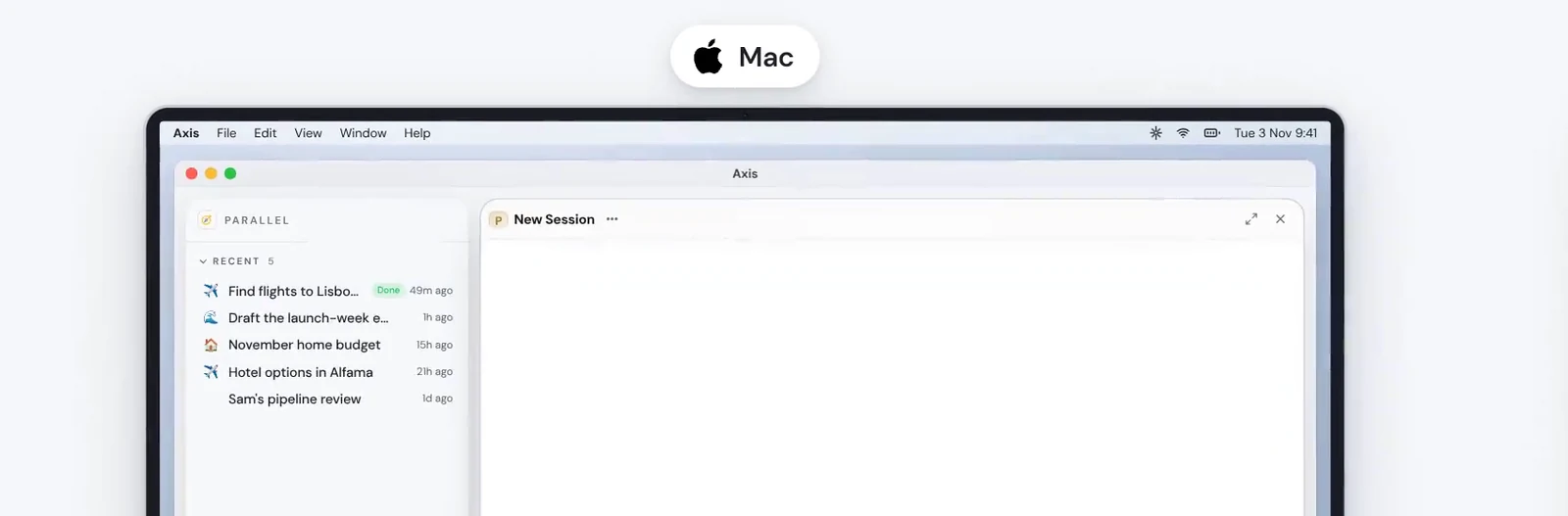
Section titled “What you’ll see”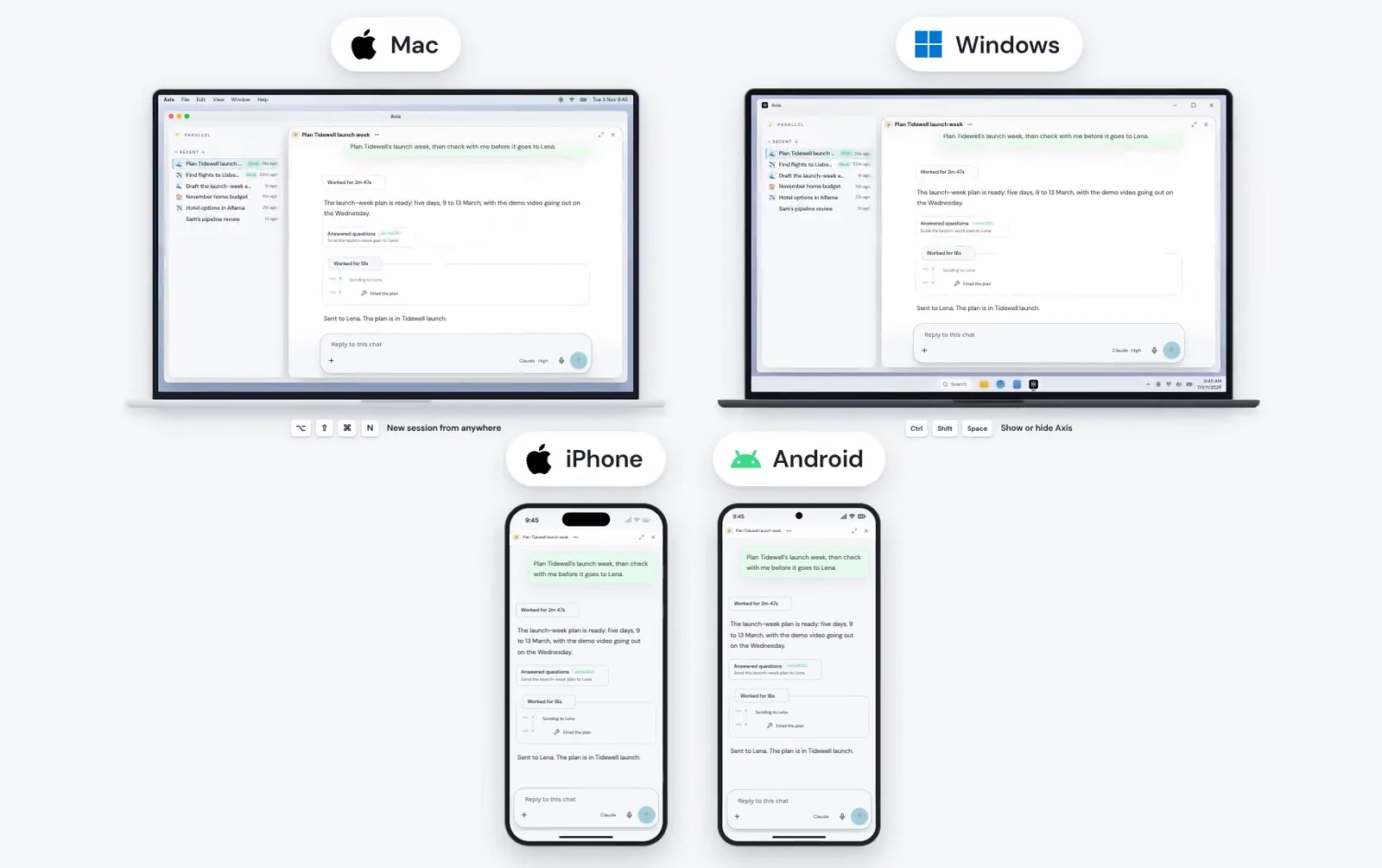 One chat, every deviceEvery device opens the same Axis, so a chat you start on one is there on all the others, up to date.Any device signed in to your Axis
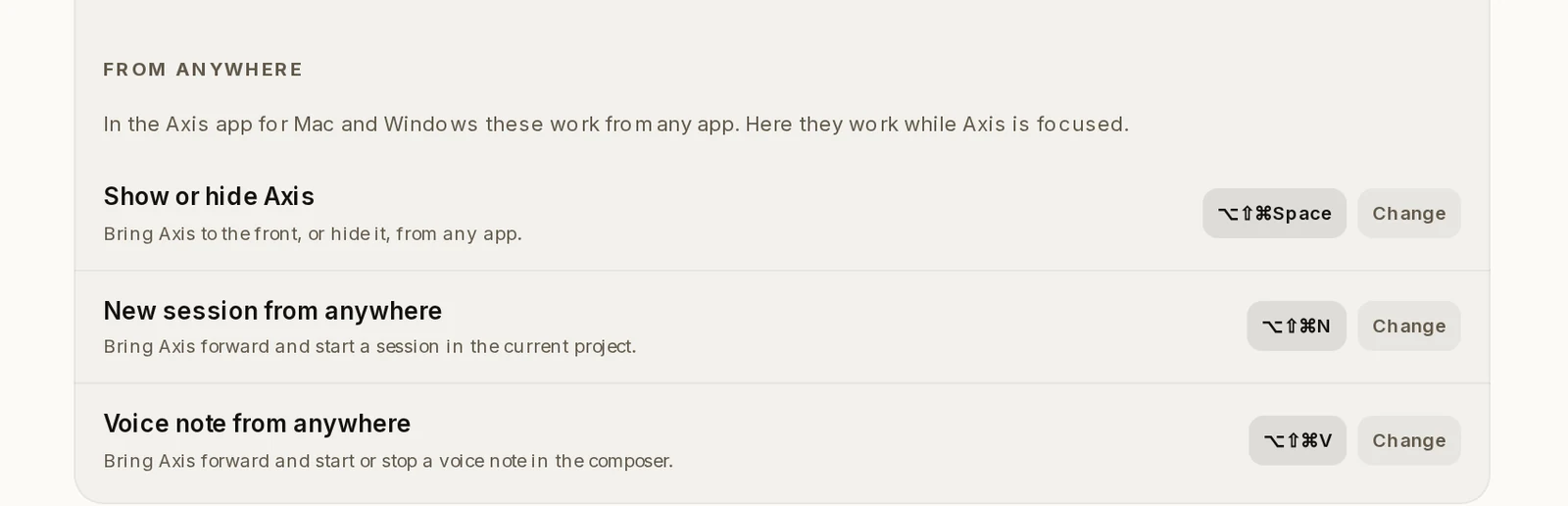 Shortcuts on a MacThree shortcuts that work from any app when you use the Axis app. Click Change to pick your own keys.Settings → Shortcuts → From anywhere
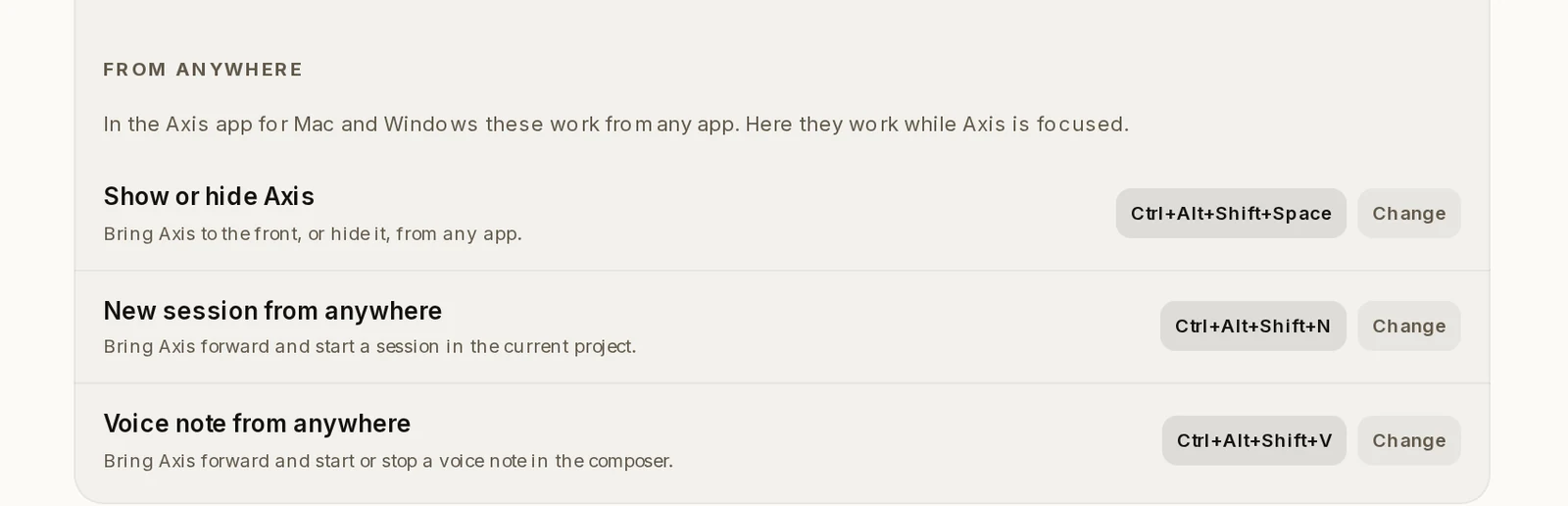 Shortcuts on WindowsThe same three shortcuts on a Windows PC. In a browser tab they work while Axis is the window in front.Settings → Shortcuts → From anywhere
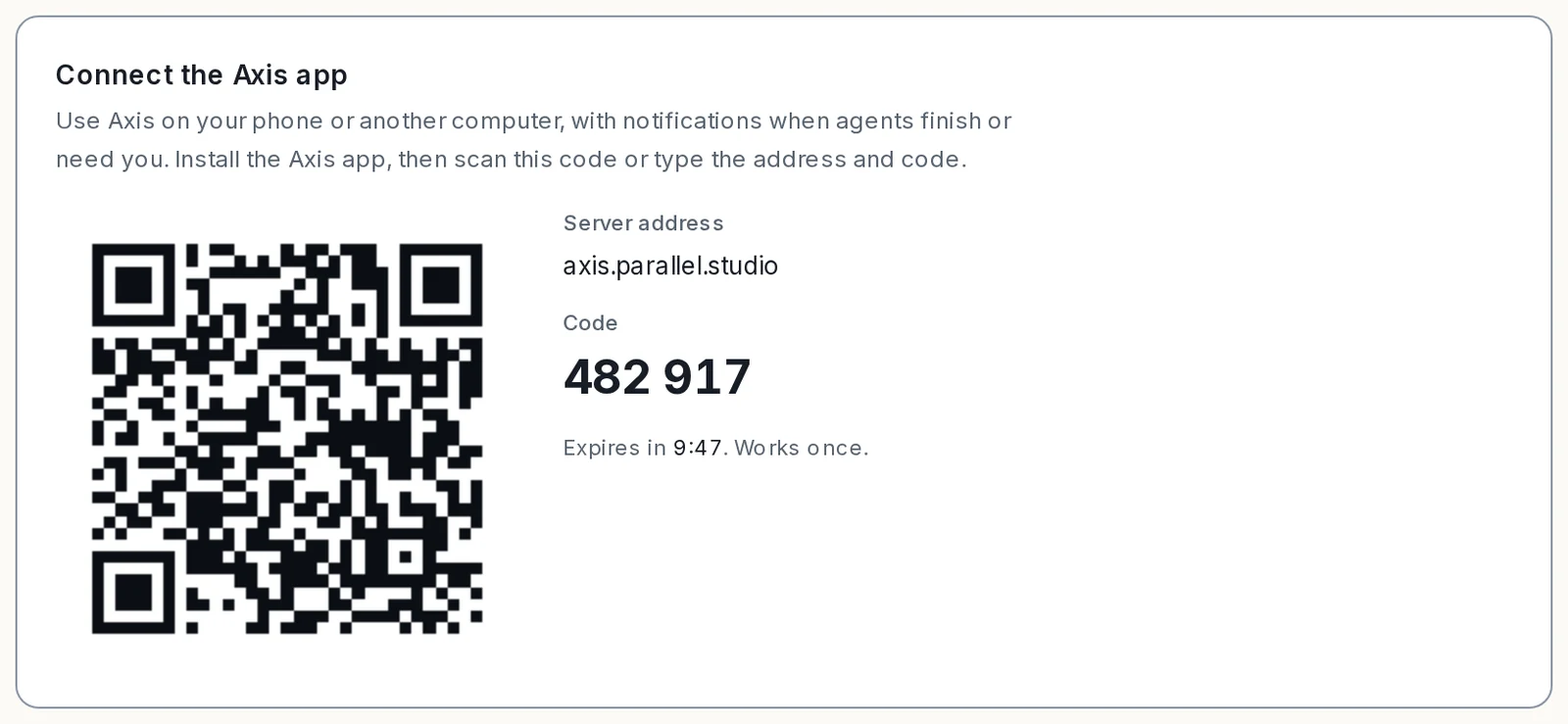 Connect the Axis appA code for adding a phone or another computer. Scan it with the Axis app, or type the address and the code. It works once.Settings → Devices
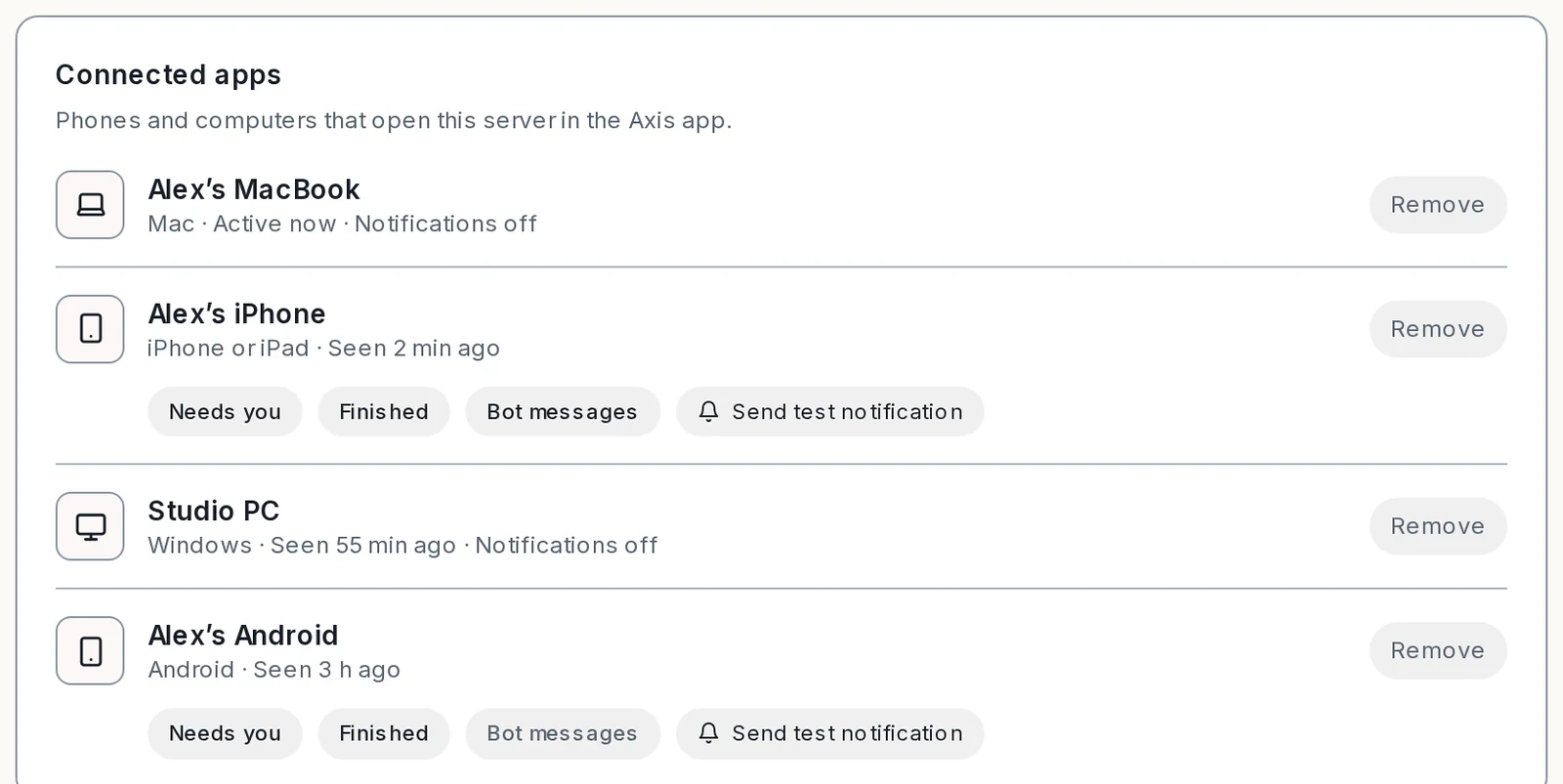 Connected appsEvery phone and computer that opens your Axis in the app. Choose which notifications each phone gets, send a test, or remove a device.Settings → Devices
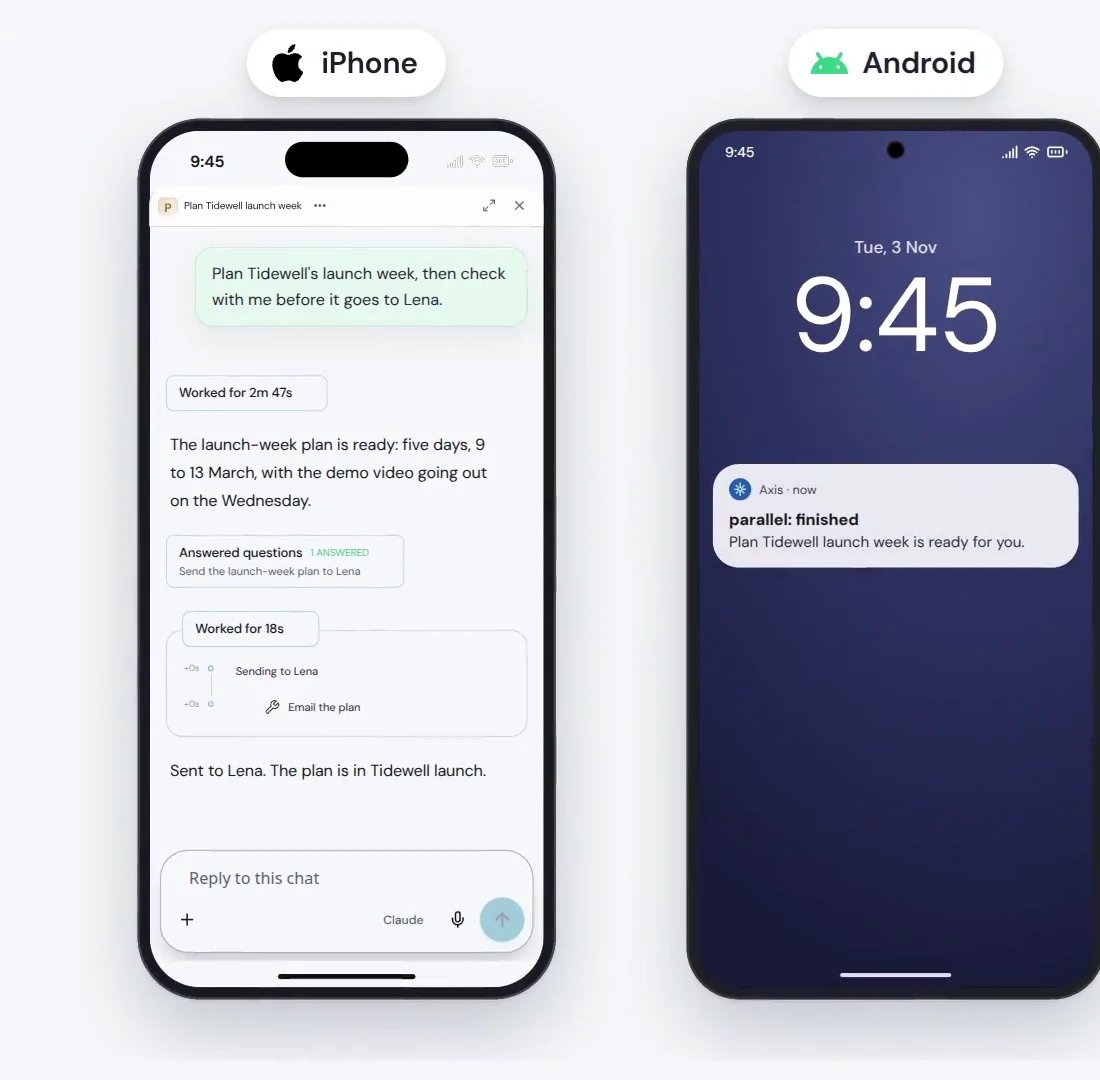
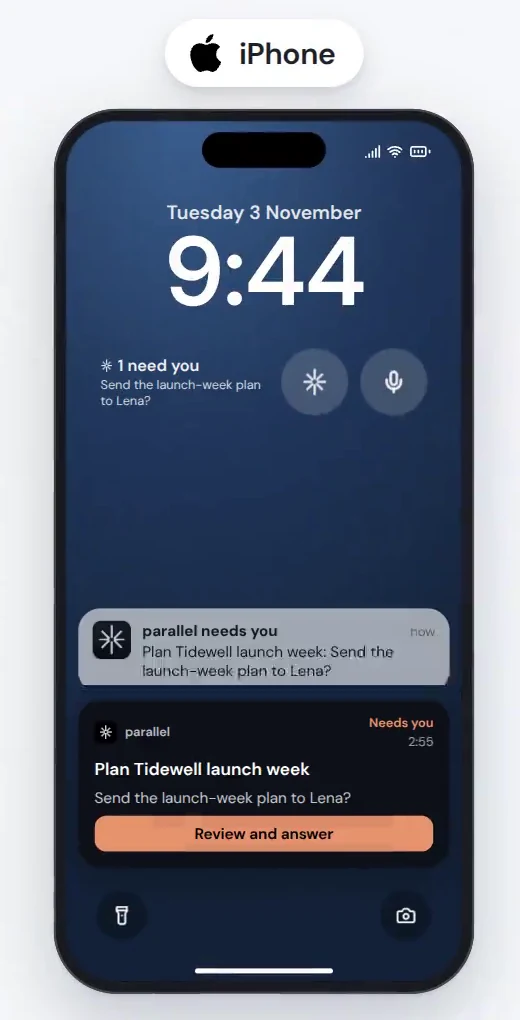 iPhone Lock ScreenOn iPhone, a Live Activity follows the chat while it works. When it needs you, the question appears with Review and answer, and the Needs you widget counts what is waiting.iPhone only
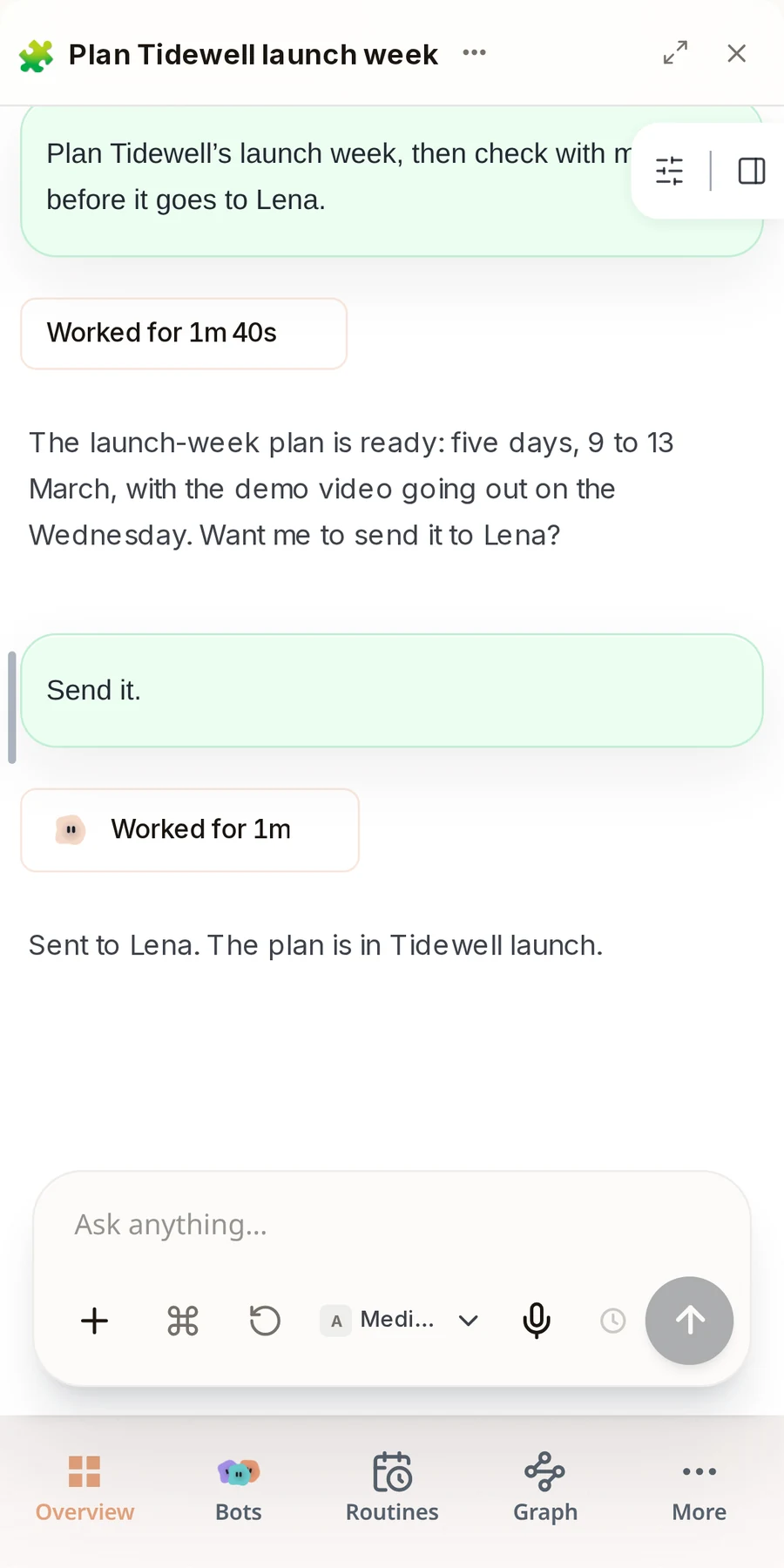 The chat on your phoneThe same chat, laid out for a small screen, with the message box at the bottom.Axis on a phone
How to do it
Section titled “How to do it”Step 1: Start a chat from your keyboard
At your desk, press ⌥⇧⌘N on a Mac or Ctrl+Alt+Shift+N on Windows. Axis comes forward with a new chat. Type what you need and send it.
⌥⇧⌘Space on a Mac or Ctrl+Alt+Shift+Space on Windows shows or hides Axis.
Step 2: Get a code for your other device
Open Settings, then Devices. Under Connect the Axis app, click Show connect code.
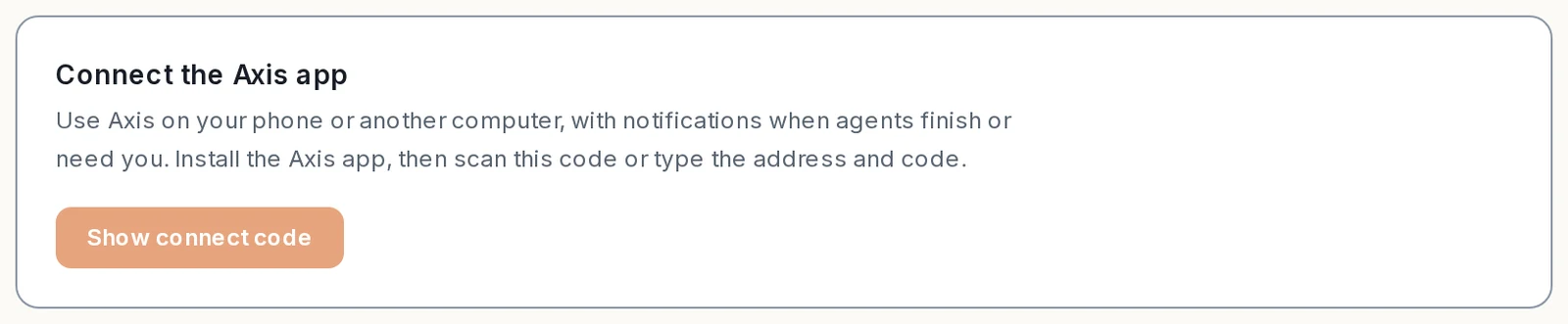
Step 3: Connect the device
Open the Axis app on your phone or other computer. Scan the code, or type the server address and the six-digit code. The device then shows up under Connected apps.
On Axis Cloud there is no code. In the Axis app, choose Sign in with your Axis account and pick your server.
Step 4: Pick up the same chat
Open Axis on the other device. Your chat is there, still working or finished, exactly as you left it.
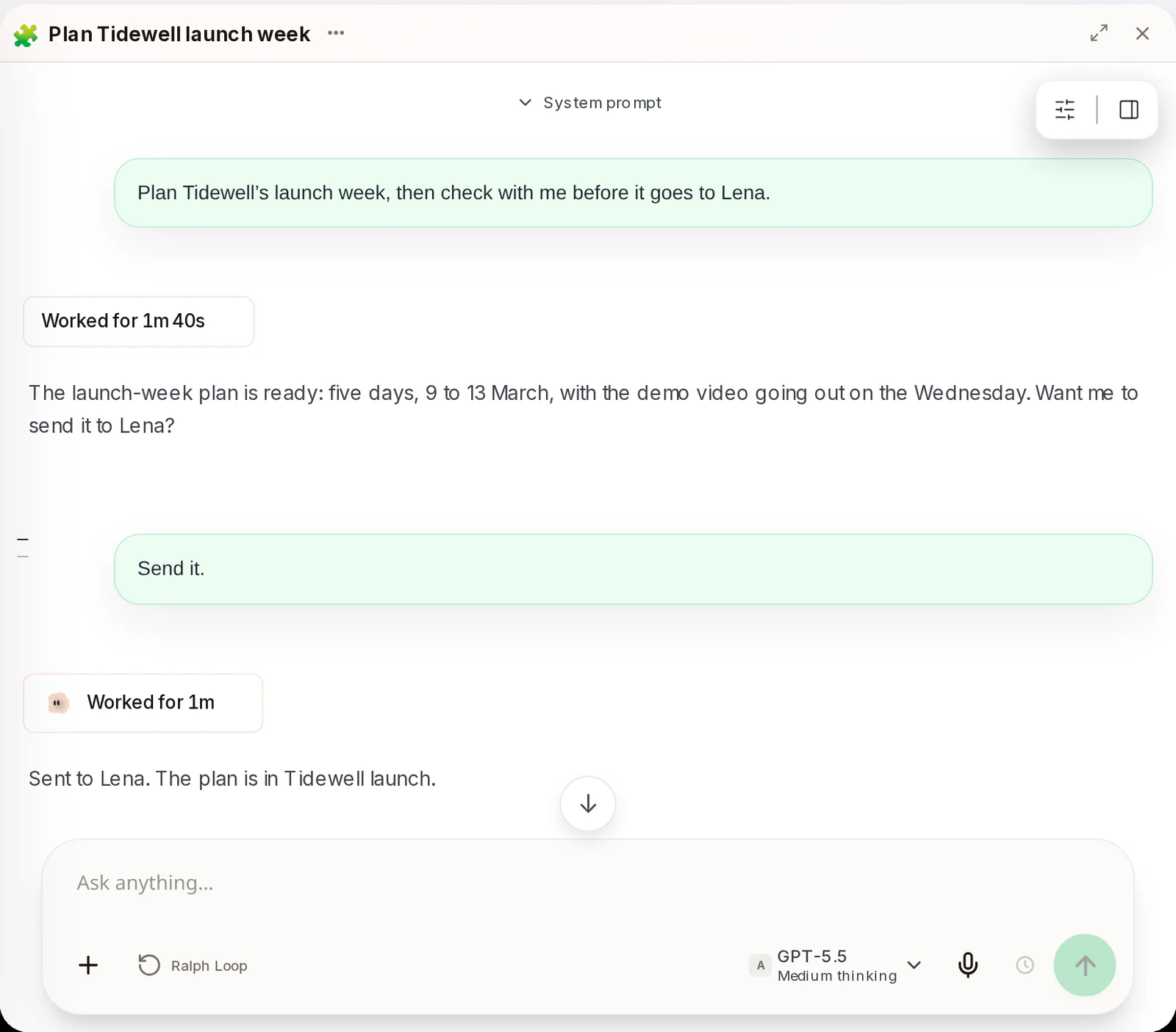
Step 5: Answer from your phone
When the chat needs you, your phone gets a notification with the question. Tap it, or tap Review and answer on iPhone, to open that chat and reply. You get another notification when the work is finished.
Step 6: Choose what each phone tells you
In Settings, then Devices, find the phone under Connected apps. Turn Needs you, Finished and Bot messages on or off. Click Send test notification to check it arrives.
- No app on a device? Open your Axis address in any web browser. The same chats are there.
- The Live Activity and the Lock Screen widgets are on iPhone only. Android gets the notifications.
- The download page on tryaxis.so shows which apps are available today.
- Lost a phone? Click Remove next to it under Connected apps.