
See how it all connects
Every Space, chat and Doc in your project sits on one living map. Open it and watch your work grow into place, then tug any part to see what hangs off it.
- Where
- Open a project → Graph
- You'll need
- A project with a few Spaces and chats
- Works on
- Web, Mac, Windows, iPhone, Android
What you’ll see
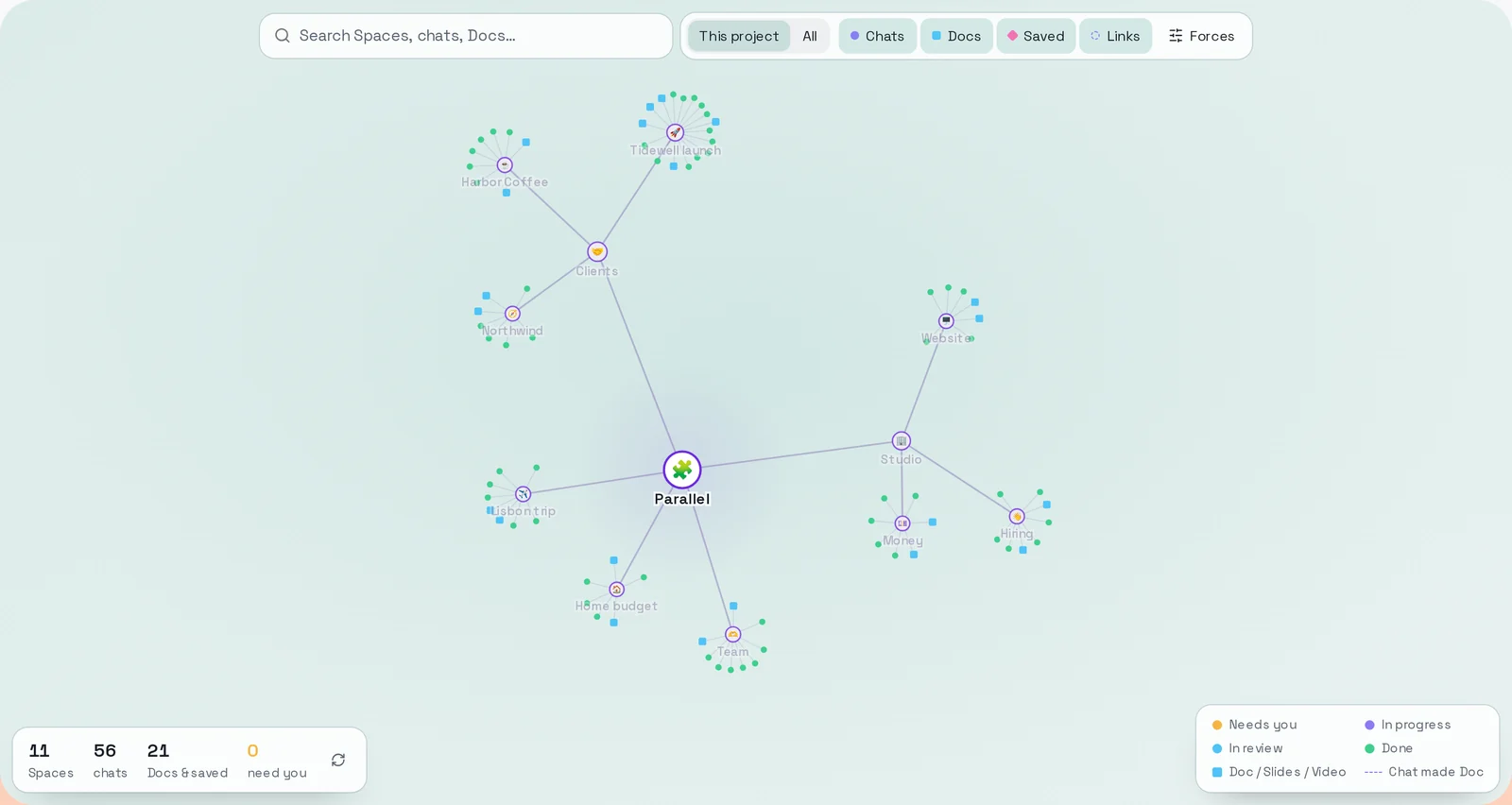
Section titled “What you’ll see”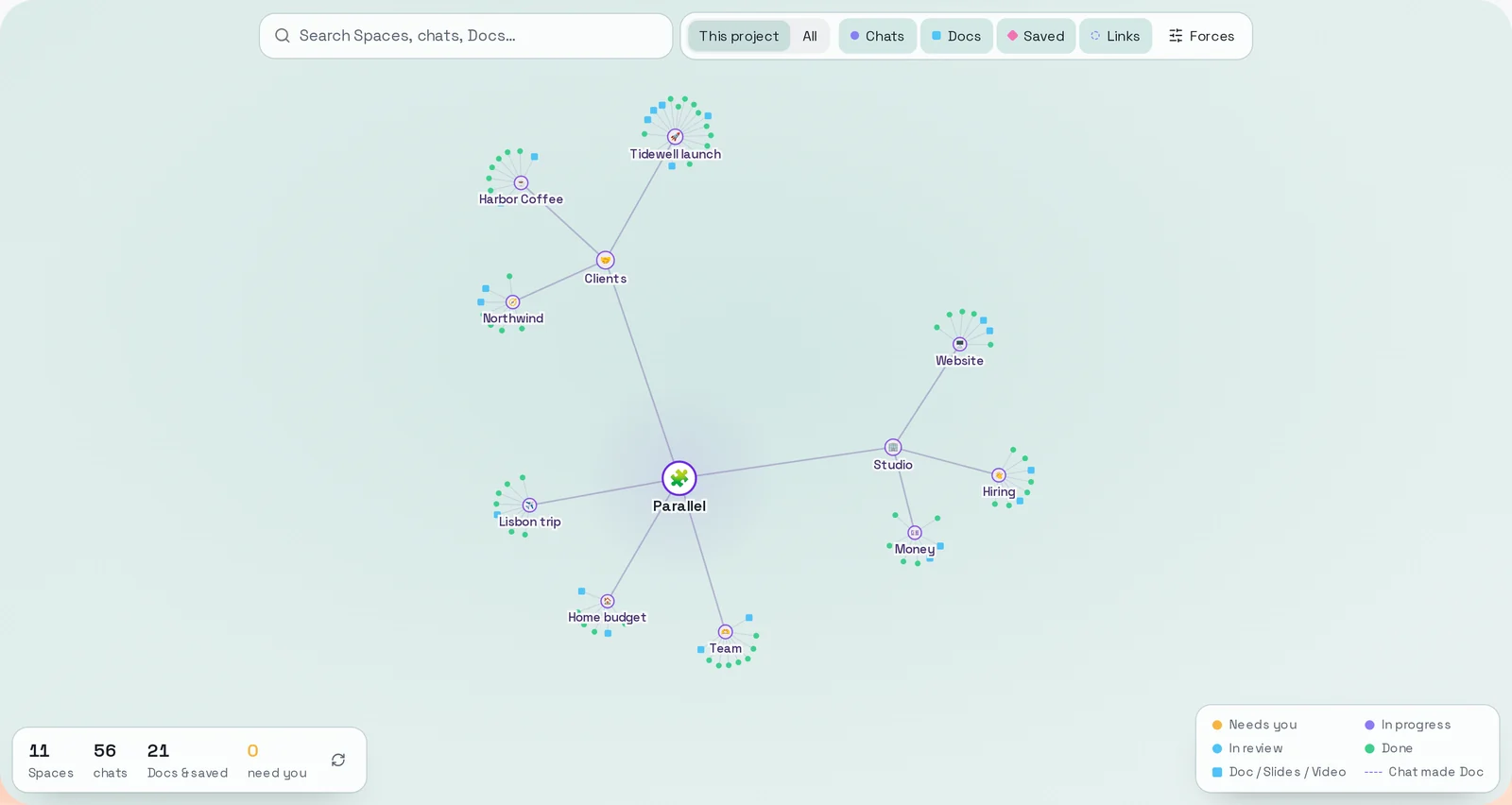 The mapYour project sits in the middle. Each Space branches off it, and every chat and Doc is a dot around its Space.Open a project → Graph
 Graph tabOpens the map for the project you are in.Project bar, at the top
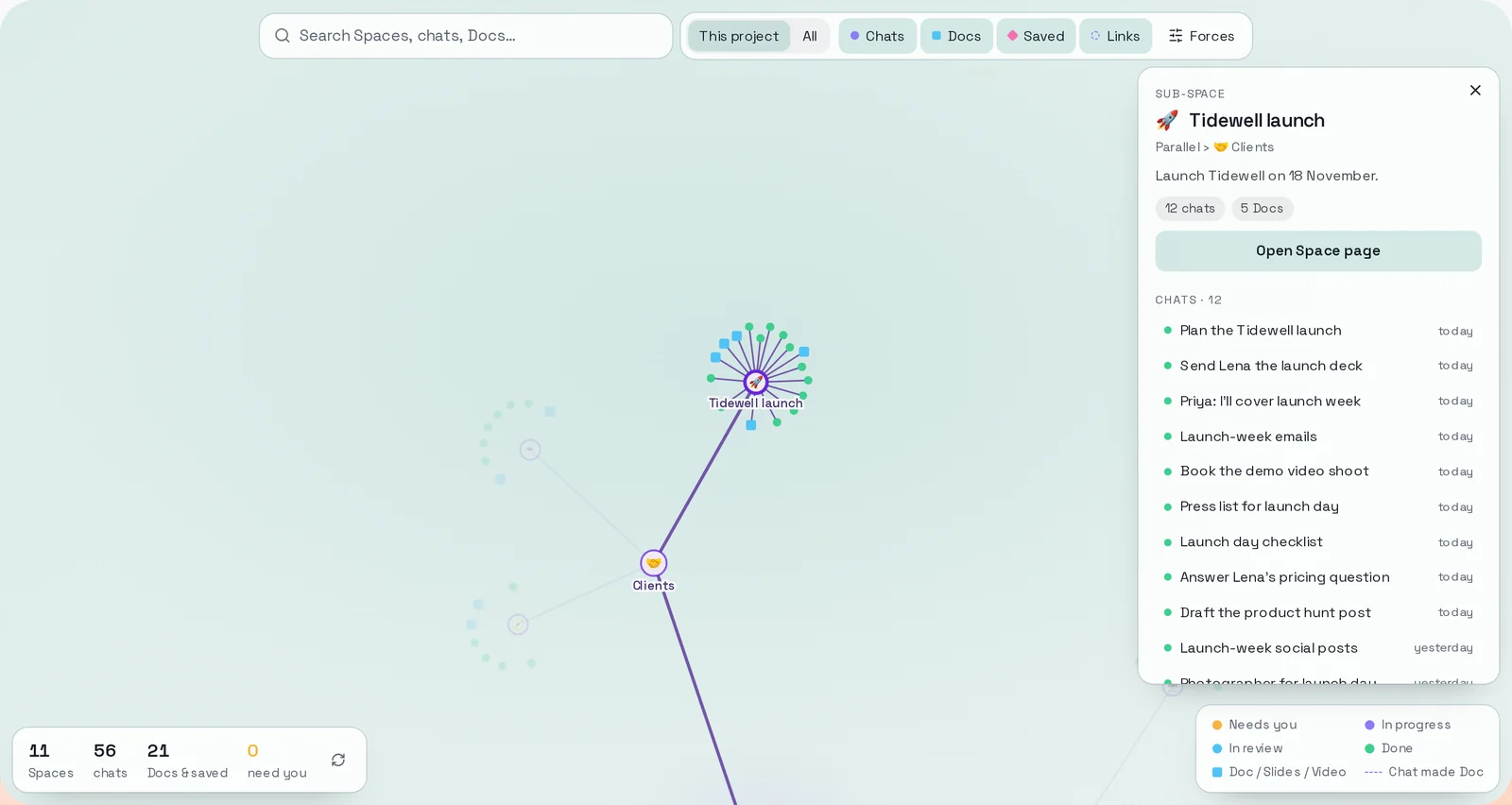
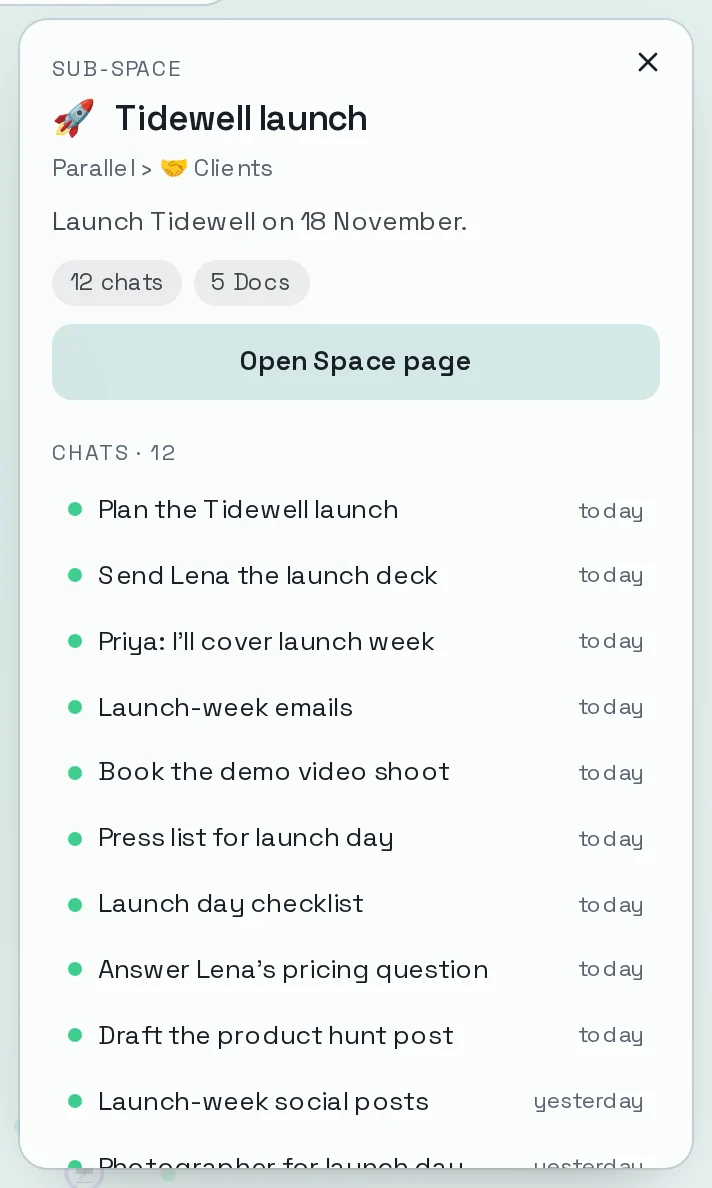 Details panelSays what the selected thing is and lists what hangs off it. One button opens it.Click any dot on the map
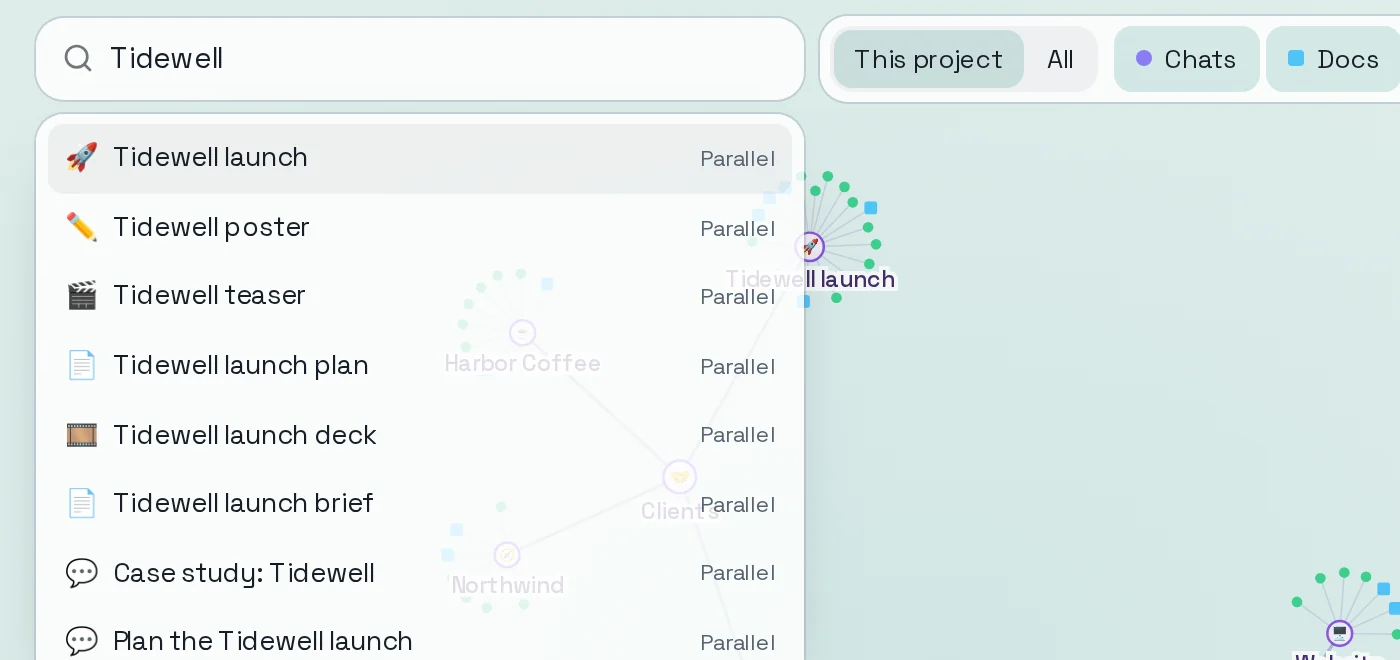 SearchFinds a Space, chat or Doc by name and flies the map to it.Top of the Graph
 FiltersHide or show chats, Docs, saved items and links. All shows every project on one map.Top of the Graph, beside Search
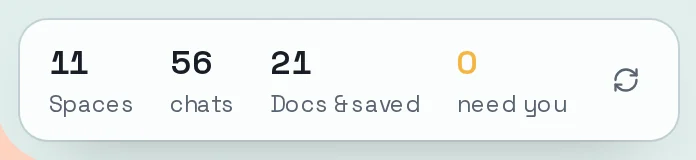 CountsHow much is on the map, and how many chats are waiting for you.Bottom left of the Graph
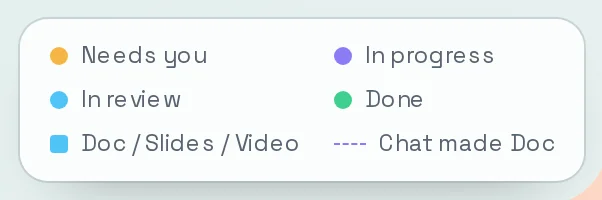 LegendWhat each dot colour means. Chats waiting for you are amber.Bottom right of the Graph
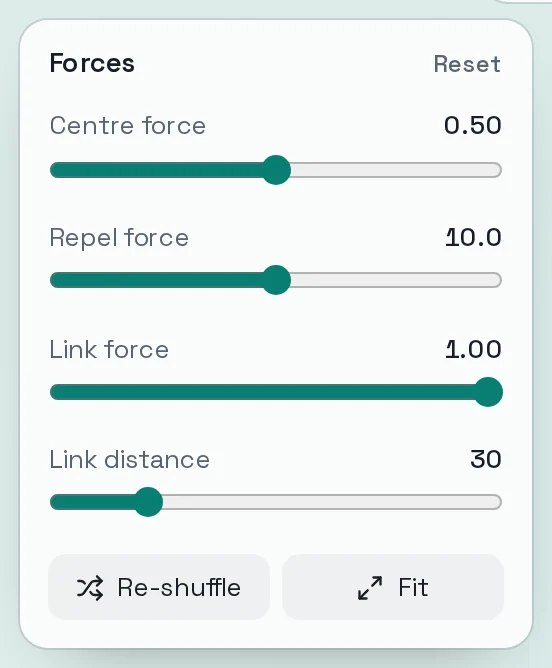 ForcesSliders for how tightly the map pulls together. Fit brings everything back into view.Graph → Forces
How to do it
Section titled “How to do it”Step 1: Open the Graph
Open a project and click Graph in the bar at the top.
Step 2: Watch it grow
The map grows out from your project. First the Spaces appear, then the chats and Docs inside each one spring into place.
Step 3: Move around and tug
Drag the background to move the map. Scroll or pinch to zoom in and out. Then press on any dot and drag it: everything linked to it swings along and settles back when you let go.
Tug a Space to see every chat and Doc filed in it move as one group.
Step 4: Click a dot to see what hangs off it
Click a Space. The rest of the map fades back, its links light up, and a panel lists its chats and Docs.
Step 5: Open it
In the panel, click Open Space page, or click any chat or Doc in the list to jump to it on the map. A selected chat has an Open chat button.
Step 6: Find something by name
Type in the search box at the top and pick a result. The map flies to it and opens its panel.
- Lost your place? Open Forces and click Fit to bring the whole map back into view.
- Click All to see every project on one map. This project brings you back.
- A dotted line means a chat made that Doc.
- The amber count at the bottom left is how many chats need you.