
It waits, then carries on
Ask Axis to carry on when someone replies to your email, when a helper finishes, or at a time you pick, and the chat waits for it. When that moment comes, the same chat wakes up on its own and picks the work back up.
- Where
- Any chat: say what to wait for
- You'll need
- A Gmail connection, if you want it to wait for an email reply
- Works on
- Web, Mac, Windows, iPhone, Android
What you’ll see
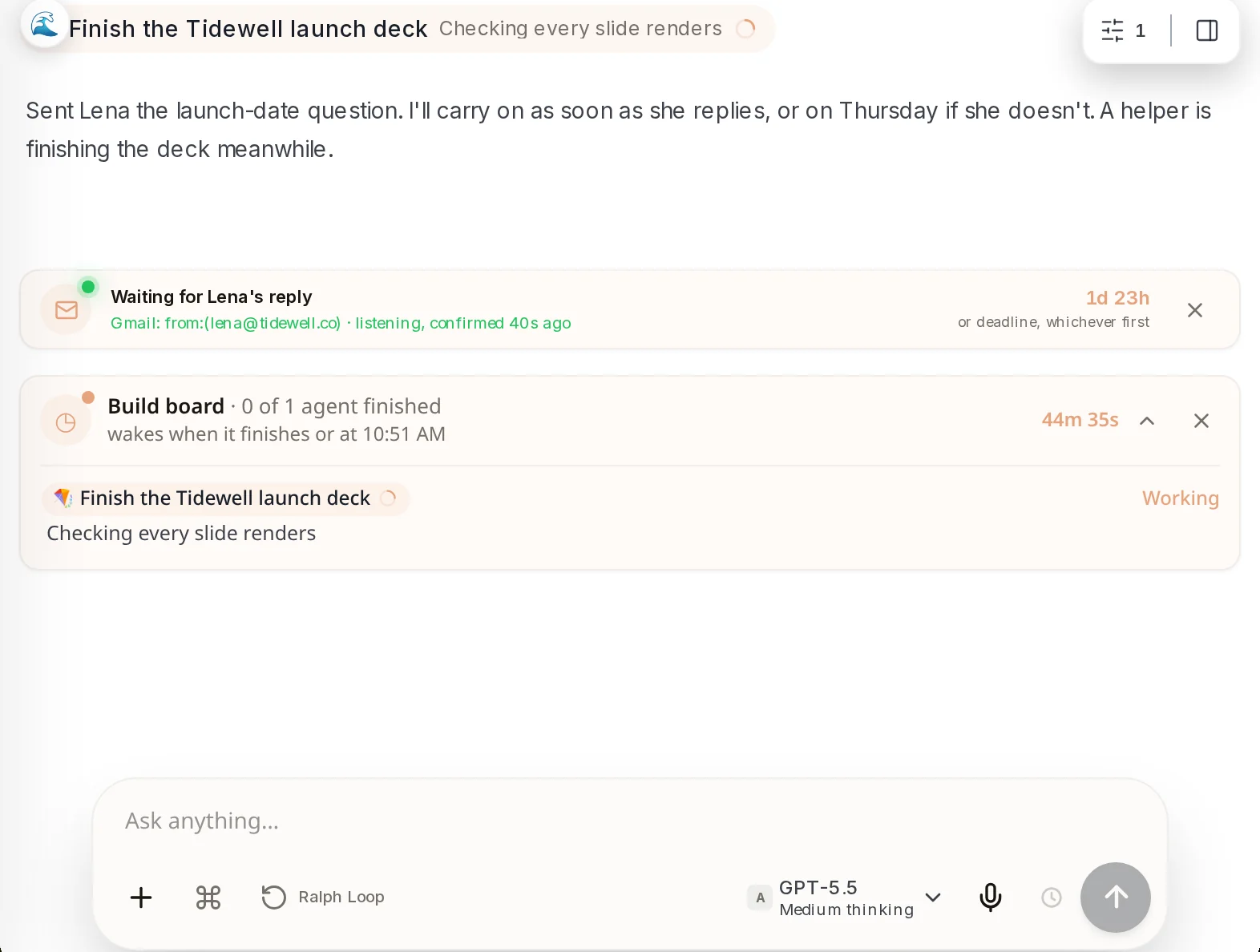
Section titled “What you’ll see” Waiting for a replyShows what the chat is waiting for, where it is listening, and the time left before it stops waiting and carries on anyway.In the chat, above the message box
 Build boardWhen the chat is waiting for a helper, this card shows the helper, what it is doing, and when the chat will wake.In the chat, above the message box
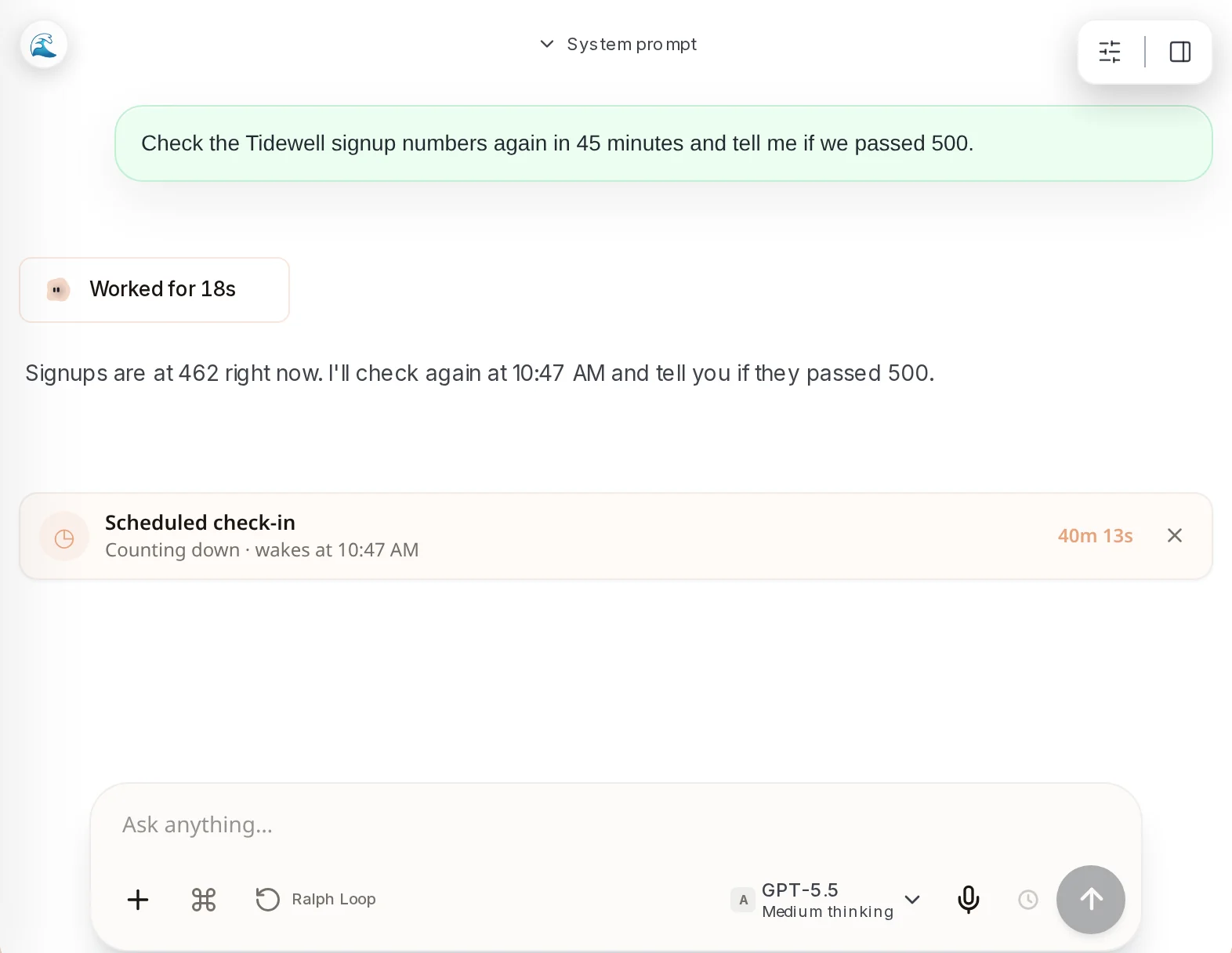
 Scheduled check-inAsk Axis to check again later and it sets a check-in. The card counts down and shows the time the chat will wake.In the chat, above the message box
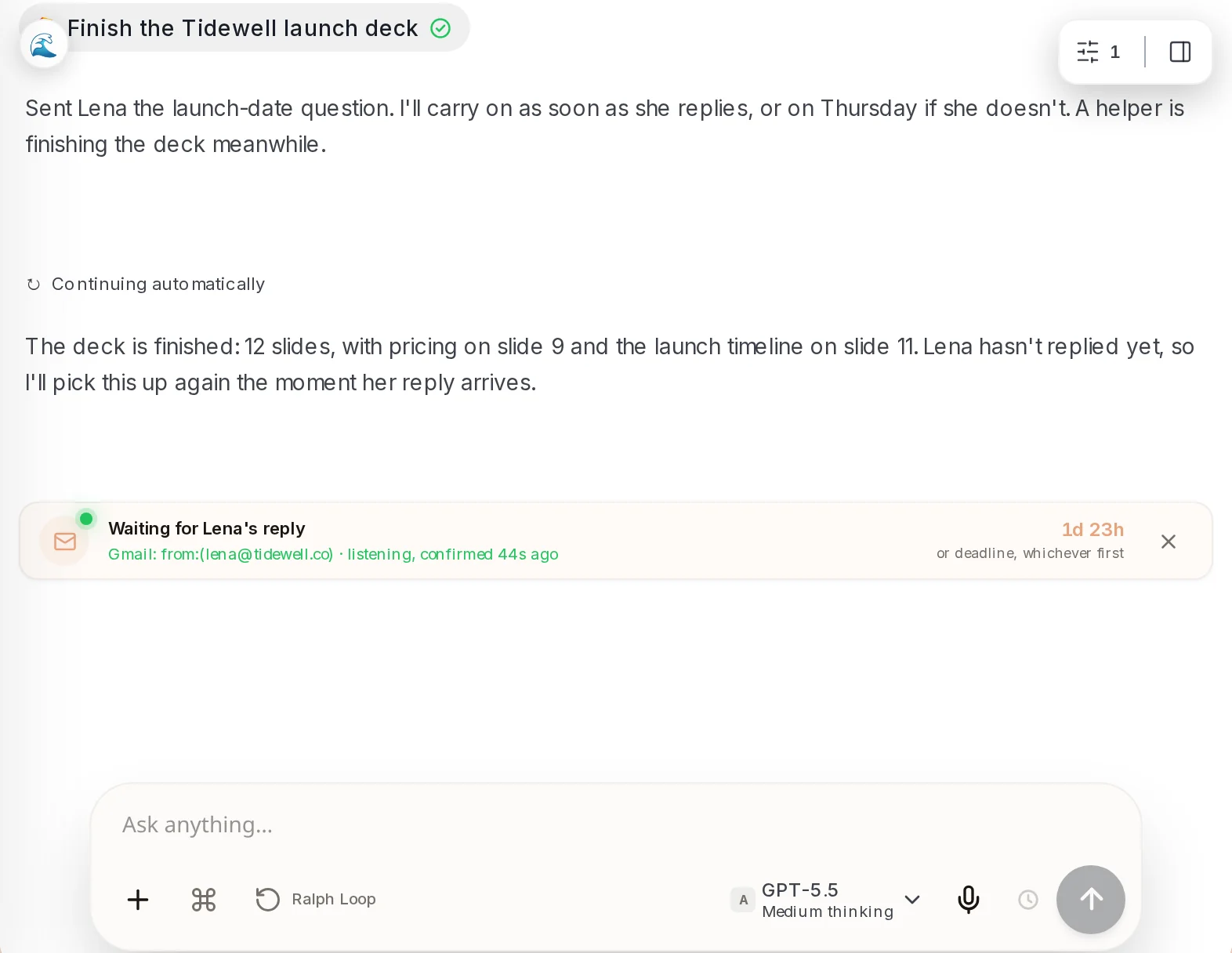
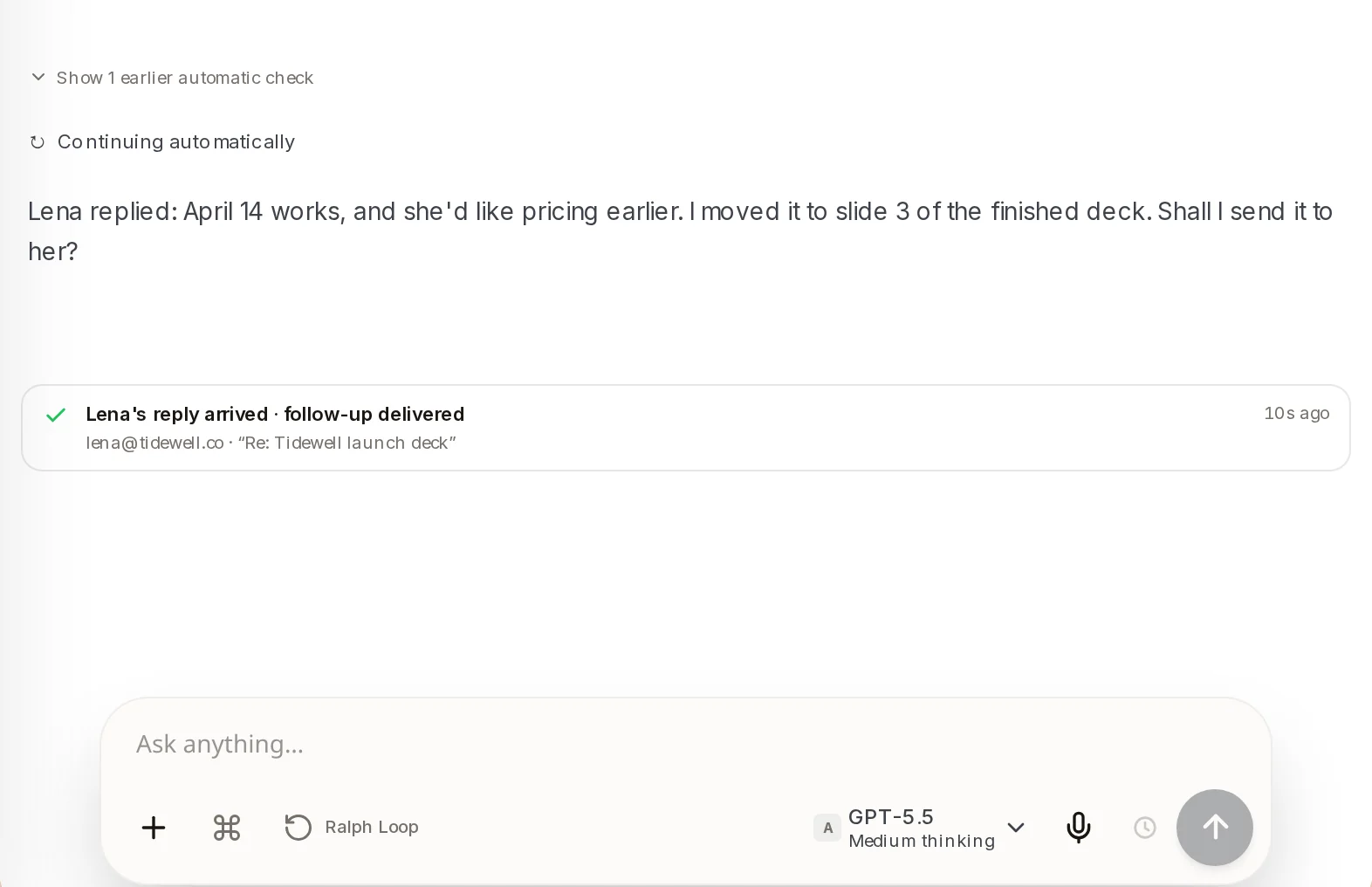
 Continuing automaticallyMarks the moment the chat woke up by itself. What follows is Axis carrying on, not something you typed.In the chat, at each wake-up
 Reply arrivedWhen the email lands, the waiting card turns into this receipt with who replied and the subject.In the chat, where the waiting card was
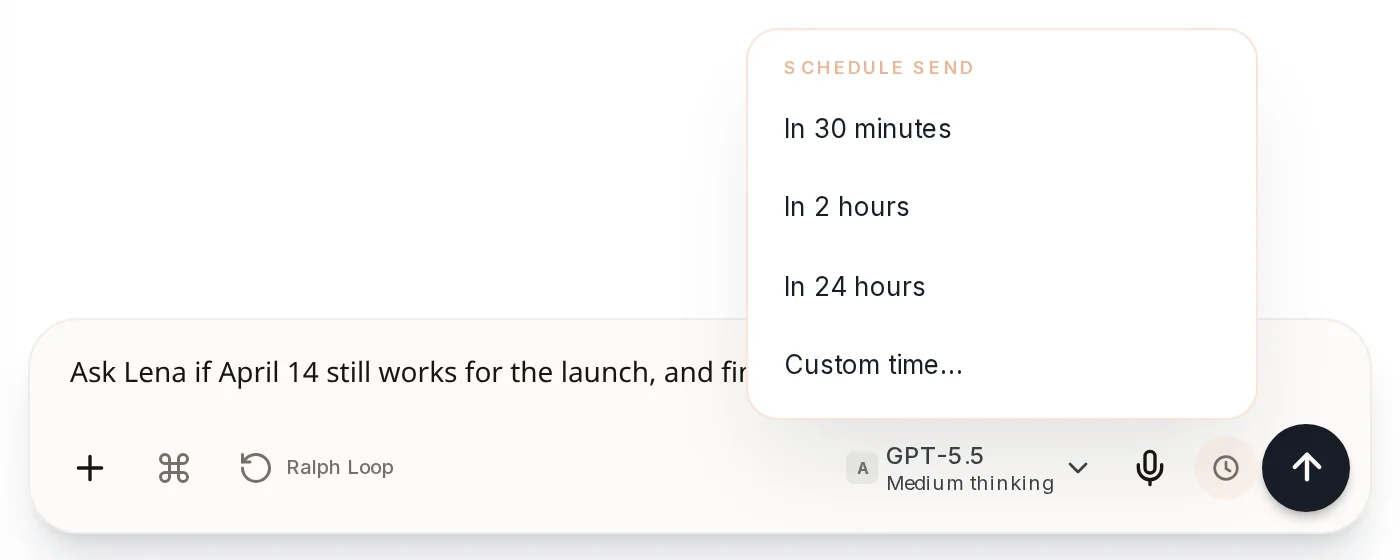 Schedule sendSends the message you typed at a time you pick, instead of now.The small clock next to the send arrow
How to do it
Section titled “How to do it”Step 1: Say what to wait for
Ask in plain words. For example: "Ask Lena if April 14 still works for the launch, and finish the deck while we wait."
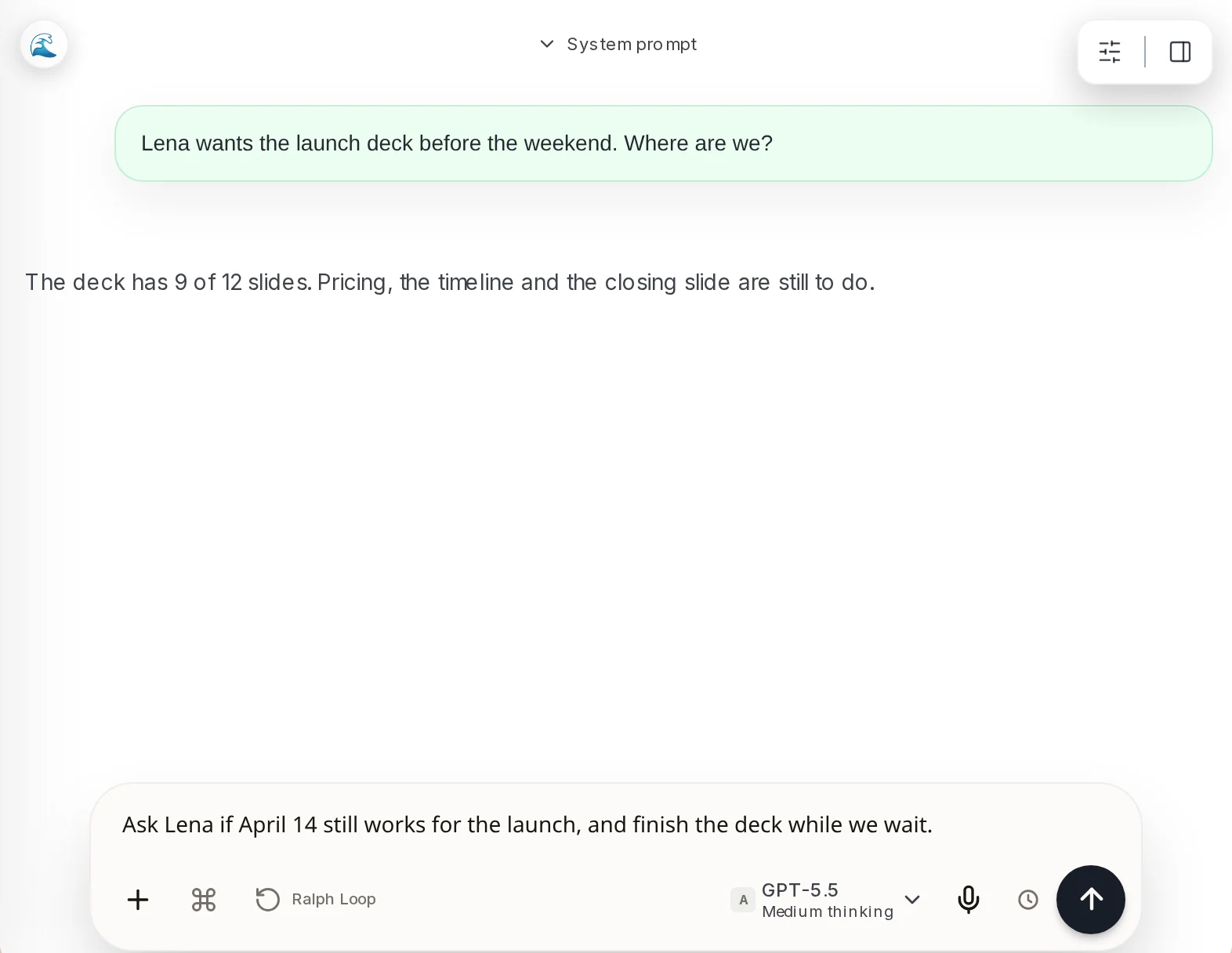
Waiting for an email needs Gmail connected first. See Bring the tools you already use.
Step 2: See what it is waiting for
Axis does what it can now, then sets its waits. Here there are two: a card that reads Waiting for Lena’s reply, and a Build board for the helper finishing the deck.
Step 3: Go and do something else
You can close the chat. When the helper finishes, the chat wakes up by itself. You will see Continuing automatically and where things stand.
Step 4: The reply arrives
When Lena answers, the same chat wakes again, reads her email and carries on. The waiting card becomes a receipt: Lena’s reply arrived · follow-up delivered.
A chat that wakes itself still asks you before it sends an email, signs or pays for anything.
Step 5: Or wait for a time
Ask "Check the signup numbers again in 45 minutes." Axis sets a Scheduled check-in and the chat wakes at that time. To send a message later instead, type it, click the small clock next to the send arrow and pick a time.
- Every wait on a reply has a deadline, so a chat never waits forever. If nobody answers, it wakes at the deadline and tells you.
- Click the X on a waiting card or a check-in to cancel it.
- For work that repeats every day or every week, a Routine is the better fit.