
Ask your bot to run things
Ask your project's bot where things stand and it answers with the latest, linking the work. Ask for a brief every morning or five new bots, and it sets them up for you.
- Where
- Home → Bots → the bot with your project's name
- You'll need
- A project
- Works on
- Web, Mac, Windows, iPhone, Android
What you’ll see
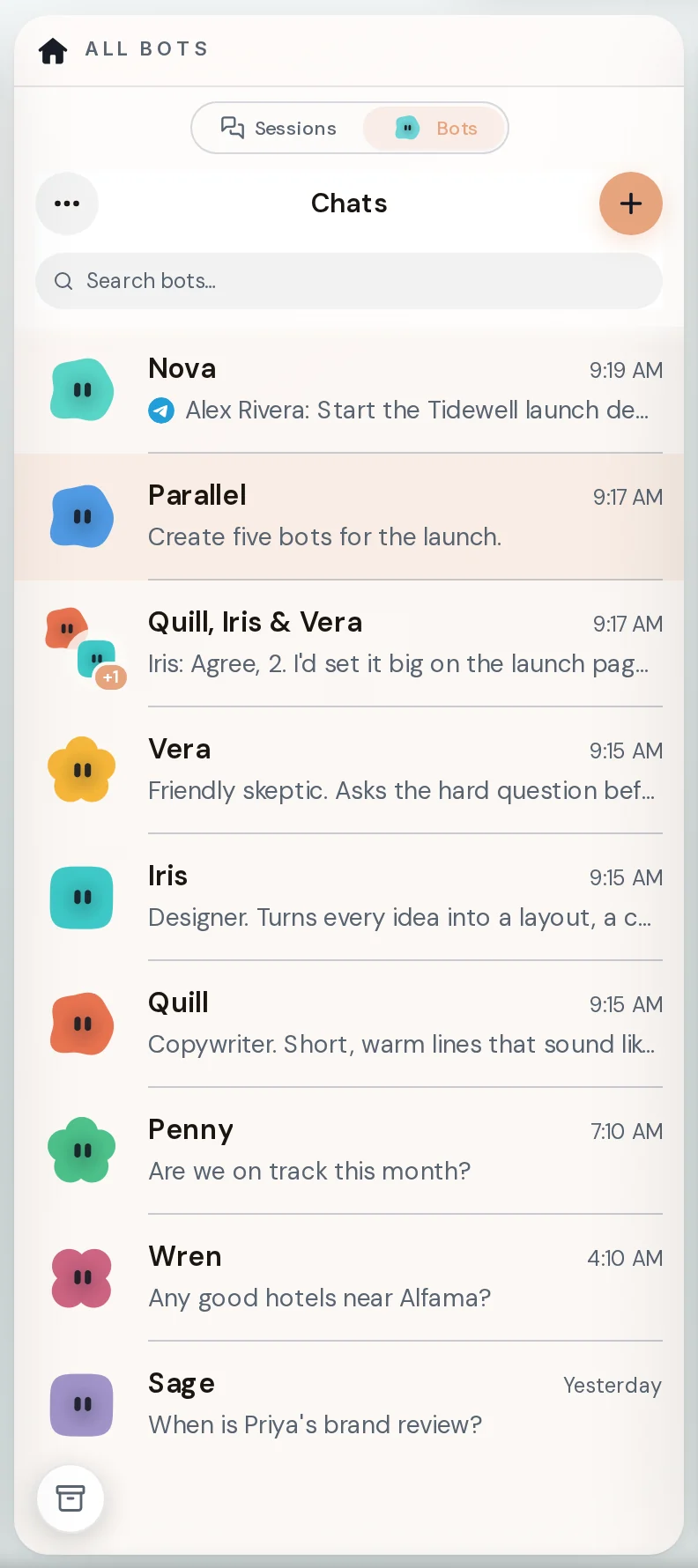
Section titled “What you’ll see”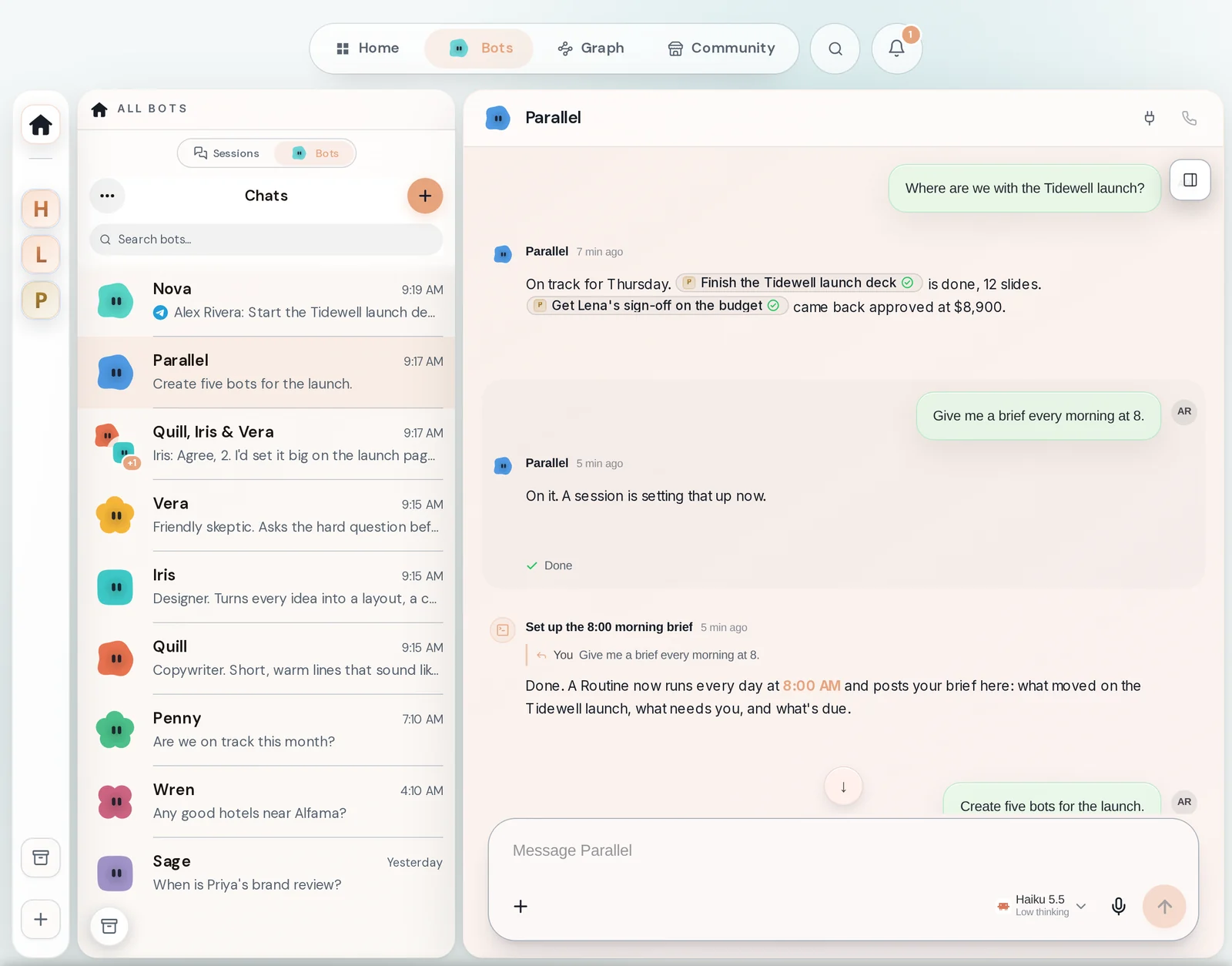 Your project's botEvery project has its own bot, named after the project. Ask it things the way you would ask a colleague who knows the project.Bots → the bot with your project's name
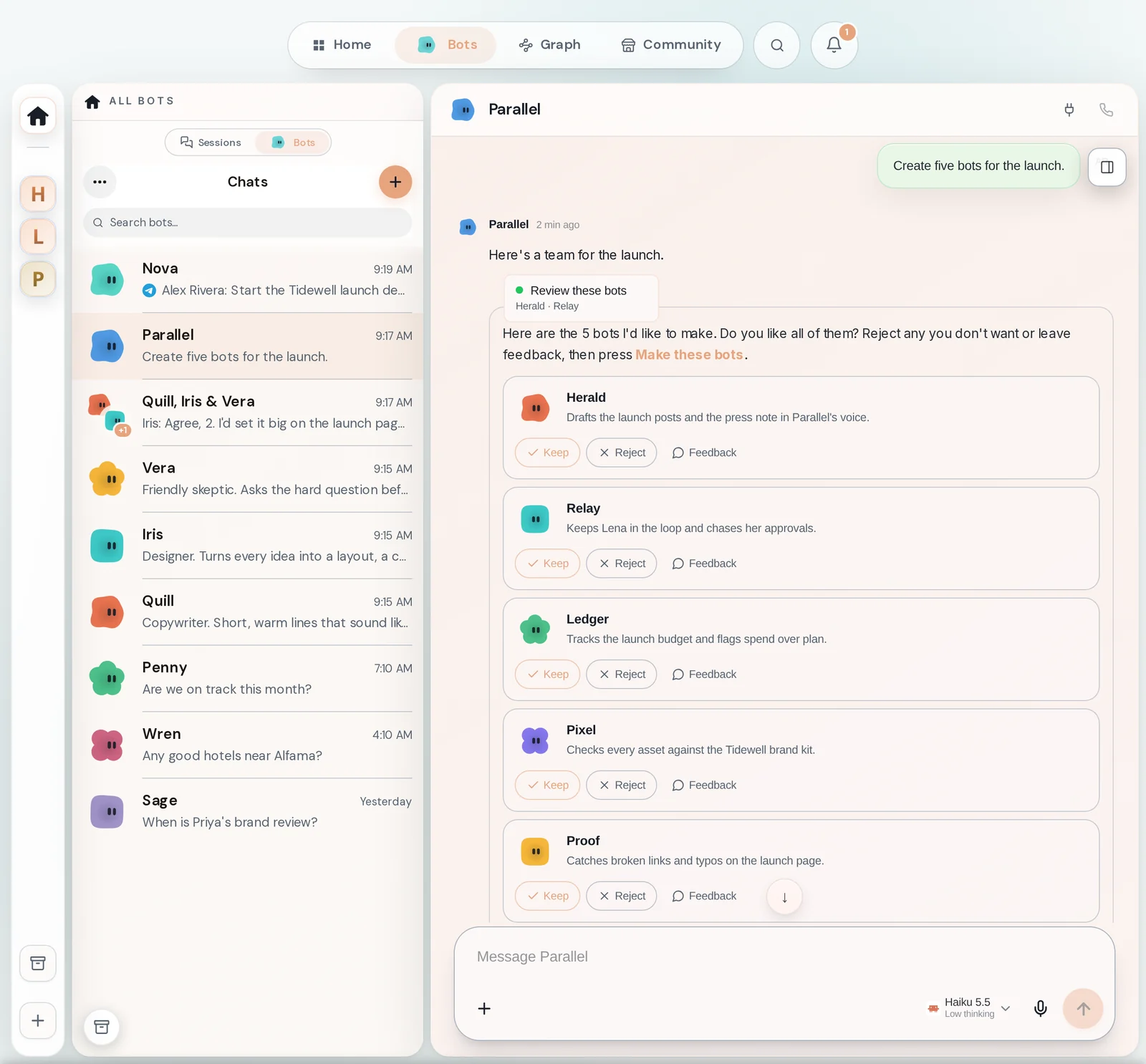
 Message boxType your question or request here. The small label shows which AI model the bot is using.Bottom of the bot's chat
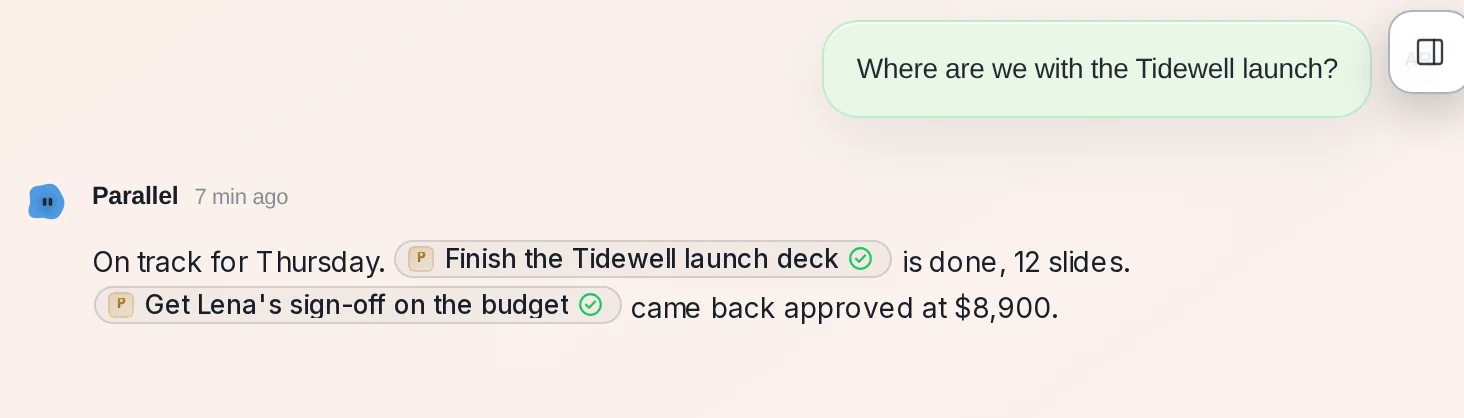
 Linked chatsWhen the bot talks about a piece of work, it links the chat where that work happened. Click a pill to open it.Inside the bot's replies
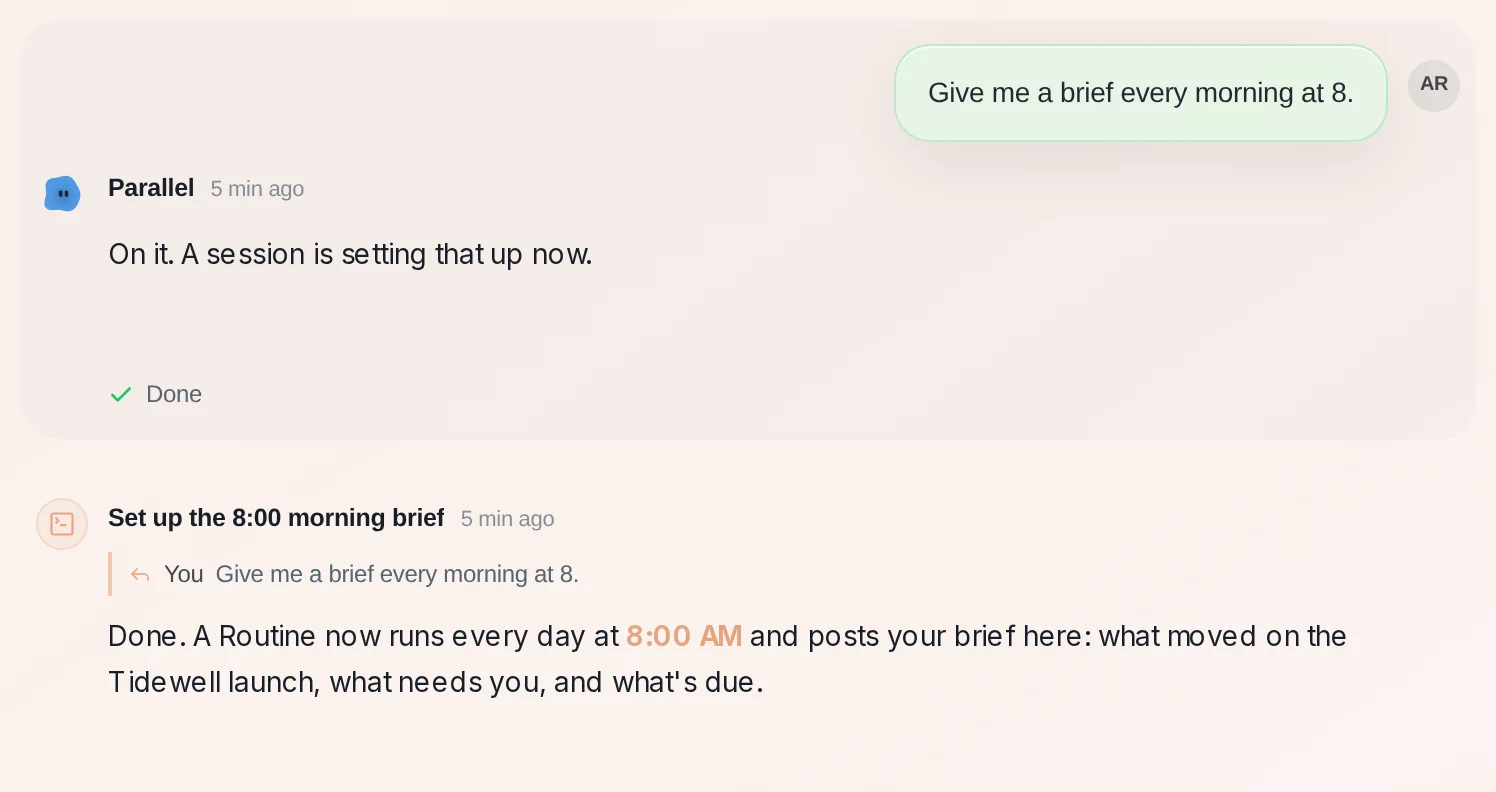
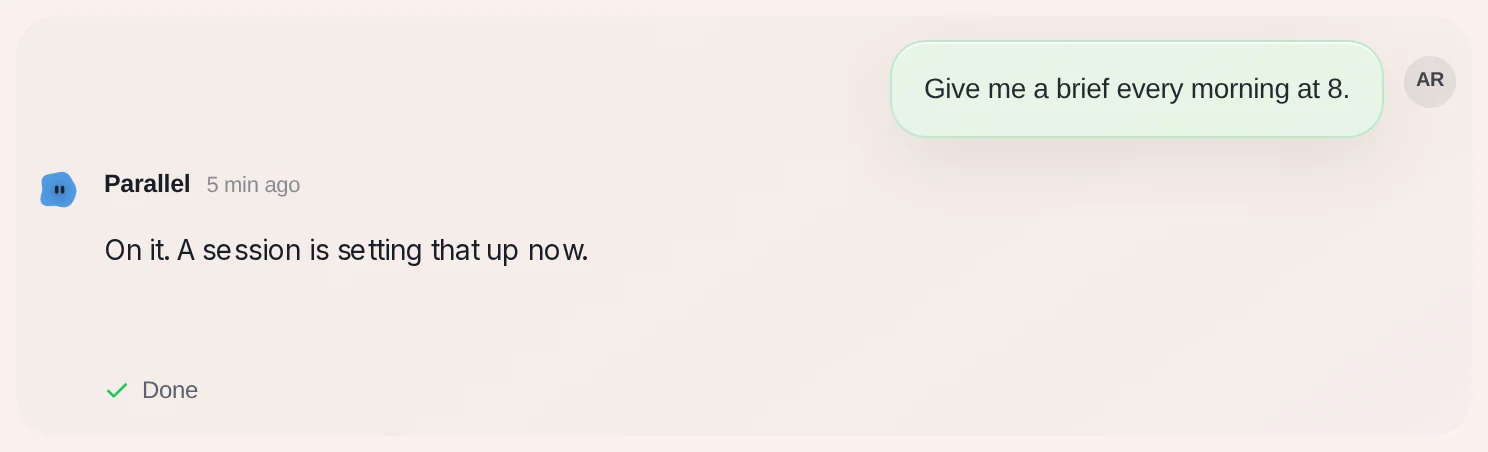 Working on itFor a bigger request the bot starts a separate chat to do the work. One quiet line under its reply reads Working on it, then Done.Under the bot's reply
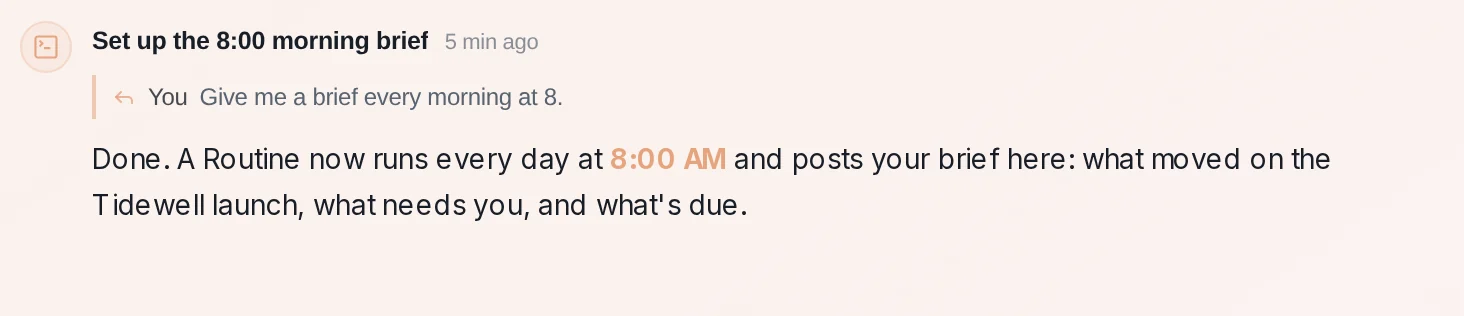 The result, posted backThe chat that did the work posts its own result into the bot chat. It quotes what you asked, so you know which request it answers.In the bot chat, after the work finishes
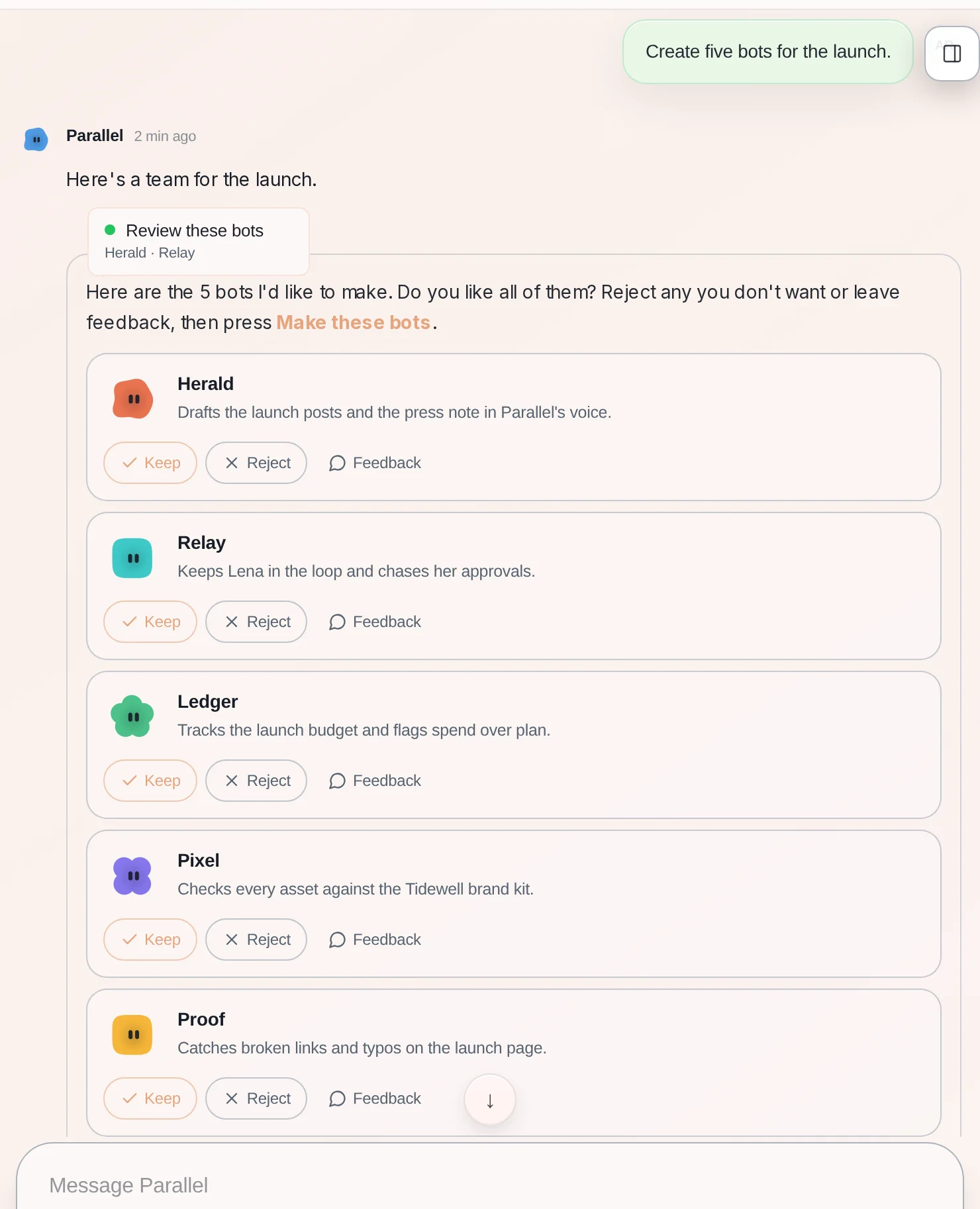 Bot lineupAsk for bots and you get a card to review first: Keep, Reject or Feedback for each, then Make these bots.In the bot chat, under its reply
 Header buttonsThe plug connects this bot to Slack, Telegram, Discord or WhatsApp. The phone starts a voice call when voice calls are switched on.Top right of the bot's chat
How to do it
Section titled “How to do it”Step 1: Open your project's bot
Click Bots at the top of Home, then the bot that has your project's name.
Step 2: Ask where things stand
Type a question such as "Where are we with the Tidewell launch?" The bot answers with the latest and links the chats it is talking about. Click a link to check the work yourself.
Step 3: Ask for a brief every morning
Type "Give me a brief every morning at 8." The bot starts a chat that sets up a Routine for you. You see Working on it, then Done, and the result is posted back into the bot chat.
Routines are listed under Routines, where you can pause, edit or run them.
Step 4: Ask for more bots
Type "Create five bots for the launch." The bot proposes five. Reject any you don't want, then press Make these bots.
- Ask in plain words. The bot answers quick questions itself and starts a chat for anything that needs real work.
- The work a bot starts is a normal chat. You can open it, read every step and reply there.
- Nothing is made from a lineup until you press Make these bots.