
Your browser, already signed in
Connect Axis for Chrome once, and an agent can work in your own browser, opening its own tabs on sites you are already signed in to. You watch its tab and every click from your chat while it works.
- Where
- Settings → Browser
- You'll need
- Chrome, Arc, Dia, Edge or Brave on your computer
- Works on
- Desktop browsers
What you’ll see
Section titled “What you’ll see”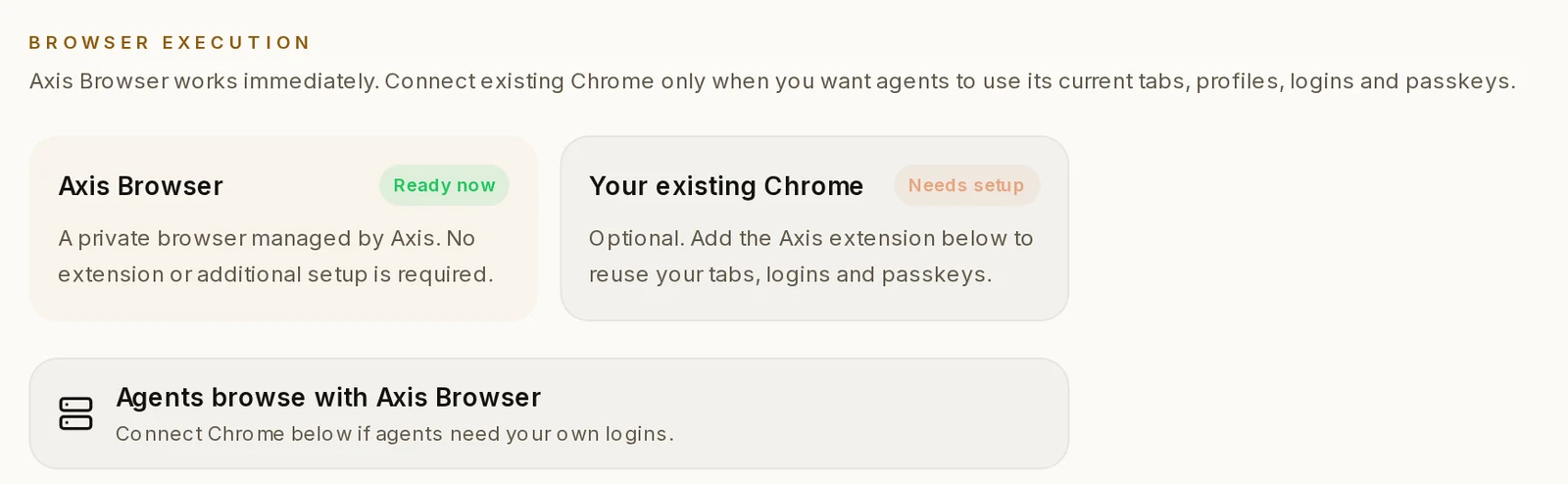 Settings → BrowserAxis has its own private browser that works straight away. Your existing Chrome is the optional second one, for sites where you are already signed in.Settings → Browser
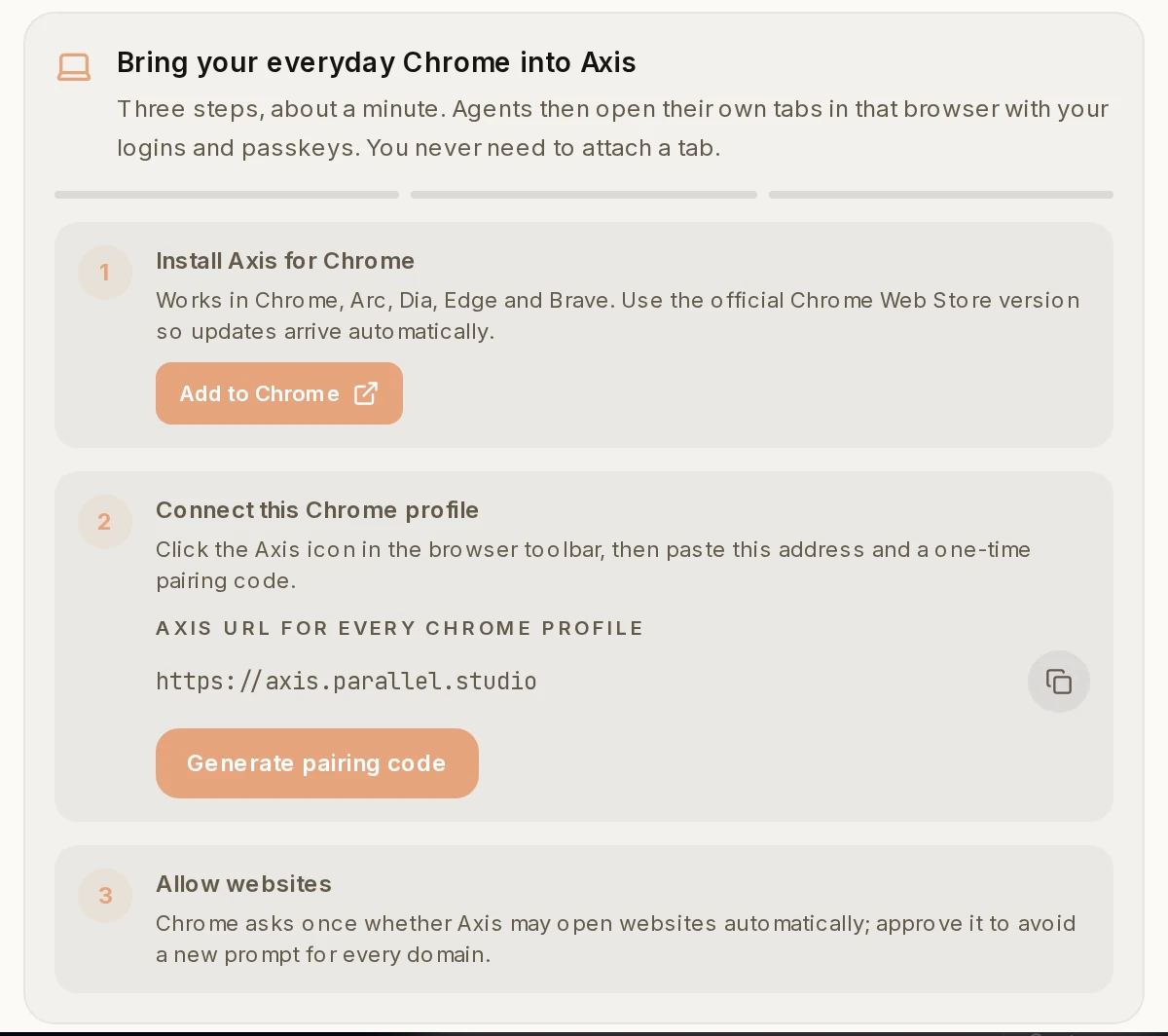 The three setup stepsEverything you need to connect your browser, in order. Each step turns green when it is done.Settings → Browser, under Bring your everyday Chrome into Axis
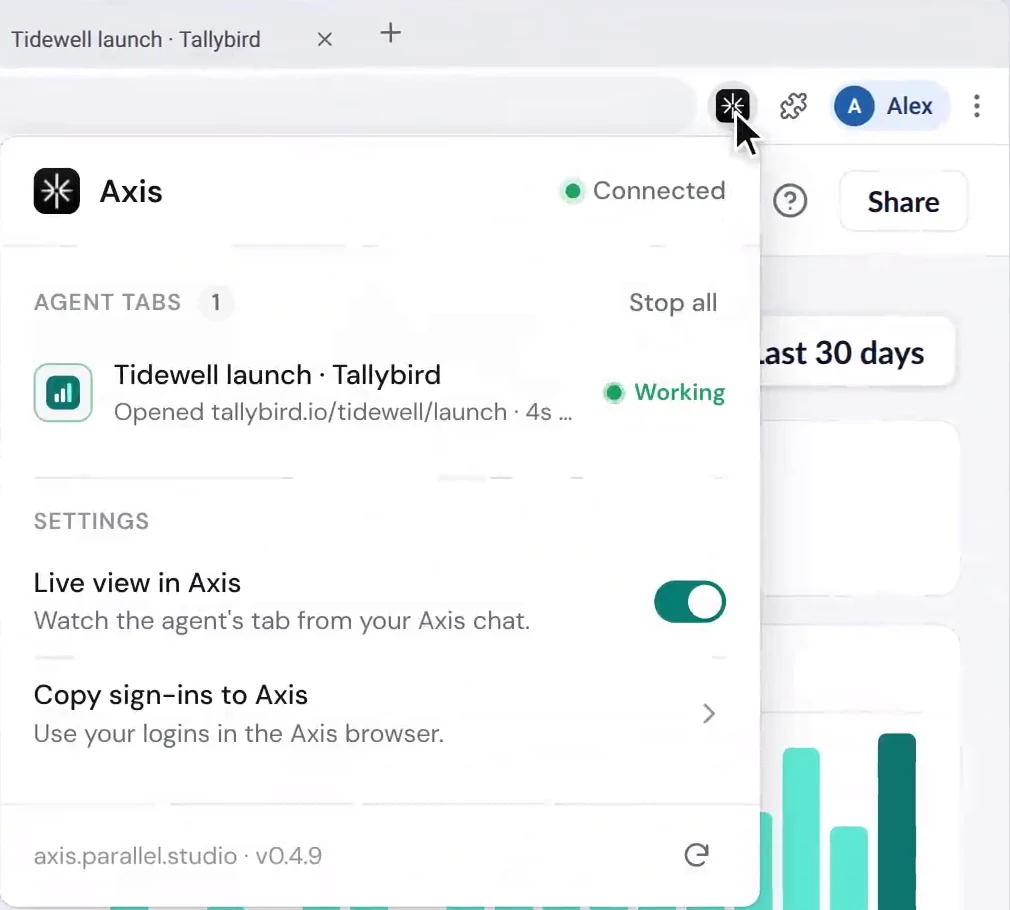 Axis for ChromeClick the Axis icon in your browser to see the tabs agents have open, stop them, switch the live view on or off, and copy your sign-ins.The Axis icon in your browser’s toolbar
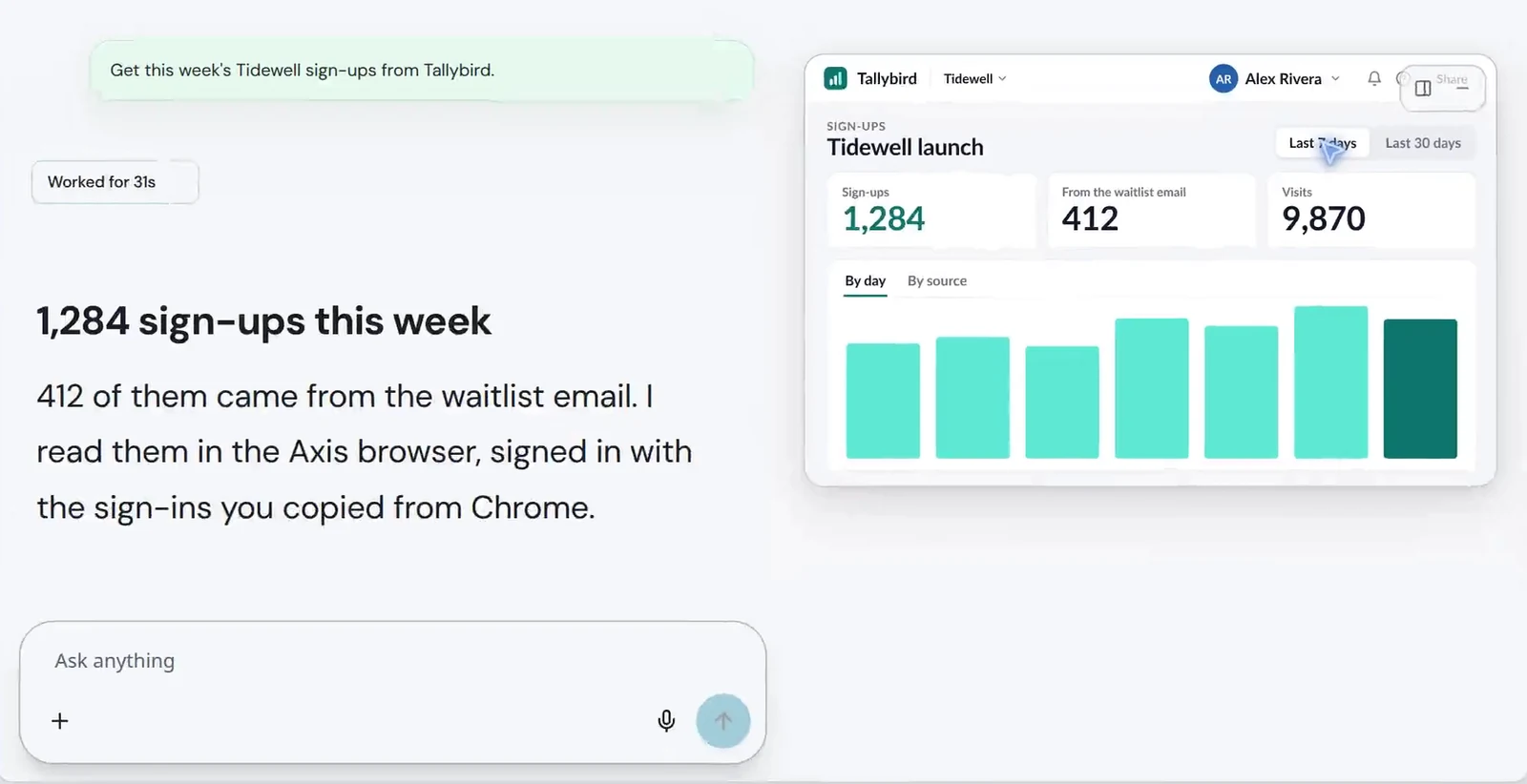 Live view in the chatWhile an agent browses, a small live picture of its tab sits in your chat, so you can watch every click.In the chat, while the agent is browsing
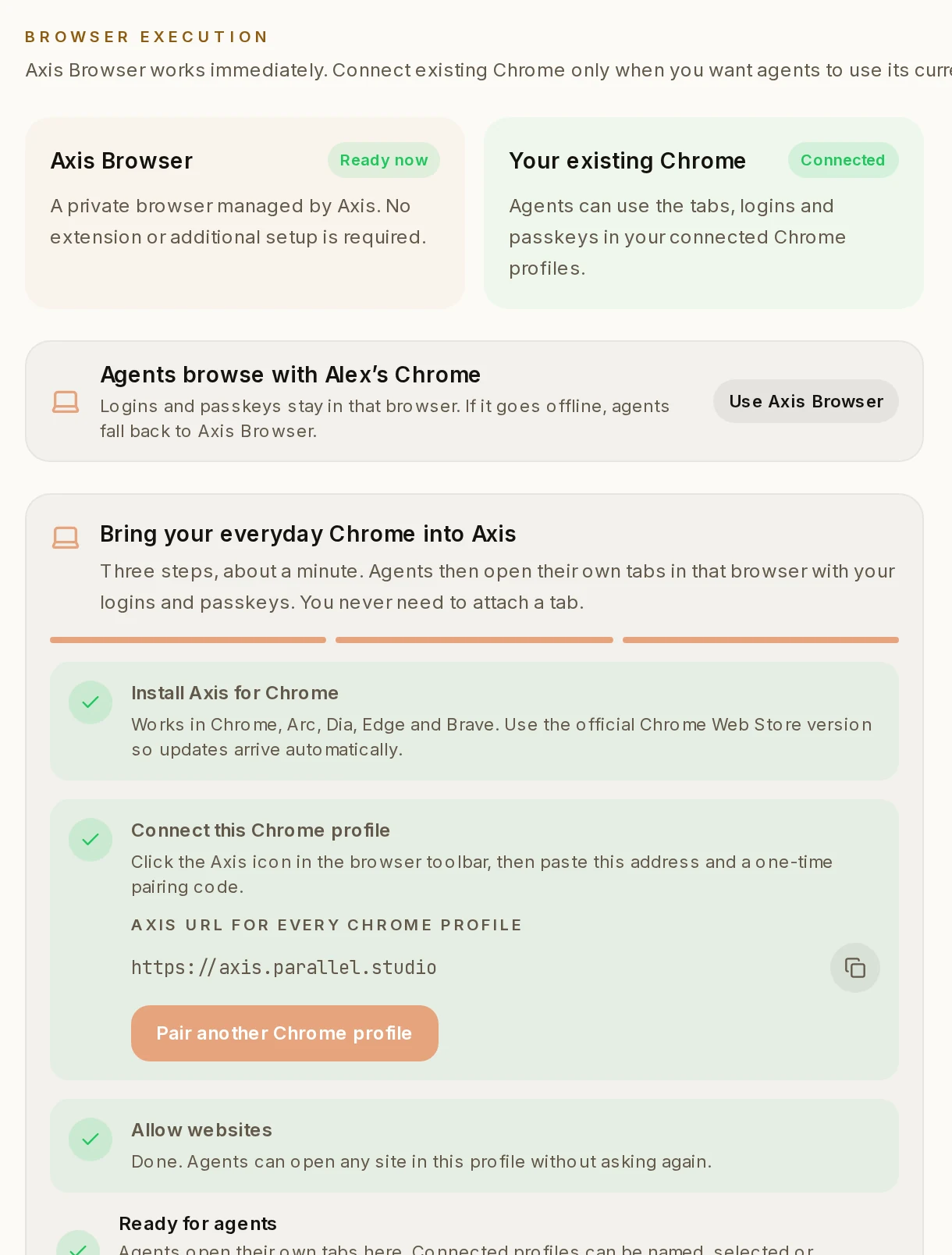 Connected profileAfter you connect, Settings shows which browser agents use. Click Use Axis Browser to switch back at any time.Settings → Browser
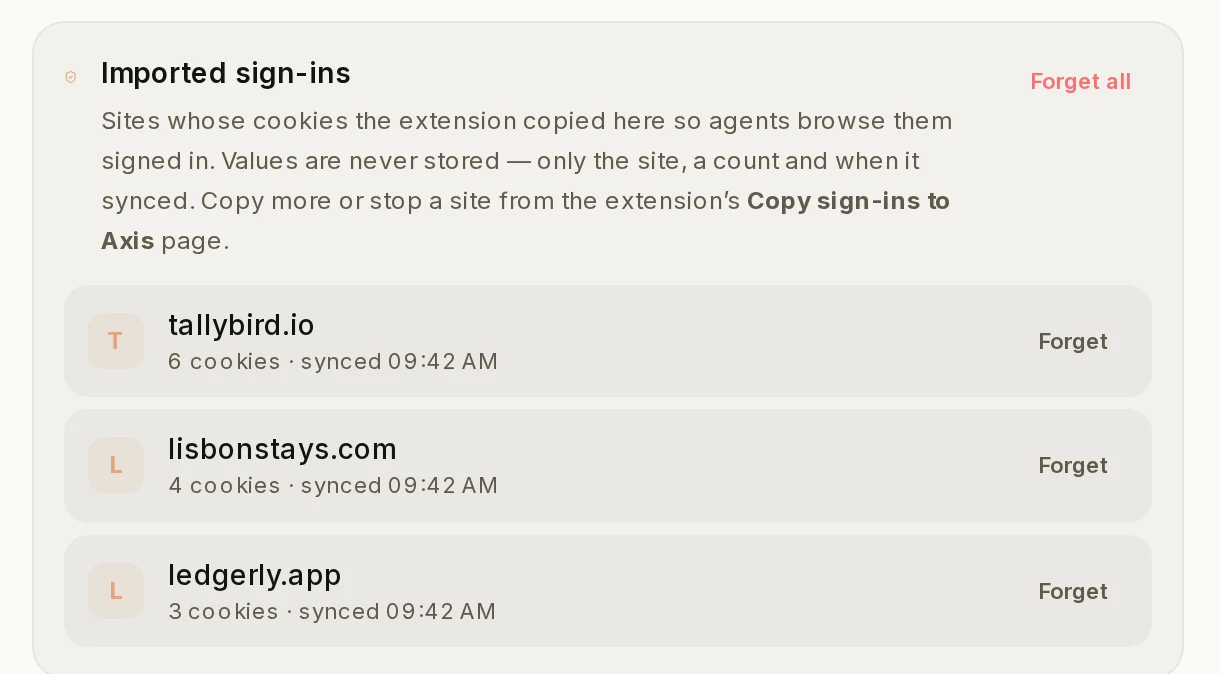 Imported sign-insThe sites whose sign-ins you copied to the Axis browser. Axis shows only the site, a count and when it synced. Click Forget to remove one.Settings → Browser, at the bottom
How to do it
Section titled “How to do it”Step 1: Add Axis to your browser
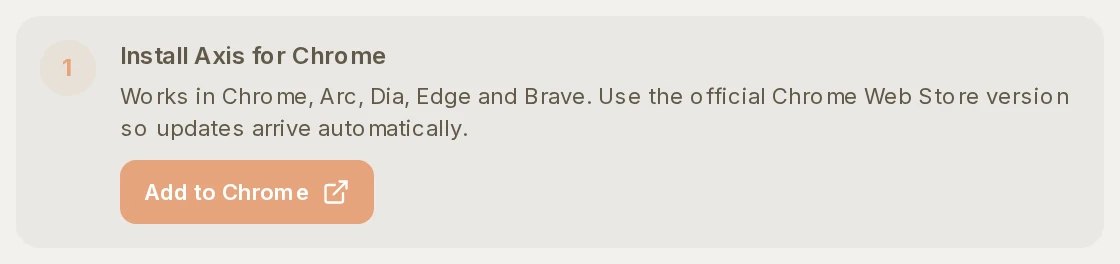
Open Settings, then Browser. Under Install Axis for Chrome, click Add to Chrome. It opens the Chrome Web Store. Add the extension there.
Step 2: Find the Axis icon
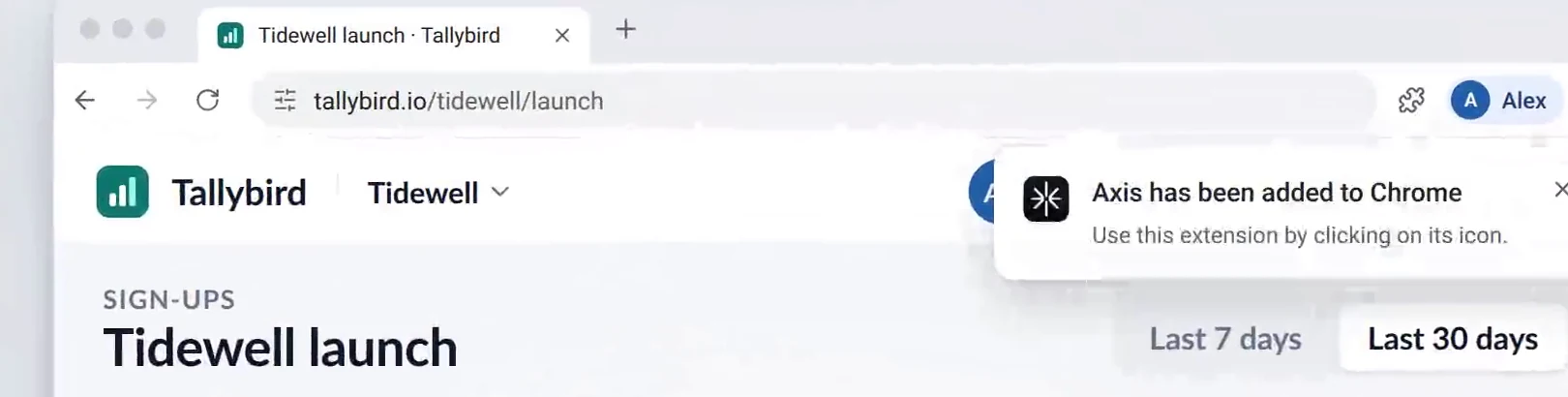
Your browser says Axis has been added. The Axis icon now sits in the toolbar at the top right.
Step 3: Connect this browser
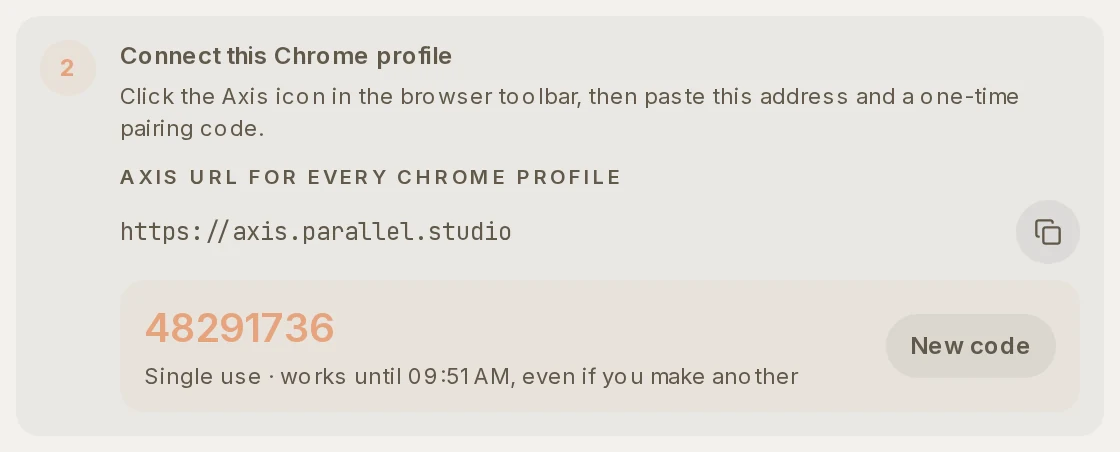
Back in Axis, click Generate pairing code. Click the Axis icon in your browser, then paste the address and the 8-digit code. The code works once, for 10 minutes.
Step 4: Allow websites
Your browser asks once whether Axis may open websites. Say yes, so it does not ask again for every site.

Step 5: Ask for something on a site you use
In a chat, ask for what you need, for example "Get this week’s Tidewell sign-ups from Tallybird." The agent opens its own tab in your browser, already signed in as you, and brings back the answer.
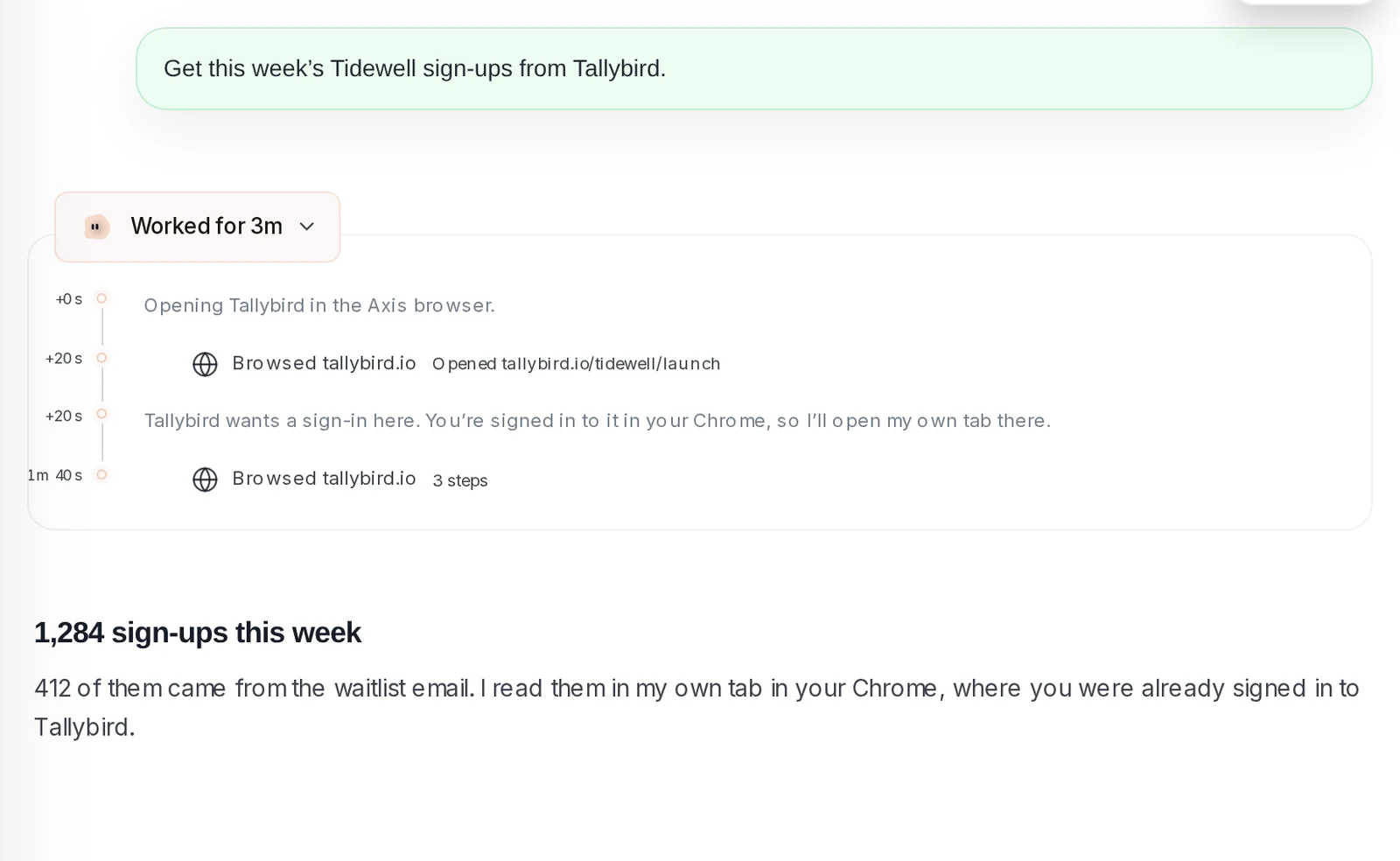
The agent uses its own tab. You never need to hand it one of yours.
Step 6: Optional: copy your sign-ins to the Axis browser
Click the Axis icon in your browser, then Copy sign-ins to Axis. Turn on Keep sign-ins synced to your Axis browser. Now the Axis browser is signed in to those sites too, so agents can work there as well.
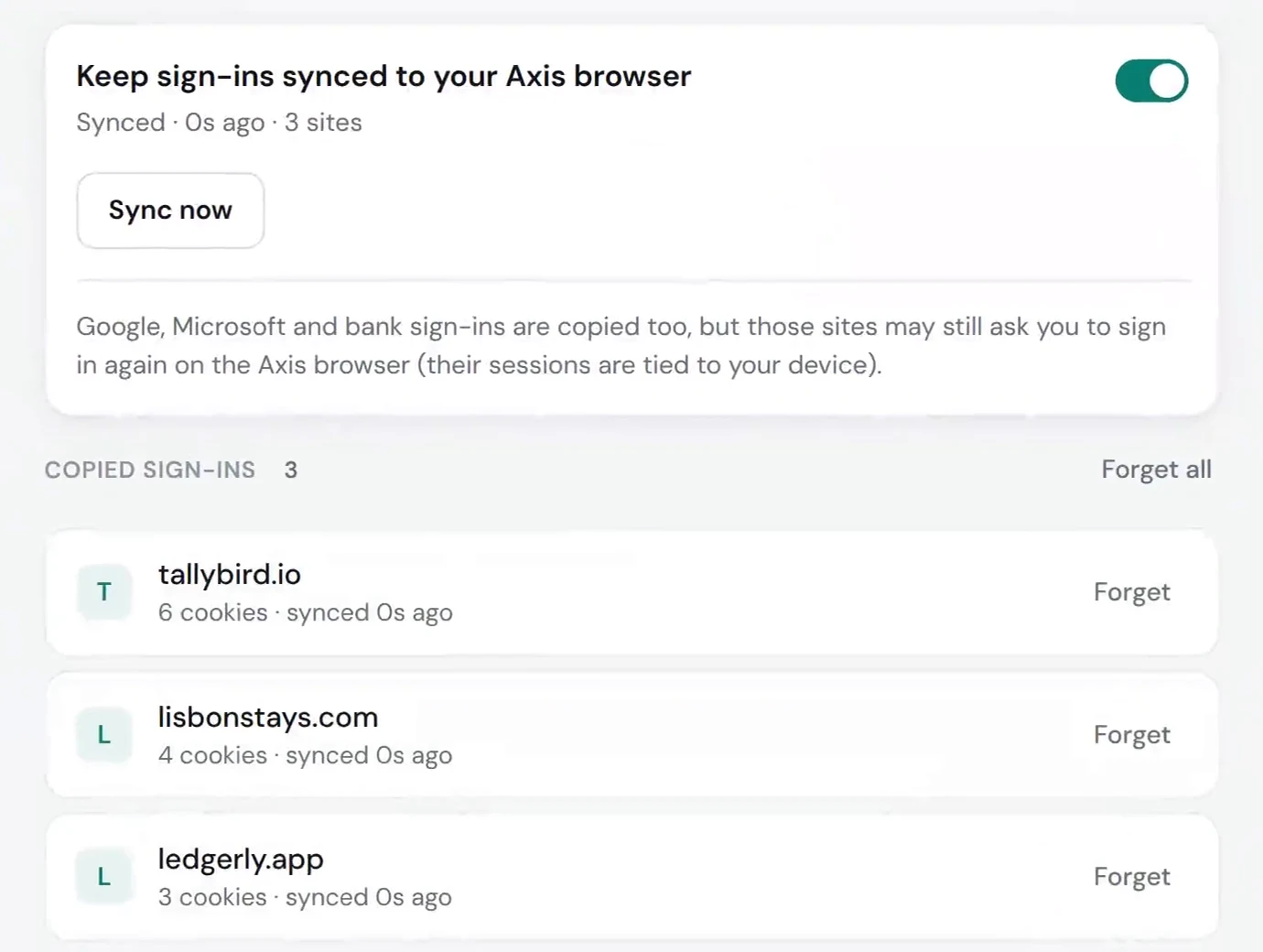
- Copying sign-ins copies cookies only. Your passwords are never copied.
- Google, Microsoft and bank sites may still ask you to sign in again in the Axis browser.
- If your browser goes offline, agents go back to the Axis browser by themselves.
- Use more than one browser profile? Click Pair another Chrome profile and connect each one.