
Turn work into a review pipeline
Make your own types of work, like a film with a script, storyboard, cut and thumbnail, and your own statuses for them. Every part shows where it stands, and you can ask in chat what needs you.
- Where
- Any Space → New → Types, and the status button at the top of a Doc
- You'll need
- Nothing extra
- Works on
- Web, Mac, Windows, iPhone, Android
What you’ll see
Section titled “What you’ll see”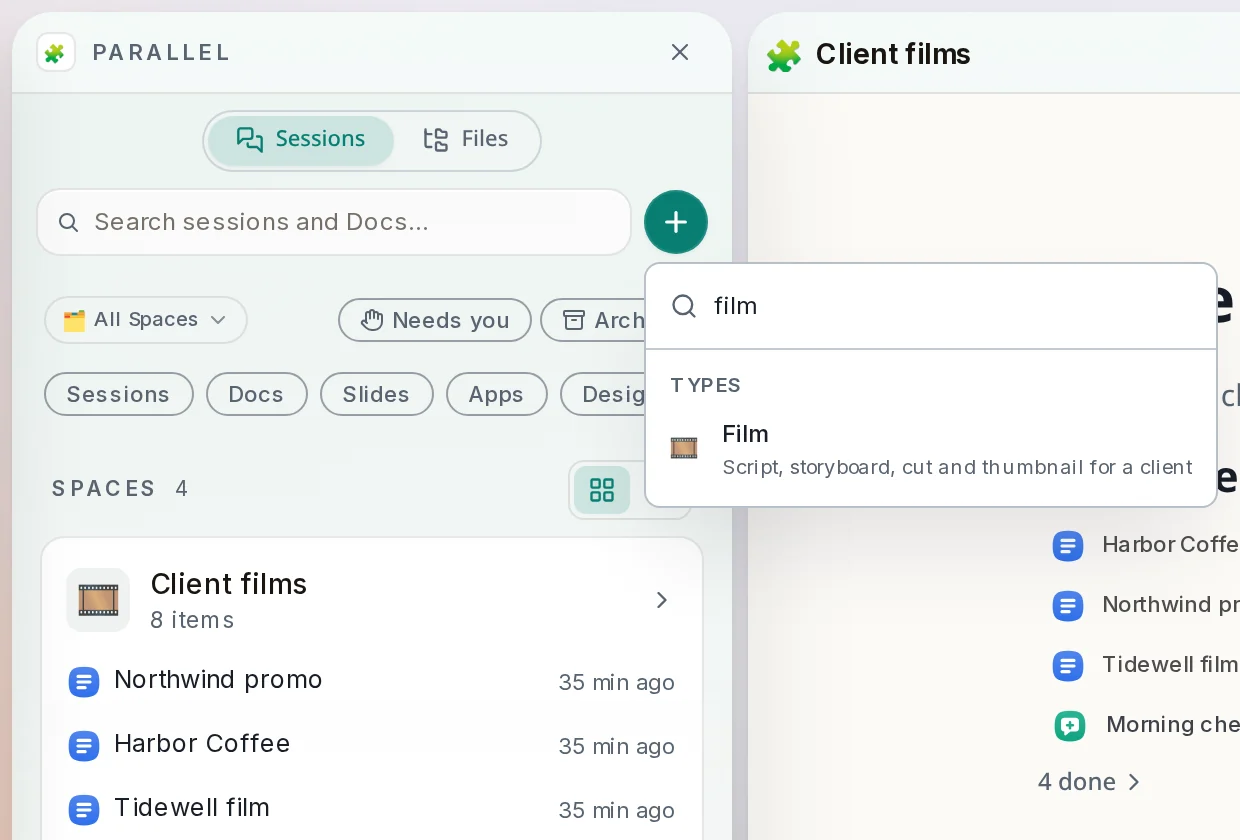 Your type in the New menuTypes you made sit under Types in the New menu. Picking one starts a new page with its parts already laid out.Sidebar → + → Types
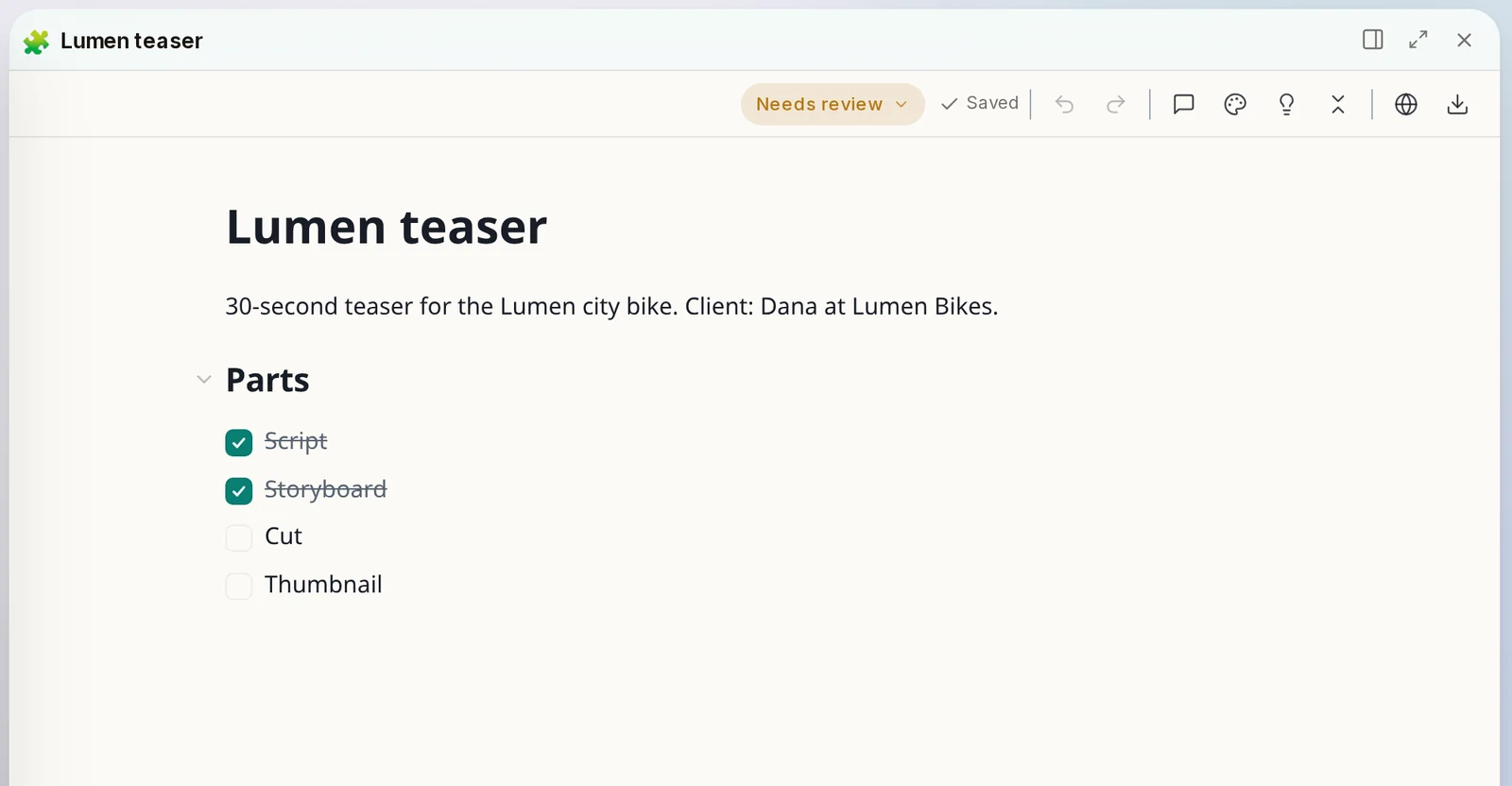 A page of your typeA film here is one page with a brief and four parts to tick off. It works like any Doc.Open it from its Space
 Status buttonShows where this piece of work stands. It reads Set status until you choose one.Top of any Doc
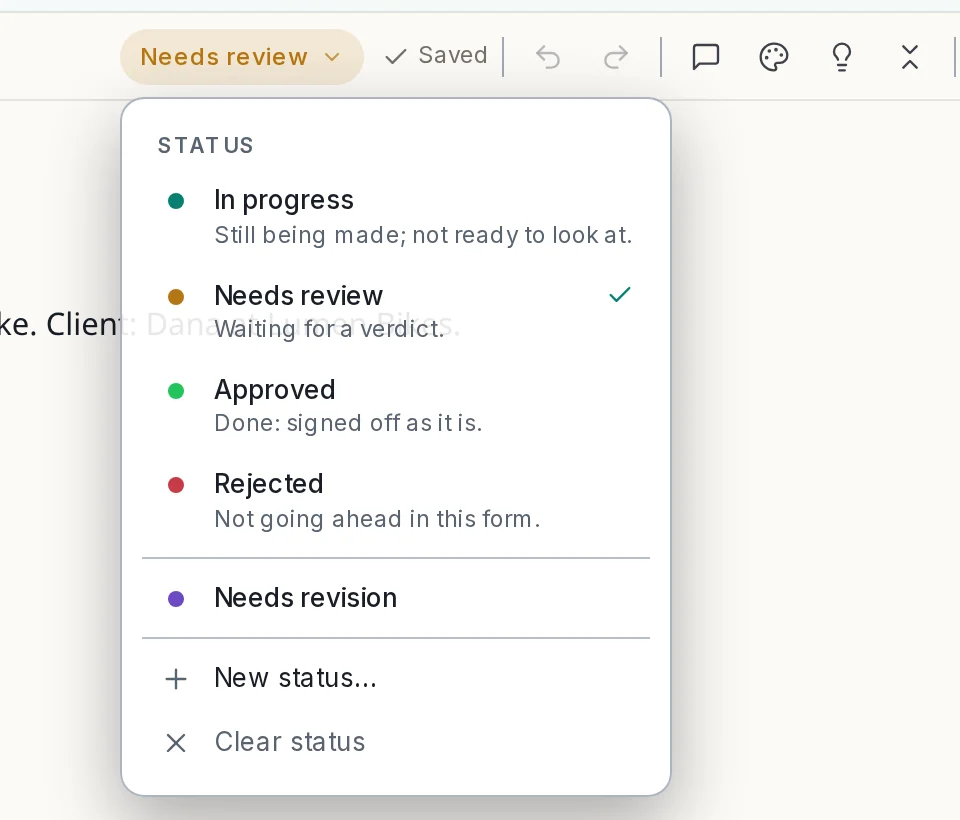 Status listFour statuses come ready to use. Ones you named yourself are listed below them.Click the status button
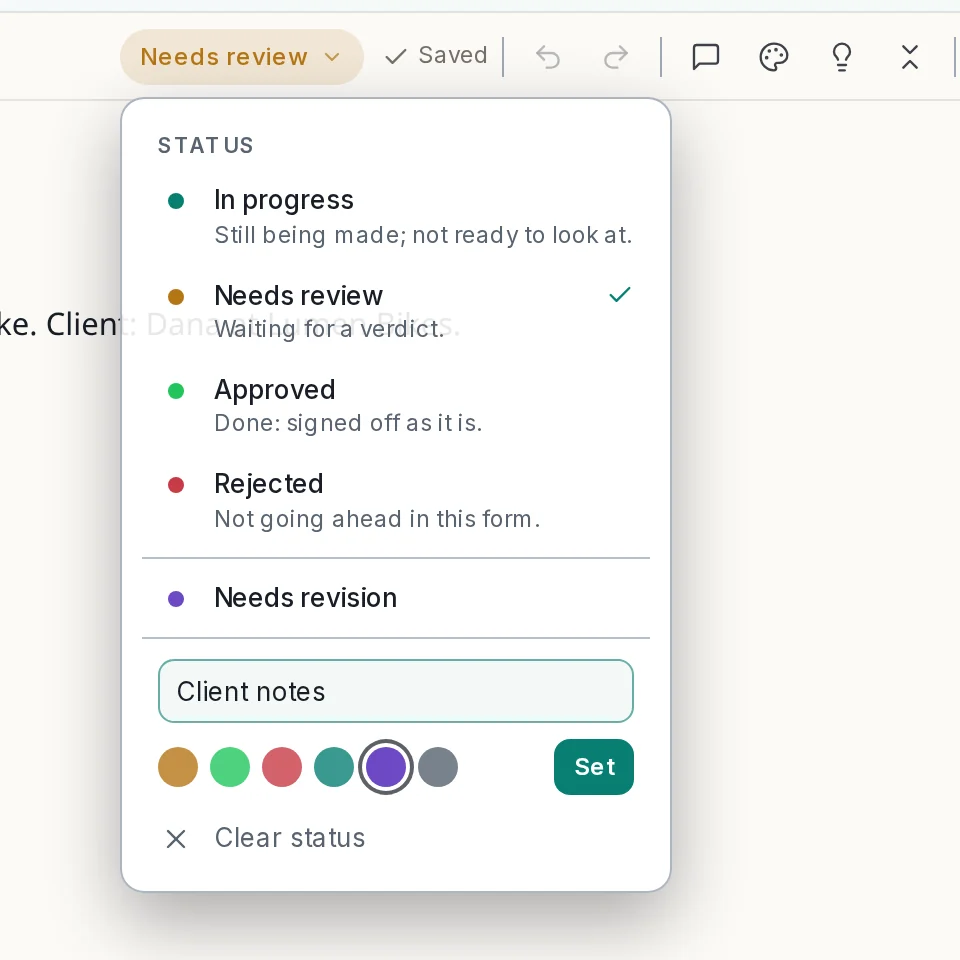 A status you nameType any name, pick a colour and click Set.Status list → New status…
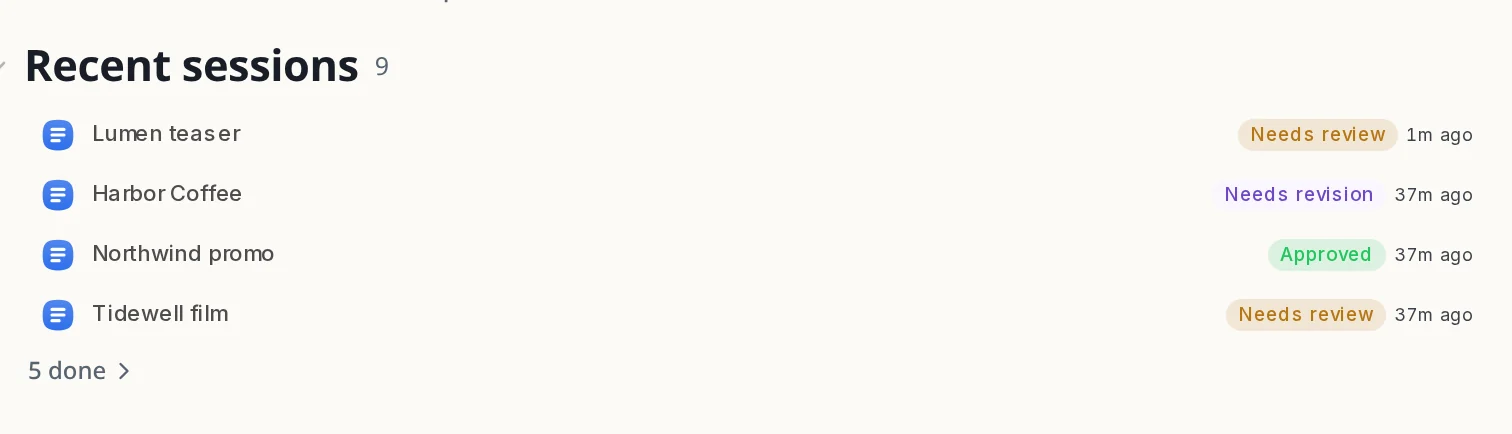 Statuses in the SpaceEvery film shows its status beside its name, so you see the whole pipeline at a glance.Space home page → Recent sessions
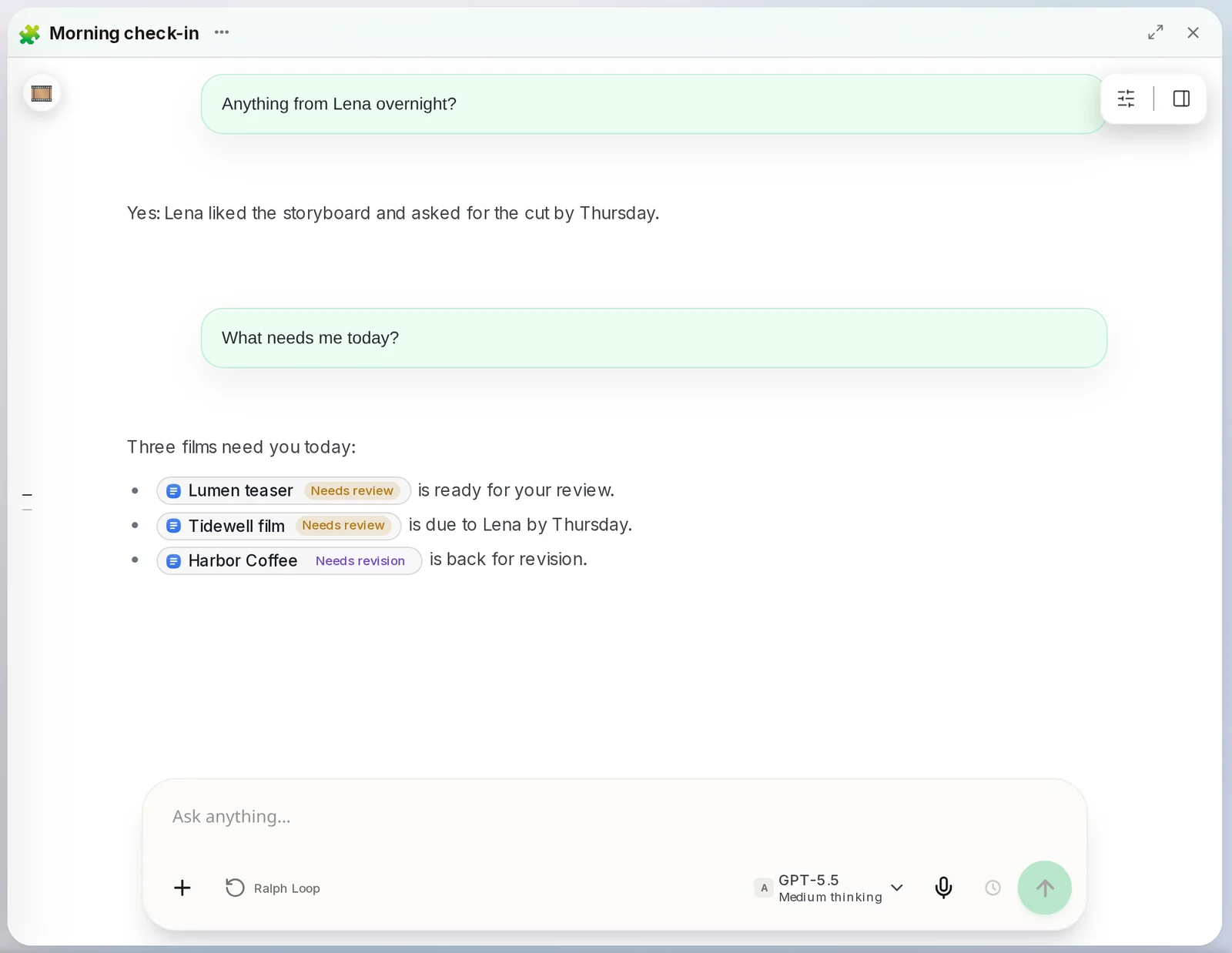 Statuses in chatAsk what needs you and the answer links each piece of work with its status.Any chat in the project
How to do it
Section titled “How to do it”Step 1: Ask for your own type
In a chat, describe the kind of work you repeat and its parts. For example: "Make a Film type for client films. Each film has four parts: script, storyboard, cut and thumbnail." Your agent sets it up.
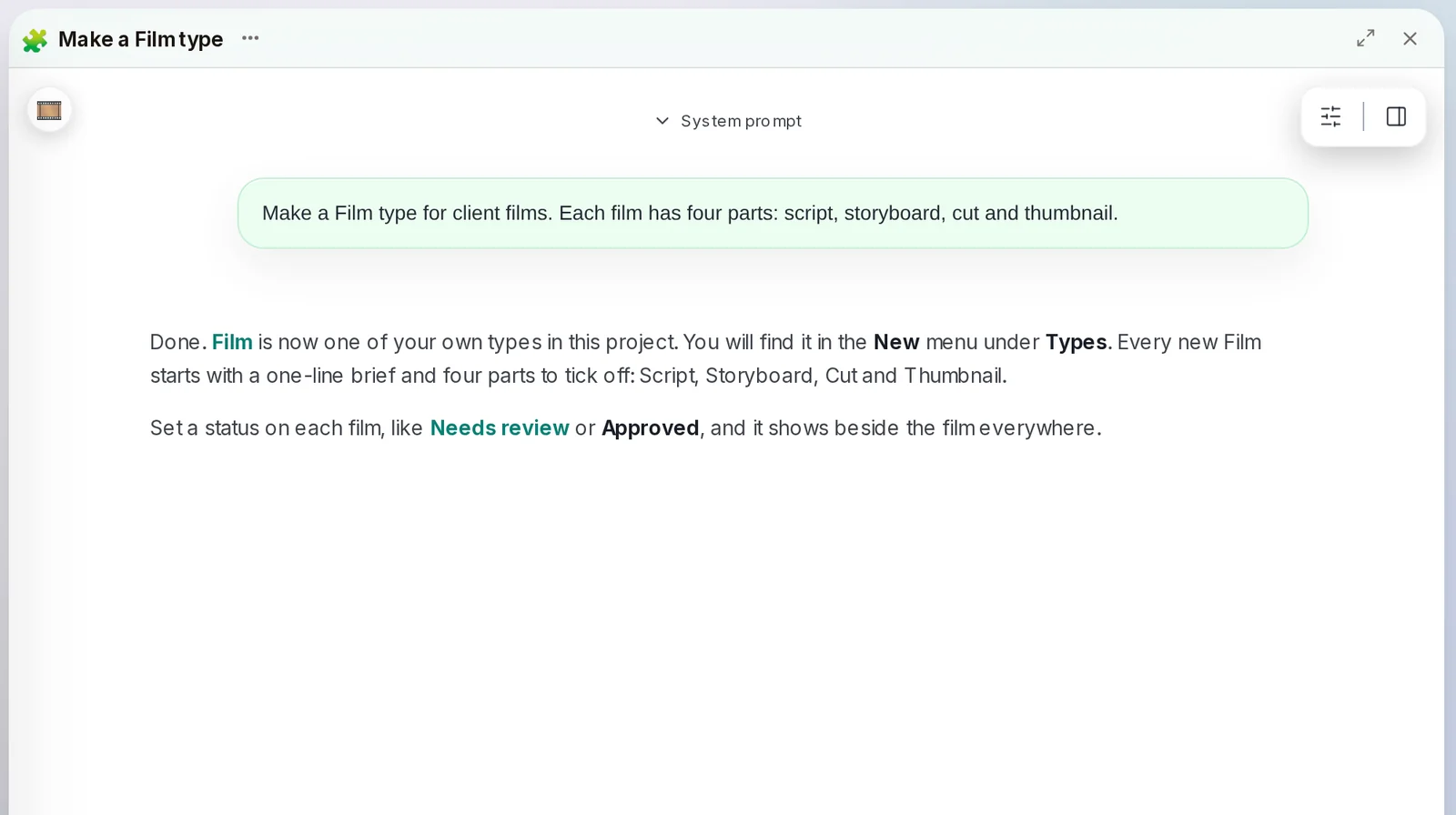
Types are made by asking. There is no form to fill in.
Step 2: Open the Space for this work
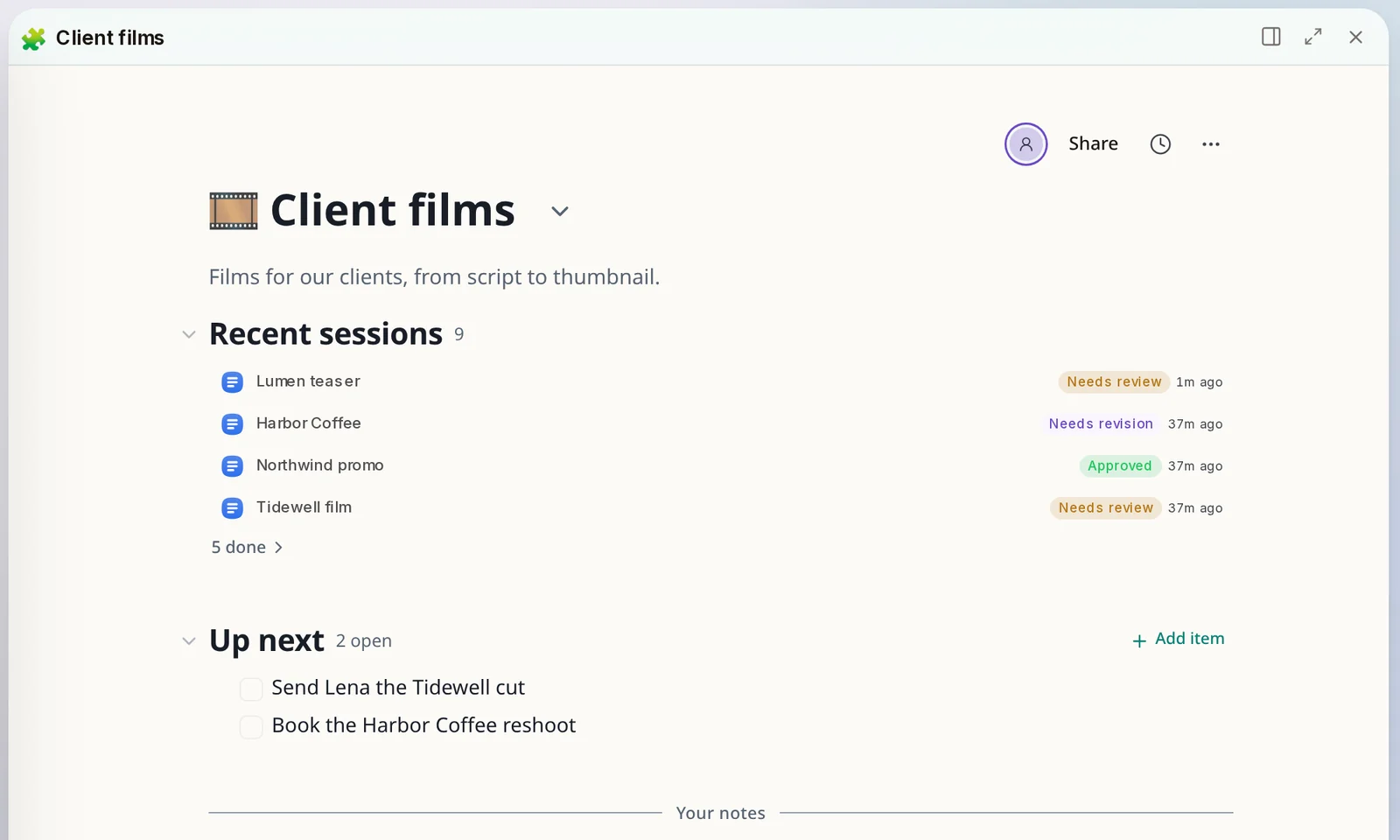
In the sidebar, click the Space where this work lives, like Client films.
Step 3: Make one
Click + at the top of the sidebar. Type the name of your type, like "film", and pick it under Types. A new page opens with the parts ready.
To file it straight into a Space, first pick that Space under All Spaces in the sidebar. You can also drag the new page onto the Space.
Step 4: Fill it in
Give the page a title and a line about the job. Tick each part as it gets done.
Step 5: Set its status
Click Set status at the top of the page and choose one, like Needs review. The status shows at once on the page, in the sidebar and in its Space.
Approved means done. Use it when you sign something off.
Step 6: Name your own status
Need a step of your own? Click New status…, type a name, pick a colour and click Set. It is then in the list for your other pages too.
Step 7: Ask what needs you
In any chat in the project, ask "What needs me today?" The answer names each piece of work with its status. Click one to open it.
- A status works on every kind of Doc: documents, decks, designs, videos and apps.
- Your agent can set a status too. Ask it to mark a draft Needs review when it is ready for you.
- To remove a status, open the status list and click Clear status.
- Types belong to one project, so each project can have its own kinds of work.