
Make real things
Ask once and Axis makes the real thing: a slide deck, a document, a design in every size you need, or a video. Each one opens in its own editor beside the chat, where you can change it yourself or ask for edits.
- Where
- Any chat, or the + button in the sidebar
- You'll need
- Nothing extra
- Works on
- Web, Mac, Windows, iPhone, Android
What you’ll see
Section titled “What you’ll see”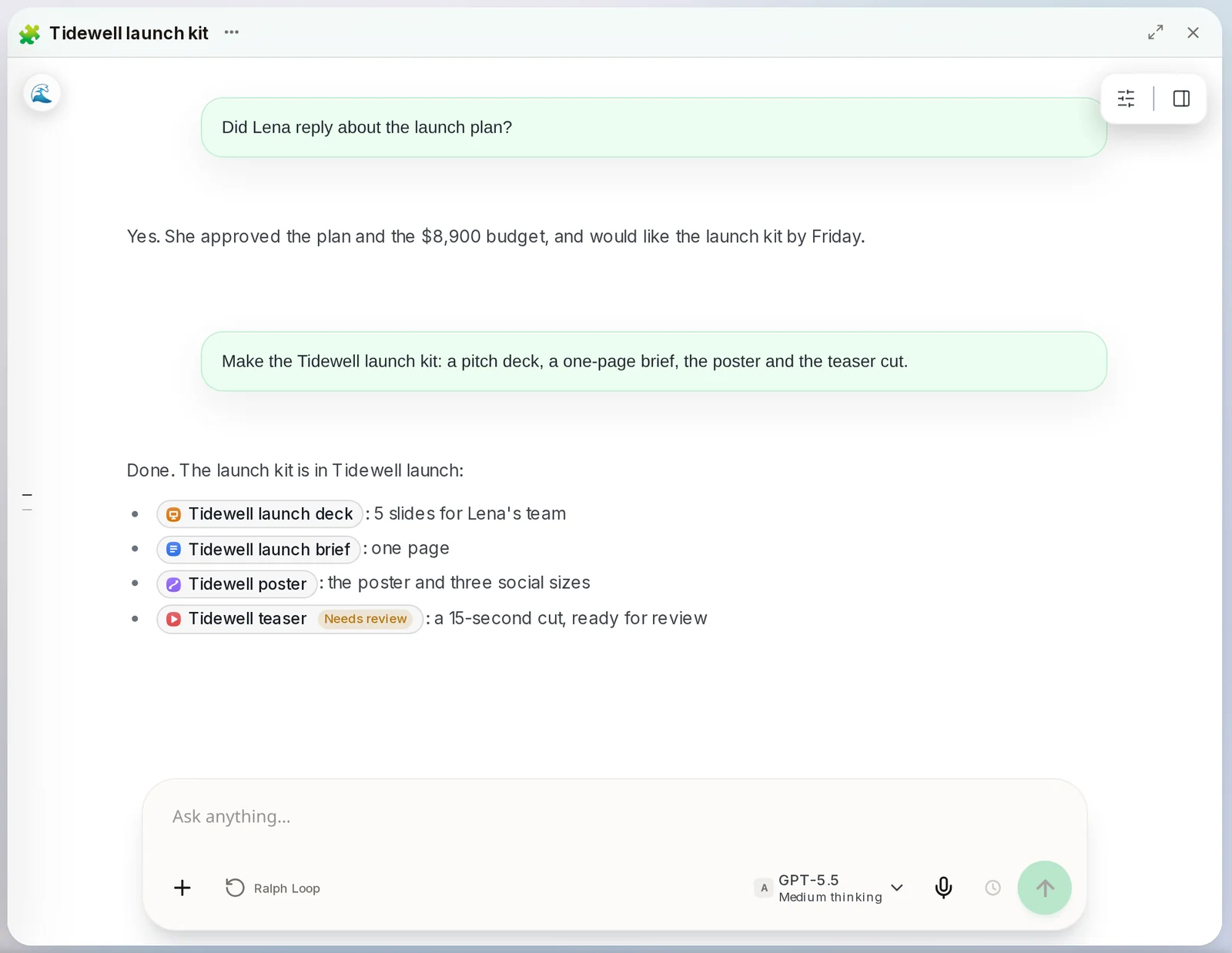 One ask, four real thingsThe reply links each thing it made. Click a link to open it.In the chat, when the work is done
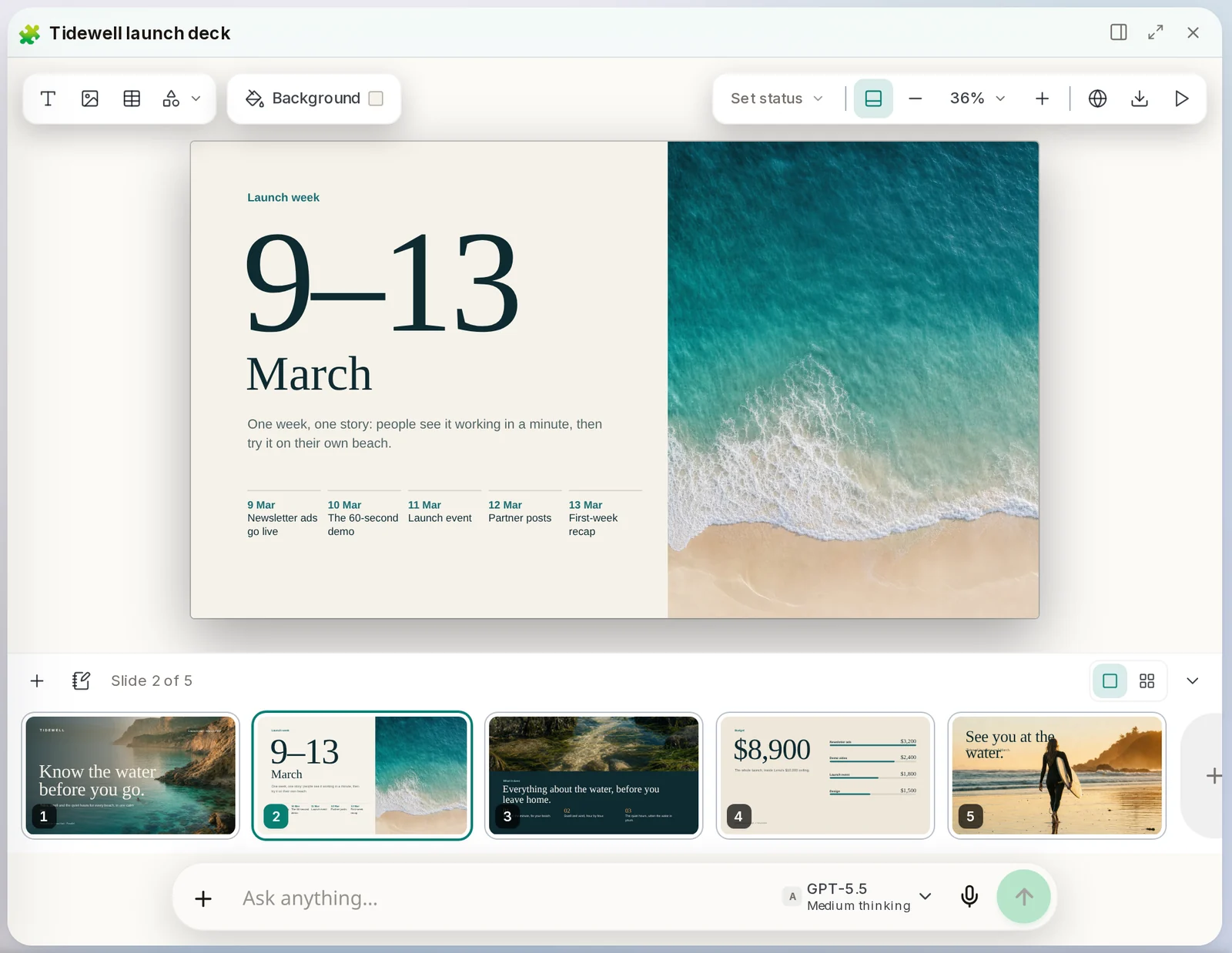
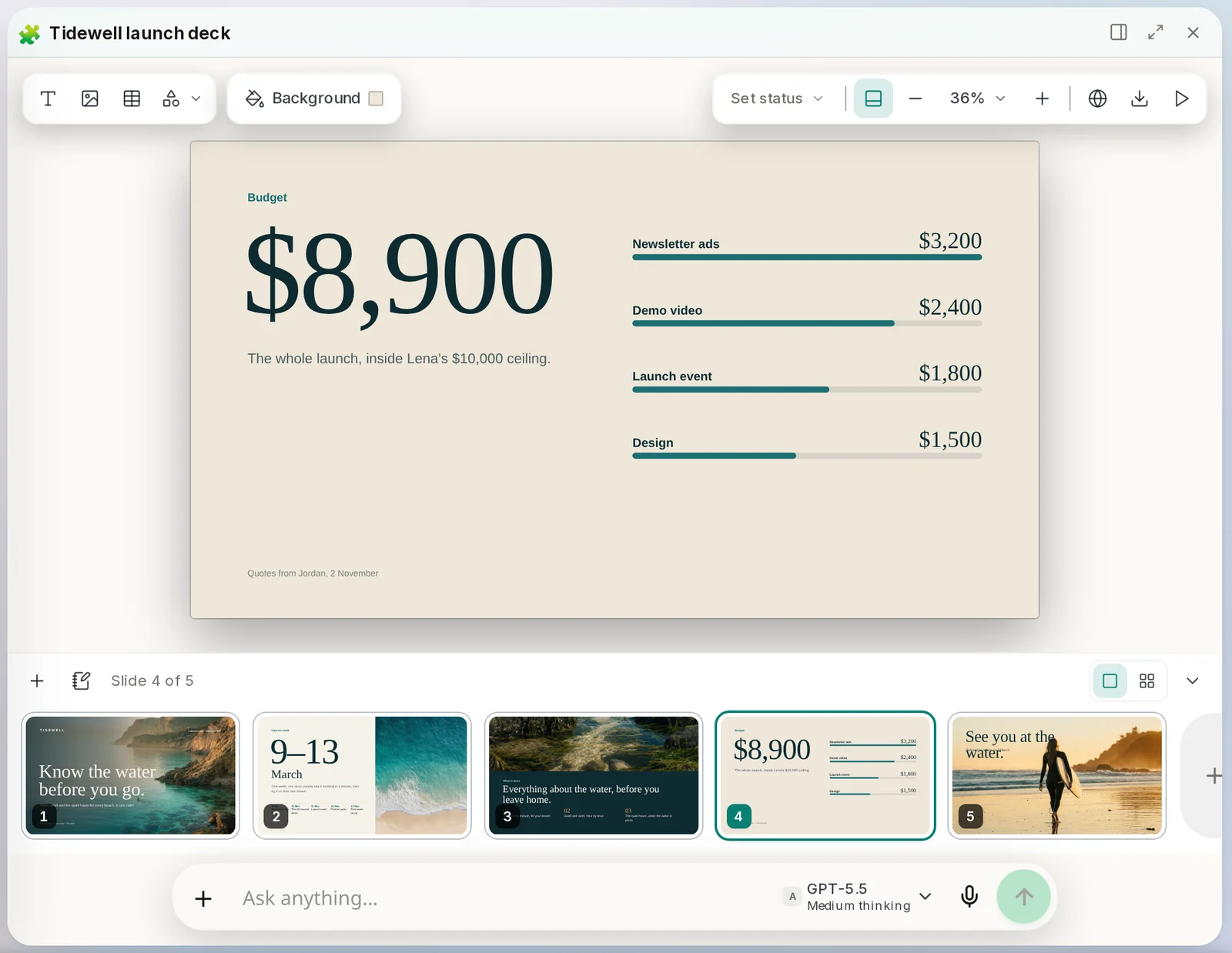
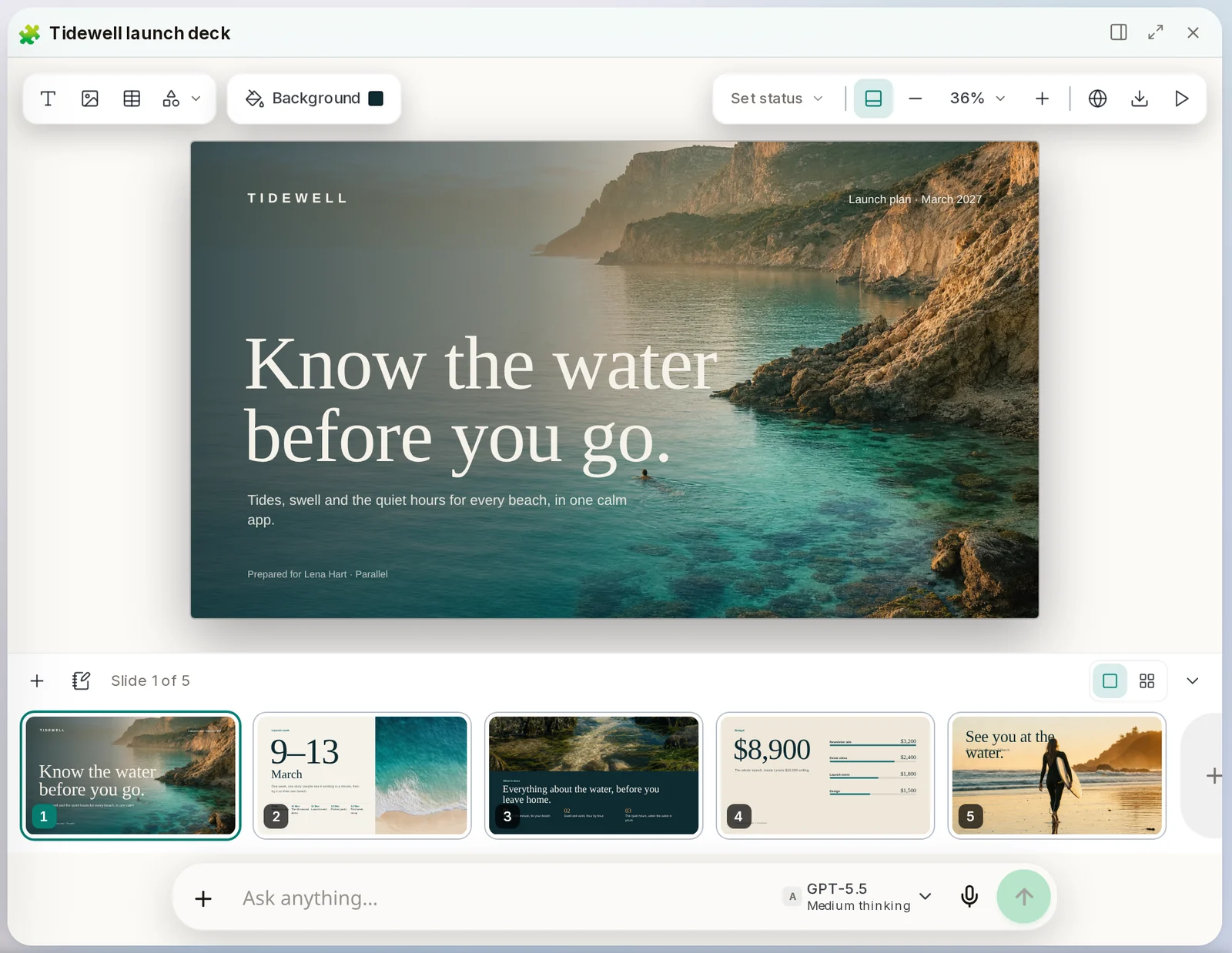 SlidesA slide deck. The big slide is the one you are editing, and the strip below holds the rest.Open any deck
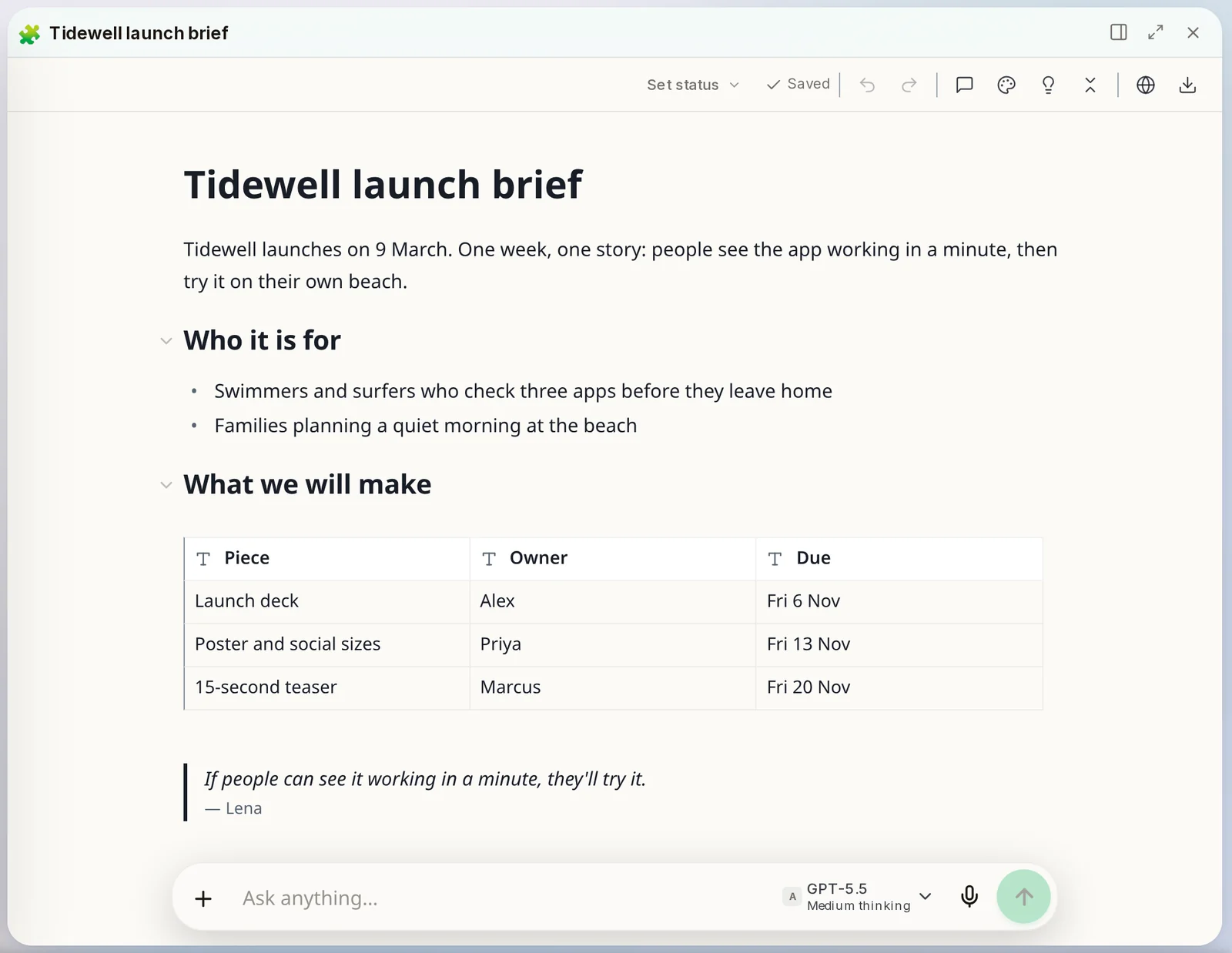 DocA document with headings, lists, tables, charts and comments.Open any Doc
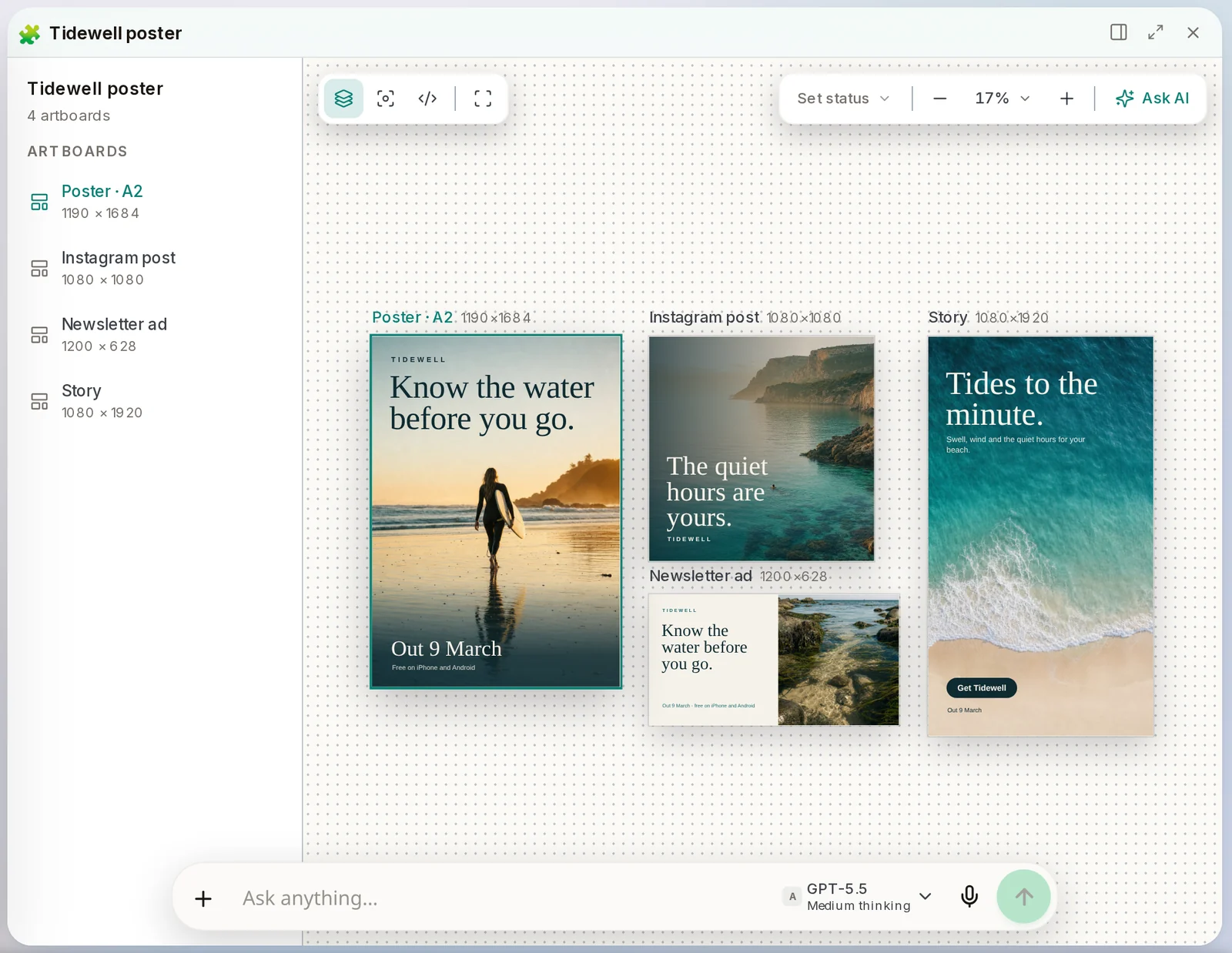 DesignOne design in every size you need, side by side on a canvas. The list on the left names each size.Open any design
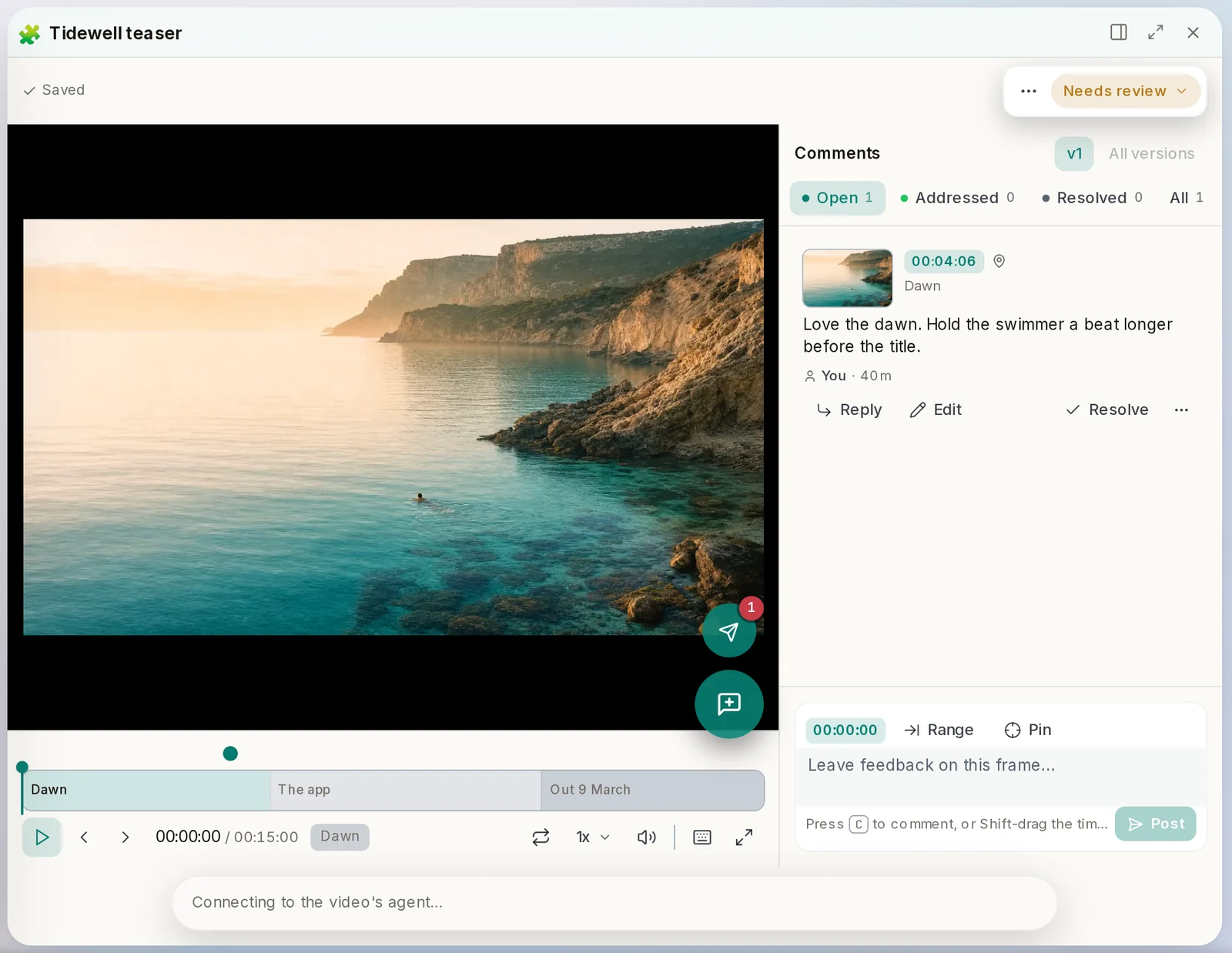 Video reviewWatch a video and leave comments at exact moments. It shows Needs review until you give a verdict.Open any video
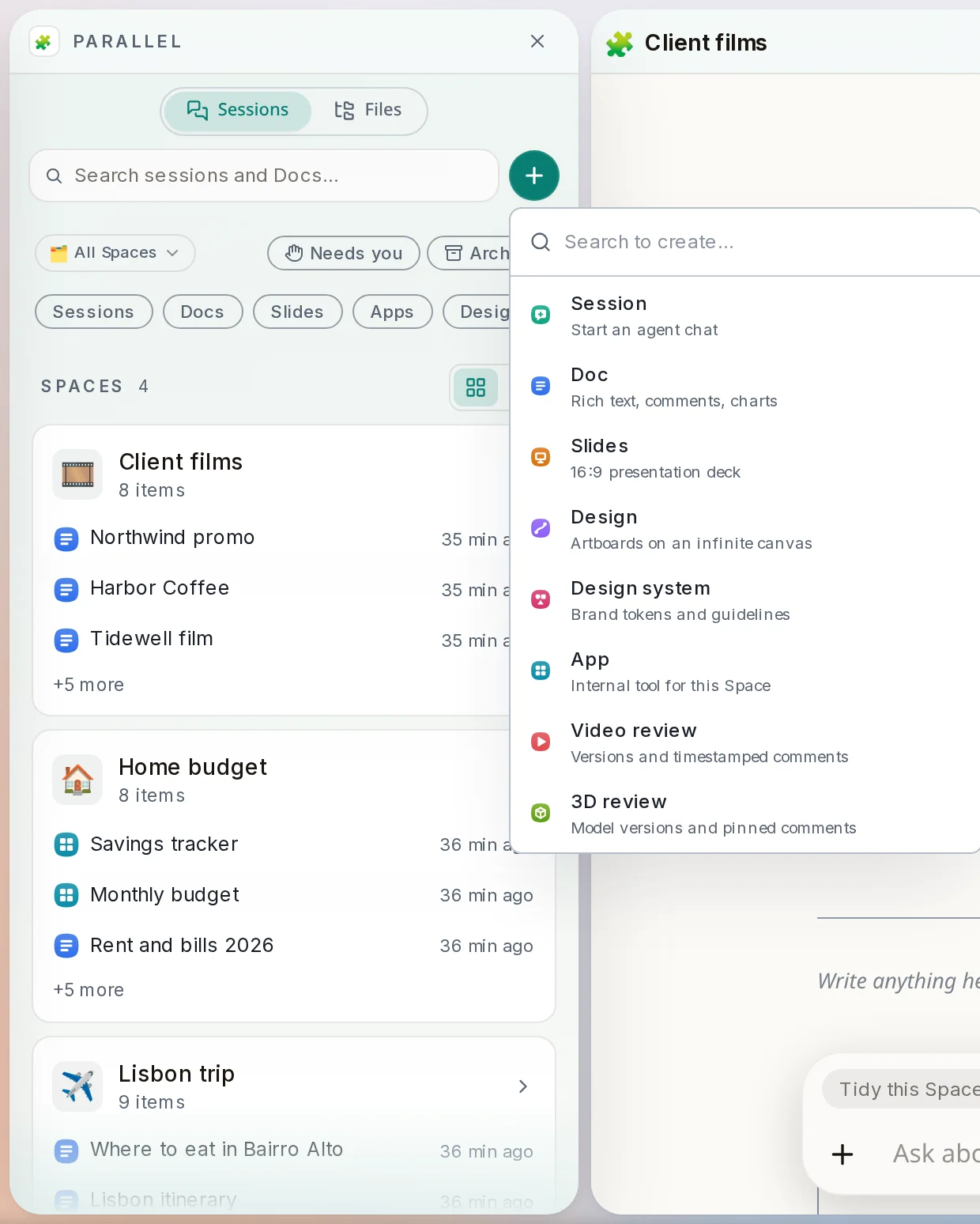 New menuStart any of these yourself, empty, without asking in a chat first.Sidebar → +
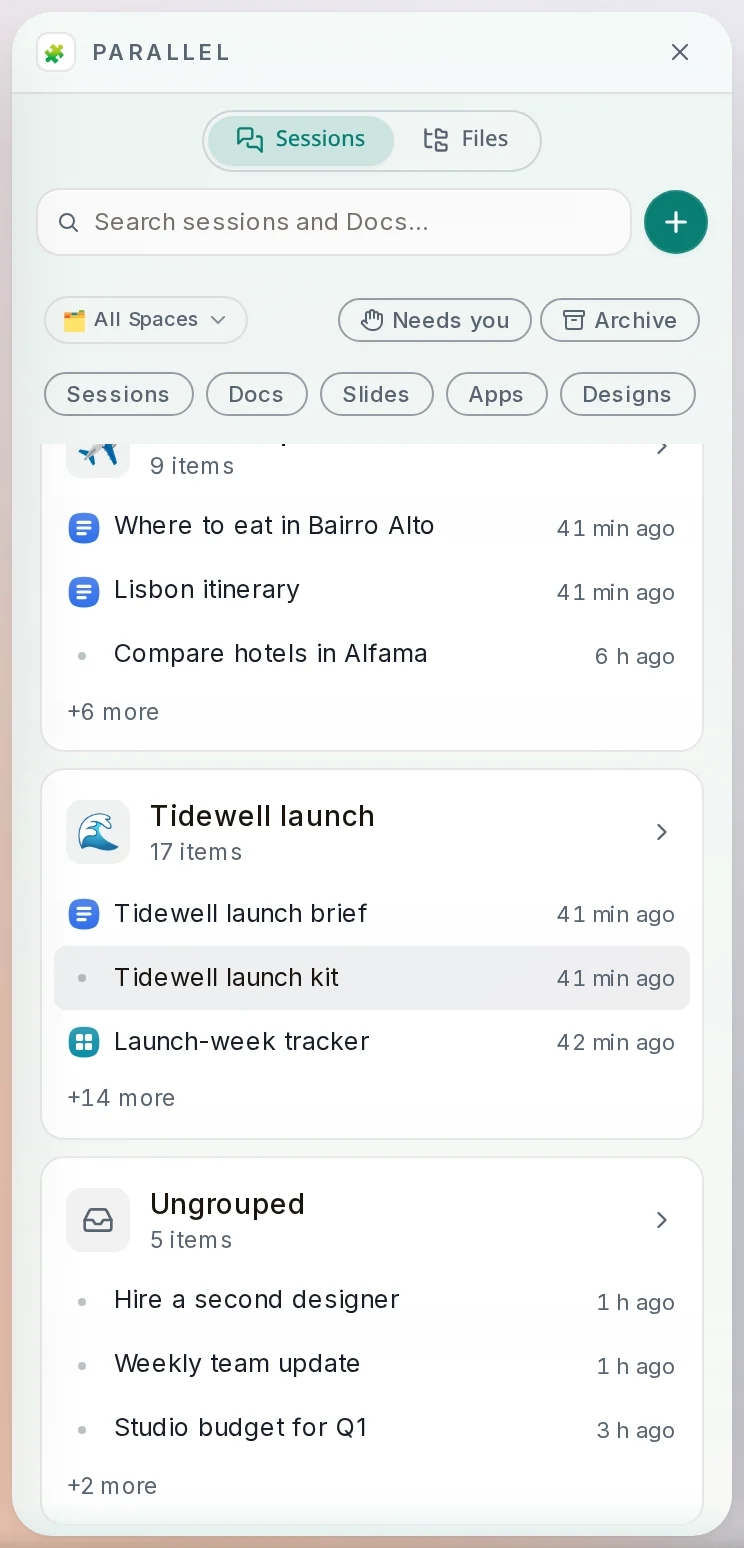 In the sidebarEverything that was made is filed in its Space. The icon tells you what kind it is.Sidebar
How to do it
Section titled “How to do it”Step 1: Ask once
In a chat, say what you need in one go. For example: "Make the Tidewell launch kit: a pitch deck, a one-page brief, the poster and the teaser cut."
Step 2: Open what it made
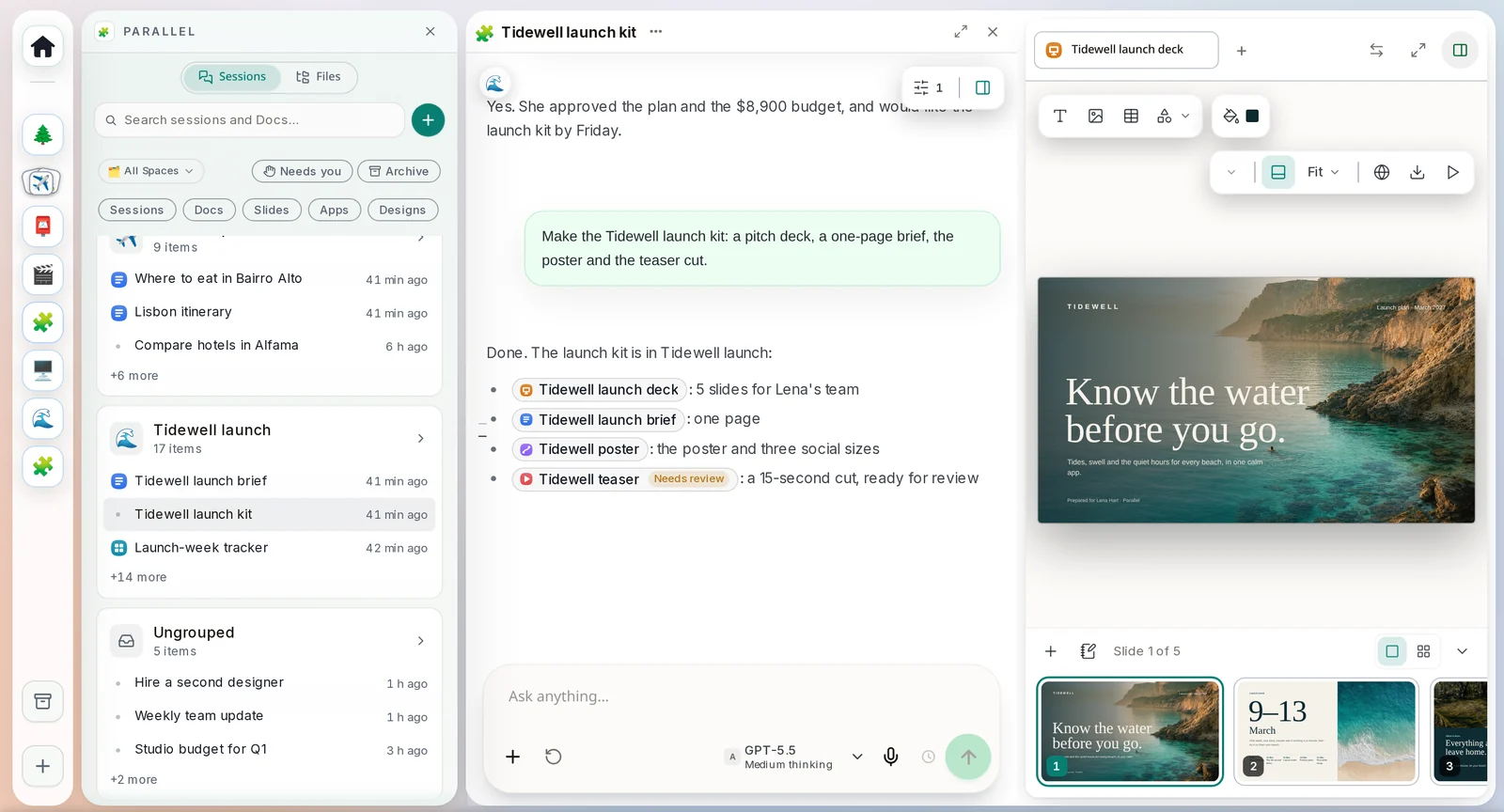
Click a link in the reply, like the deck. It opens in its own editor beside the chat, so you can look and keep talking.
Step 3: Look through the deck
Click a slide in the strip at the bottom to see it. Click any text on the big slide to change it yourself.
Step 4: Ask for a change
Rather describe it than do it? Type in the Ask anything… box under the editor, like "Make the budget slide simpler". Your agent edits the deck for you.
Step 5: Open the design
Click the design in the sidebar. Every size sits on one canvas, and the list on the left names each one.
Step 6: Review the video
Open the video and press play. To comment on a moment, pause there, type in Leave feedback on this frame… and click Post. The comment keeps its time, so everyone knows exactly what you mean.
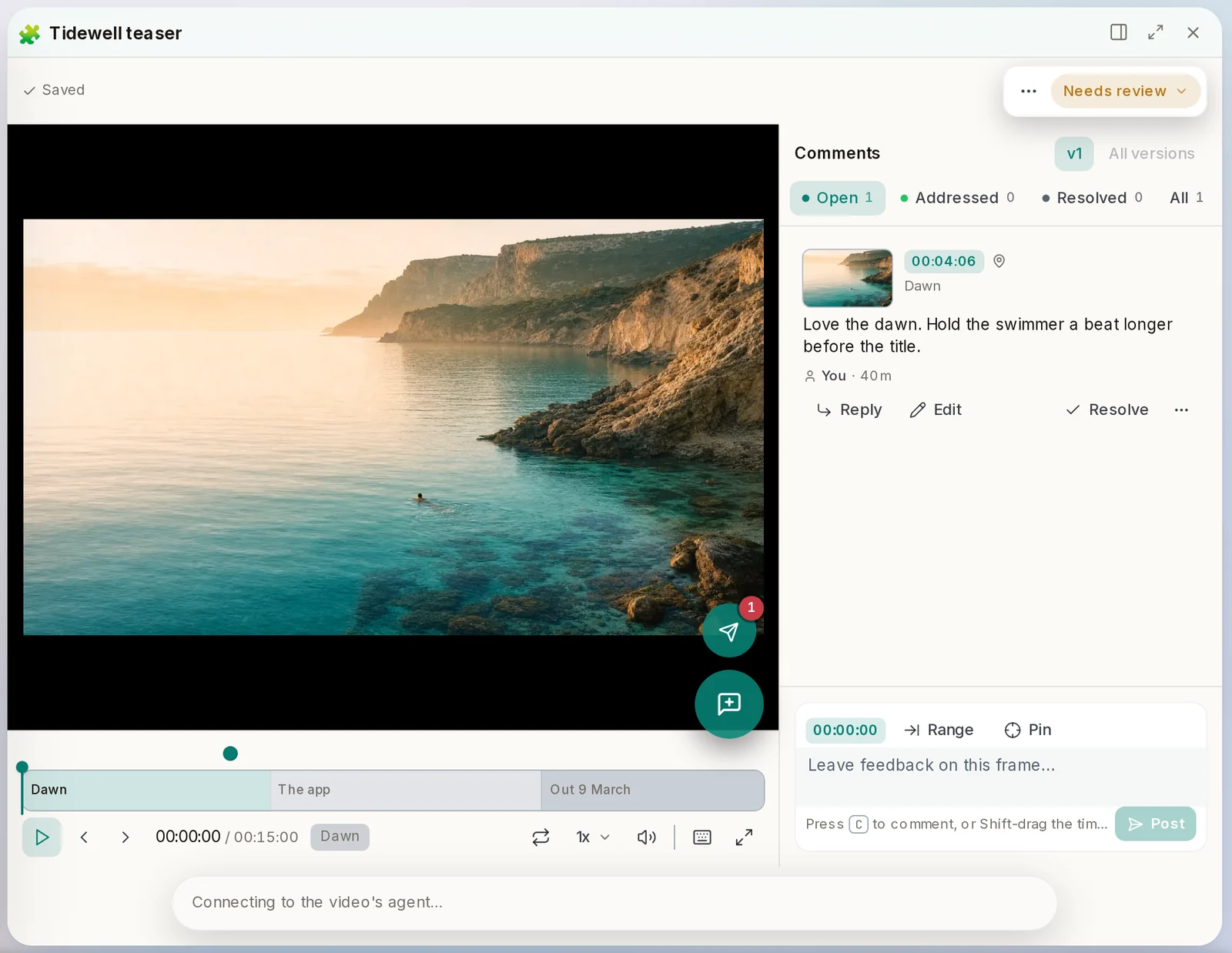
Pin lets you point at a spot in the picture. Range marks a stretch of time.
Step 7: Start one yourself
To begin with an empty deck, document, design or video review, click + at the top of the sidebar and pick the kind.
- Ask for several things in one message. You get them all back, filed in the same Space.
- Every editor has its own Ask anything… box. What you type there is about that one deck, Doc, design or video.
- Set a status like Needs review or Approved at the top of anything you make.
- A video keeps every version, so earlier cuts are still there when a new one arrives.