
Share and install from Community
Install apps, Home panels, Doc types, Routines and agent skills other people built, after your own AI explains in plain words what each one can reach. Share yours just as easily, with a link in one click.
- Where
- Home → Community
- You'll need
- An Axis account to install or share. Browsing is open.
- Works on
- Web, Mac, Windows, iPhone, Android
What you’ll see
Section titled “What you’ll see”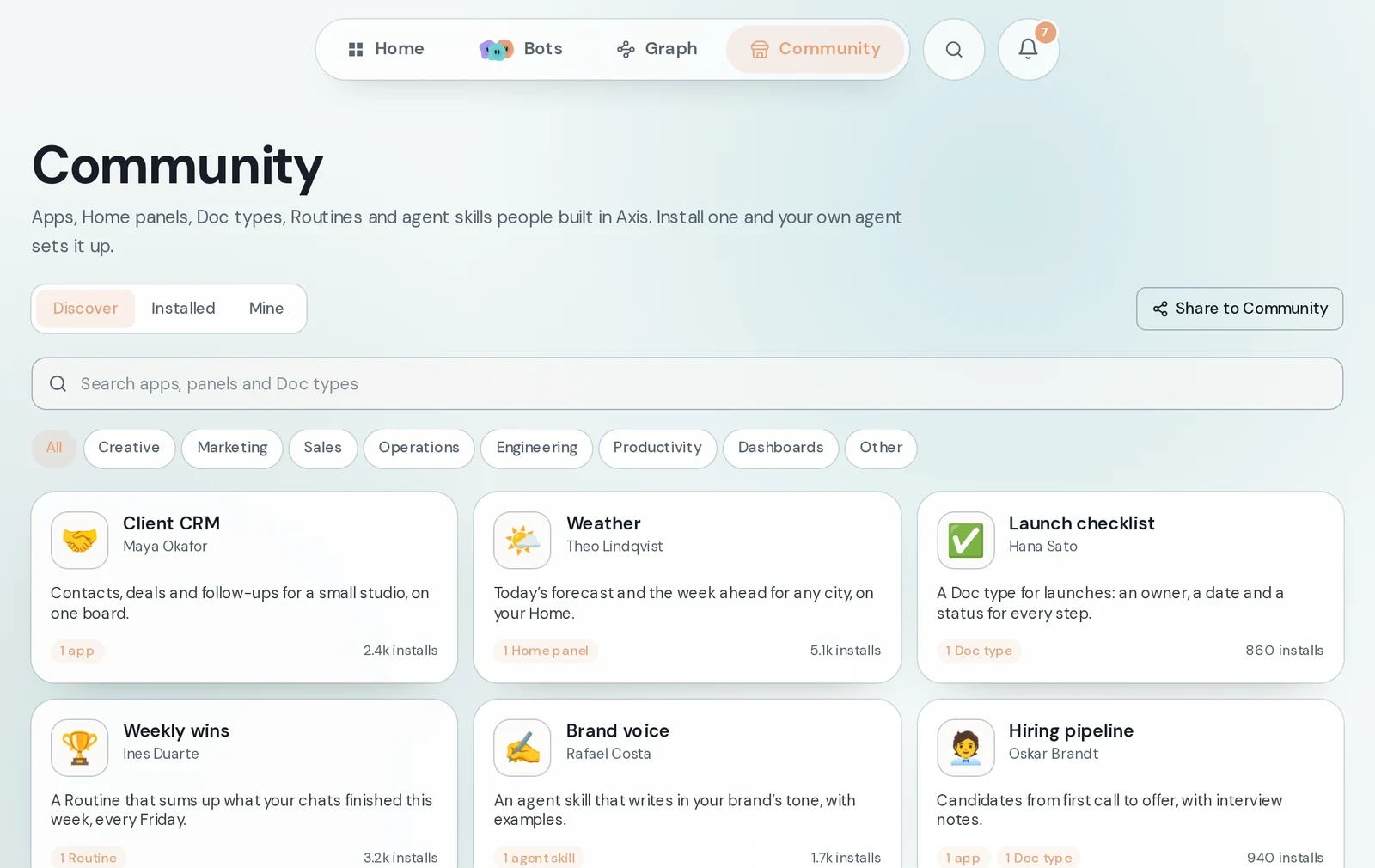 Community pageEverything people have shared. Search, pick a category, or paste a share link into the box at the bottom.Home → Community
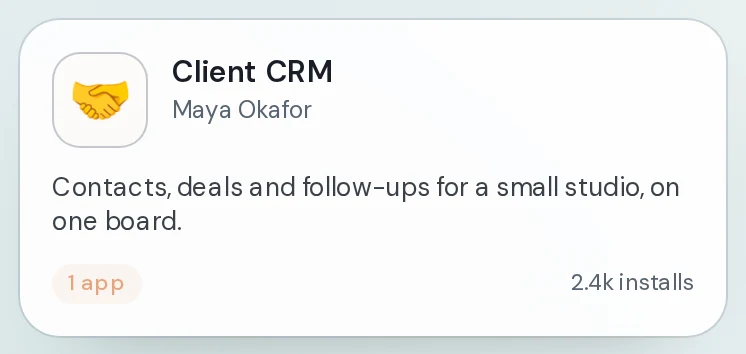 Listing cardEach card shows the name, who made it, one line on what it does, what is inside and how many times it was installed.On the Discover tab
 Share to CommunityOpens the form for sharing something you built: an app, a Home panel, a Doc type, a Routine or an agent skill.Top right of the Community page
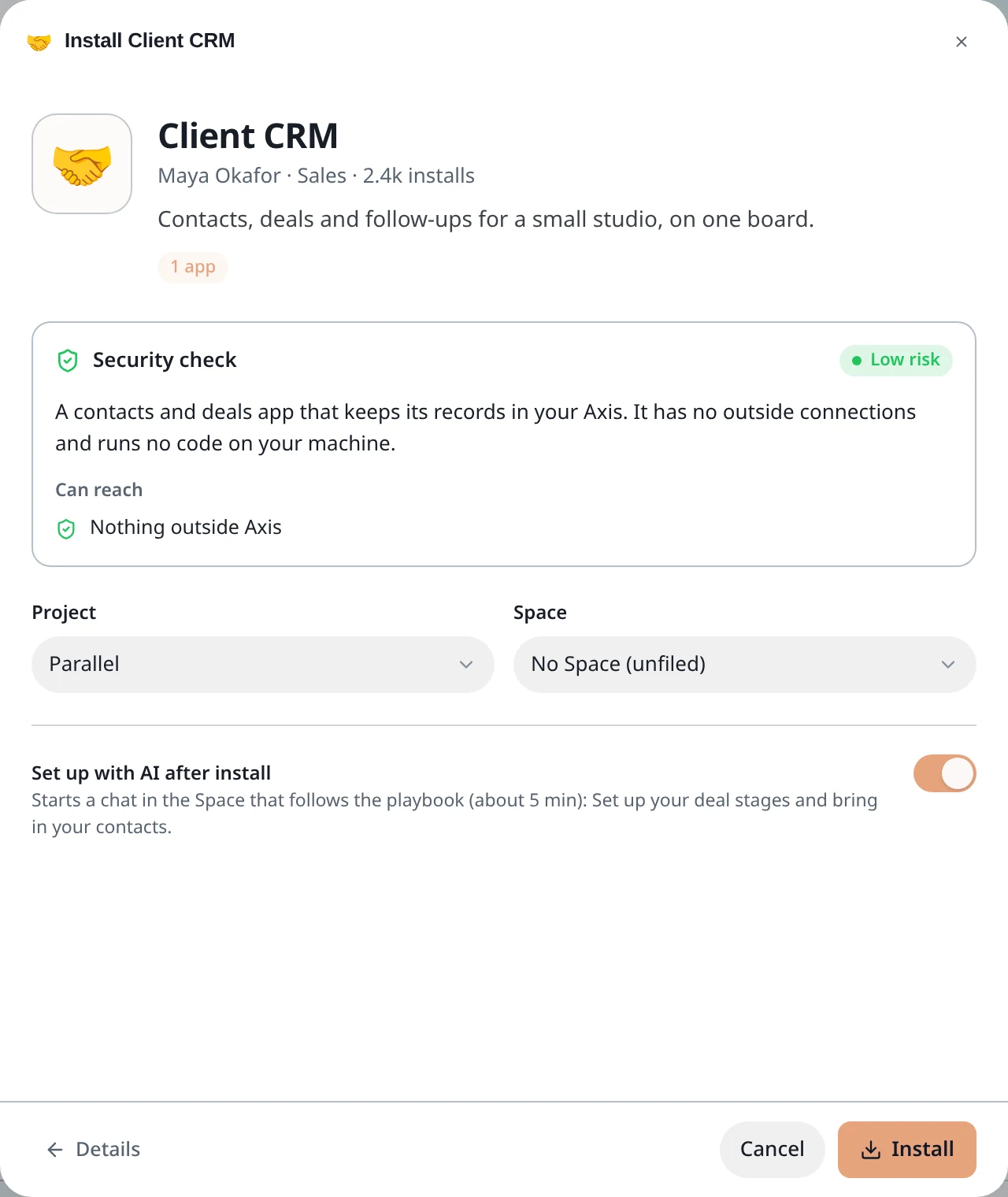
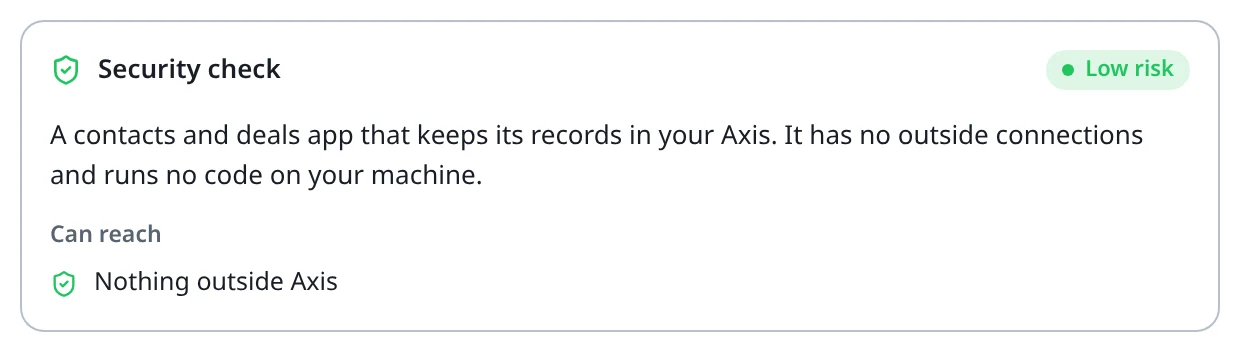 Security checkBefore anything installs, your own AI reads the package and says in plain words what it is and what it can reach. Install stays off until the check has an answer.In the install window, after you click Install
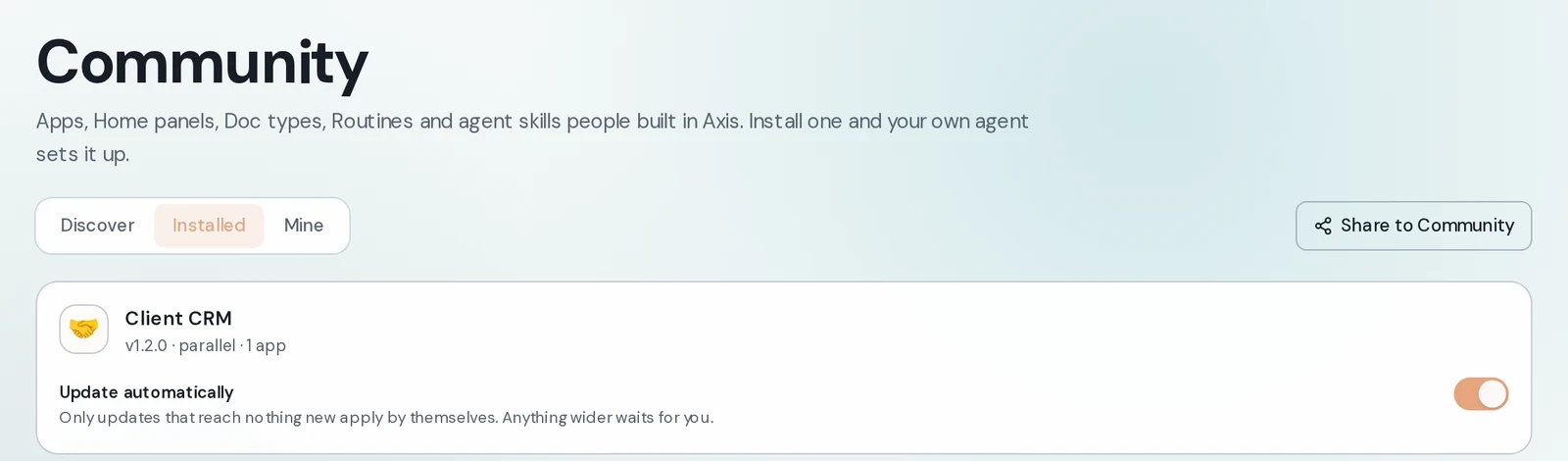 Installed tabWhat this Axis has installed. With Update automatically on, only updates that reach nothing new apply by themselves. Anything wider waits for you.Community → Installed
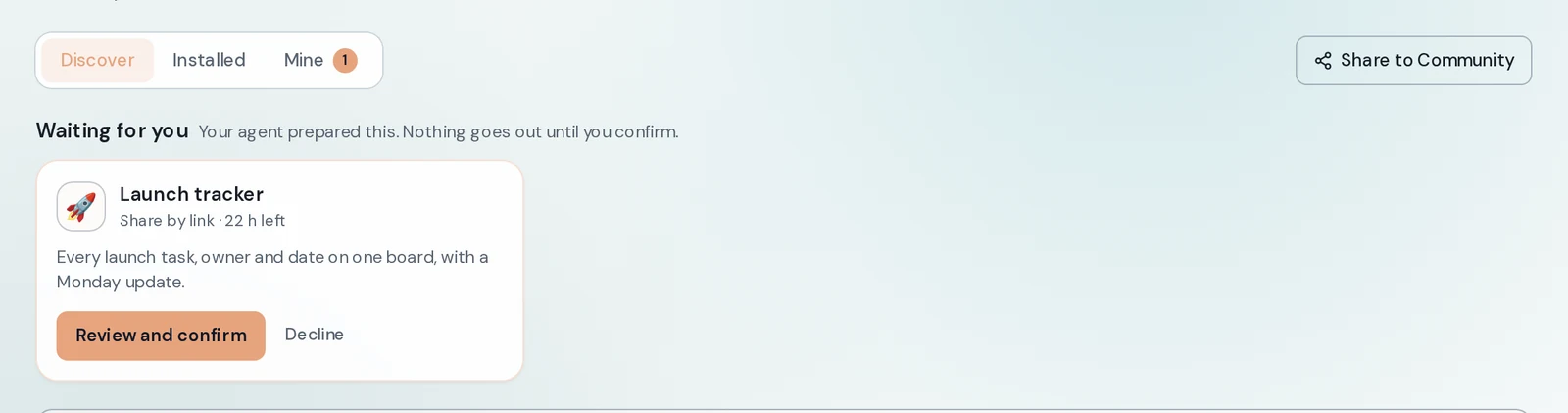 Waiting for youWhen you ask an agent to share something, it only prepares the share. It waits here until you review it. Nothing goes out until you confirm.Top of the Community page
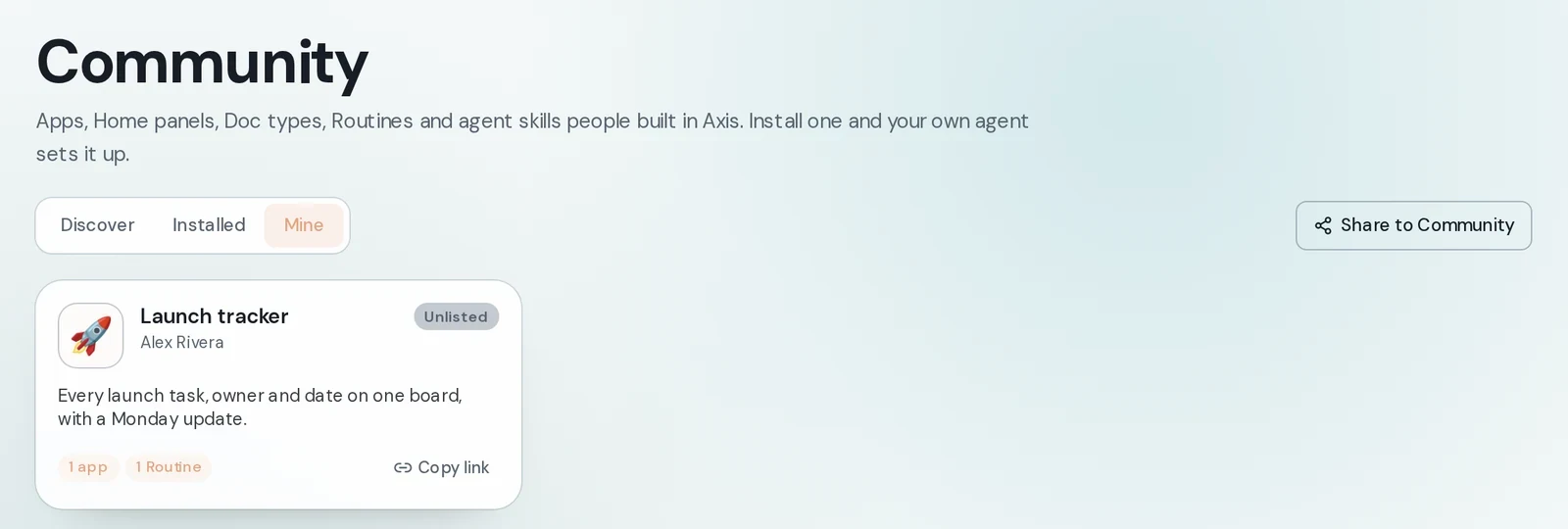 Mine tabEverything you have shared, with its status and a Copy link button.Community → Mine
How to do it
Section titled “How to do it”Step 1: Open Community and pick something
Click Home, then Community. Click a listing to open it. You see pictures, a description and What’s inside.

Step 2: Click Install and read the Security check
Click Install. Axis checks the package first. In a moment the Security check shows a risk level, a short summary and what it can reach.
A High risk result asks for a clear second yes before it installs.
Step 3: Choose where it goes, then install
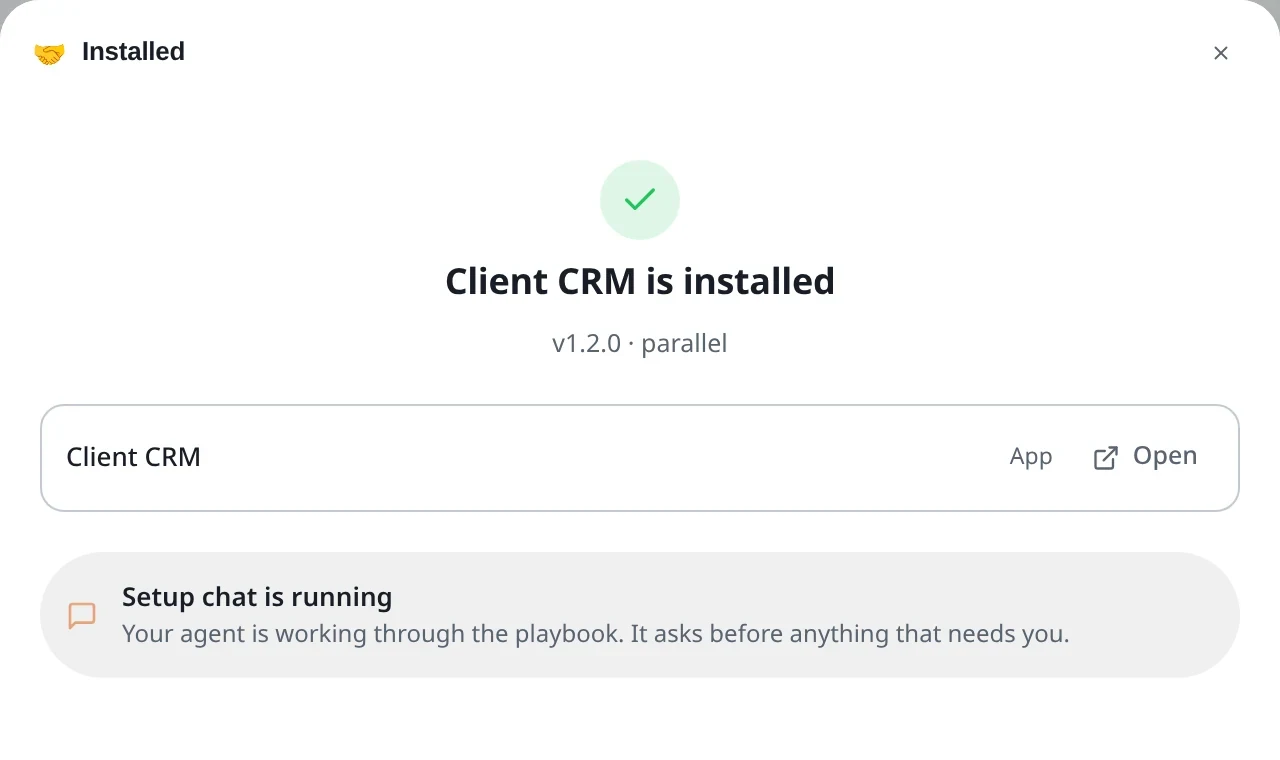
Pick the Project and Space. Leave Set up with AI after install on if you want a chat to set it up with you. Click Install. You see that it is installed and can open it.
Step 4: Share something of your own
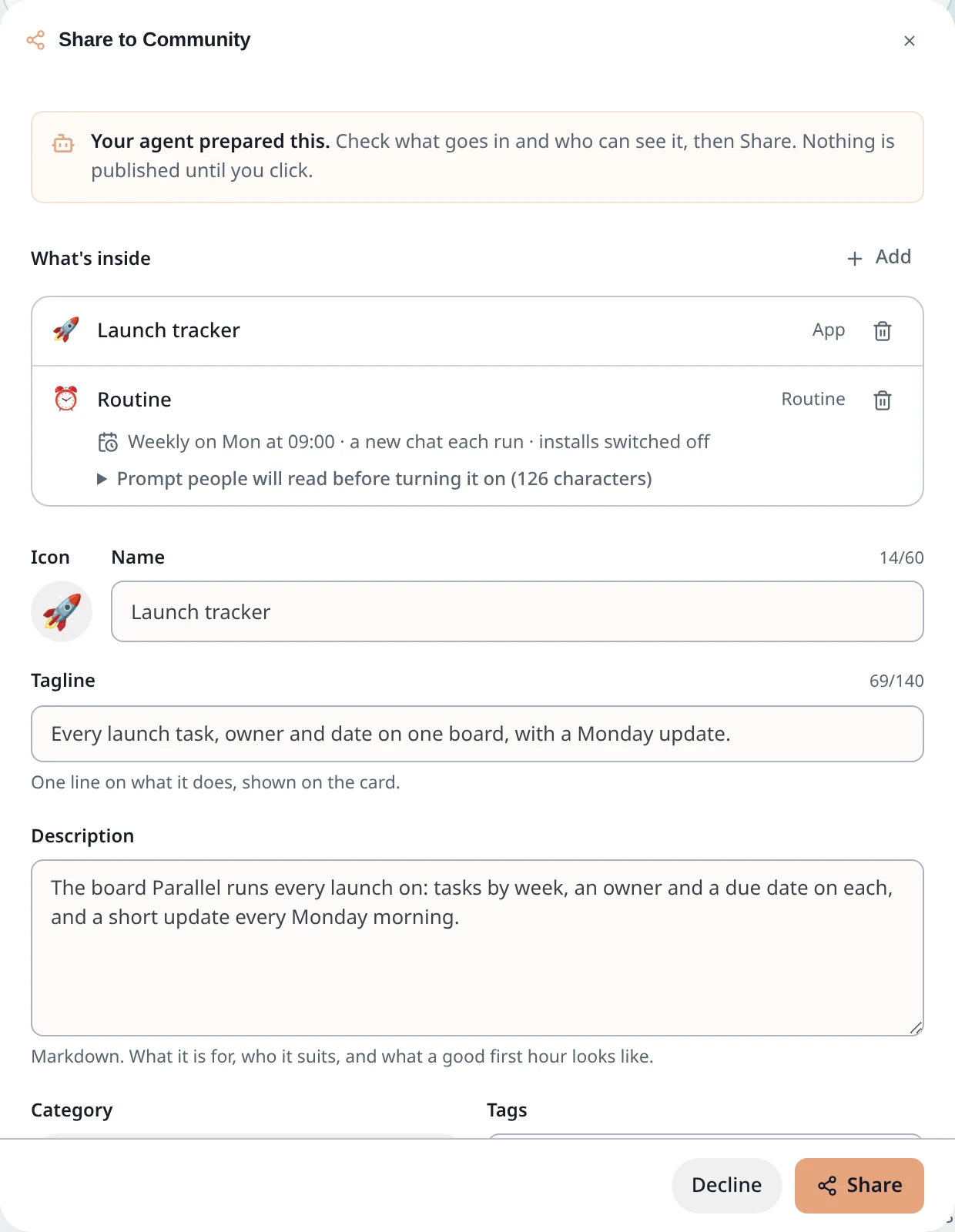
Click Share to Community and add what you want to share. Or ask an agent to share it for you, then click Review and confirm under Waiting for you. Check the name, the tagline and what is inside.
Step 5: Choose who can find it
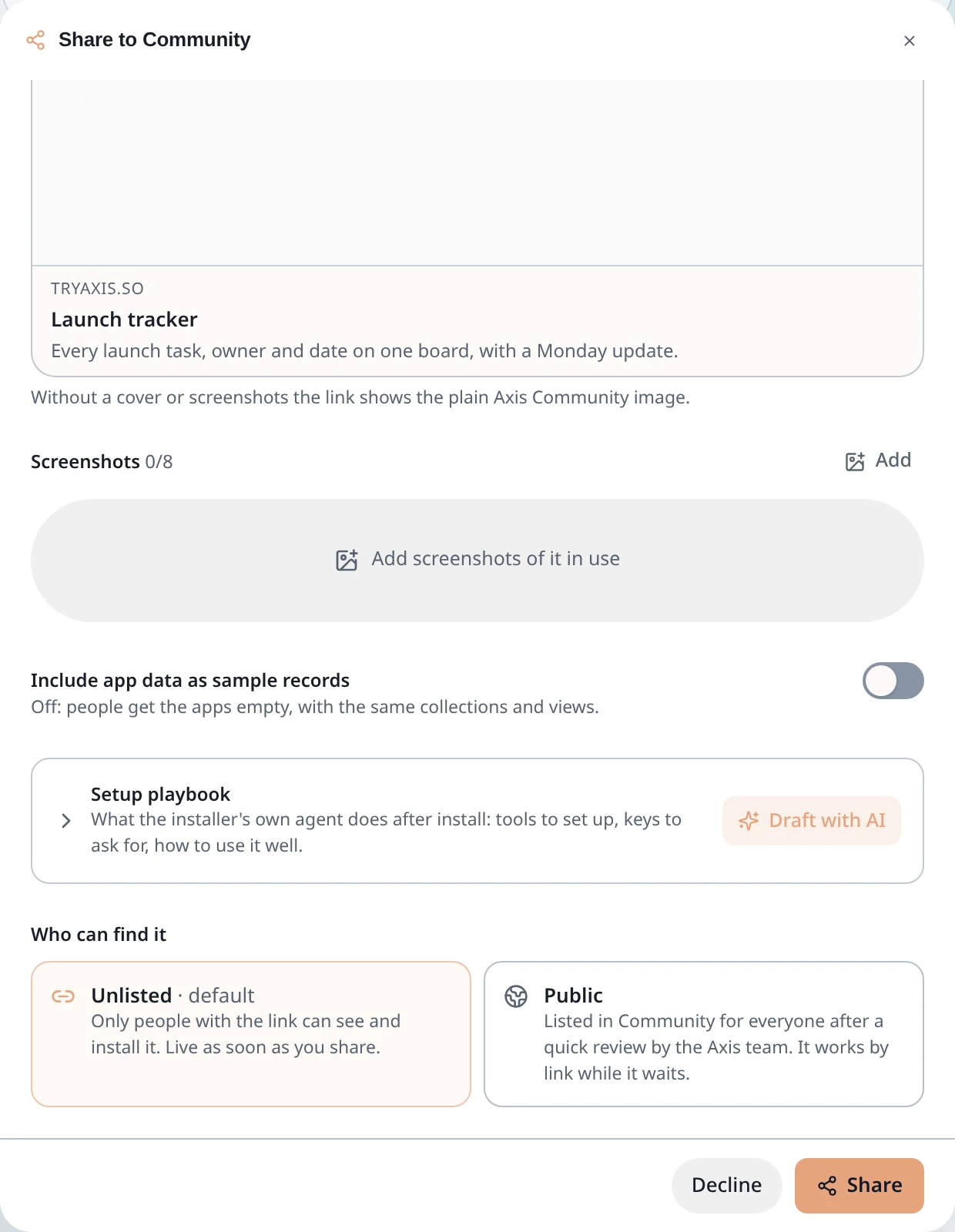
Scroll to Who can find it. Unlisted is the default: only people with the link can see and install it. Public lists it in Community for everyone after a quick review by the Axis team. Click Share.
Step 6: Copy the link and send it
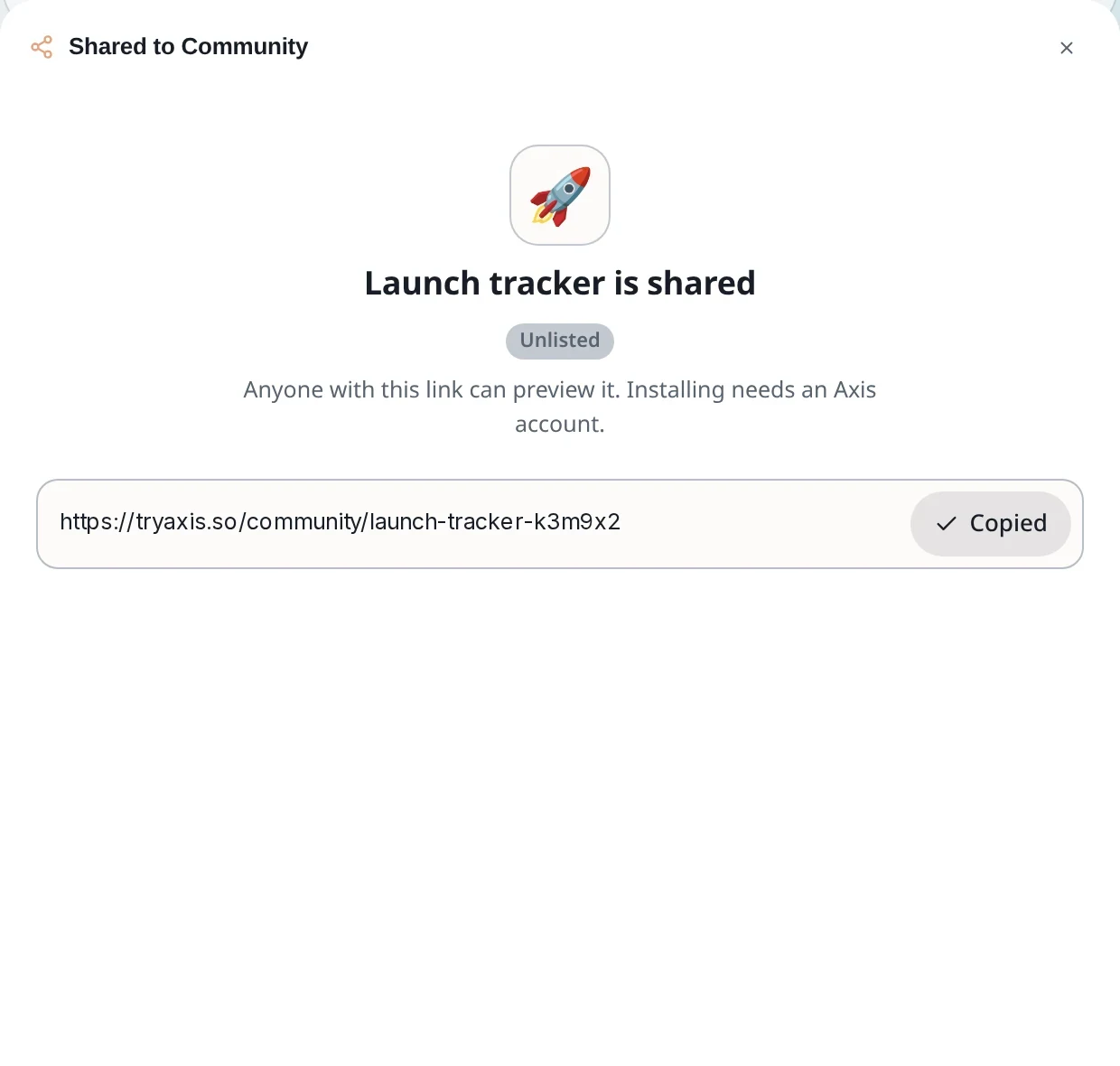
Axis shows your link. Click Copy link and send it to anyone. They can preview it straight away. Installing needs an Axis account.
- A Routine from Community arrives switched off. It only runs after you turn it on.
- Apps arrive empty unless the person who shared them included sample records. Nothing of yours is shared with them.
- Someone sent you a link? Paste it into Got a share link? at the bottom of the Discover tab and click Open.
- If your Axis has no fast model set up, the Security check still runs its automatic check and tells you the AI summary is unavailable.