
Make Axis your own
Ask for the setup you want, like a film studio, and Axis builds it: your own type with your own statuses, an app to run it and a look of its own. Every project and Space can be its own world.
- Where
- Any chat in a project, then Settings → Display → Homepage
- You'll need
- Nothing extra
- Works on
- Web, Mac, Windows, iPhone, Android
What you’ll see
Section titled “What you’ll see”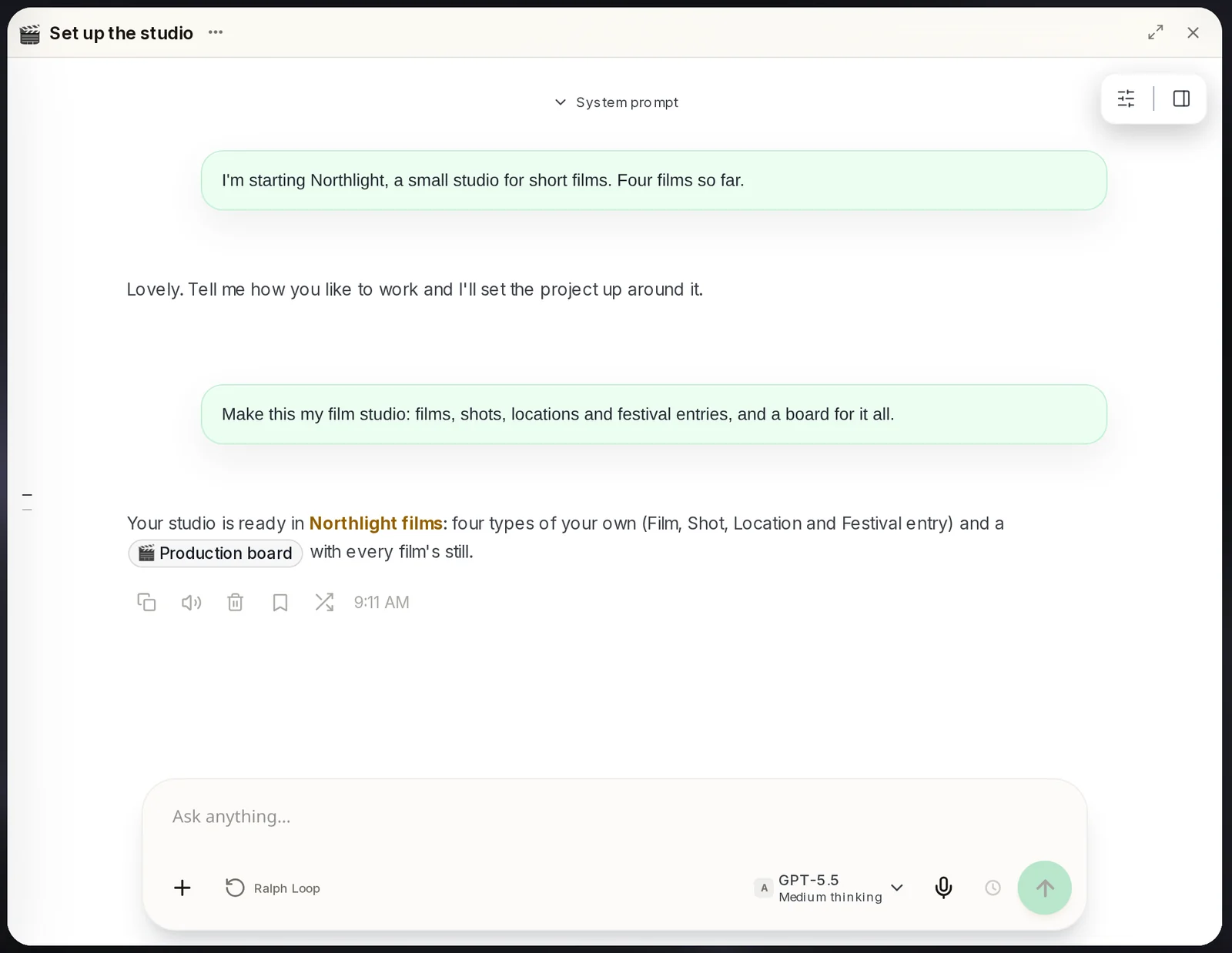 Ask for your setupOne message describes how you work. The reply links what was built.Any chat in the project
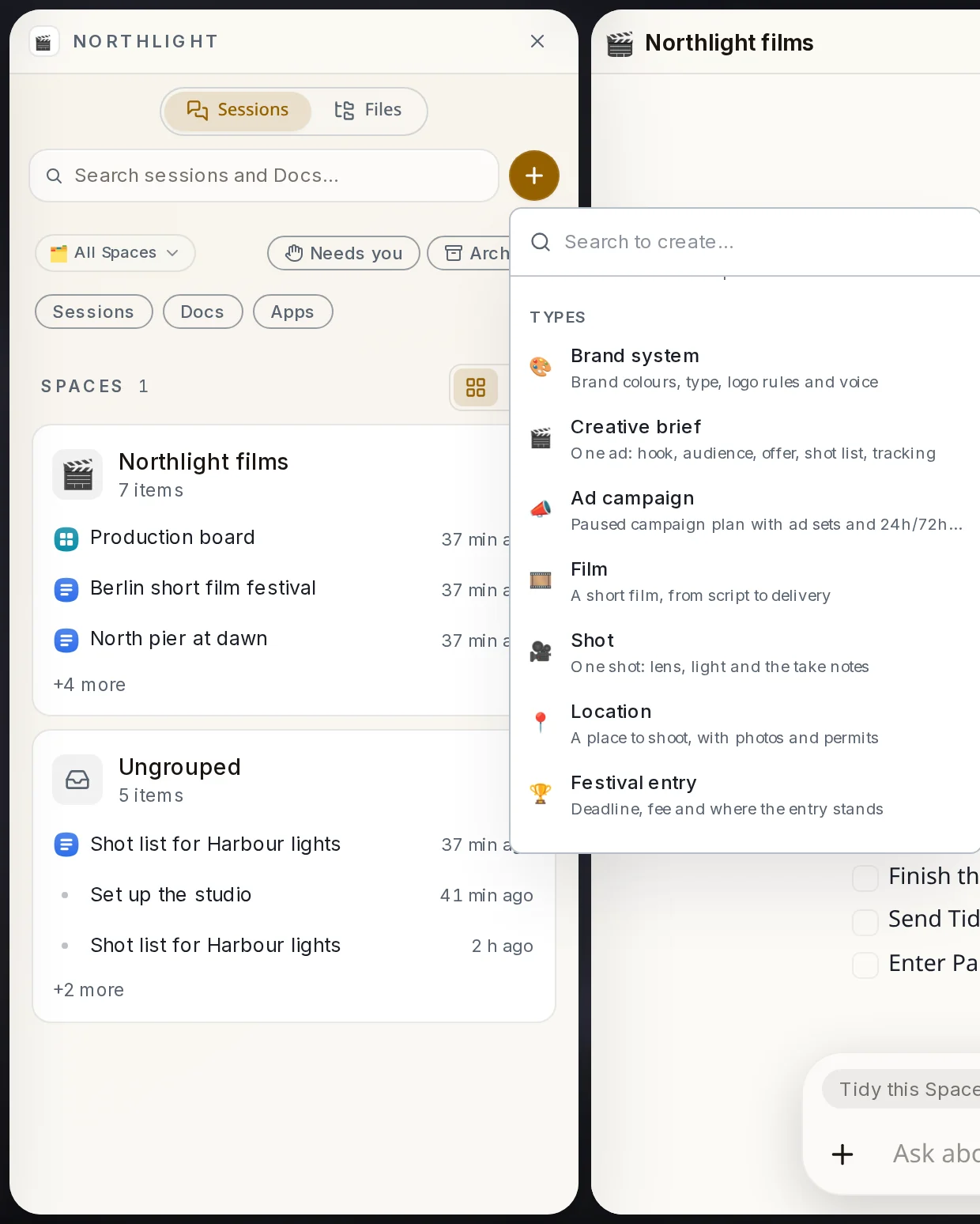 Your own typesThe kinds of work you asked for now sit under Types, beside the ones Axis comes with.Sidebar → + → Types
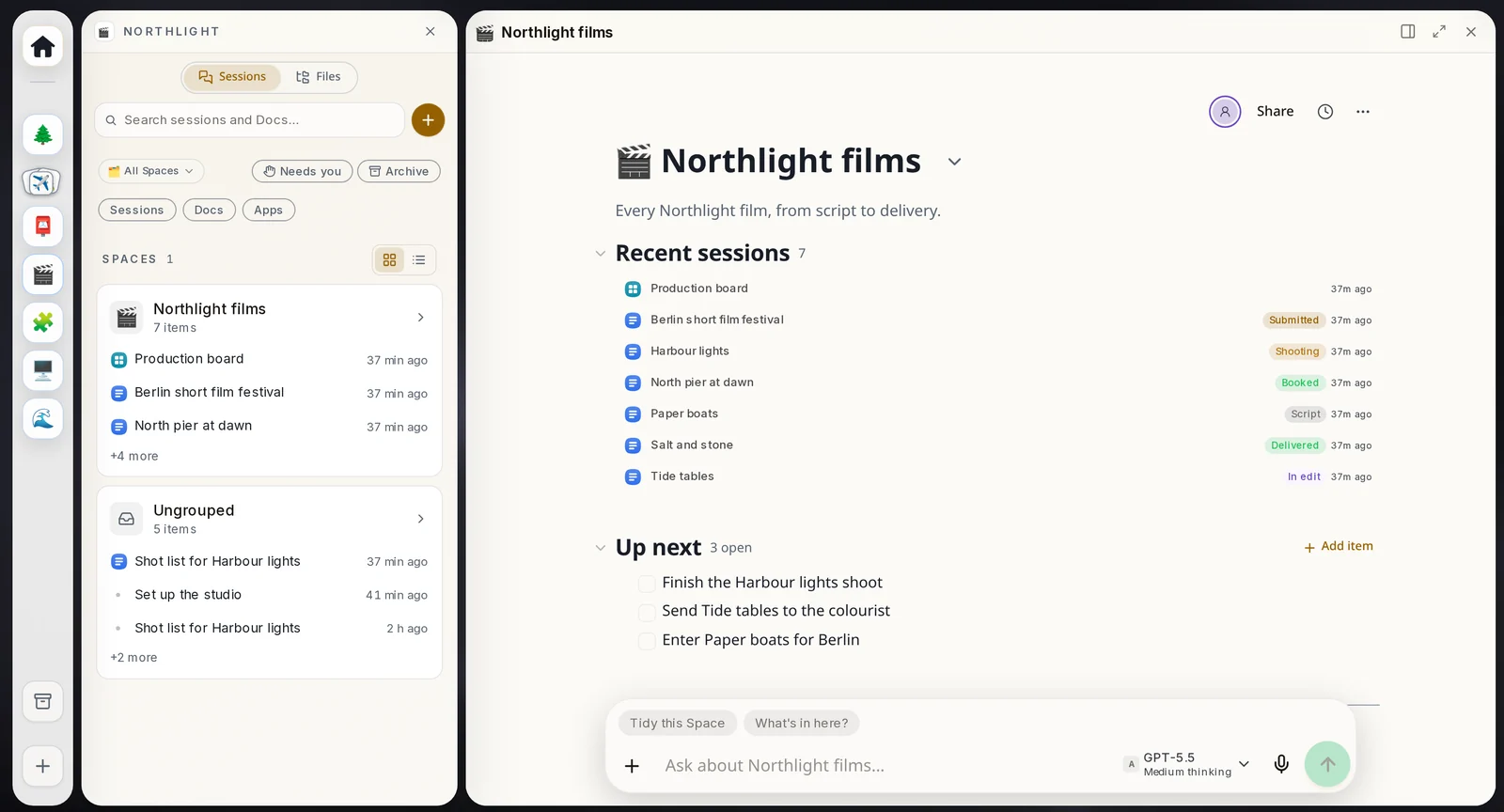
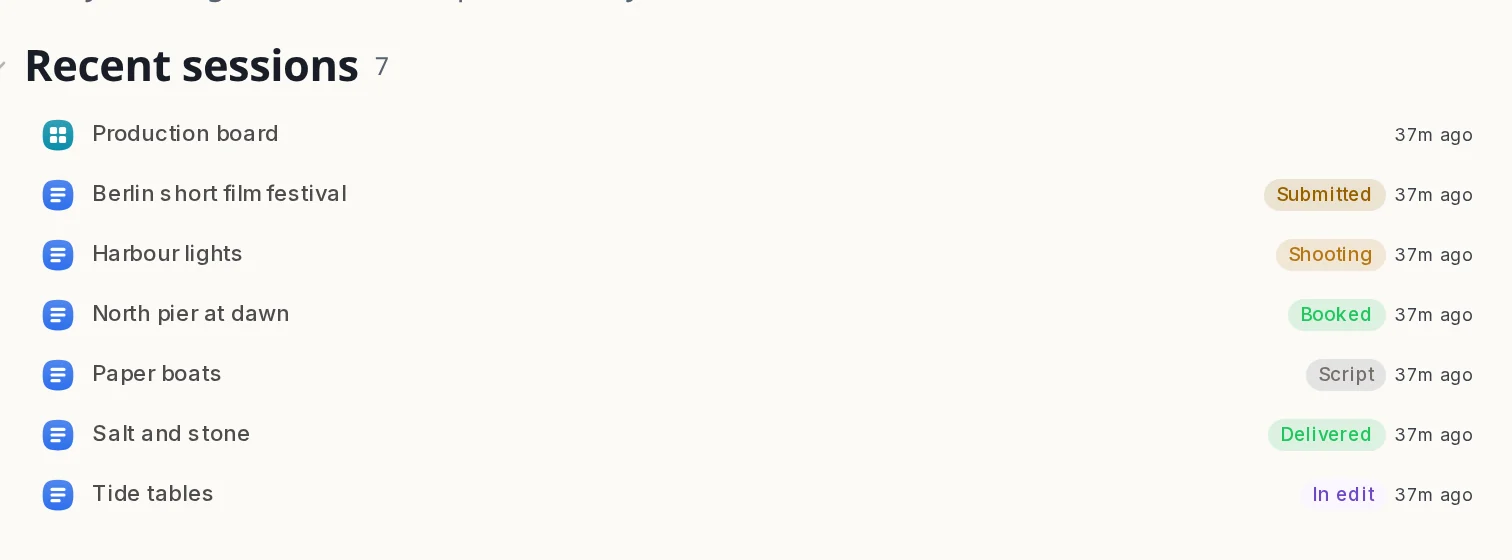 Your own statusesStatuses in your words and your colours, shown beside each piece of work.Space home page
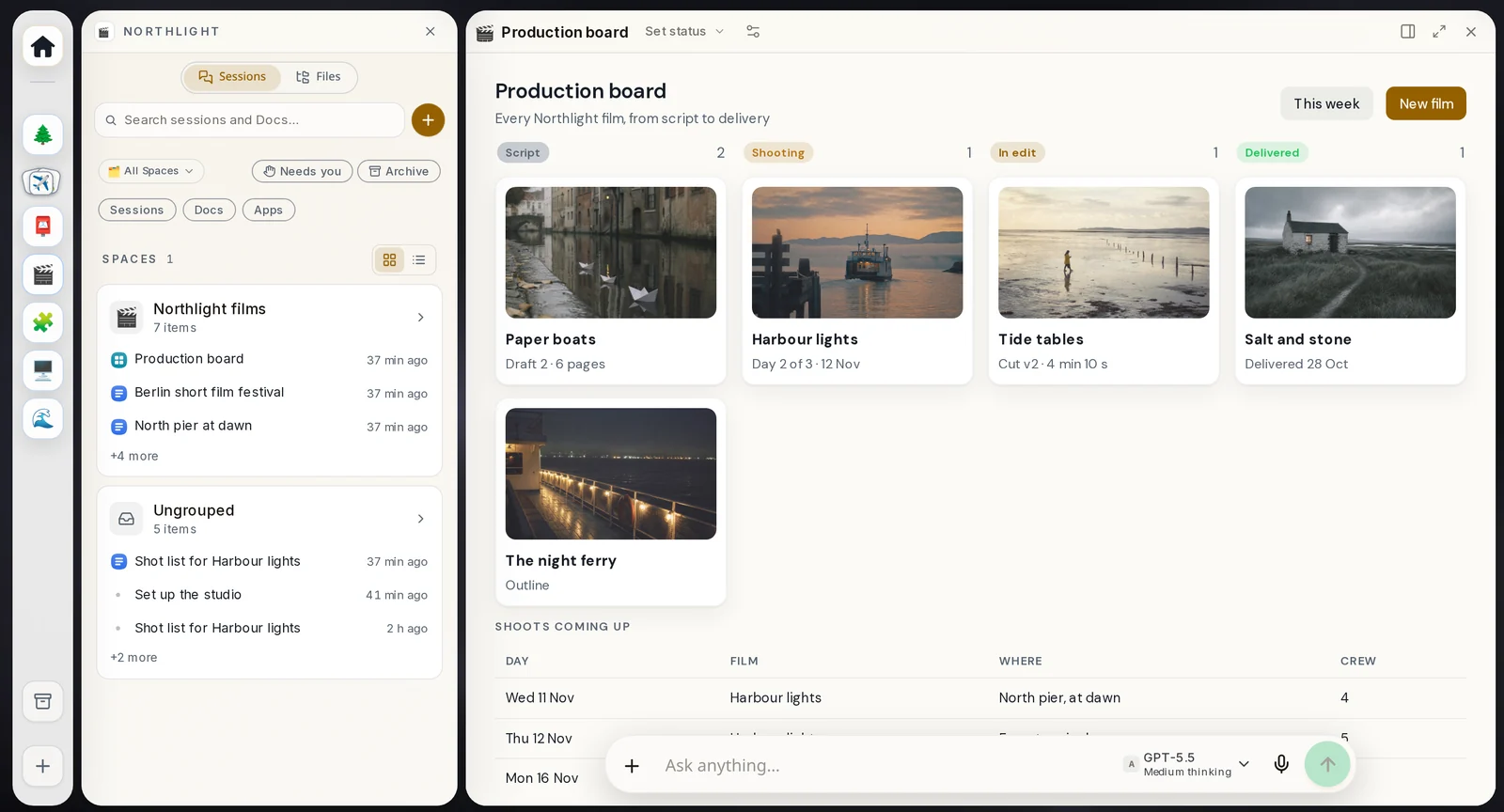
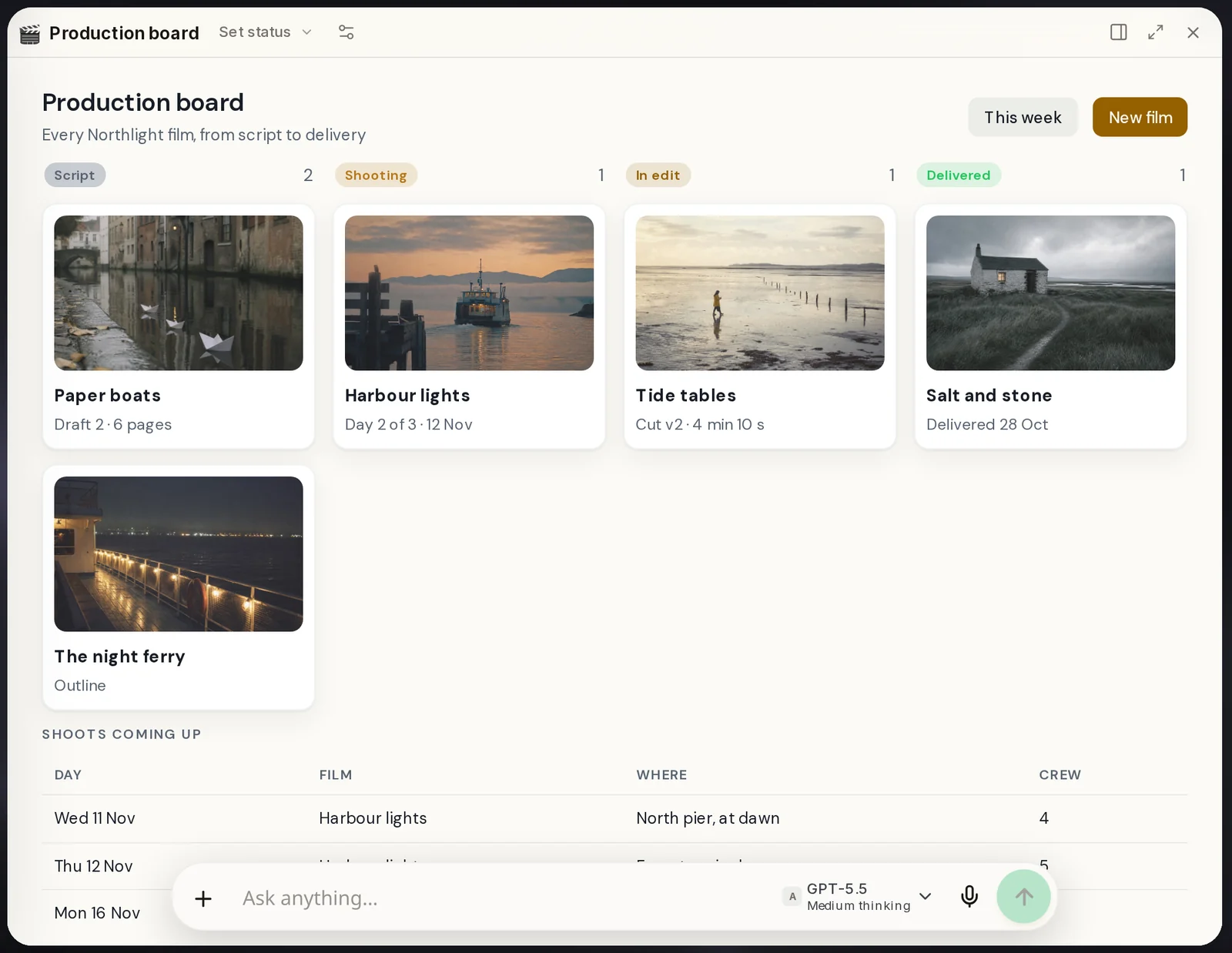 Your own appA small app built for this project. Here it is a board of films by status.Open it from its Space
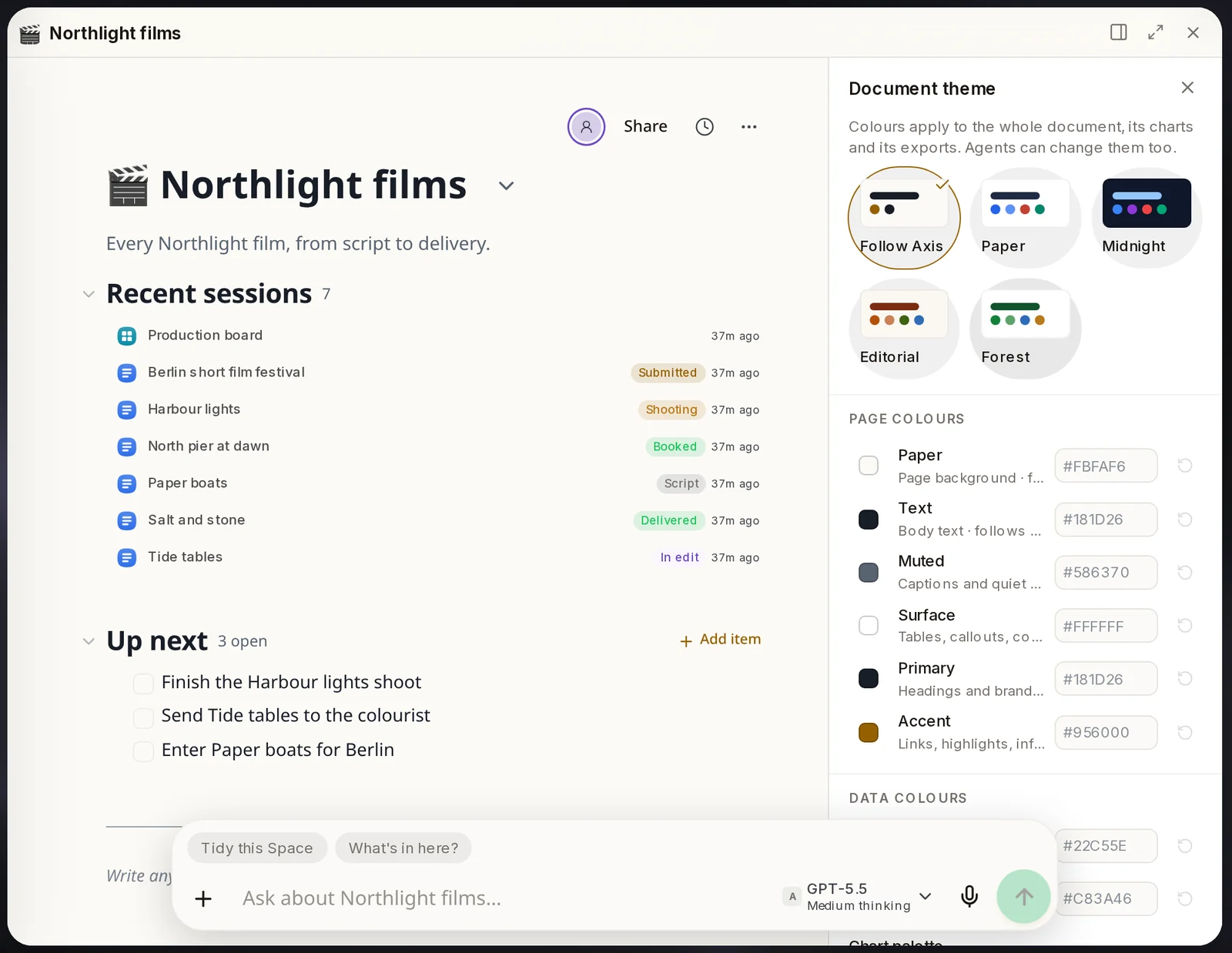 A look for the SpaceColours and fonts for one Space page. Pick a ready look or set each colour.Space home page → ⋯ → Colours and fonts
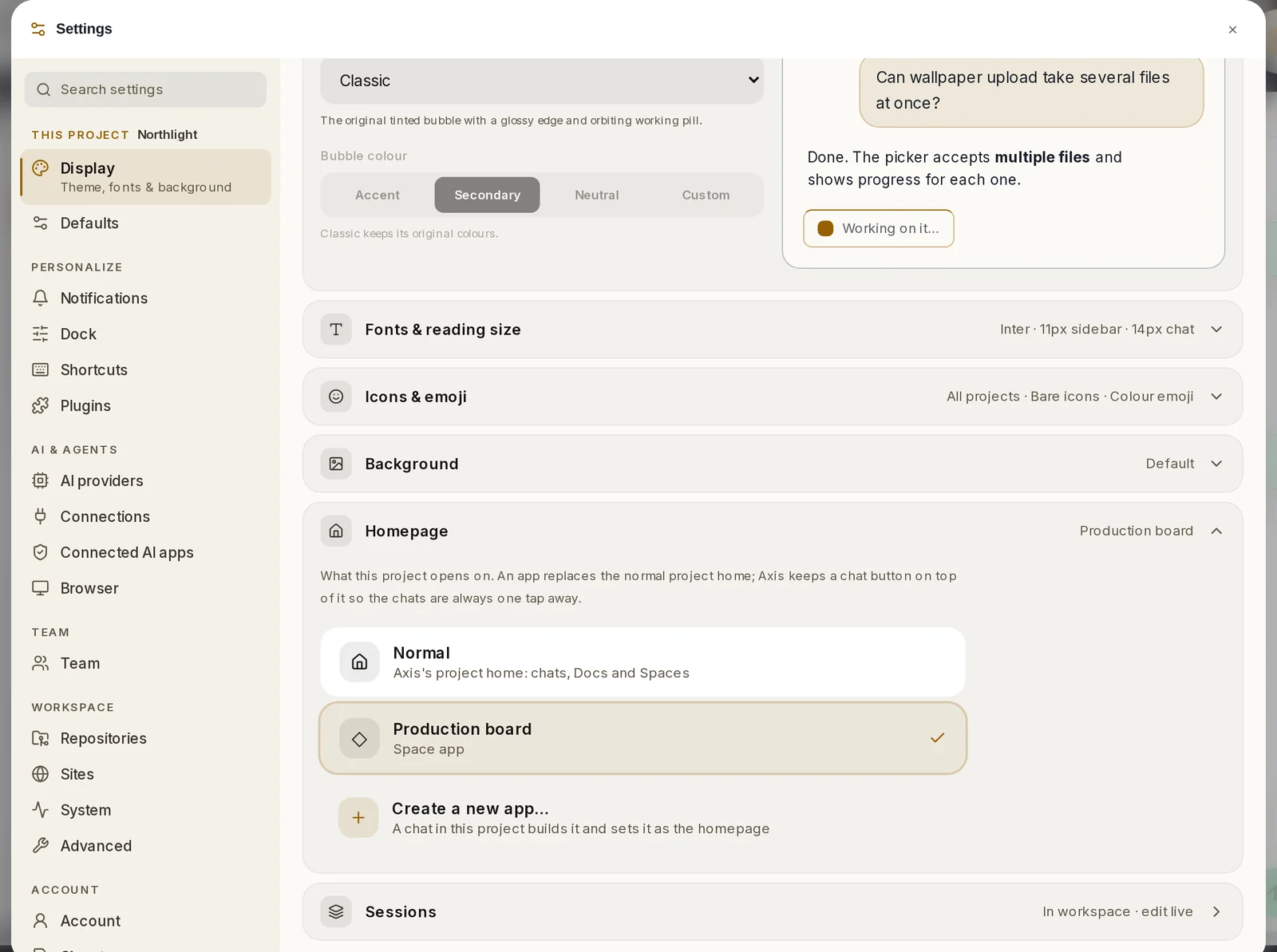 Homepage settingChooses what the project opens on: the normal home, or one of its apps.Settings → Display → Homepage
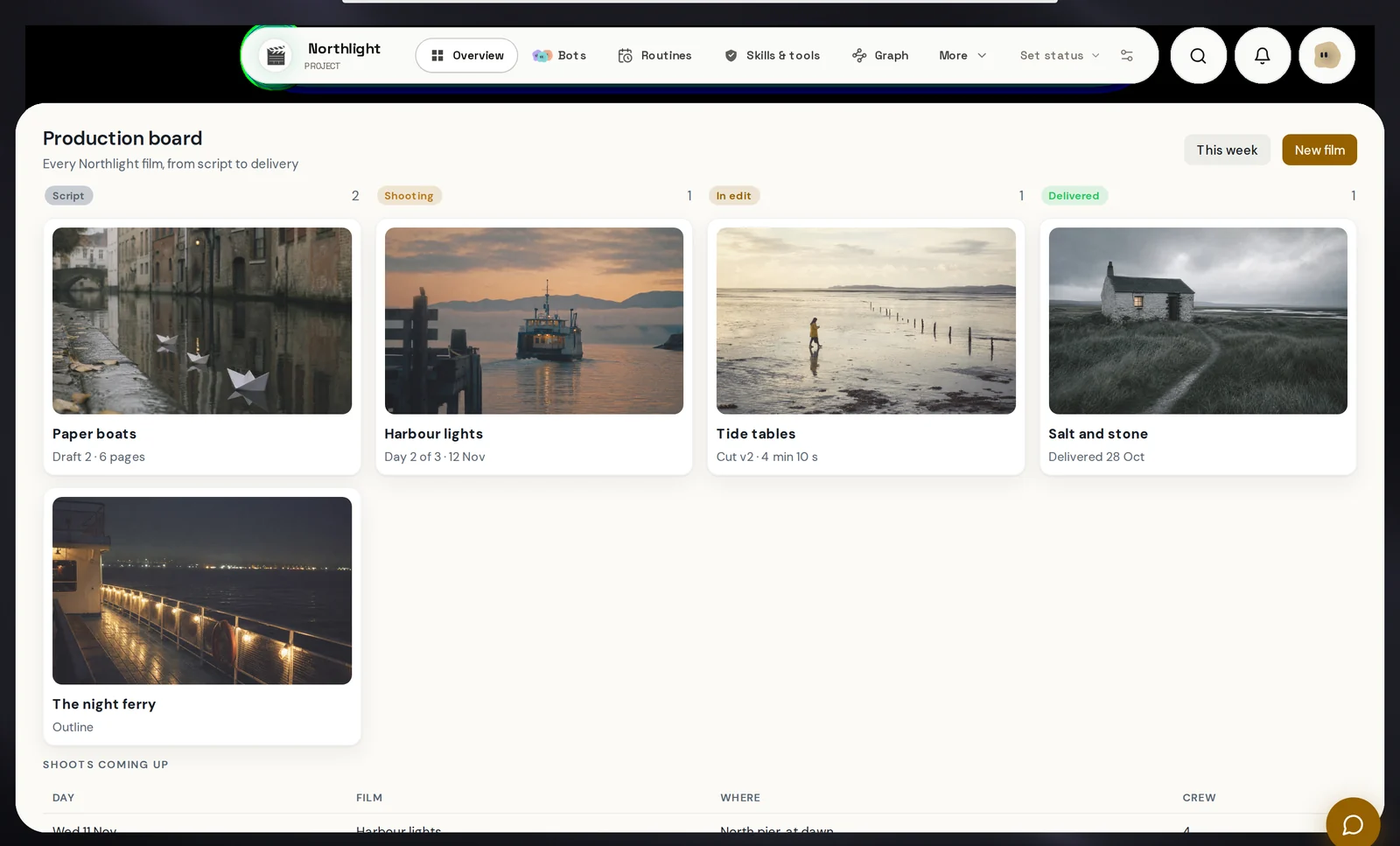 The project opens on your appWith an app as the homepage, the project opens straight on it. The project bar stays on top.Project → Overview
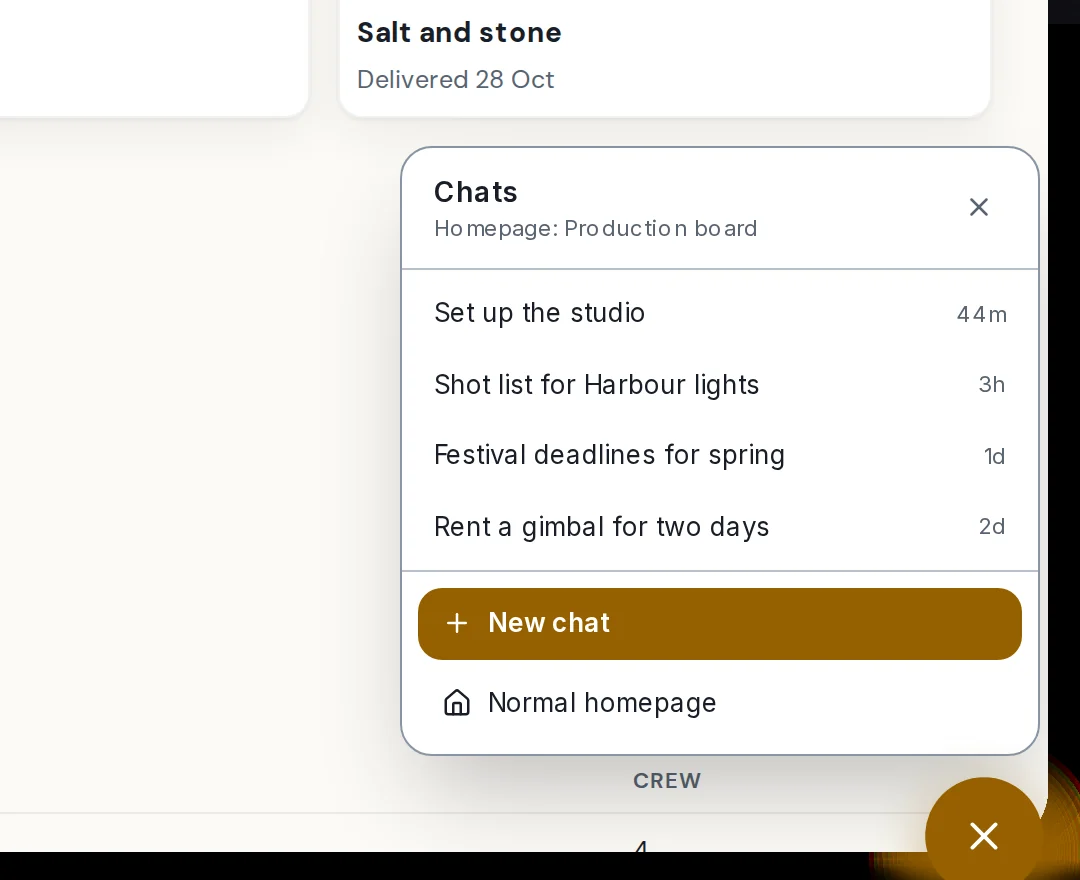 Chat buttonKeeps your chats one click away on a custom homepage.Bottom right of a custom homepage
How to do it
Section titled “How to do it”Step 1: Ask for the setup you want
In a chat in the project, describe your world in one message. For example: "Make this my film studio: films, shots, locations and festival entries, and a board for it all."
Step 2: See what it built
Open the new Space in the sidebar. Your work is filed there, each piece with a status in your own words.
Step 3: Make something of your own type
Click + at the top of the sidebar and look under Types. Pick one, like Film, and a new page opens with its parts ready.
Set its status at the top of the page. To name a new status, choose New status…
Step 4: Open your app
Click the app in its Space. It opens like any Doc, and the Ask anything… box under it is where you ask for changes, like "Add a column for festival entries".
Step 5: Give the Space its own look
On the Space home page, click ⋯ and choose Colours and fonts. Pick a look such as Paper or Midnight, or set the colours one by one.
Step 6: Make the app your homepage
Click the gear at the bottom right to open Settings. Under Display, open Homepage and pick your app.
No app yet? Create a new app… starts a chat that builds one and sets it as the homepage.
Step 7: Open the project
From now on the project opens on your app. Click the round button at the bottom right for your chats, a new chat, or the normal homepage.
- Every project can have its own colours and background too. See Every project, its own brain.
- To go back, open Settings → Display → Homepage and choose Normal.
- Types, the app and the homepage belong to this project only. Your other projects stay as they are.
- Ask for changes in plain words whenever your way of working changes.