
Private by default
Your Axis is your own private space, and the people you invite are the only others who get in. Axis support can only look inside if they ask and you approve, and that access ends by itself.
- Where
- Settings → Team
- You'll need
- Axis Cloud. Inviting people needs Cloud Plus or above.
- Works on
- Axis Cloud, from any device
What you’ll see
Section titled “What you’ll see”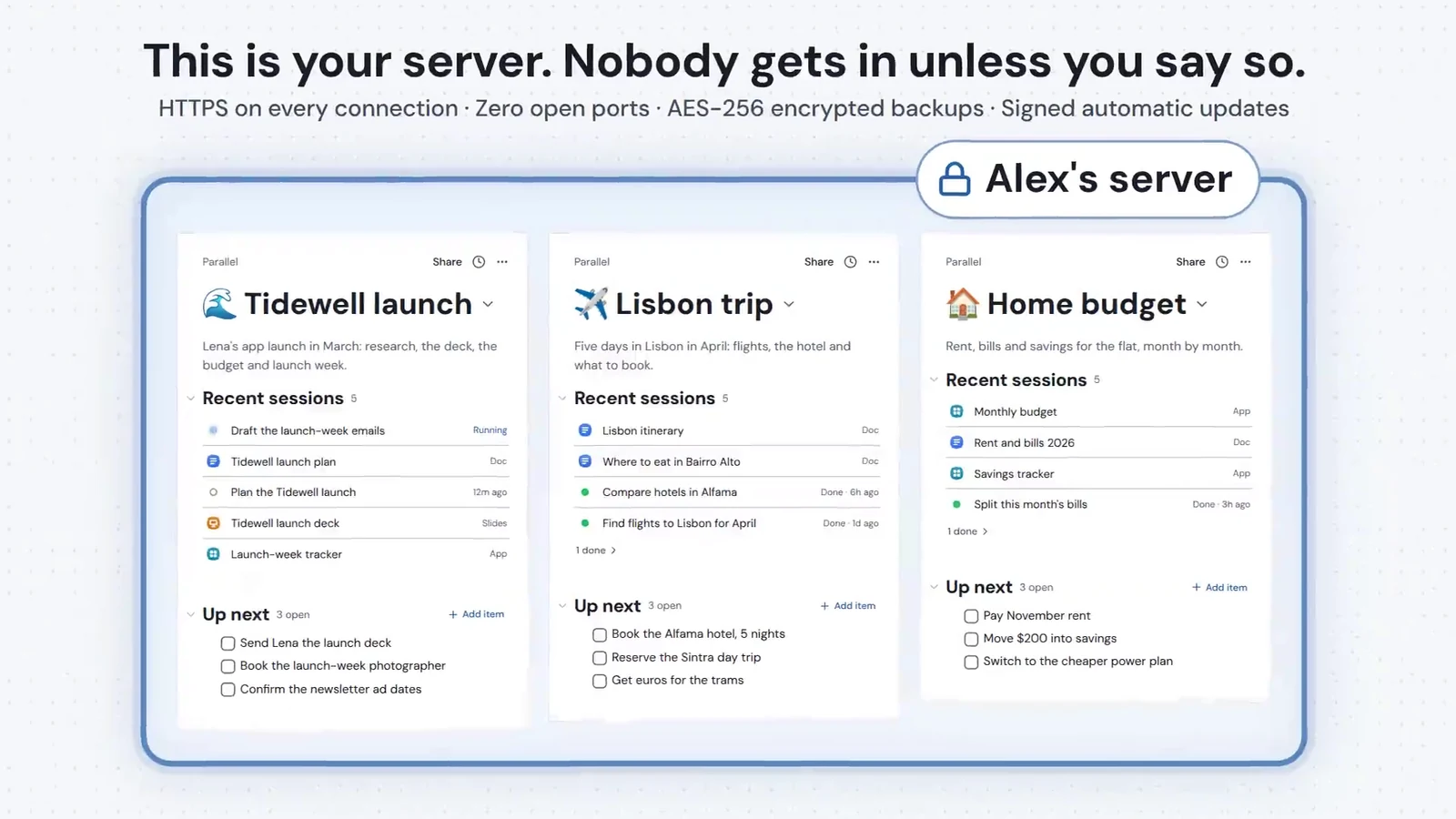 Your own serverOn Axis Cloud your work lives on a server of your own. Every connection uses HTTPS, the server has no open ports, backups are encrypted and updates are signed.Axis Cloud. This is a picture from the video, not a screen in Axis.
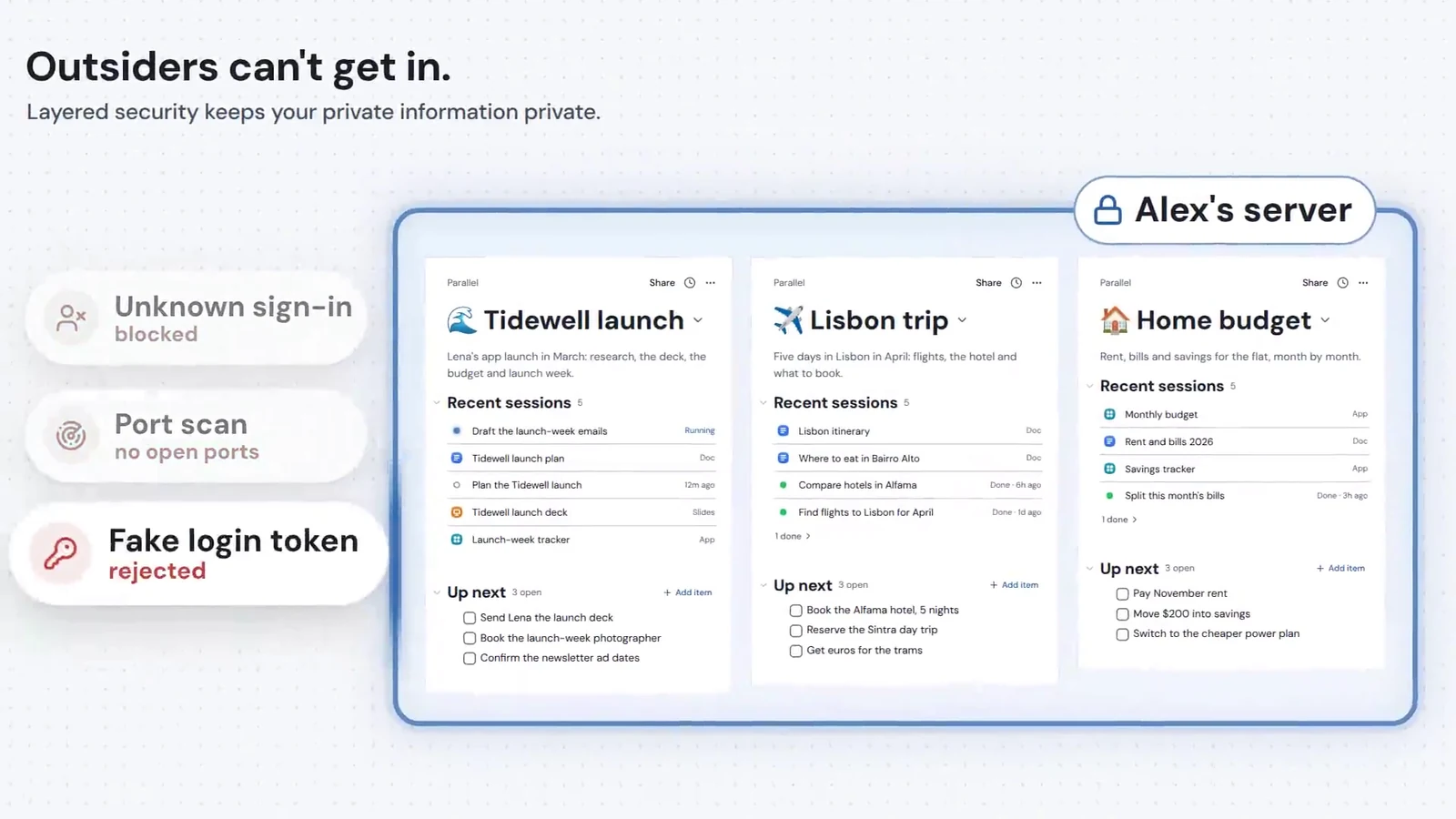 Outsiders stay outSomeone who is not a member of your server is sent to sign in. A scan finds no open ports, and a faked sign-in is rejected.Axis Cloud. This is a picture from the video, not a screen in Axis.
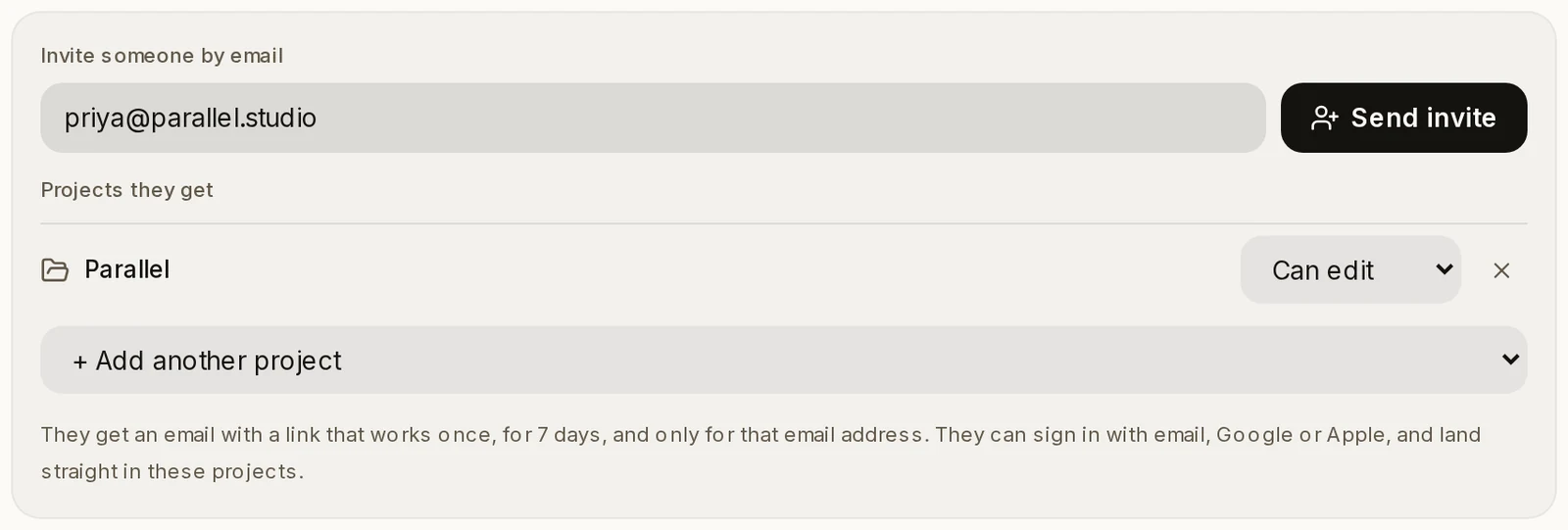
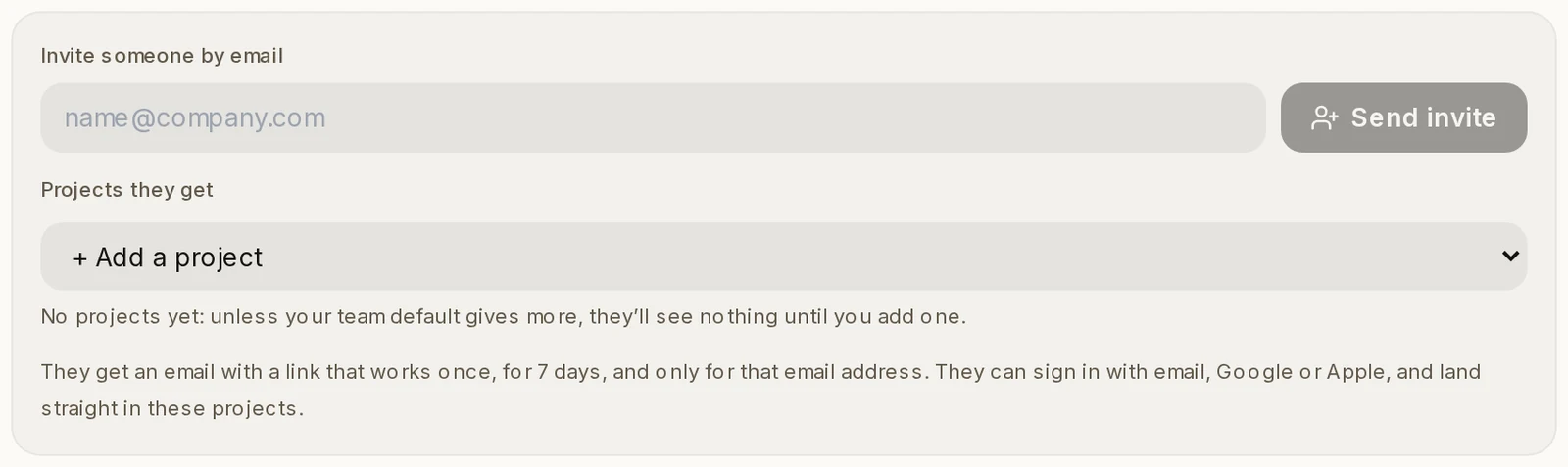 Invite someone by emailType a teammate’s email and choose the projects they get. They sign in with their own Axis account.Settings → Team
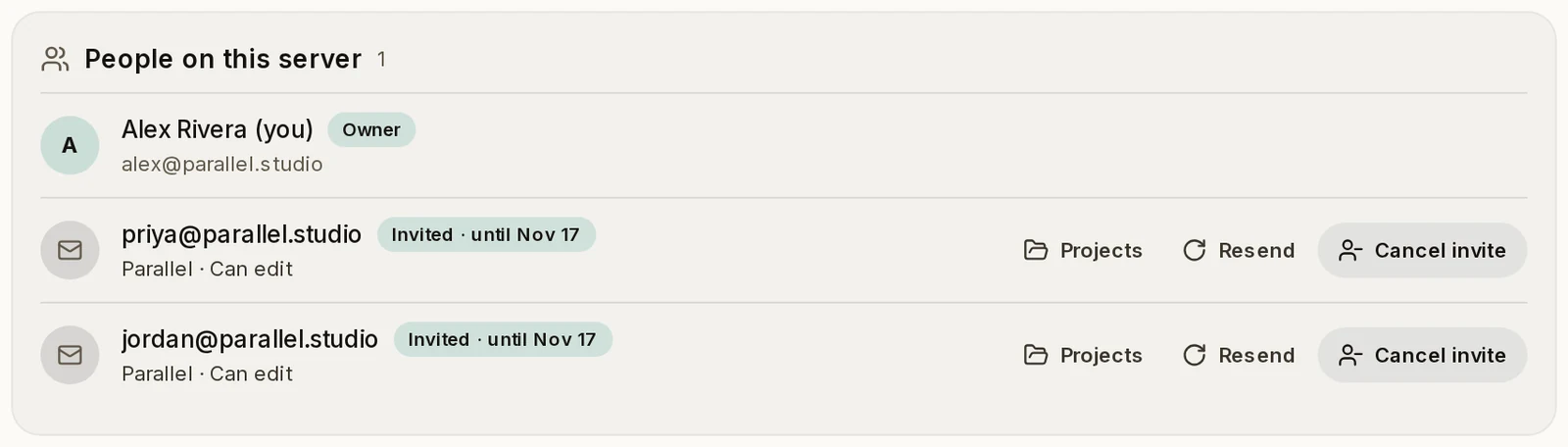 People on this serverEveryone who can open your Axis, and every invite that is still waiting. Change their projects, send the invite again or cancel it.Settings → Team
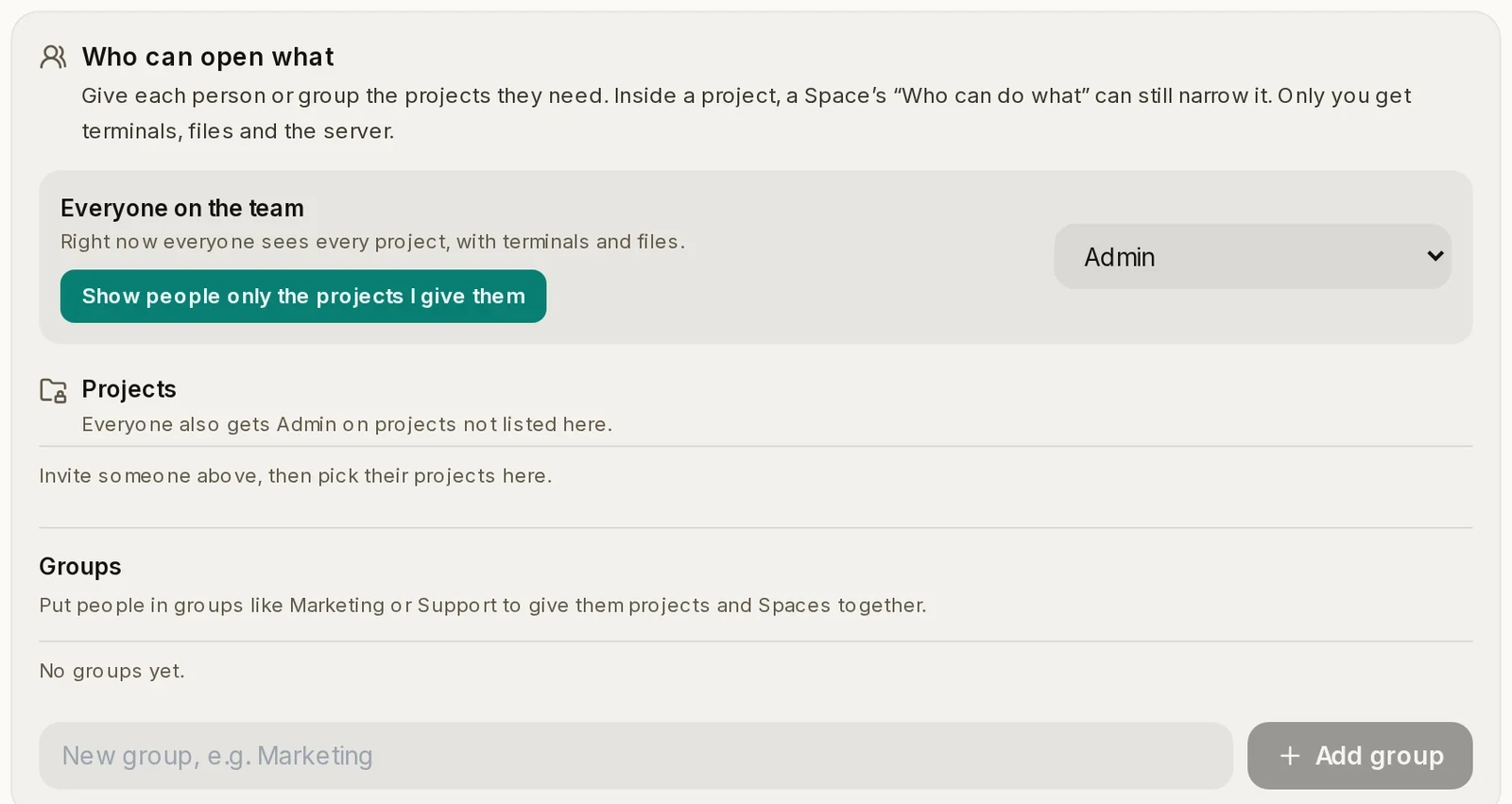 Who can open whatSets what the whole team can open, then each person or group. One button shows people only the projects you give them.Settings → Team
 Support accessAxis support cannot sign in to your server unless you let them. If you want help, you can allow it for 24 hours.Settings → Team, at the bottom
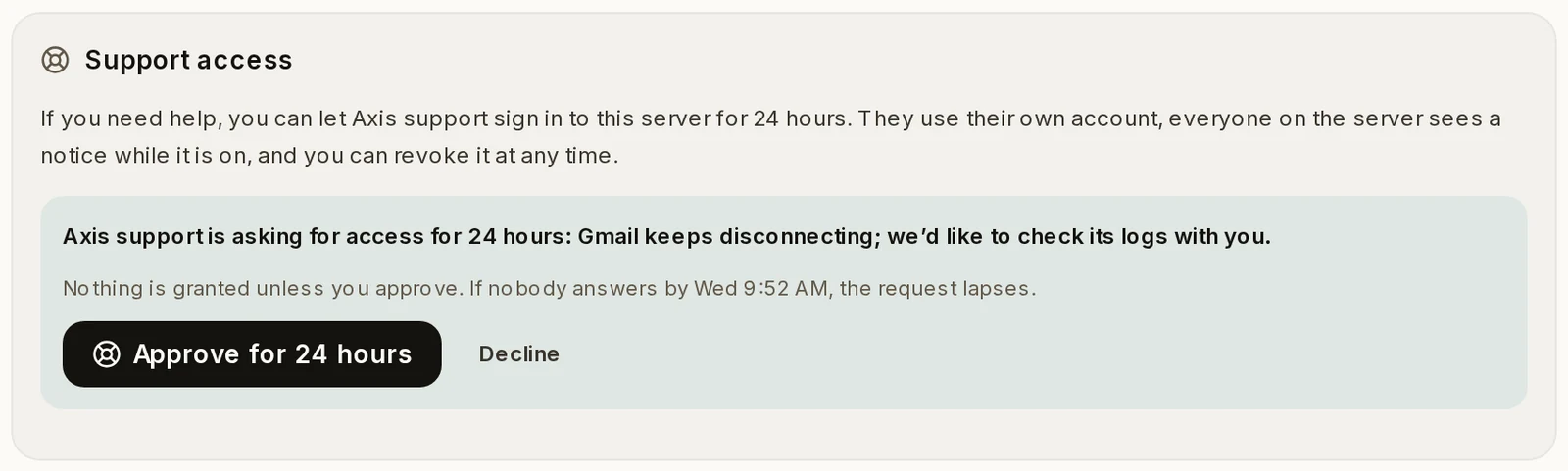 A request from supportIf Axis support asks for access, you see why and for how long. Nothing is granted unless you approve.Settings → Team, in Support access
How to do it
Section titled “How to do it”Step 1: Invite a teammate
Open Settings, then Team. Type their email under Invite someone by email. Under Projects they get, add the projects they should start with. Click Send invite.
Step 2: Wait for them to accept
They get an email with a link. It works once, for 7 days, and only for that email address. Until they accept, they show as Invited under People on this server.
Changed your mind? Click Cancel invite and the link stops working.
Step 3: Show people only what you give them
Look at Everyone on the team under Who can open what. To start with, everyone on the team can open every project. Click Show people only the projects I give them so new people see nothing until you give them a project.
Step 4: Let support in only when you want help
Need a hand? Under Support access, click Allow Axis support. They can sign in with their own account for 24 hours. Everyone on the server sees a notice while it is on.
Step 5: Answer a request
If Axis support asks first, the request shows here with its reason. Click Approve for 24 hours or Decline. If nobody answers, the request lapses and nothing is granted.
Step 6: End it whenever you like
The card shows when access ends. It ends by itself. To end it sooner, click Revoke now.

- Only invite people you would trust with what is on your server. You can remove anyone later.
- Each project role says what it allows: View only, Can edit, Admin or No access.
- Inside a project, each Space can narrow access further for the people on your team.
- Team settings are part of Axis Cloud. They appear when you open your server at its cloud.tryaxis.so address, signed in with your Axis account.