
Concept boundary
Space
One area of work and everything that belongs to it.
It is
- Chats, Docs, apps
- A home page
- An Up next list
It is not
- A copy of your files
- A permission boundary
A Space is a named home for one area of your work: Marketing, Hiring, a client, a product launch, your household. It holds the chats, Docs, Slides, apps, videos and saved items that belong together, and it has a home page that you and your agents keep up to date.
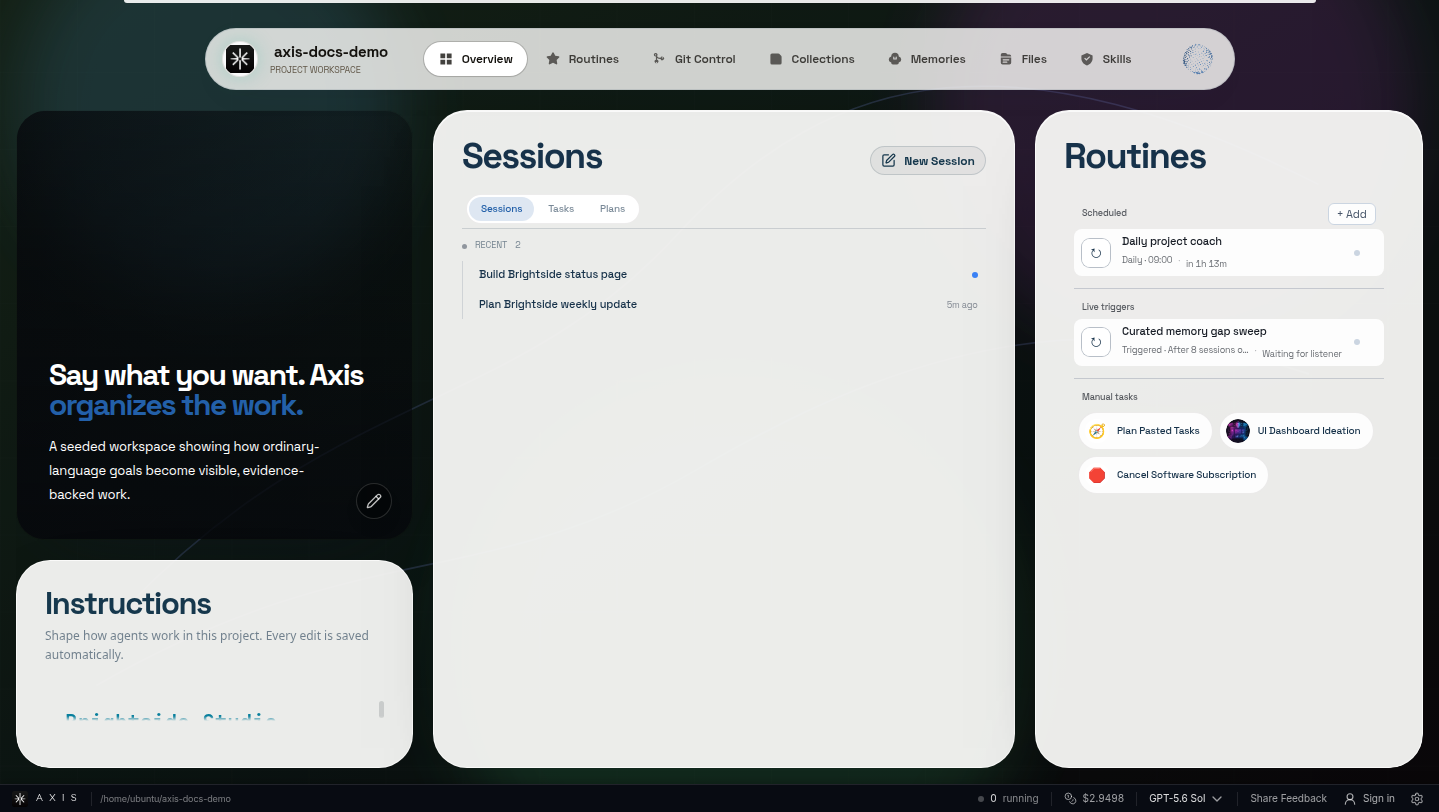
Real Axis UI with deliberately seeded, privacy-safe demonstration content.
Each item lives in exactly one Space. Moving it never copies it.
Click a Space’s name or icon in the sidebar to open its page. It is an ordinary Doc you can type in, rearrange and share, with a few live parts:
| Section | What it shows |
|---|---|
| Vision and Goal | Why this Space exists and what you are aiming for, in your words. |
| Needs you | Chats in this Space waiting for your answer or approval. |
| Up next | The Space’s to-do list. See below. |
| Sub-Spaces | A card for each sub-Space with its own counts, once you add one. |
| Recent work and brief | A short agent-written note on where things stand, what was done and what is next. Older notes stay behind “Earlier updates”. |
| Where we are now | A plain status paragraph you and your agents keep current. |
| Sessions | A card for every chat in the Space. Click one to open the exact chat. |
You own the layout. Agents add to the page and keep its text current, but they never remove blocks you placed. Delete a live block you do not want and it stays gone.
Every Space, and every sub-Space, has one Up next list. Items are outcomes (“Launch the spring offer”, “Hire a support lead”). When an agent works on an item, its own step-by-step checklist appears as sub-items under it, with who is working on it and what proved each step done.
Up next replaces the older standalone Plans. If you used Plans before, each one became a Space list, and the original was archived. See Up next and checklists.
When a chat starts in a Space, its agent automatically reads a short summary of the Space first: the goal, where things stand, the latest brief, the most important chats and the open Up next items. You do not need to re-explain the background in every chat.
Each day, Spaces with new activity get a fresh brief. The same pass keeps the list tidy: it can give placeholder chat titles a real name and fold away finished chats, and it can suggest moving or archiving others. Every change can be undone, and suggestions do nothing until you accept them.
The sidebar shows your Spaces as a tree. A Space with running work shows a spinner while it is folded, and a count when chats need you. Type pills under the filters (Sessions, Routines, Docs, Slides, Apps, Designs, Videos, Plans, Images, Sites, Links, Other) narrow everything at once. All items shows the whole project as one library you can filter by Space and type.
Concept atlas
Concept boundary
One area of work and everything that belongs to it.
Concept boundary
The outcomes this Space still needs to deliver.
Concept boundary
Lessons and decisions worth recalling later.
Concept boundary
The top-level home for a body of work and its rules.