
Use Axis from Claude or ChatGPT
Your Axis server can act as a connector for Claude and ChatGPT. Once you approve it, you can ask Claude or ChatGPT to look through your Axis projects, read a chat or Doc, or start an agent task on your server and check how it is going.
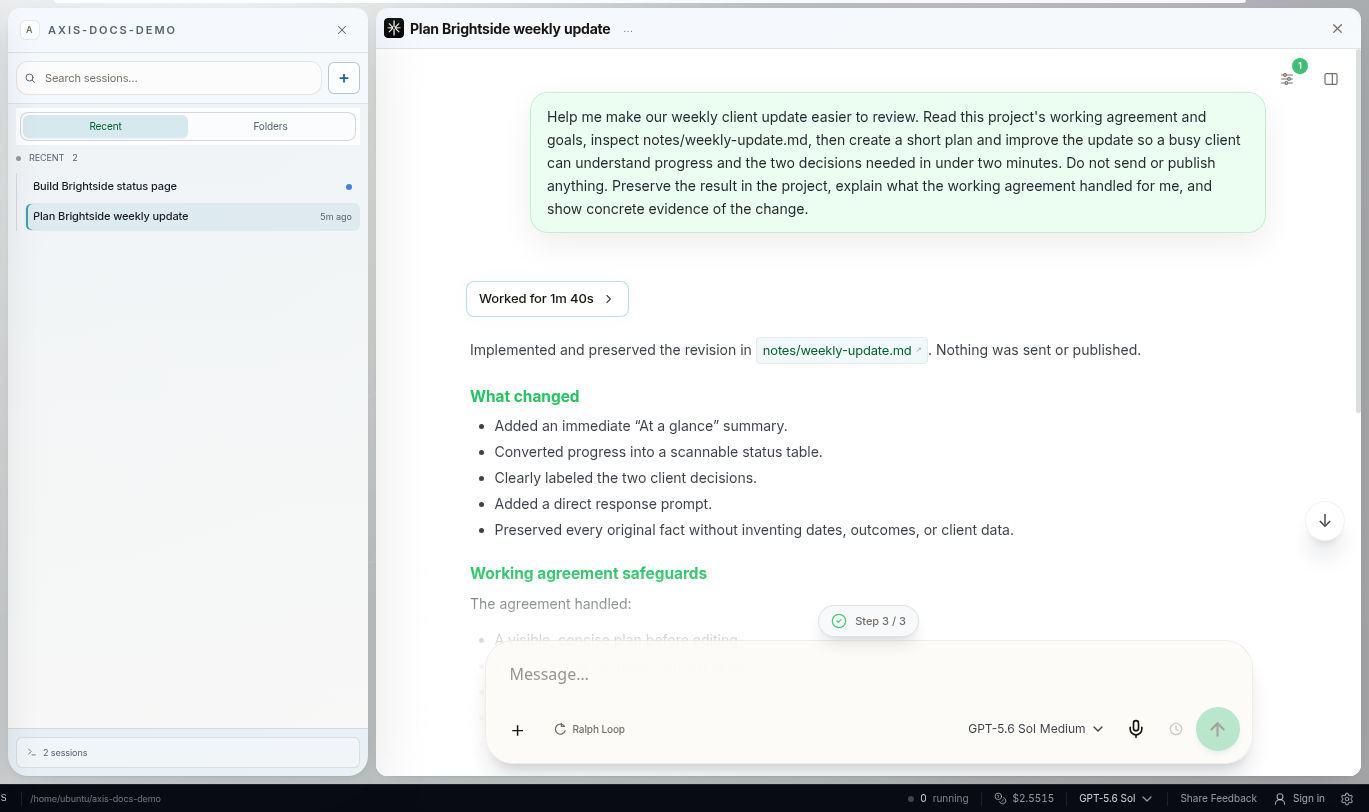
Real Axis UI with deliberately seeded, privacy-safe demonstration content.
Your connector address
Section titled “Your connector address”For Axis Cloud, your connector address is:
https://<your-name>.cloud.tryaxis.so/axis-mcp/mcpAxis also shows the exact address in Settings. Self-hosted servers have their own address; see Remote access.
Add it to Claude
Section titled “Add it to Claude”- In Claude, open Settings → Connectors → Add custom connector.
- Paste your connector address and save.
- Claude opens a page that says Approve this in your Axis app, with a short match code.
- In Axis, on any device, open Settings → Connected AI apps. Check the code matches, choose what the app can do and which projects it can see, then Approve.
- The tab returns to Claude by itself. In a chat, turn on the Axis connector from the tools menu and try “Use Axis to list my projects.”
Add it to ChatGPT
Section titled “Add it to ChatGPT”- In ChatGPT, open Settings → Apps & Connectors → Advanced settings and turn on Developer mode (available on Plus, Pro and Business plans).
- Create a custom connector with your connector address.
- Approve it in Axis exactly as for Claude.
What you can allow
Section titled “What you can allow”When you approve, you choose:
- Read only, or Read + start agents.
- All projects, or a list of projects. Projects outside the grant look as if they do not exist.
| What Claude or ChatGPT can do | Needs |
|---|---|
| List your projects | Read |
| Search chats, project memory and Doc titles | Read |
| Open one chat (its visible conversation), memory or Doc | Read |
| Start an agent task in a project | Read + start agents |
| Check a task’s status and latest reply | Read |
Only the visible conversation of a chat leaves your server: what you typed and what the agent replied. Tool calls, tool results, internal reasoning, images and system instructions are never sent. Personal and secure memories are excluded from search.
Tasks started from Claude or ChatGPT are labelled with where they came from. The agent is told not to treat that request as permission for payments, publishing, messages, credential changes or destructive actions, so those still stop for your approval in Axis.
Revoke access
Section titled “Revoke access”Open Settings → Connected AI apps and choose Revoke. The app’s next request fails and it must ask for a new approval. Removing the connector inside Claude or ChatGPT does not revoke it by itself, so revoke it in Axis too. Every call, approval and revocation is logged.