
Understand session states
A session is a continuing thread of work. Its state tells you whether the agent is working, waiting for you, or ready to leave alone. Axis keeps these signals beside the session so you can decide what to open without reading every transcript.
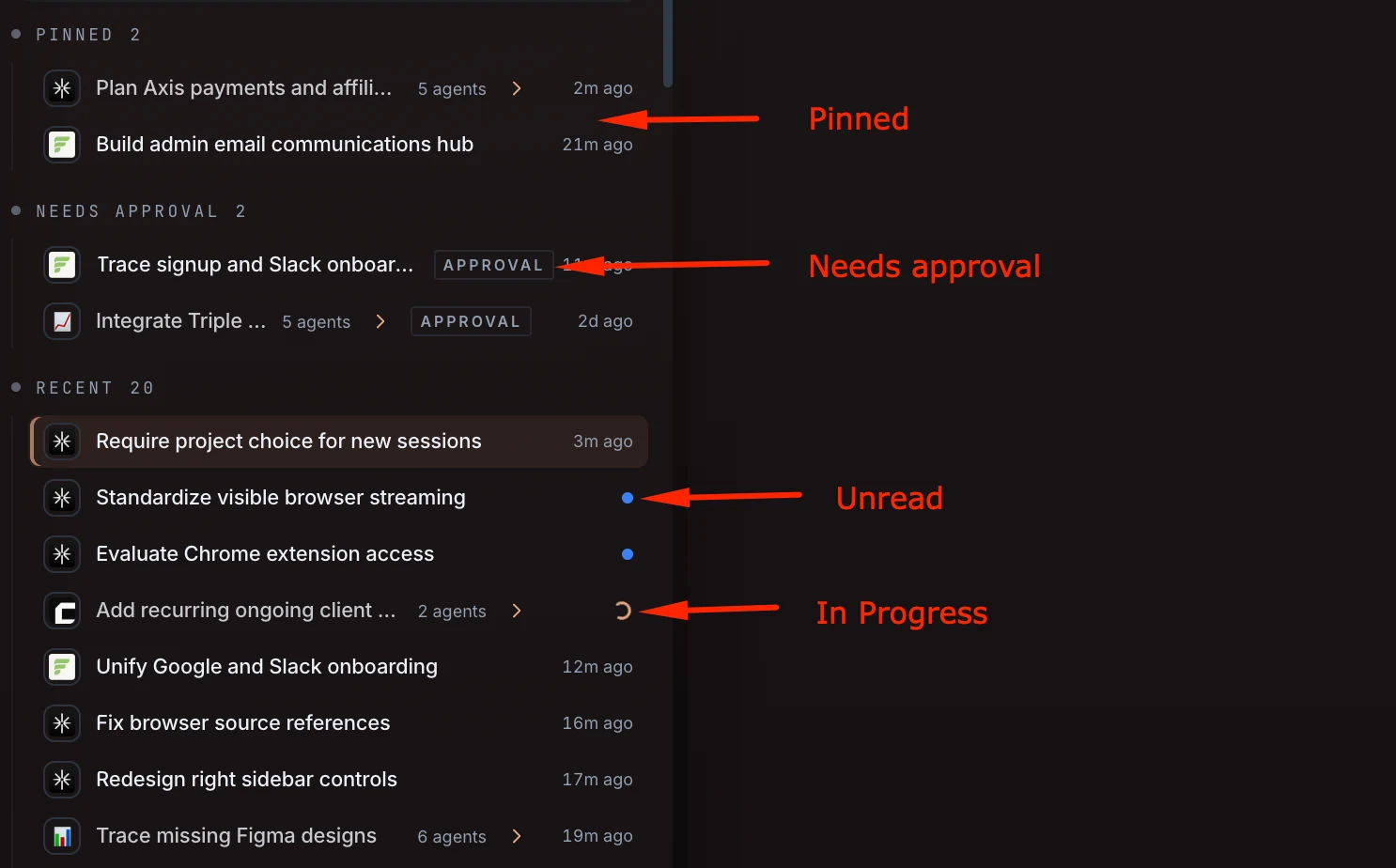
Start with the signal, then open the session
Section titled “Start with the signal, then open the session”The sidebar answers where should I look? The session itself answers what is happening and what should I do? Open a row to inspect its transcript, current Working fold, approval request, evidence, or final response.
Sidebar signals
Section titled “Sidebar signals”Pinned
Section titled “Pinned”Pinned is an organization choice, not a work status. Pin a session when it is important enough to keep near the top—for example, a long-running initiative or the coordination session for several agents.
A pinned session can still be working, waiting for approval, unread, or settled. Unpinning only removes the shortcut; it does not stop or delete the session.
Needs approval
Section titled “Needs approval”Needs approval means the agent requires a human decision or action before it can continue safely. Common examples include:
- choosing between materially different options,
- approving an external or irreversible action,
- answering a question only you can answer,
- completing a login, credential, or verification step.
Open the exact session and review the surrounding context before answering. Approval is a real waiting state—not a synonym for done.
Unread
Section titled “Unread”A blue Unread dot means there is new activity you have not viewed. It may be a result, a question, progress, or an error. Opening the session clears the attention signal after you have seen the new state.
Unread describes your attention, not the agent’s lifecycle. A session can be unread and in progress at the same time.
In progress
Section titled “In progress”The animated In progress indicator means the session is actively working or has continuation underway. You can open it to follow the Working timeline, but you do not need to keep the session visible for the agent to continue.
If you send another instruction while the current turn is active, Axis can hold it in the steering queue instead of losing or duplicating the message.
Recent
Section titled “Recent”Recent is the normal chronological home for sessions that are not pinned and do not currently need approval. A row with only a timestamp is usually settled or simply has no higher-priority attention signal.
Recent is a grouping, not a promise that the outcome was accepted. Open the session when you want to review its response or evidence.
States inside a session
Section titled “States inside a session”When you open a session, these lifecycle states provide more detail:
| State | What it means | What you should do |
|---|---|---|
| Ready | The session exists, but no first request has been sent. | Send the outcome you want. |
| Working | The agent is reasoning, using tools, or validating. | Let it continue, inspect the Working fold, or queue a follow-up. |
| Needs approval | Work is waiting on your answer or authorized action. | Review the request and respond in that session. |
| Stopped or failed | Work ended early because it was stopped, disconnected, or hit an error. | Read the error or latest evidence, then retry, redirect, or resume. |
| Settled | The current turn has a conclusive response and is no longer active. | Review the result and evidence; continue in the same session if the objective is unchanged. |
Settled does not mean the session has disappeared. Sessions are durable threads: you can return later and continue with their existing context.
Mission: review work across all projects
Section titled “Mission: review work across all projects”Use All Projects when your goal is awareness across everything.
- Open All Projects from the project rail.
- Scan the sidebar across all projects.
- Handle Needs approval first when work is blocked on you.
- Open Unread sessions to catch up on new results or questions.
- Check In progress sessions when you want to follow active work.
- Keep durable priorities in Pinned so they remain easy to find.
All Projects changes your viewing scope. It does not merge the projects or remove the project context that each session belongs to.
Mission: focus on one project
Section titled “Mission: focus on one project”Choose an individual project when you are concentrating on one body of work.
- Click the project in the project rail.
- The sidebar narrows to that project’s sessions and workstreams.
- Open the session that owns your current outcome.
- Use its attached browser, preview, terminal, Collections, or evidence without mixing resources from unrelated projects.
A useful rhythm is to use All Projects as your command-center scan, then click into one project for focused execution.
A simple attention order
Section titled “A simple attention order”When several signals appear at once, use this default order:
- Needs approval — work is explicitly blocked on you.
- Unread — something new may require attention.
- In progress — active work usually needs observation only when you choose.
- Pinned — revisit durable priorities on your own schedule.
- Recent — browse settled history when needed.
This is a workflow, not a severity ranking. A critical active session can still deserve attention before a routine approval.
Mission complete when
Section titled “Mission complete when”You can glance at the sidebar, identify what needs you, open the exact owning session, and switch between All Projects awareness and one-project focus without losing context.