
Bots and channels
Every Axis project has a bot: someone to message about that area of your life or business. Like assistant bots you may know from other apps, you just talk to it. What is different is what stands behind it. An Axis bot works on your own server, with your project’s rules, memory, files, Spaces, connected tools and sub-agents, so it can actually do the work, not only answer.
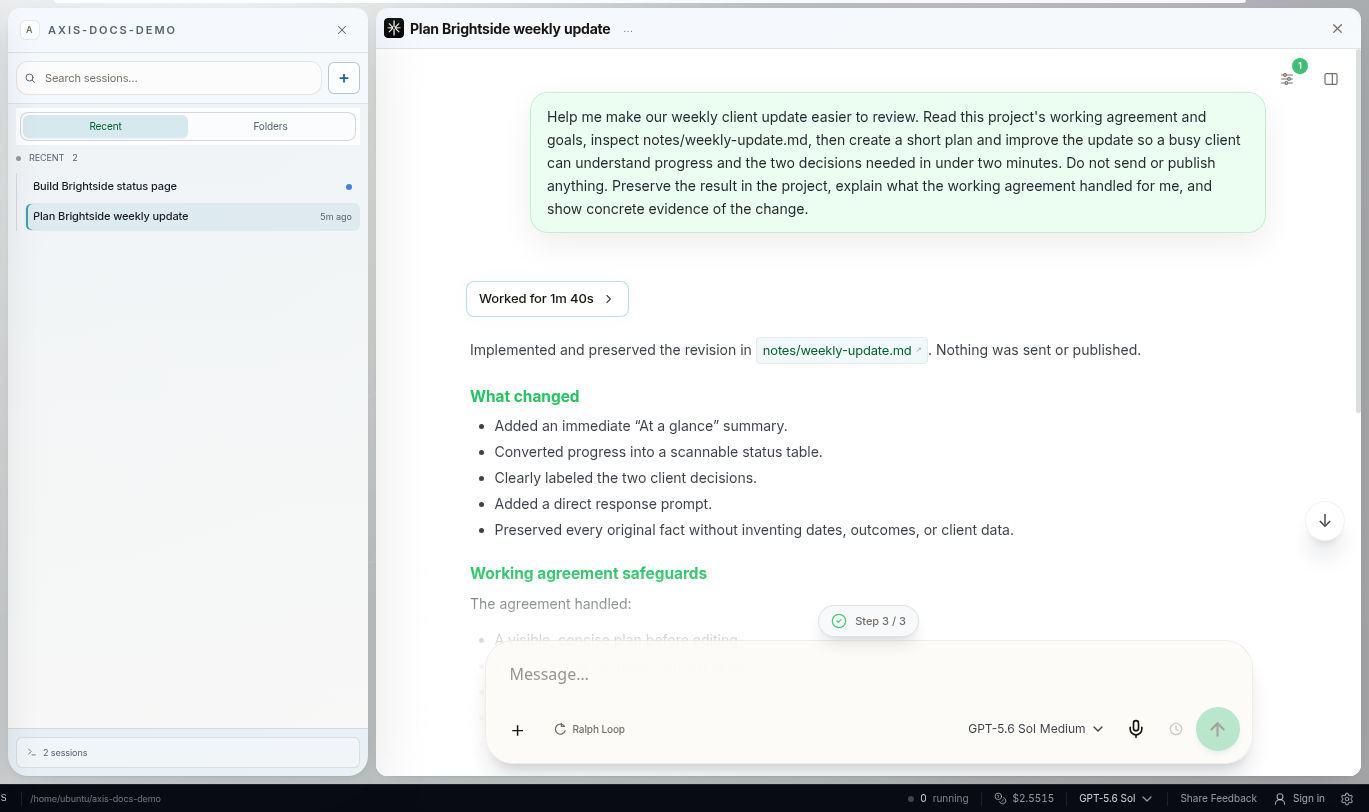
Real Axis UI with deliberately seeded, privacy-safe demonstration content.
What a bot can do
Section titled “What a bot can do”- Answer from your project’s Docs, chats and memory.
- Do real work: research, write Docs and Slides, build and update Space apps, run Routines, use the browser, and call the platforms you have connected.
- Hand larger jobs to sub-agents and report back.
- Stop and ask before anything consequential, such as sending, publishing, paying or deleting.
Set up a bot
Section titled “Set up a bot”| Setting | Where you change it |
|---|---|
| Name | The bot is named after its project. Rename the project to rename the bot. |
| Instructions | The project’s working agreement, under the project’s Instructions. The bot follows the same rules as every chat in the project. |
| Model and thinking level | The model picker in the bot’s own composer. Any provider you have connected works. |
| What it handles | A short description you give during setup, so people and other bots know what to ask it. |
| Who can message it | Settings → Bots. Choose whether other bots may message this one, and block specific bots. |
| Channels | The Connect window in the bot’s header. |
Bots that work together
Section titled “Bots that work together”Bots in different projects can message each other when you allow it. Your “Finance” bot can ask your “Operations” bot for numbers, for example. Settings → Bots shows, for each bot, whether it is open to other bots, takes no bot messages, or has specific bots blocked.
Connect a bot to Slack
Section titled “Connect a bot to Slack”- Open the bot and choose Connect in its header.
- Follow the Slack steps to create a Slack app and paste its app token and bot token. Axis stores them on your server and only ever shows them masked.
- Press the check button. This is the only step that contacts Slack, and it confirms the tokens work.
- Link a conversation. Linking asks for your approval in Axis, and messages in and out of the channel follow approval-required policies.
You can disconnect at any time, which forgets the tokens.
Channel availability. If the Connect window says “Channels are off on this Axis”, you can save your Slack setup, but nothing is sent or received until channels are switched on for your server. Telegram is configured on the server for now, Discord is coming next, and WhatsApp is coming soon.
Keep bots safe
Section titled “Keep bots safe”- A bot inherits the project’s approval rules. Sending, publishing, payments and deletions still stop for your decision.
- Give each bot only the connections its project needs. Connections are scoped per project.