
Catch up in a few swipes
When chats finish while you are away, Axis stacks their results into a deck. Swipe through them like cards: mark each one seen or done, or open the whole chat.
- Where
- Home → Catch up
- You'll need
- Chats that finished or asked for you while you were away
- Works on
- Web, Mac, Windows, iPhone, Android
What you’ll see
Section titled “What you’ll see” Catch up bannerTells you how many chats have something new for you. Catch up opens them as a deck.Home, above your sessions. Also above the chat list inside a project
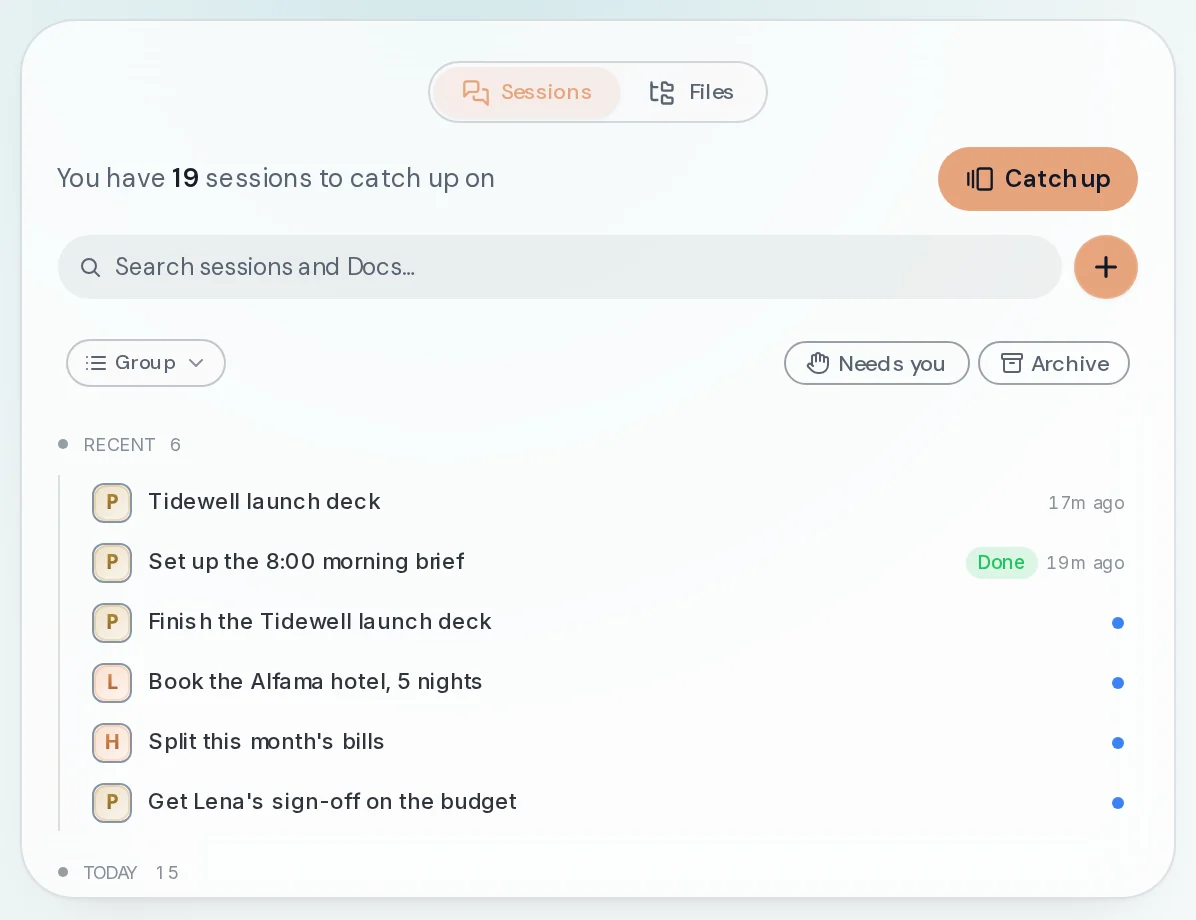 Blue dotsA blue dot marks a chat with something you have not seen yet. These are the chats the deck is made of.In every chat list
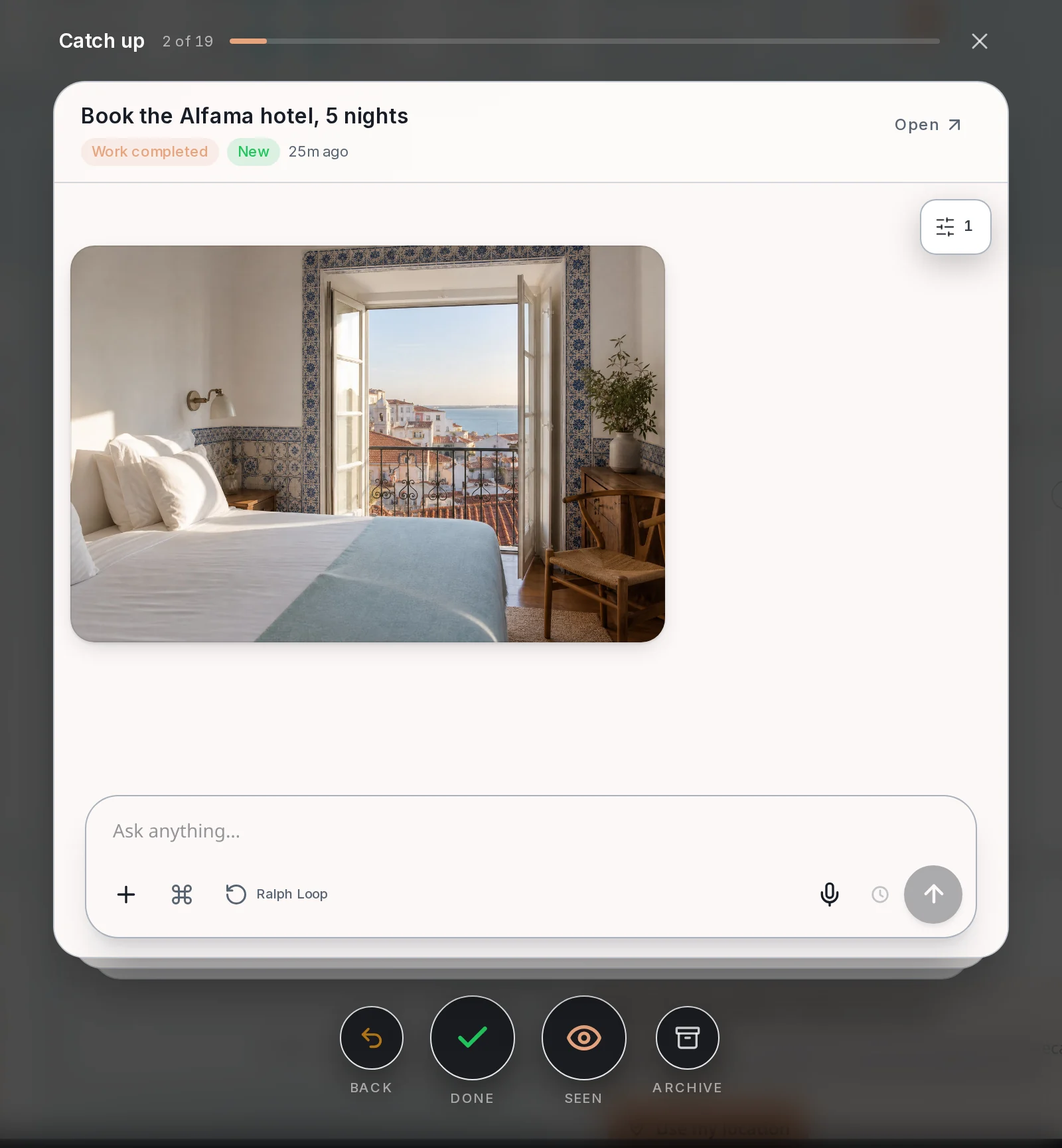
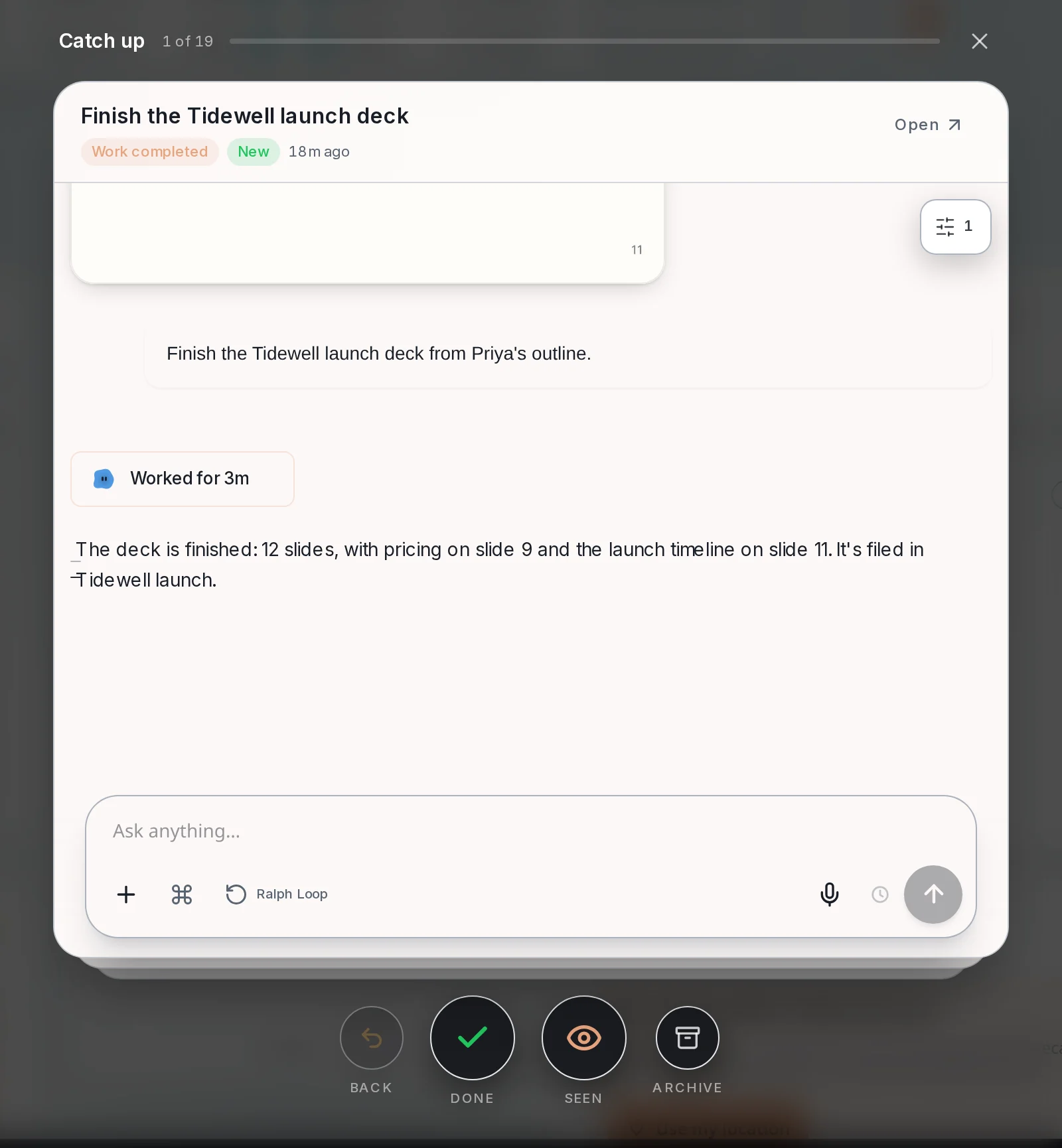 The deckOne card per chat, one at a time. Chats that ask you something come first, then finished work, newest first. The counter and the bar show how far along you are.Opens over the page when you press Catch up
 Card headerThe chat's title, why it is in the deck (for example Work completed), a New tag, and when it last moved. Open takes you to the whole chat.Top of each card
 Back, Done, Seen, ArchiveSeen clears the blue dot and keeps the chat open. Done marks the chat done. Archive moves it to the Archive. Back returns to the previous card and undoes what you chose.Under the card
 Reply boxEach card is the live chat, not a summary. You can scroll it and answer right there. After your reply is sent, the deck moves on to the next card.Bottom of each card
How to do it
Section titled “How to do it”Step 1: Open Home and press Catch up
When chats have finished or need you, Home shows a line like "You have 19 sessions to catch up on". Press Catch up.
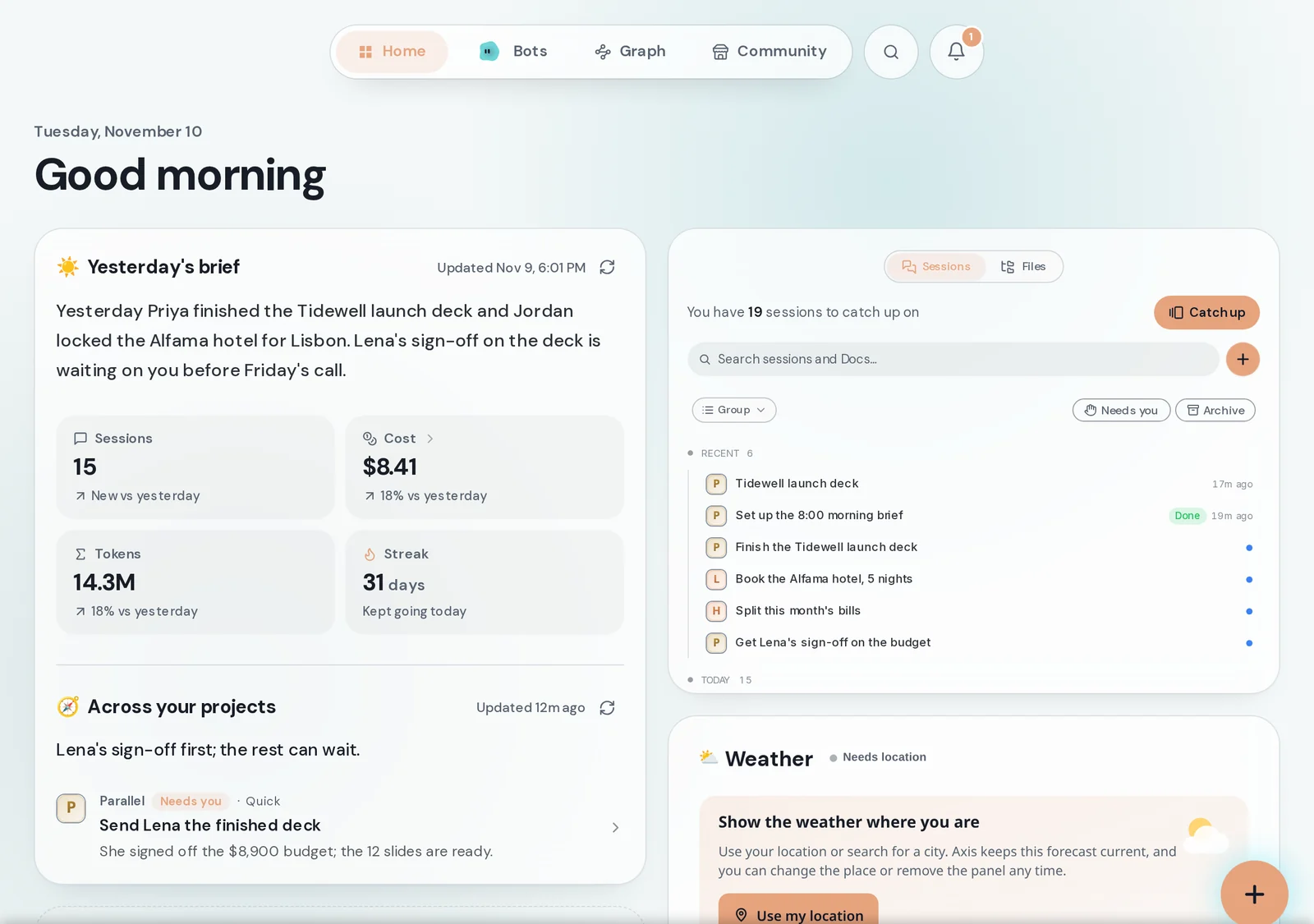
Step 2: Read the first card
The card shows the real conversation. Scroll up to see earlier messages. Click a picture or file in the card to open it full size, then close it to come back.
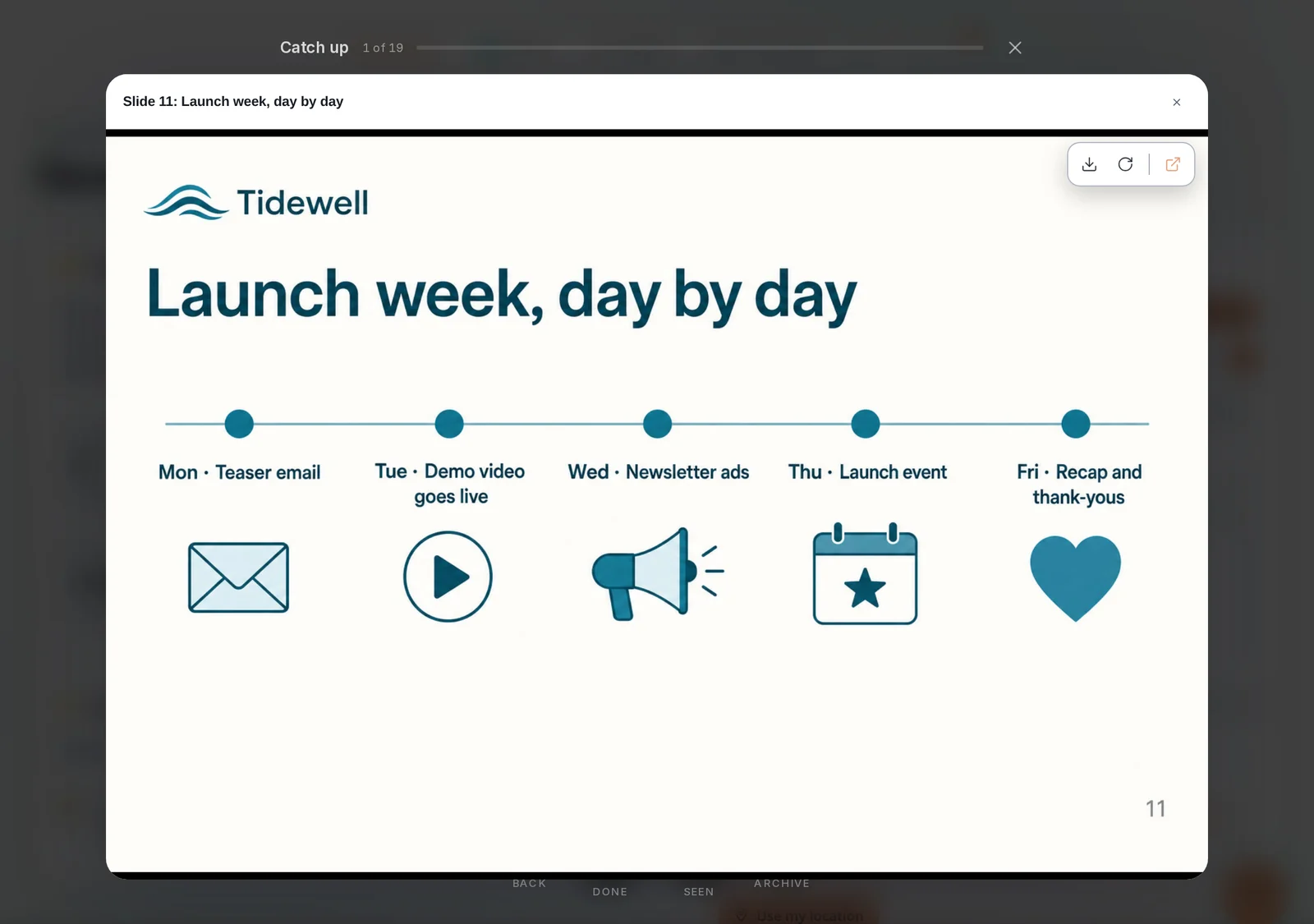
Step 3: Swipe right to keep it open
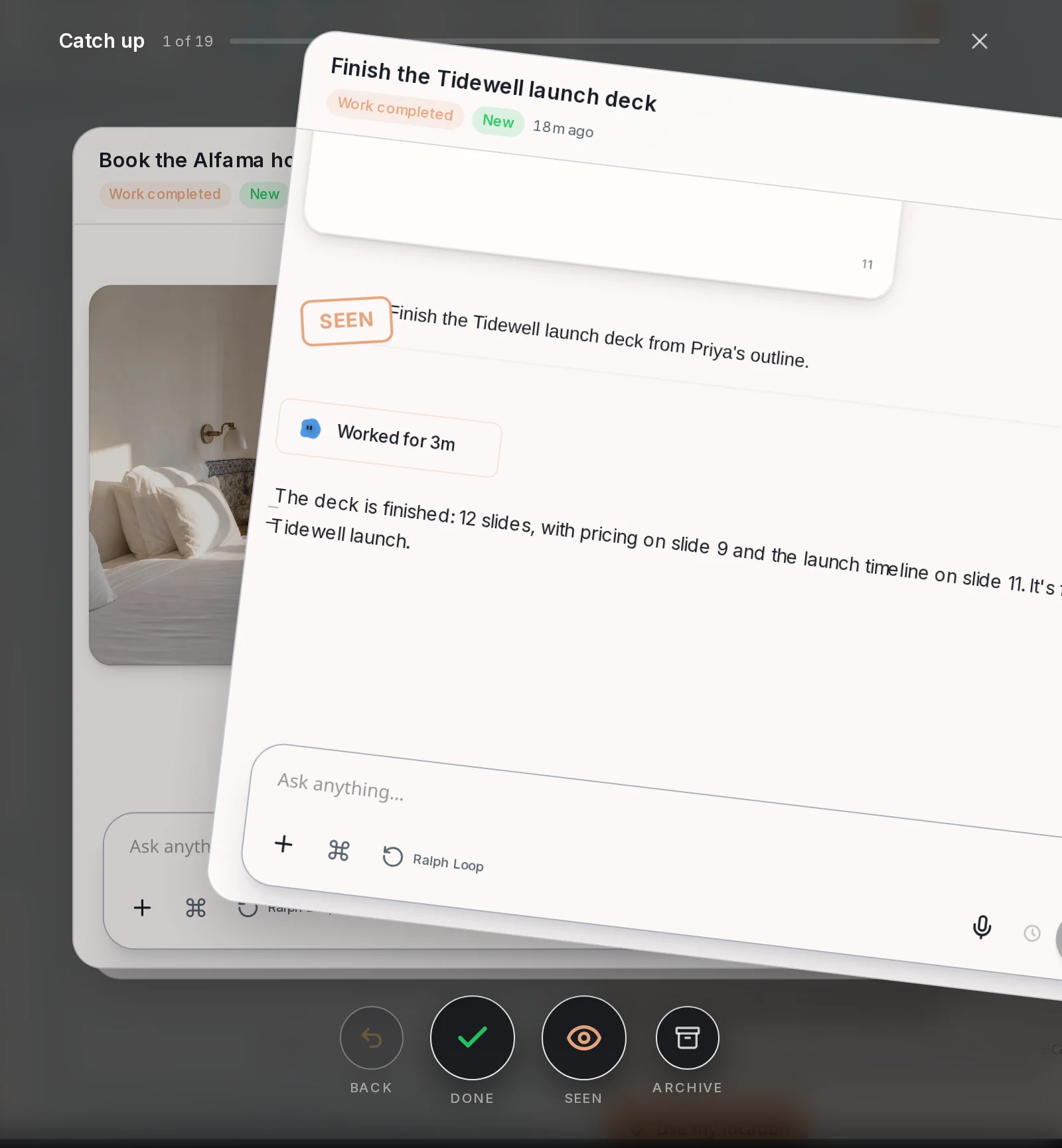
Drag the card to the right, or press Seen. A SEEN stamp appears and the card flies away. The chat stays open in your list, without its blue dot.
Step 4: Swipe left when it is done
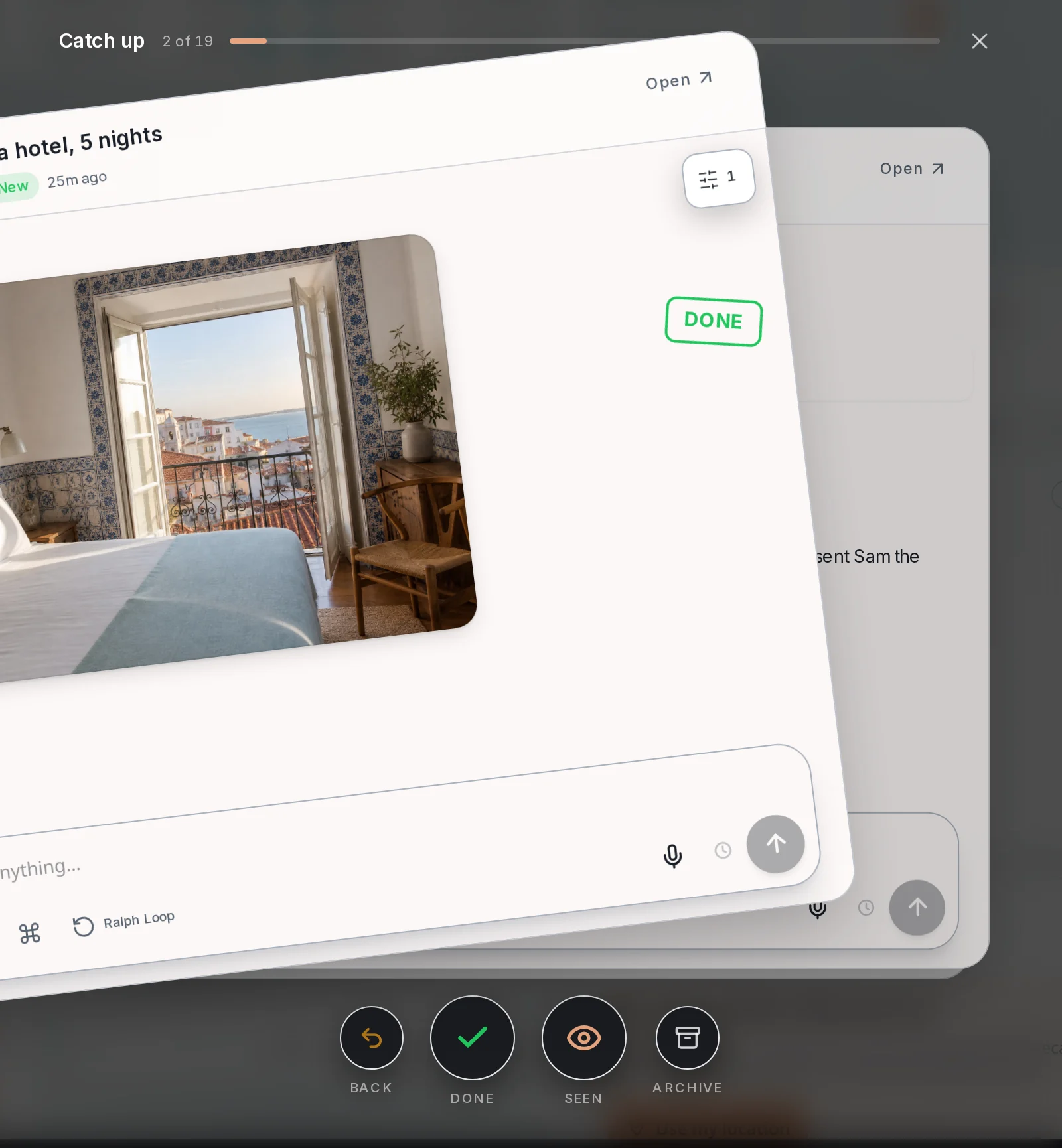
Drag the next card to the left, or press Done. A DONE stamp appears and the chat is marked done.
Step 5: Open the whole chat
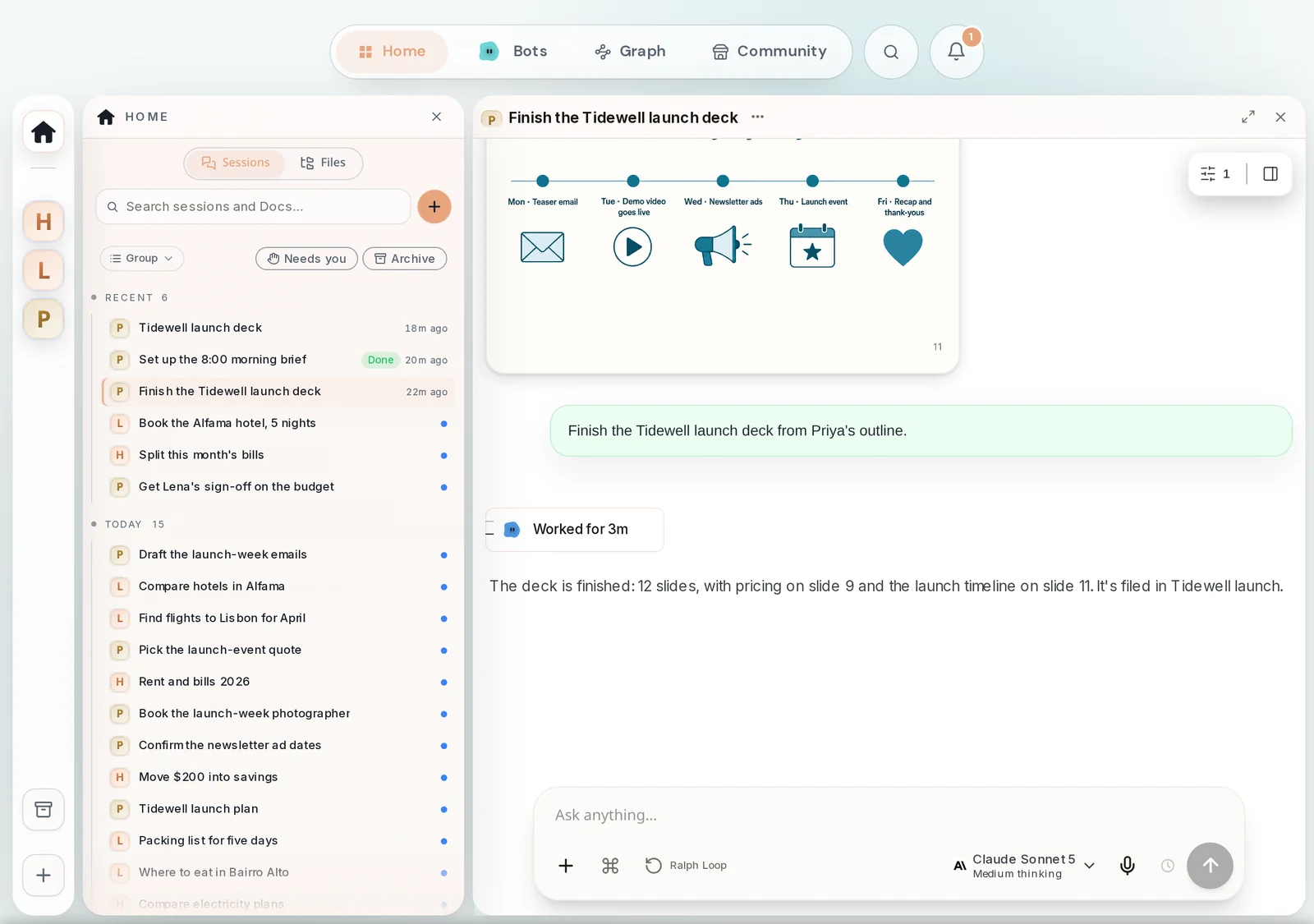
Press Open on a card to see the full chat with its sidebar. Close it and you are back in the deck, on the same card.
Step 6: Keep going to the end
The counter climbs with every card. Made a mistake? Back brings the last card back. After the last card the deck says "You're all caught up".
- On a keyboard: right arrow is Seen, left arrow is Done, Cmd+Z (Ctrl+Z on Windows) goes back, Esc closes the deck.
- Finished chats stay in the deck for a week. Chats that ask you something stay until you answer, for up to two weeks.
- Closing the deck halfway is fine. The cards you did not reach are still there next time.