
Your Home, your way
Your Home holds live panels, like the weather, your daily brief and what to do next. Add ready-made ones from Community, or ask for any panel in plain words and an agent builds it and keeps it current.
- Where
- Home
- You'll need
- Nothing extra. Installing from Community needs an Axis account
- Works on
- Web, Mac, Windows, iPhone, Android
What you’ll see
Section titled “What you’ll see”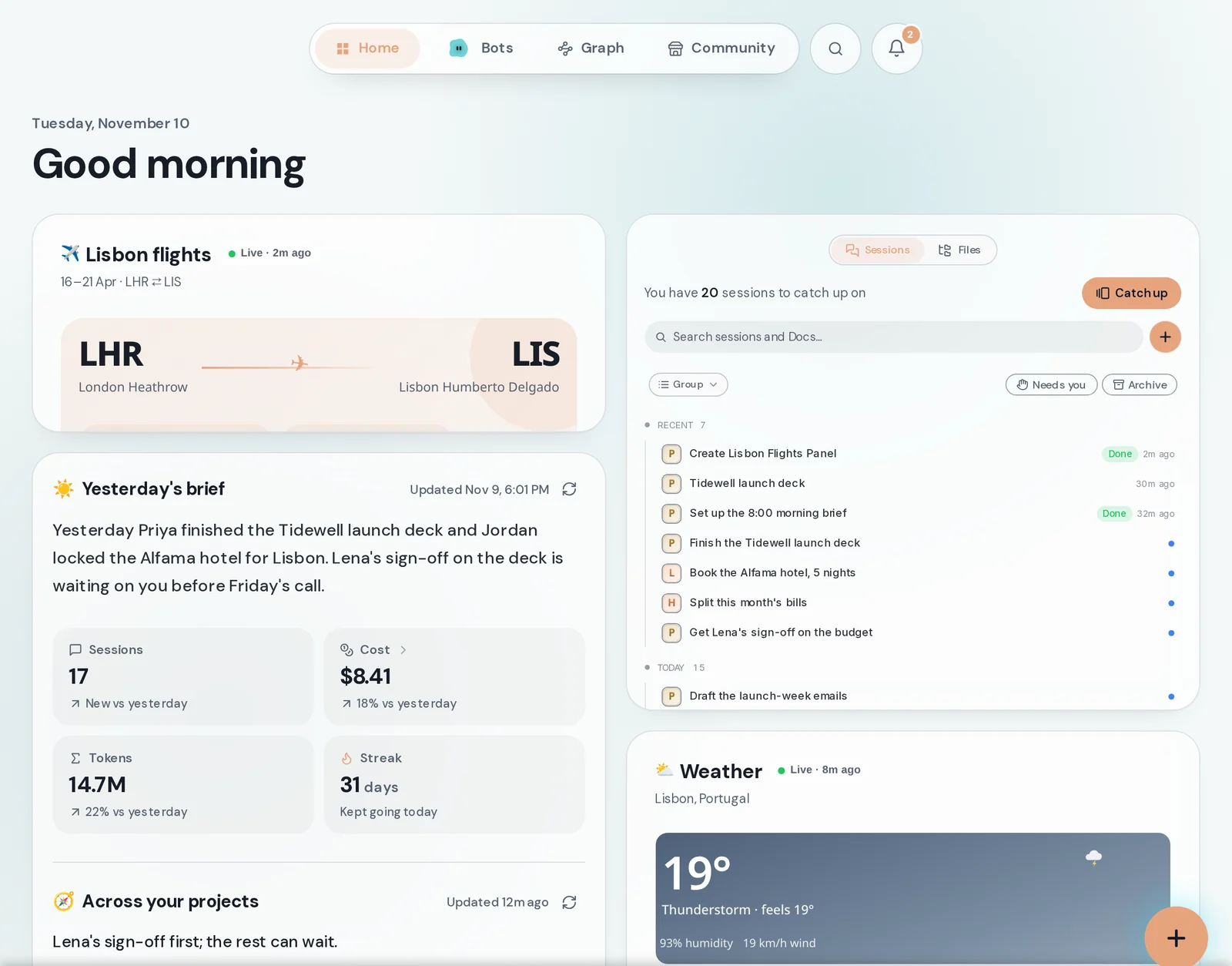 Your HomeHome is a board of panels. Some come with Axis, like the daily brief and Weather. The rest are the ones you add.The first page of Axis
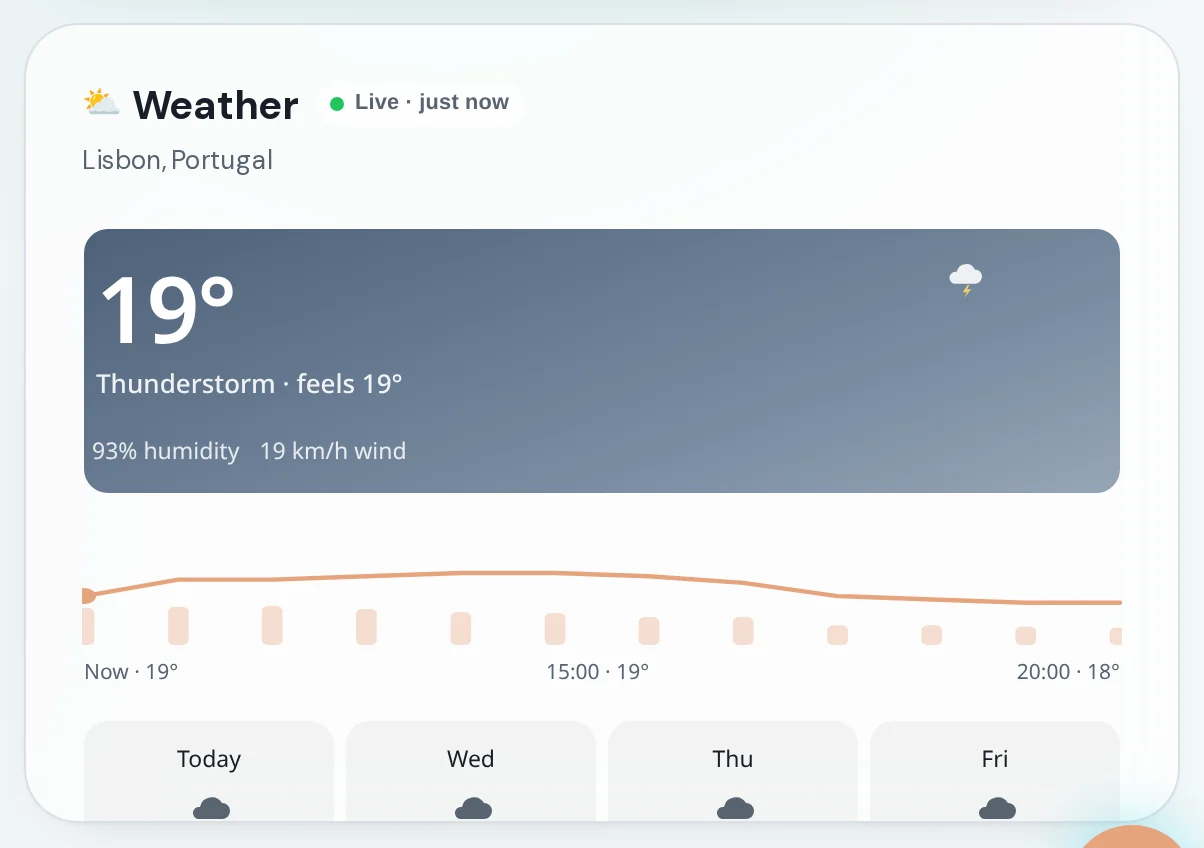 A live panelPanels keep themselves current. The green Live label says when the panel last updated.On Home
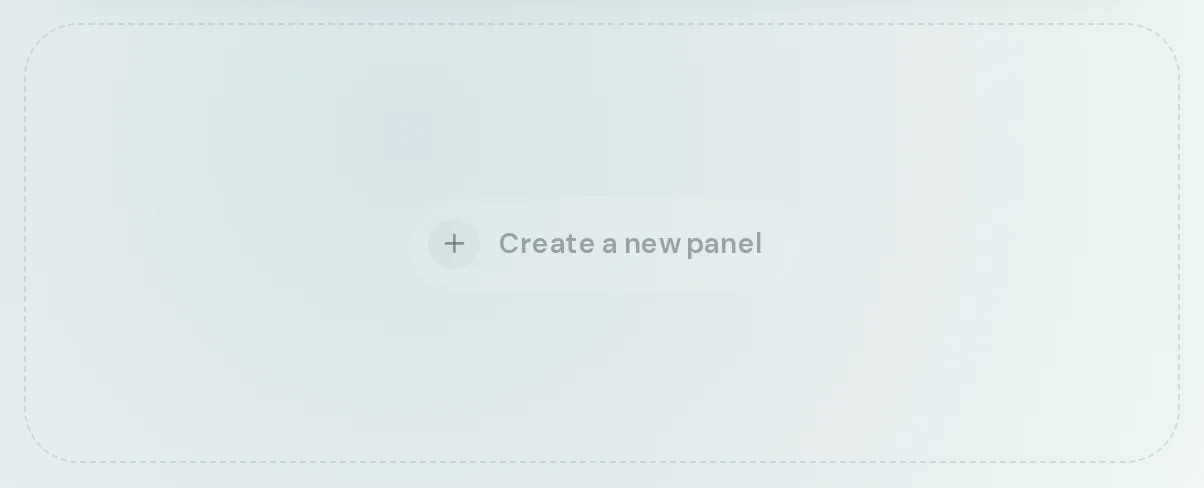 Create a new panelAn empty spot on the board. Click it to ask for a panel of your own.In any free spot on Home
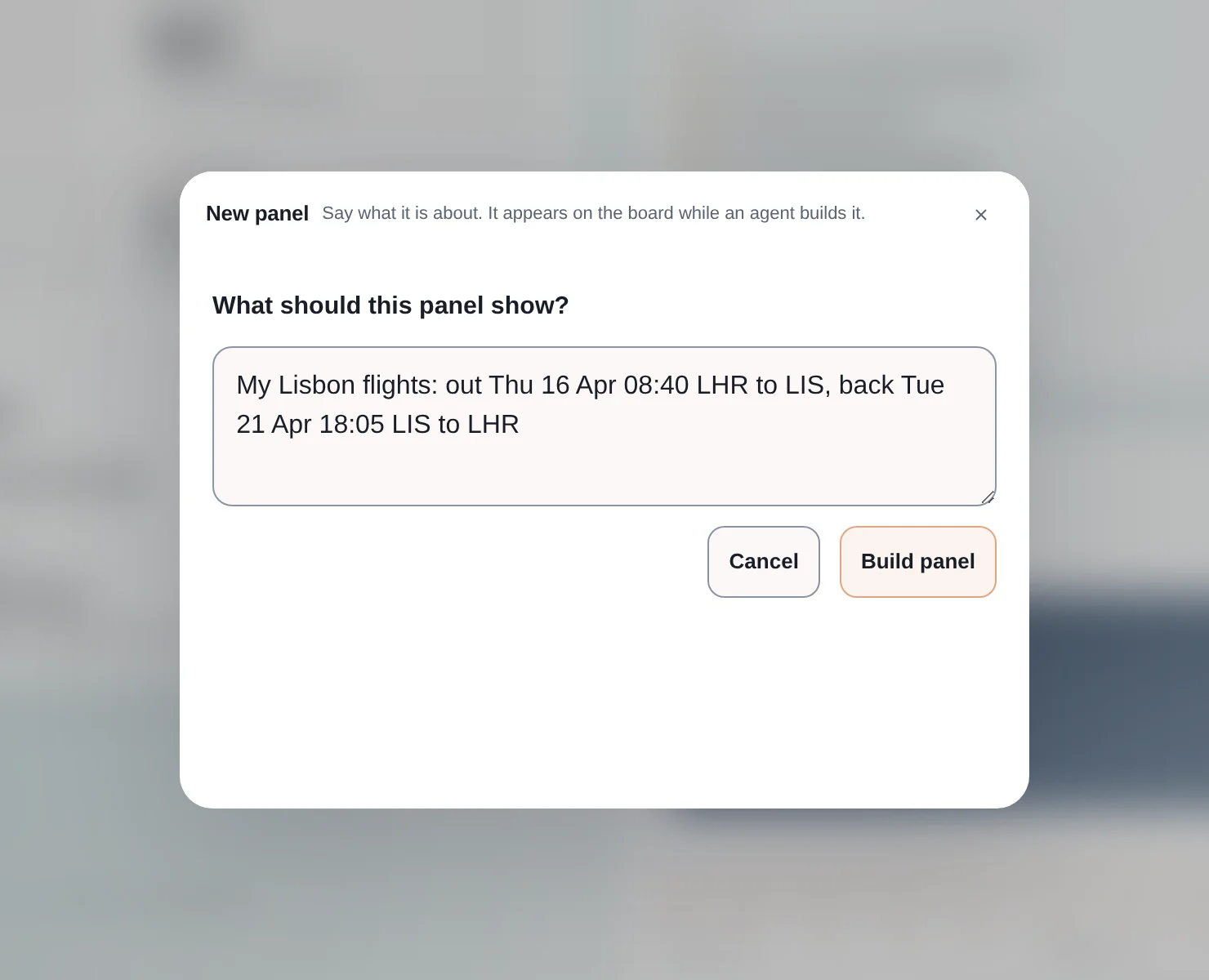
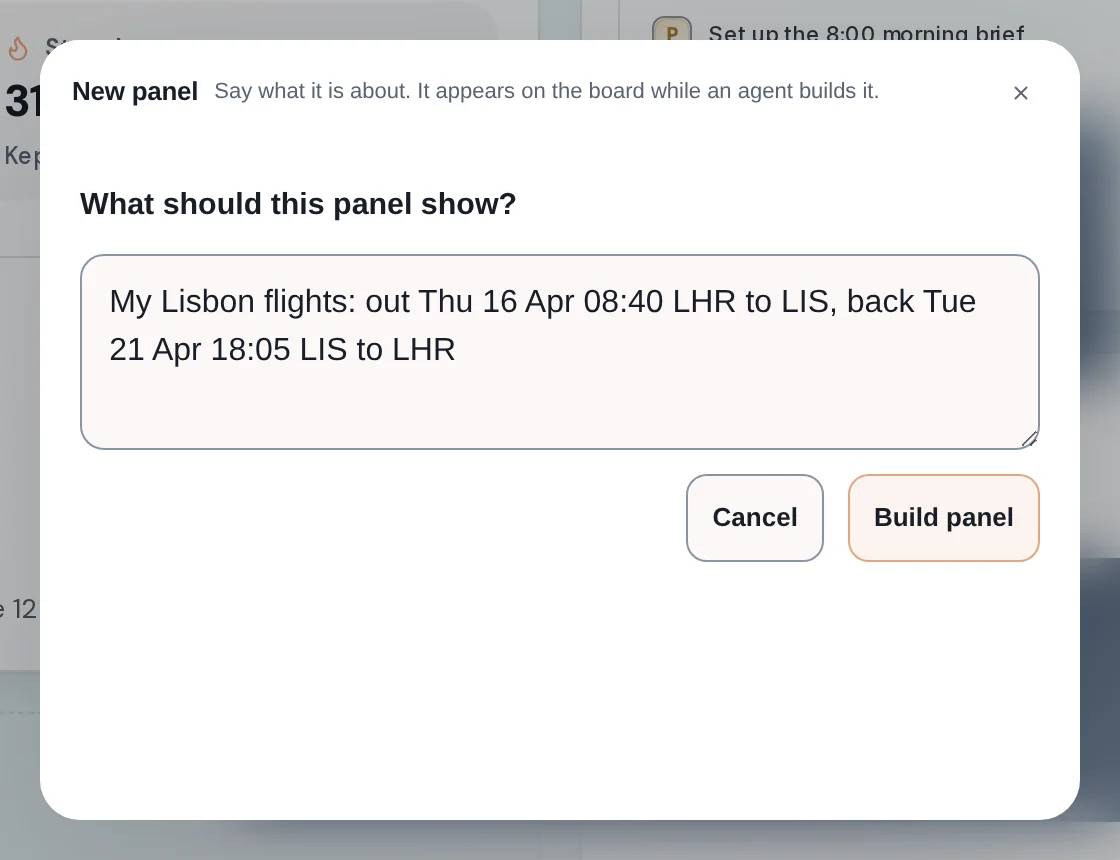 New panel windowOne question: what should this panel show? Answer in plain words and press Build panel. An agent builds it for you.Opens from Create a new panel
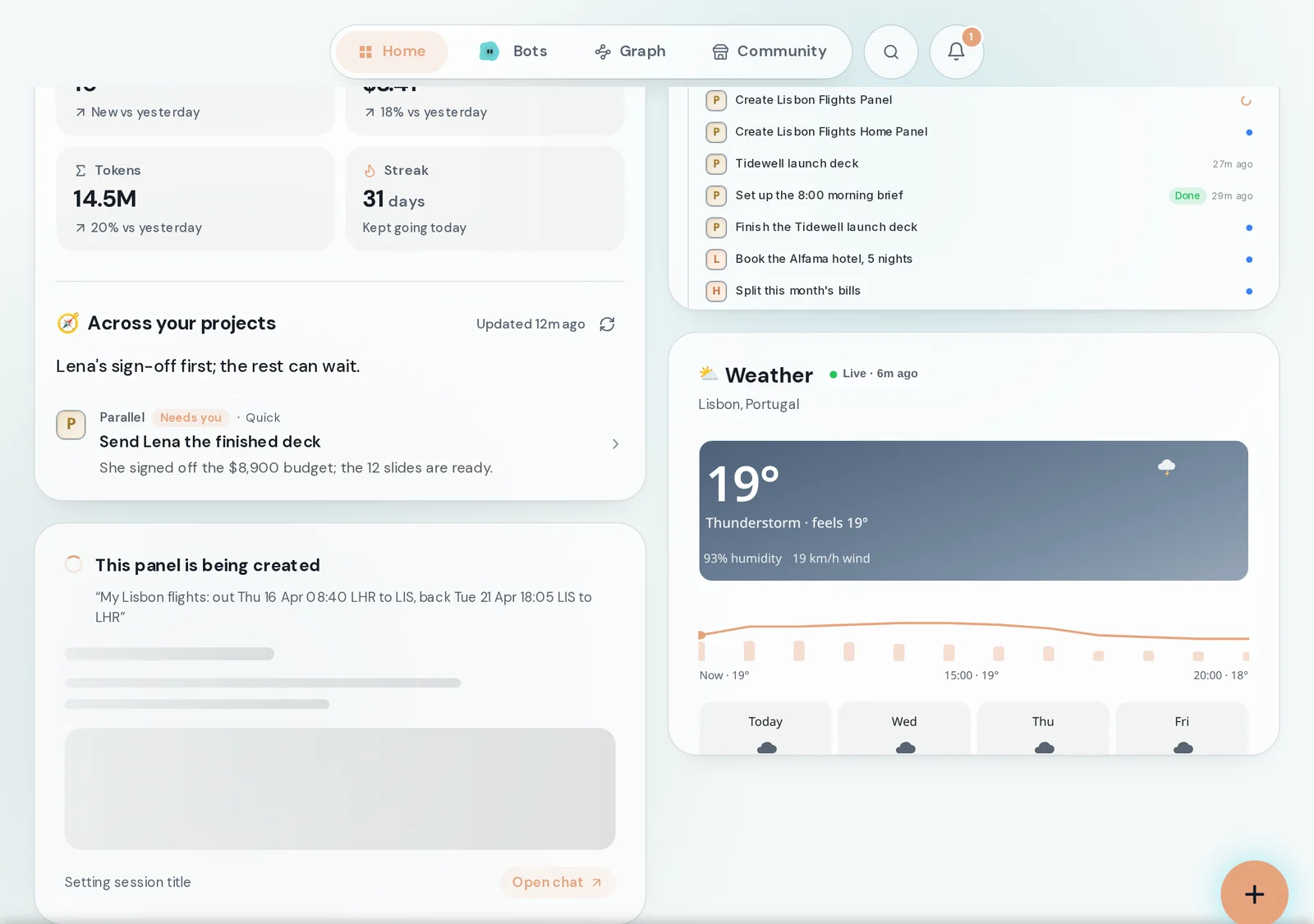
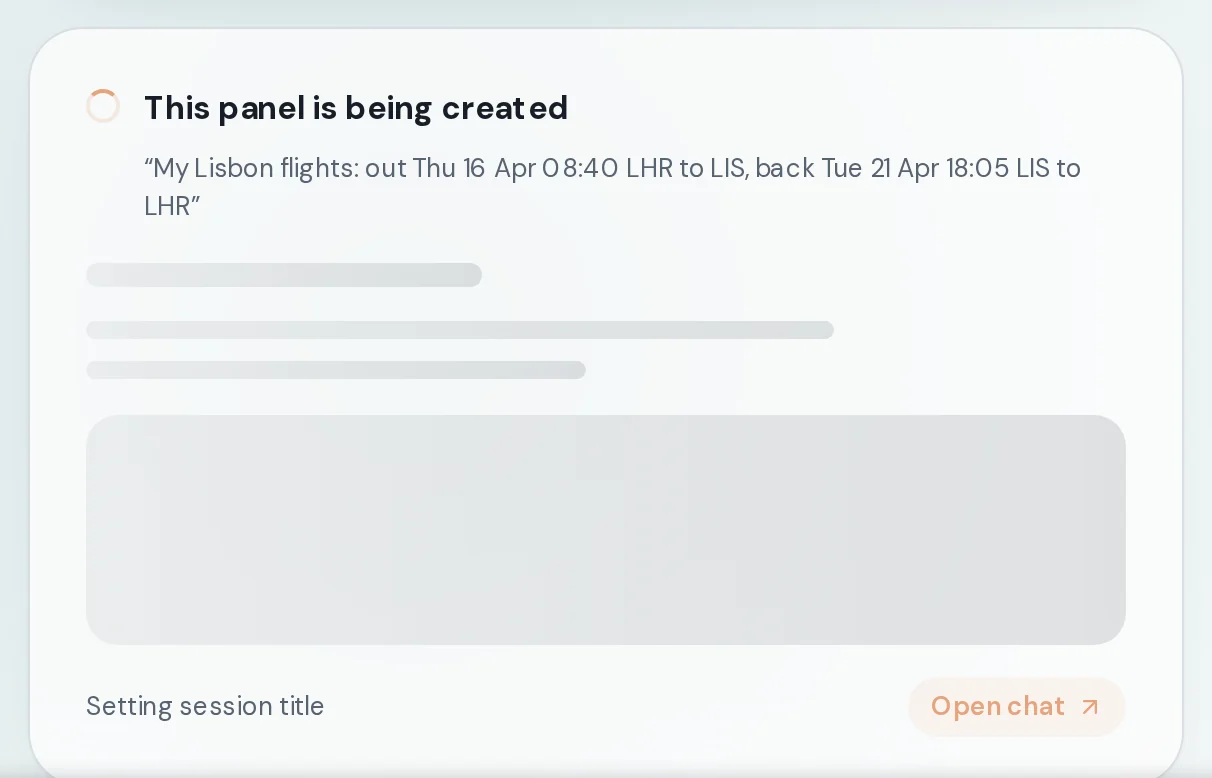 Being createdWhile the agent works, a placeholder sits where the panel will be. Open chat shows the agent building it.On the board, where the panel will appear
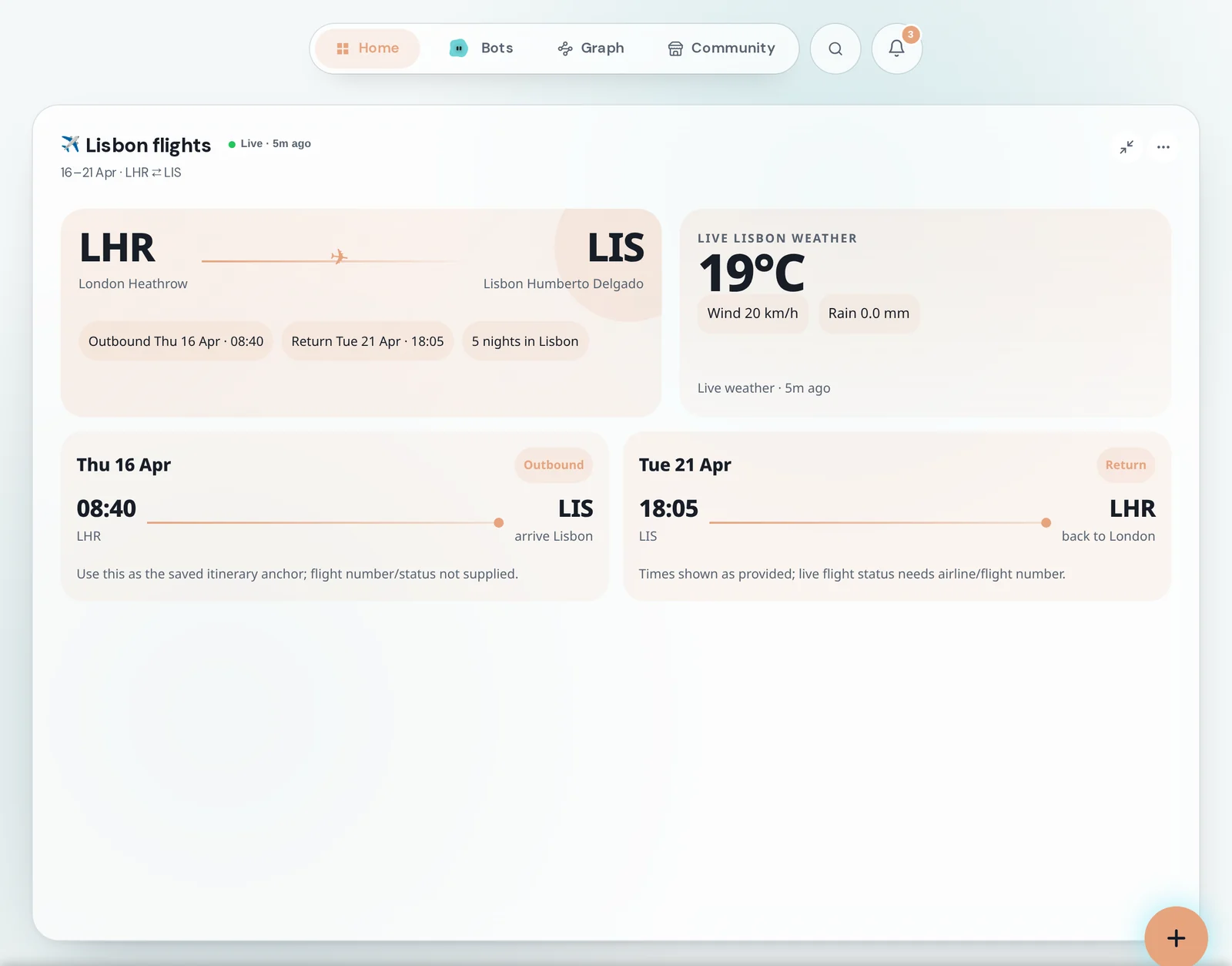
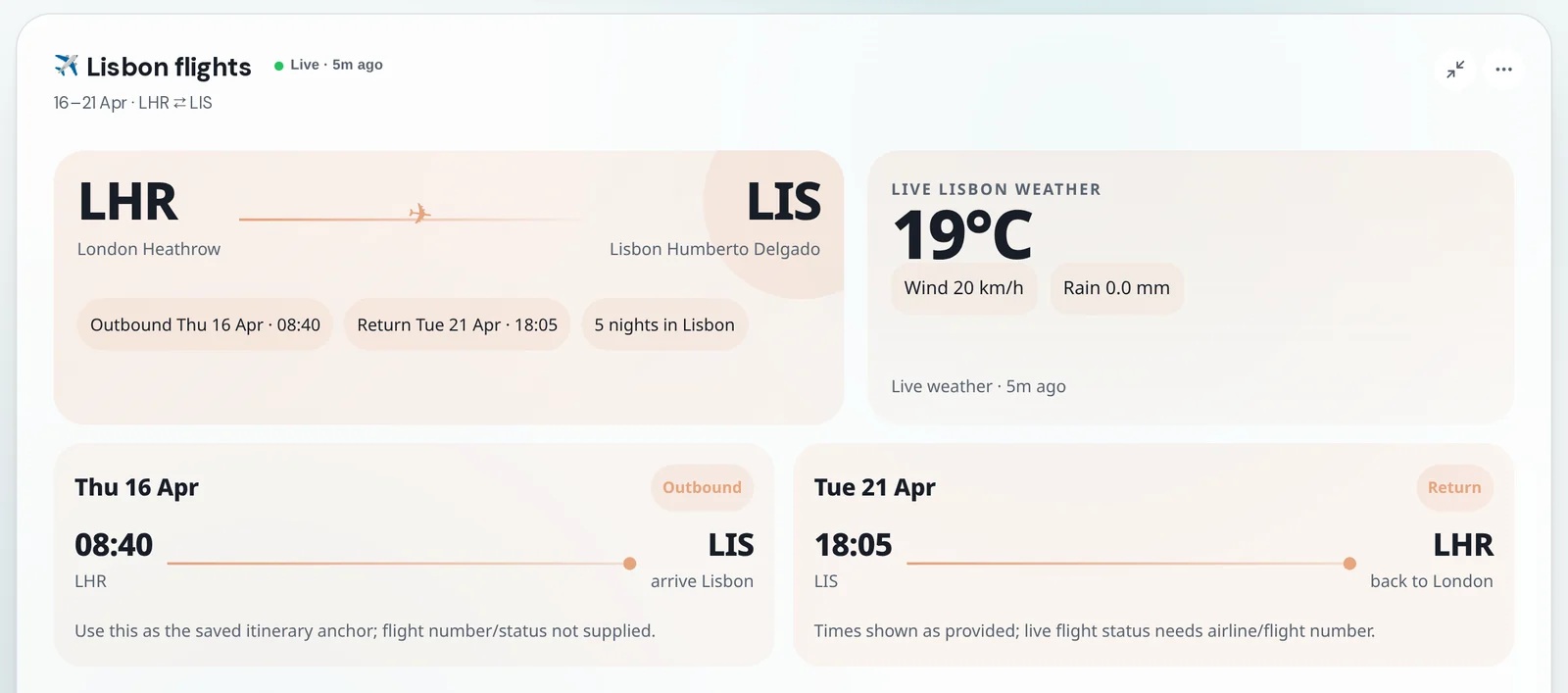 The finished panelThe panel the agent built from one sentence. It took the flight times from the request and added live weather for the destination.On Home
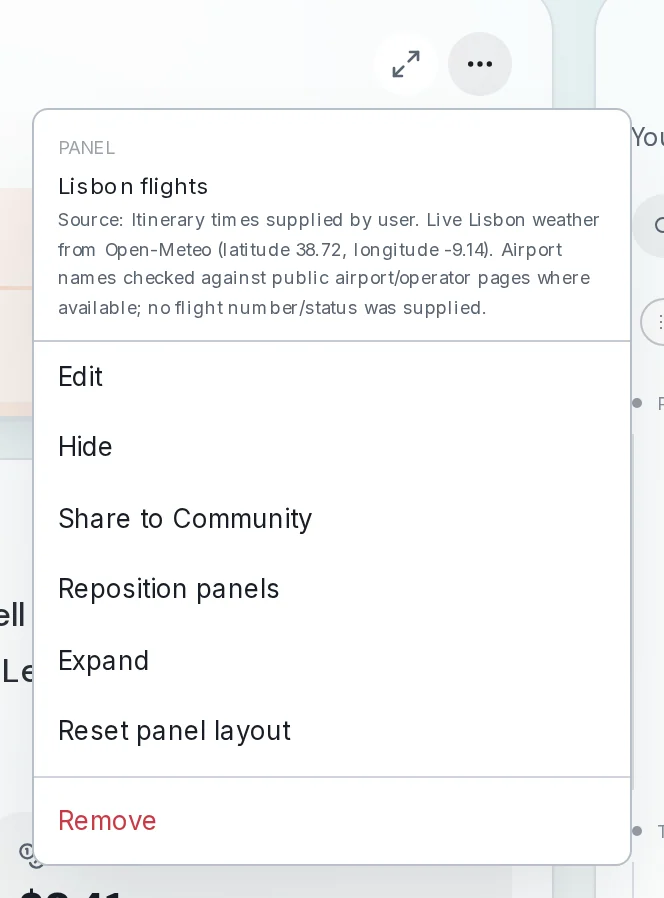 Panel menuEdit asks an agent to change the panel. Hide and Remove take it off the board. Reposition panels lets you drag panels around. Share to Community offers it to others.The three dots at the top right of a panel
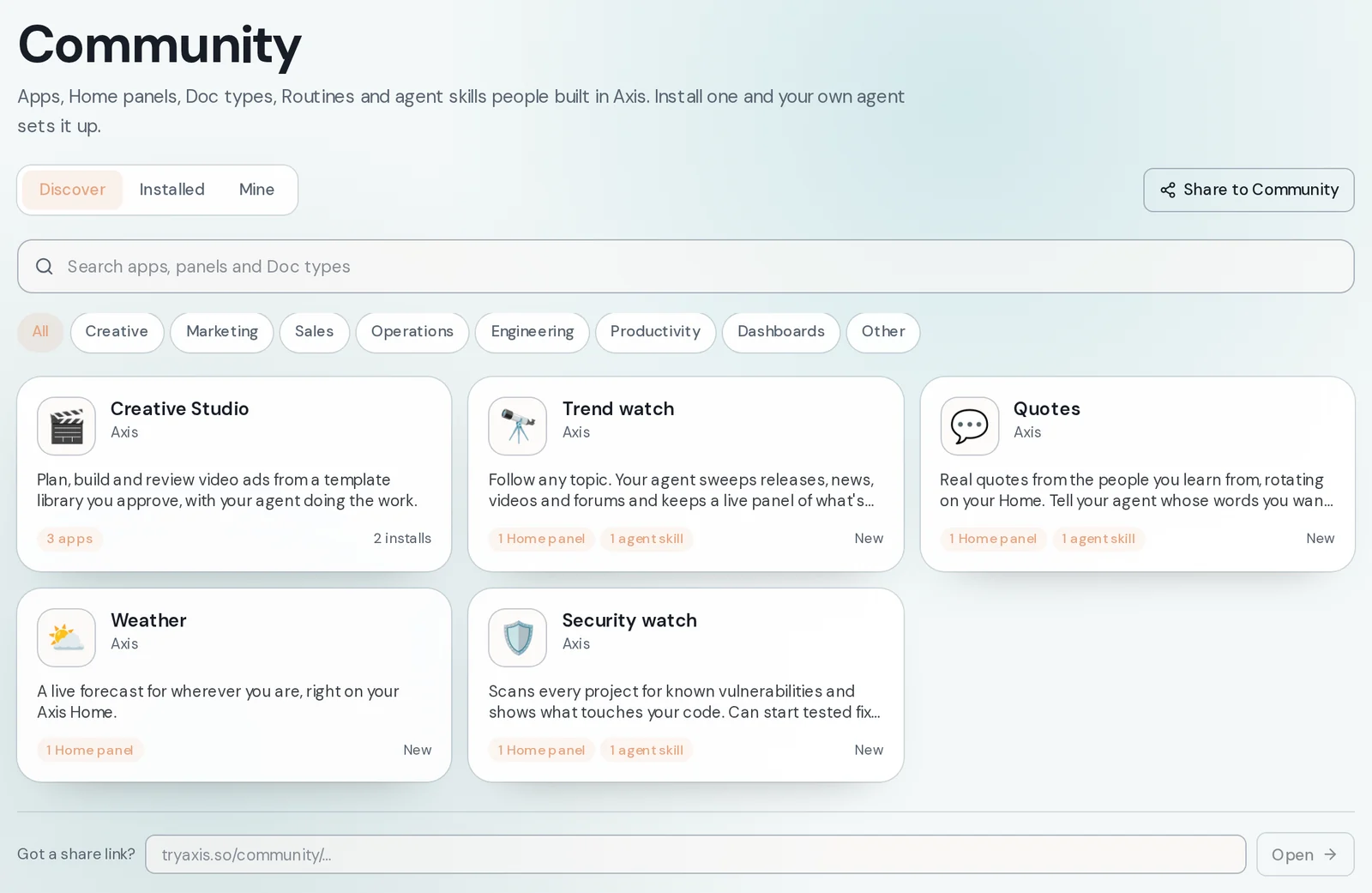 CommunityReady-made panels, apps and more that people built in Axis. A listing marked "Home panel" adds a panel to your Home.Top of Home → Community
How to do it
Section titled “How to do it”Step 1: Open Home
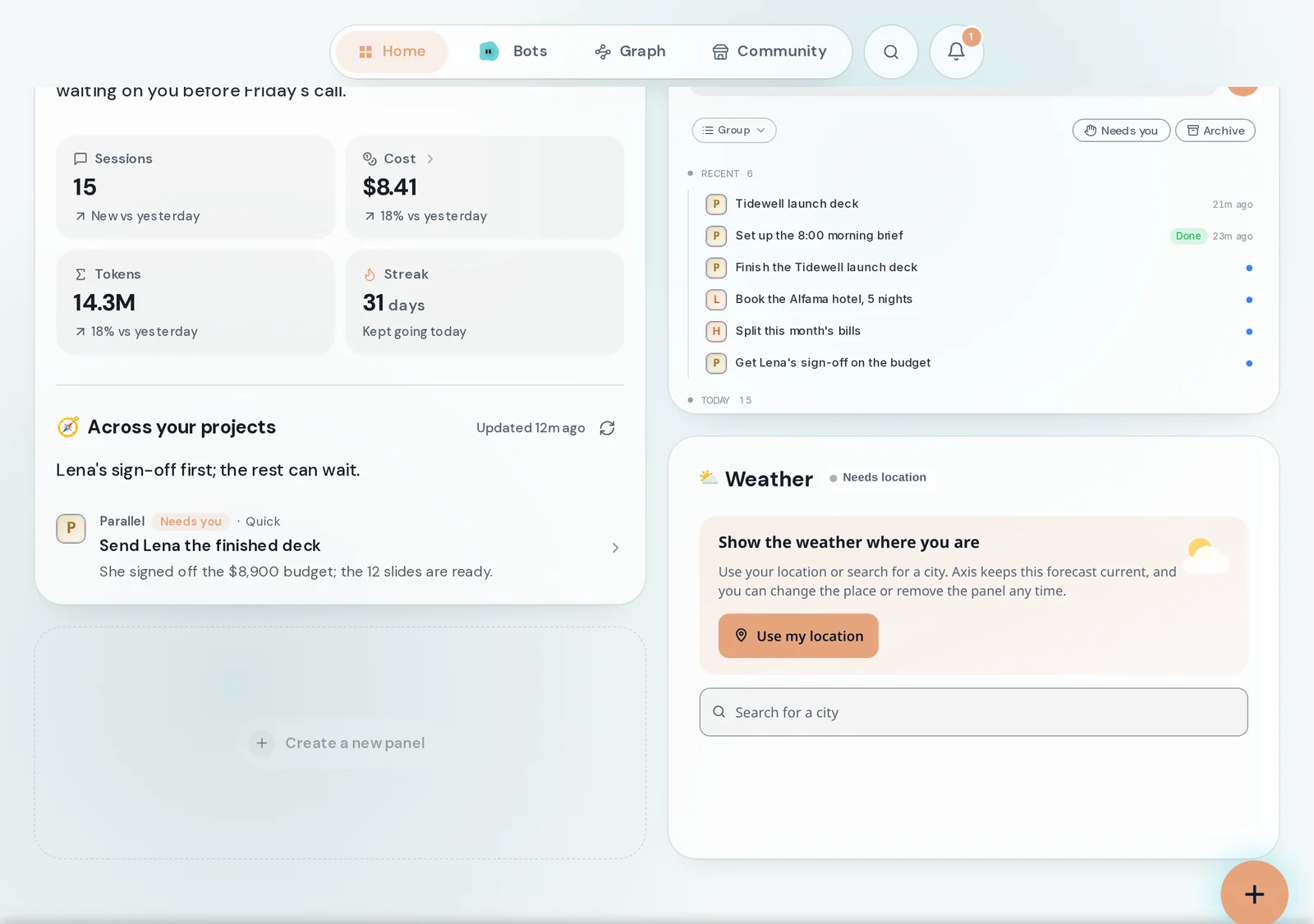
Home starts with the daily brief, your sessions and a Weather panel. Any free spot shows Create a new panel.
Step 2: Tell Weather where you are
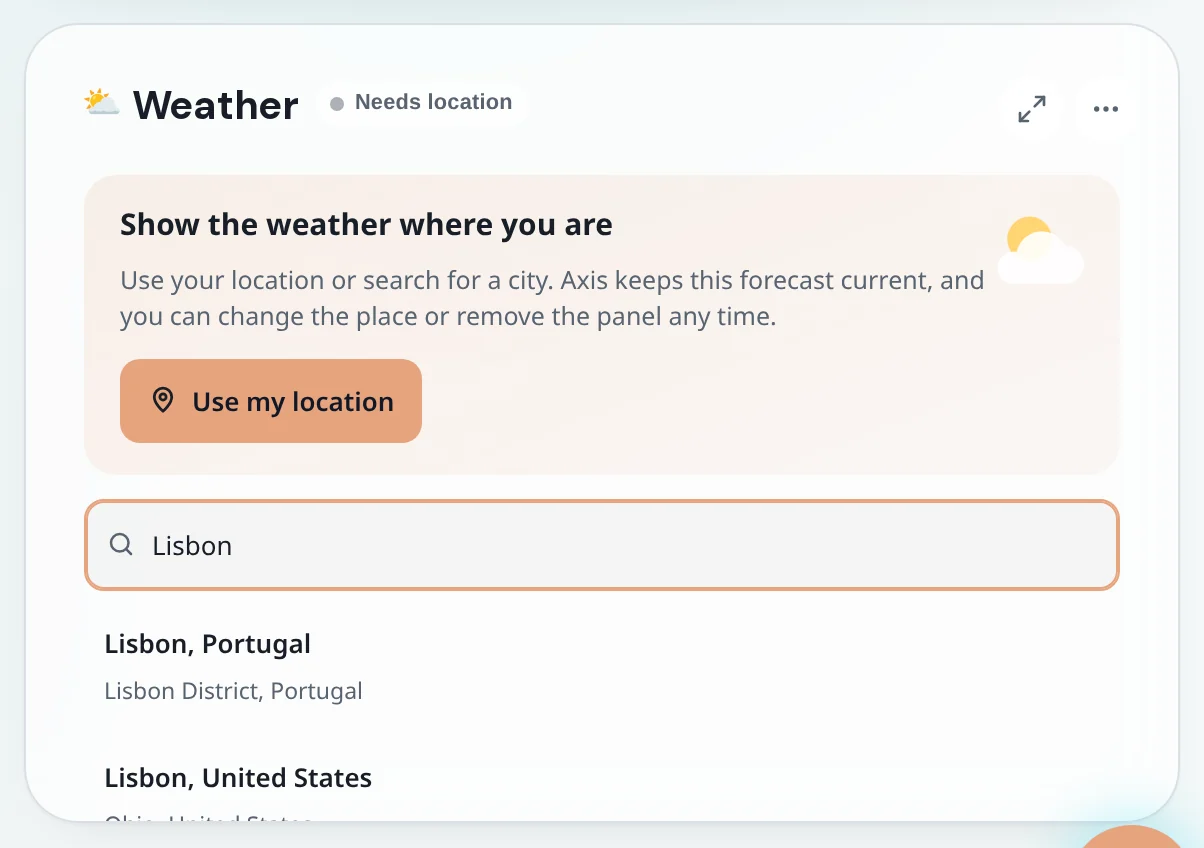
In the Weather panel press Use my location, or type a city in Search for a city and pick it. The forecast appears and stays current.
Step 3: Add a ready-made panel
Click Community at the top, open a listing that says "Home panel", such as Quotes or Trend watch, and press Install. Axis first shows what the panel can reach, then asks where to put it.
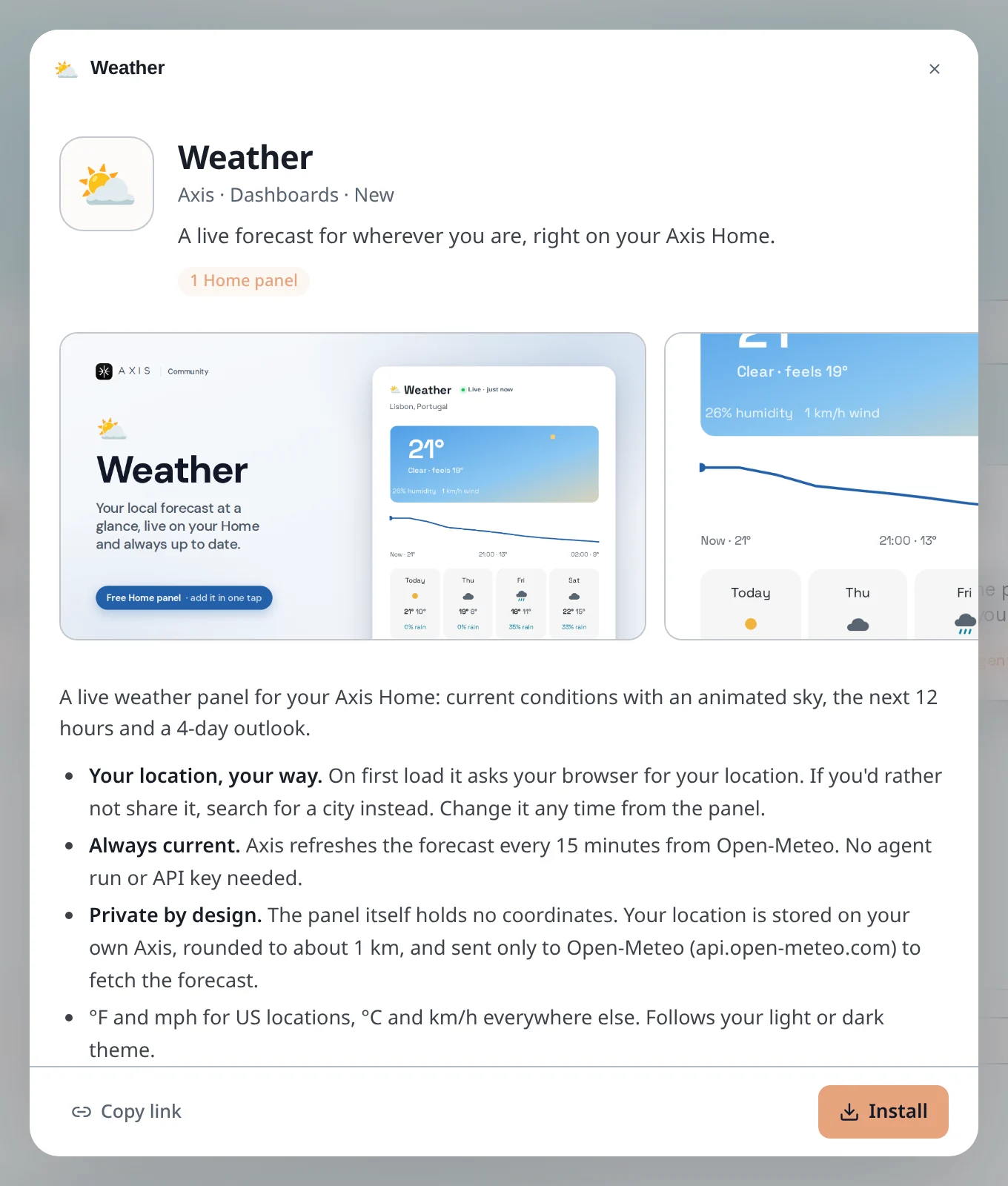
Installing needs an Axis account. Anyone can look at a listing without one.
Step 4: Ask for a panel of your own
Back on Home, click Create a new panel. Say what it should show, for example "My Lisbon flights: out Thu 16 Apr 08:40 LHR to LIS, back Tue 21 Apr 18:05 LIS to LHR". Press Build panel.
Step 5: Watch it arrive
A placeholder reading "This panel is being created" appears in that spot while an agent builds the panel. When it is ready the panel takes its place.
Step 6: Make the board yours
Open a panel's three dots. Expand makes it large, Reposition panels lets you drag panels where you want them (press Done when finished), and Edit changes what it shows.
- To change a panel, open its menu, press Edit and say what should change. An agent updates it.
- Hide takes a panel off the board without deleting it. Hidden panels are offered again when you create a new one.
- Built a panel you like? Share to Community lets other people install it.