
Bring the tools you already use
Connect Gmail, Slack, Notion, GitHub, Stripe and more, once. From then on you just ask, and your agent reads from them and updates them for you.
- Where
- The Connect card in a chat, or Settings → Connections
- You'll need
- A key or token from the tool you want to connect
- Works on
- Web, Mac, Windows, iPhone, Android
What you’ll see
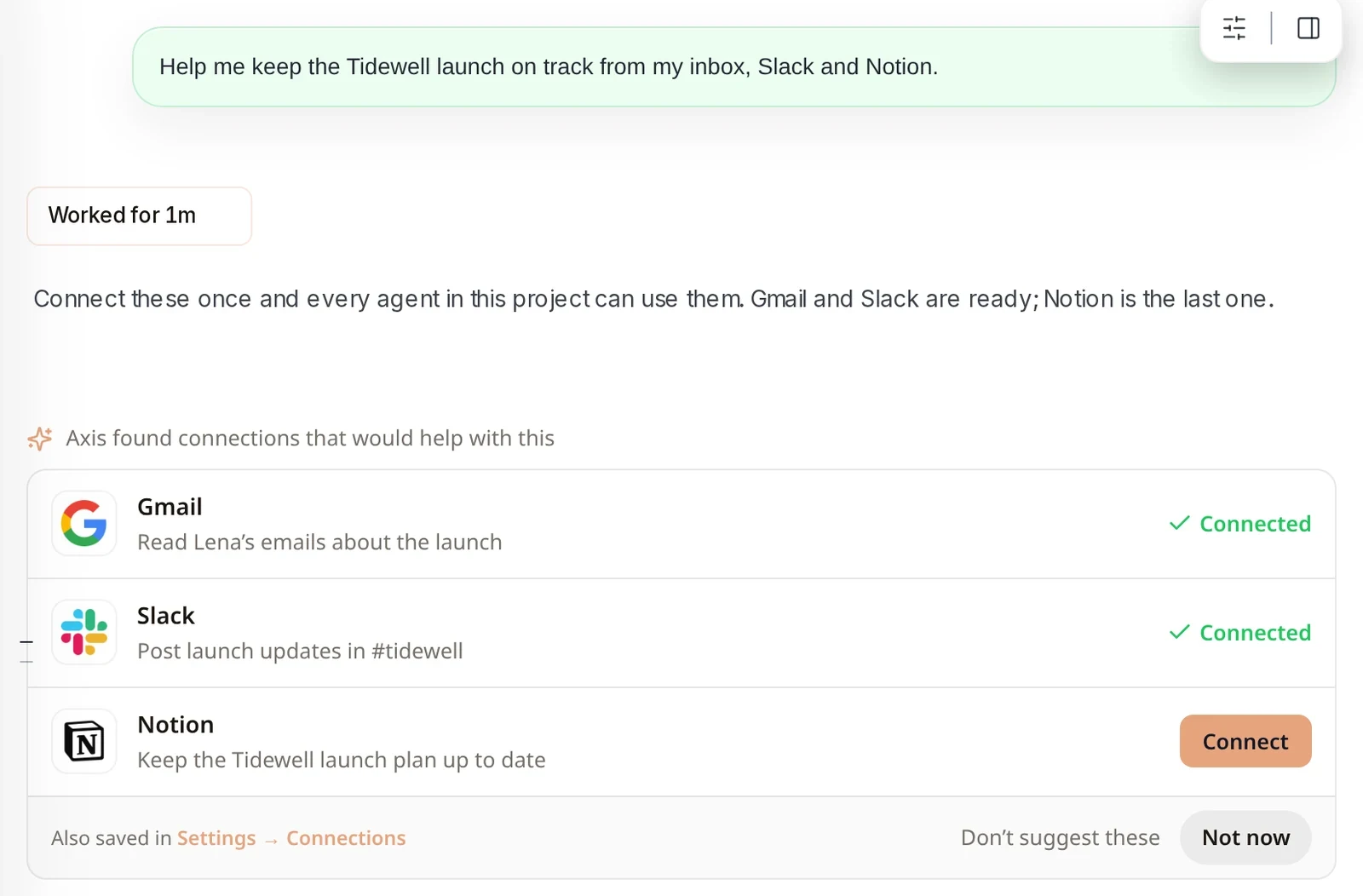
Section titled “What you’ll see”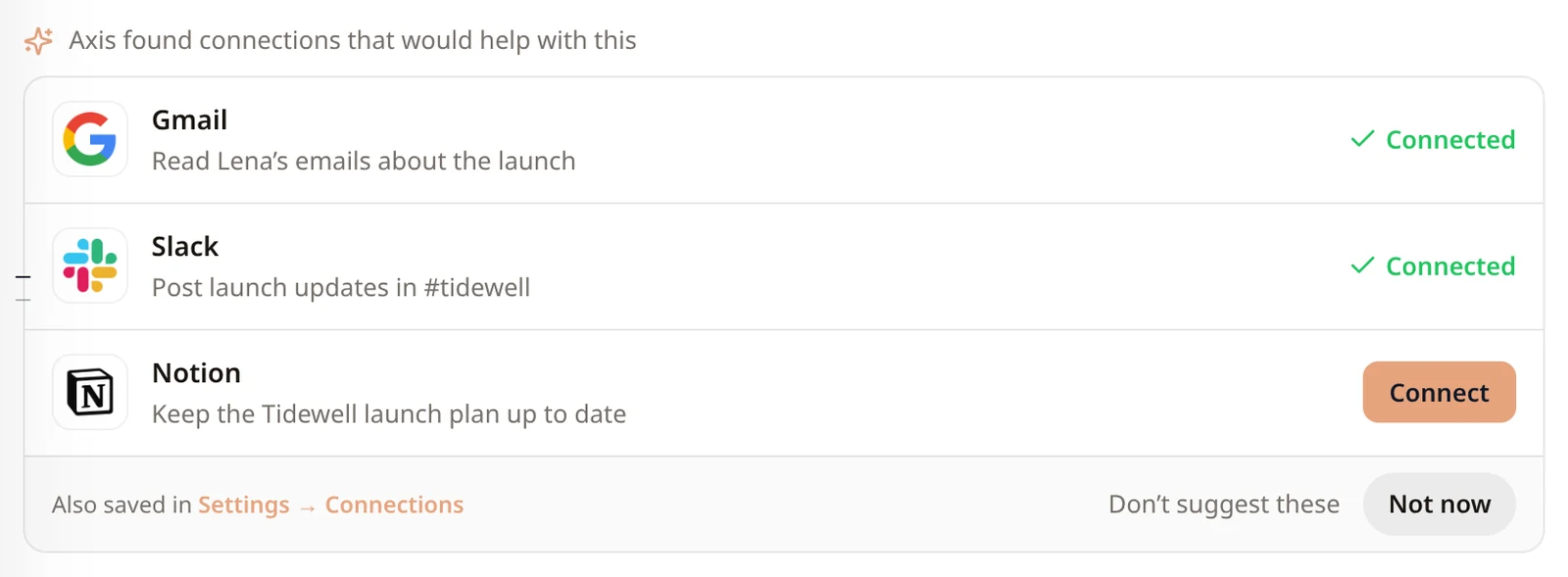 Connect cardWhen a job needs a tool, Axis shows this card in the chat. Tools you already connected show Connected. The others have a Connect button.In the chat, when an agent needs a tool
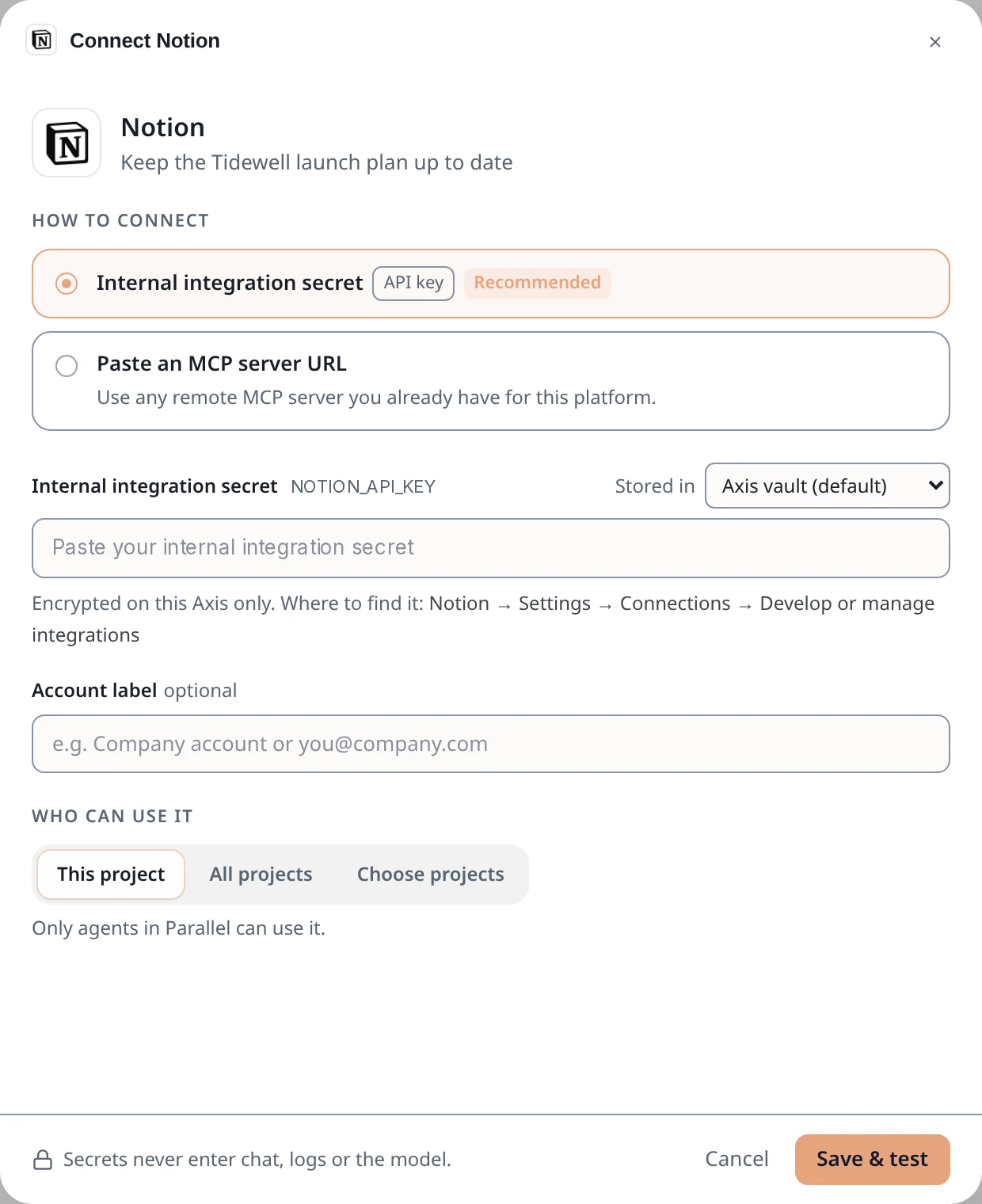 Connect windowOne small form per tool. It tells you which key it needs and where to find it in that tool. What you paste shows as dots.Click Connect on the card
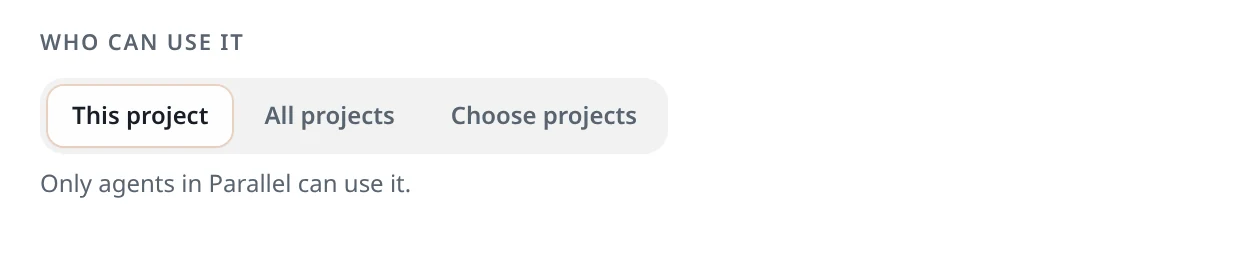 Who can use itDecide which projects may use this connection: only this one, all of them, or the ones you pick.At the bottom of the Connect window
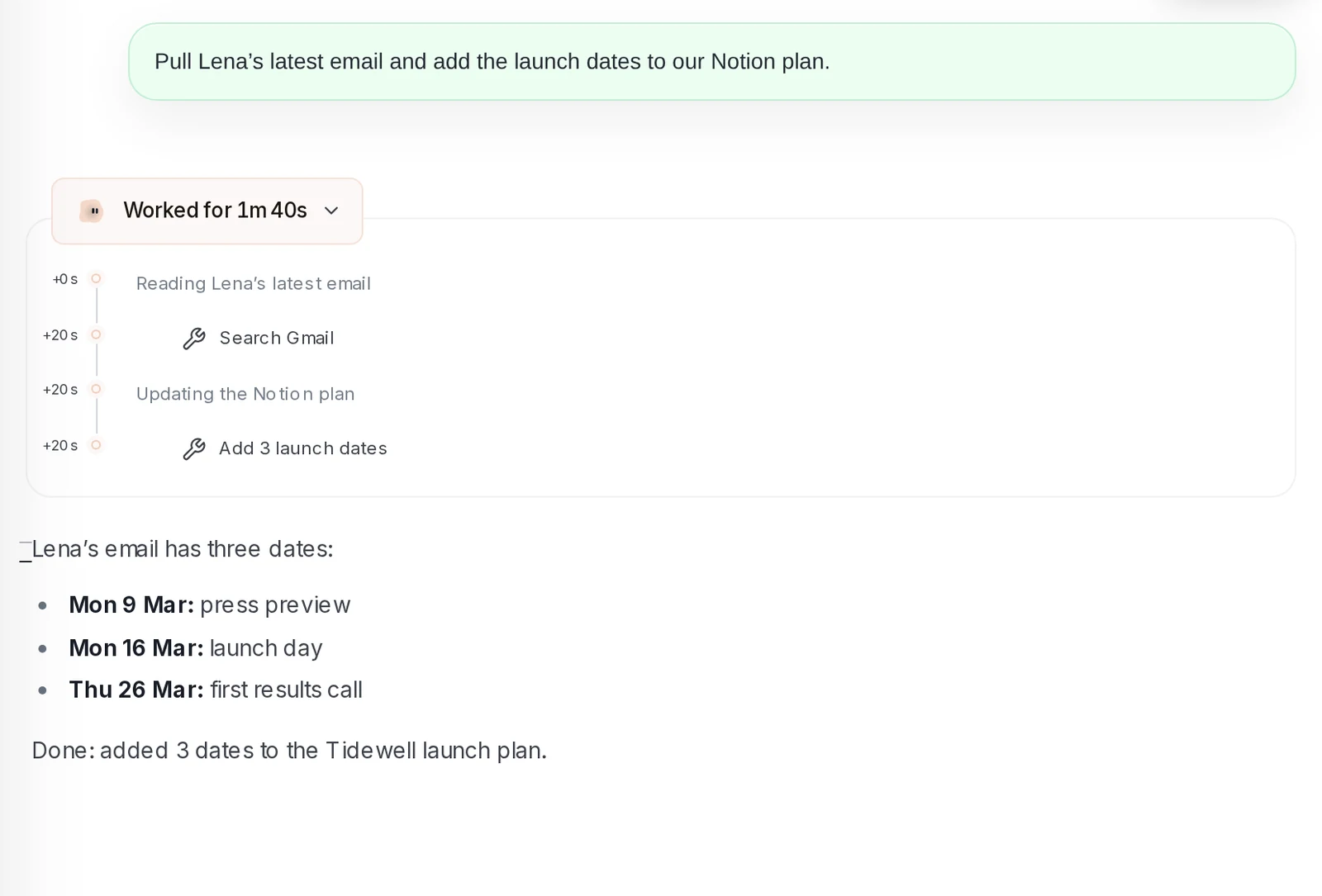 Your agent using a toolOnce a tool is connected you just ask. The chat shows each step, like Search Gmail, and then the answer.Any chat in a project that may use the connection
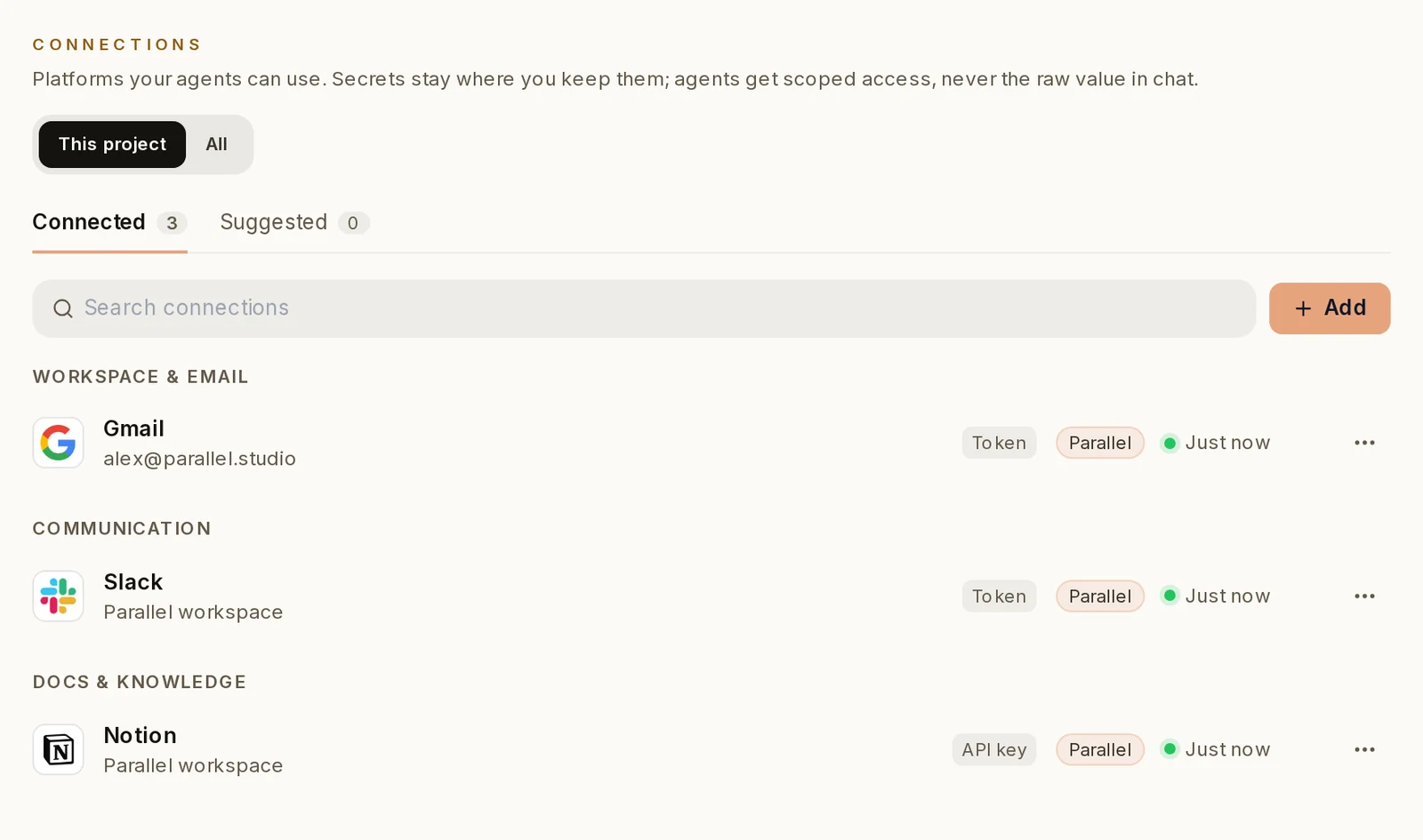 Settings → ConnectionsEvery tool you have connected, with how it connects, which projects can use it and when it was last checked. Add, change or remove one here.Settings → Connections
How to do it
Section titled “How to do it”Step 1: Ask for something that needs your tools
In a chat, say what you want, for example "Help me keep the Tidewell launch on track from my inbox, Slack and Notion." Axis shows a card with the tools that would help.
Step 2: Click Connect and paste the key
Click Connect next to a tool. In the window, paste the key or token it asks for. The line under the box says where to find it in that tool.
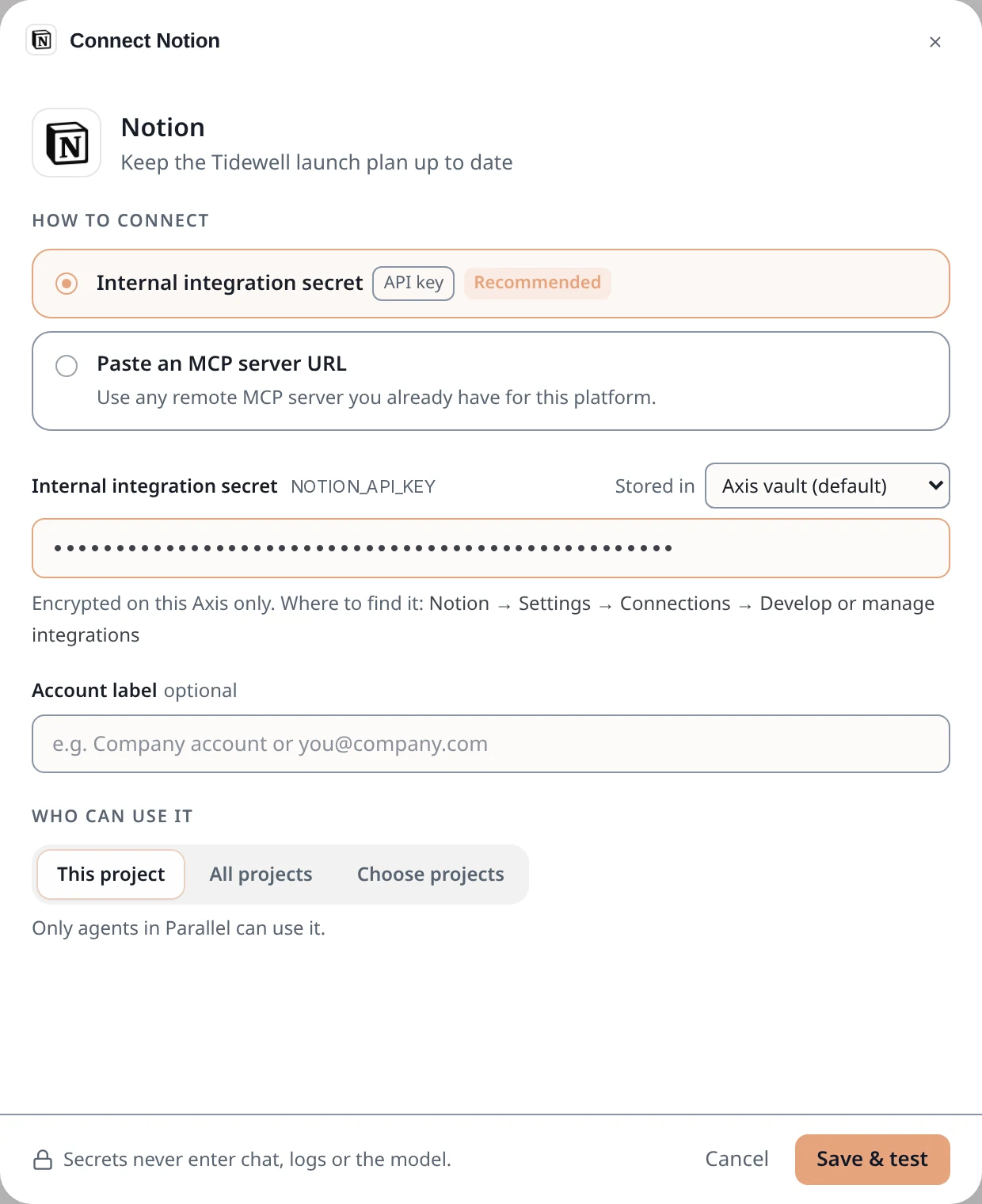
Secrets never enter chat, logs or the model. The window says so at the bottom.
Step 3: Save and test
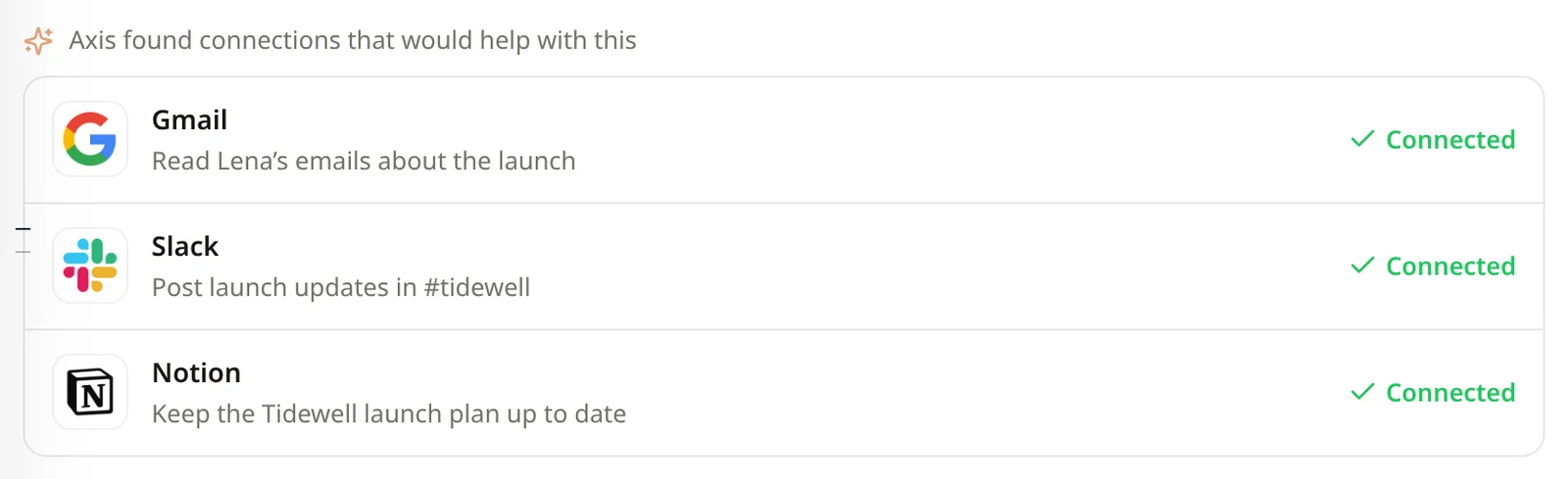
Choose Who can use it, then click Save & test. Axis checks that the key works. Back in the chat, the tool now reads Connected.
Step 4: Just ask
Now ask in plain words, for example "Pull Lena’s latest email and add the launch dates to our Notion plan." Your agent reads from one tool and updates the other.

Step 5: Add or change a connection yourself
Open Settings, then Connections. Click Add, type the tool’s name and website, choose how to connect and paste the key. Click Save & test.
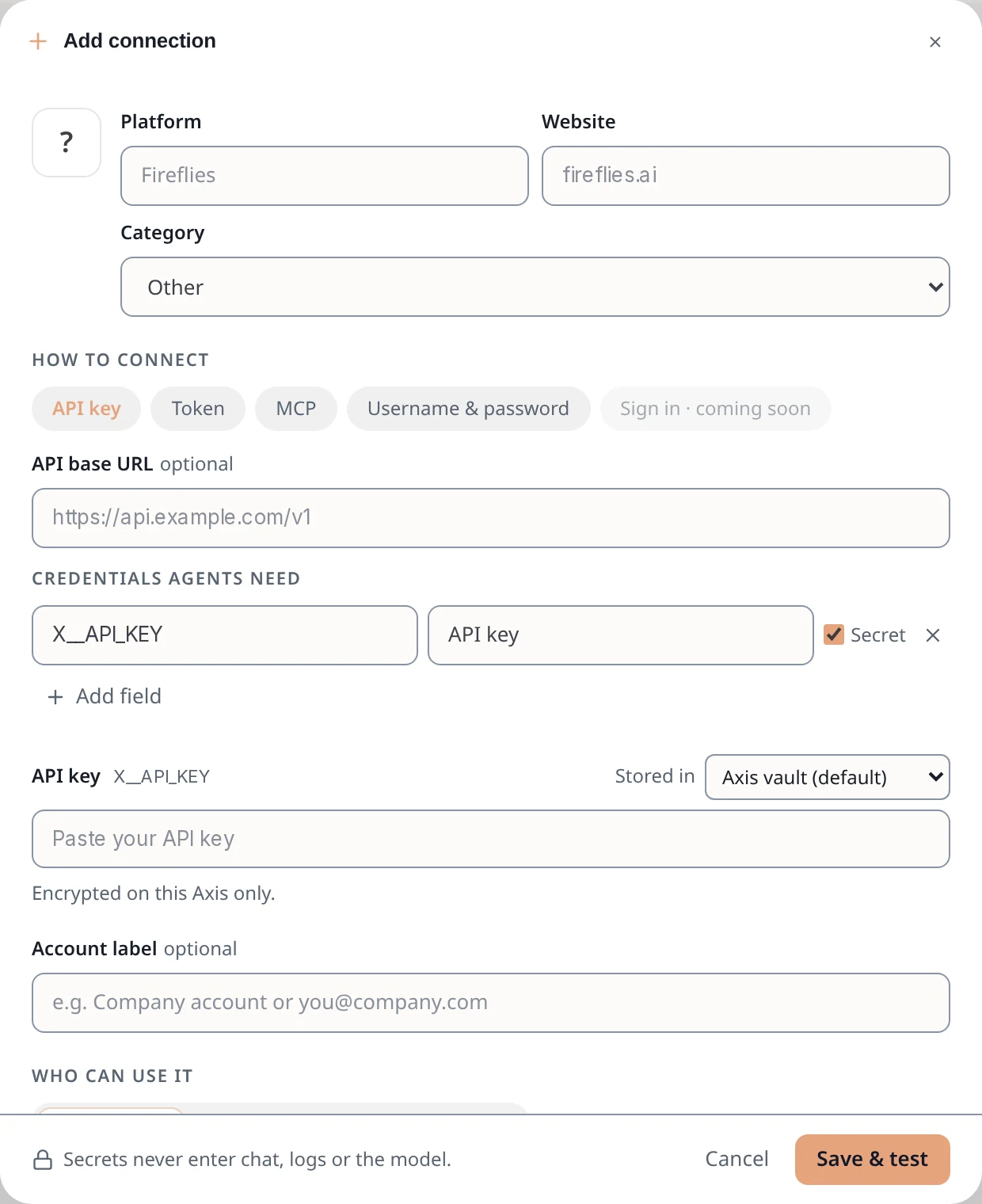
- Today you connect with an API key, a token, a username and password, or an MCP server address. One-click sign-in is marked coming soon.
- Stored in lets you keep the key in the Axis vault (the default) or point Axis at where you already keep it, such as a 1Password reference.
- Not ready? Click Not now on the card. Don’t suggest these stops Axis offering those tools again.
- A connection is set up once. Every agent in the projects you allowed can use it from then on.