
Hand off the big jobs
Type what you need in one sentence, the way you would brief a colleague. Axis researches, writes and builds it for you, and shows each step as it goes.
- Where
- The + button next to the search box → Session
- You'll need
- Nothing extra
- Works on
- Web, Mac, Windows, iPhone, Android
What you’ll see
Section titled “What you’ll see”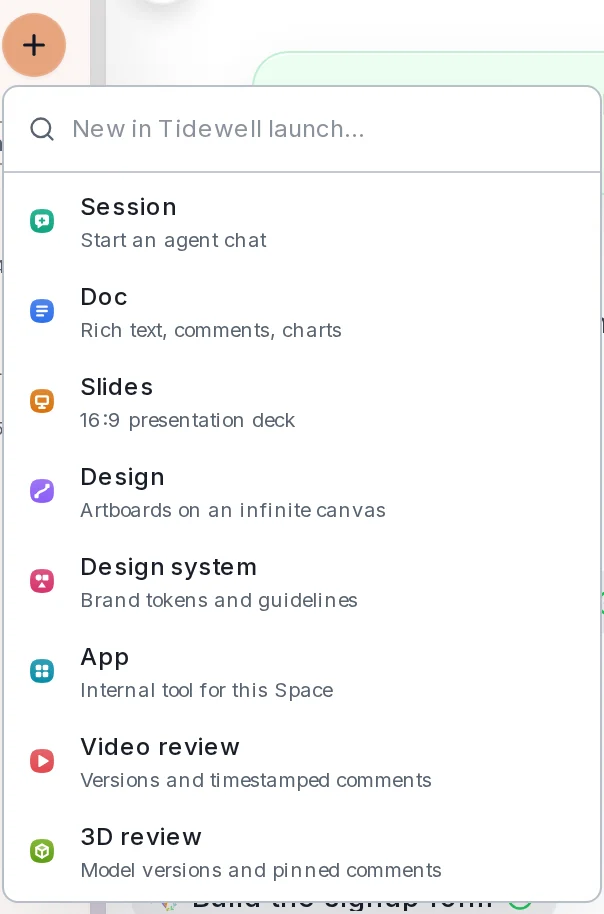 The + buttonOpens a short list of things you can start. Session starts a new chat with your agent.Next to the search box, above your chats
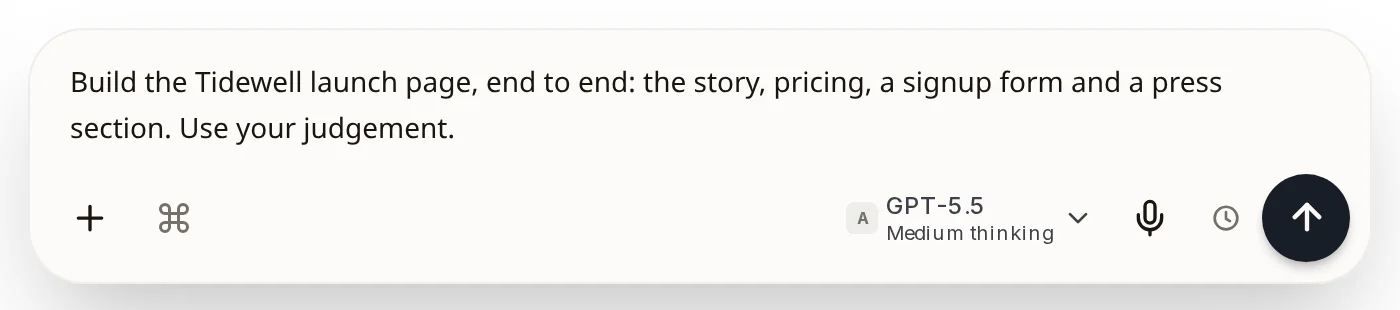 Message boxType the job here in plain words. The dark arrow sends it. While Axis works, the arrow becomes a square Stop button.At the bottom of every chat
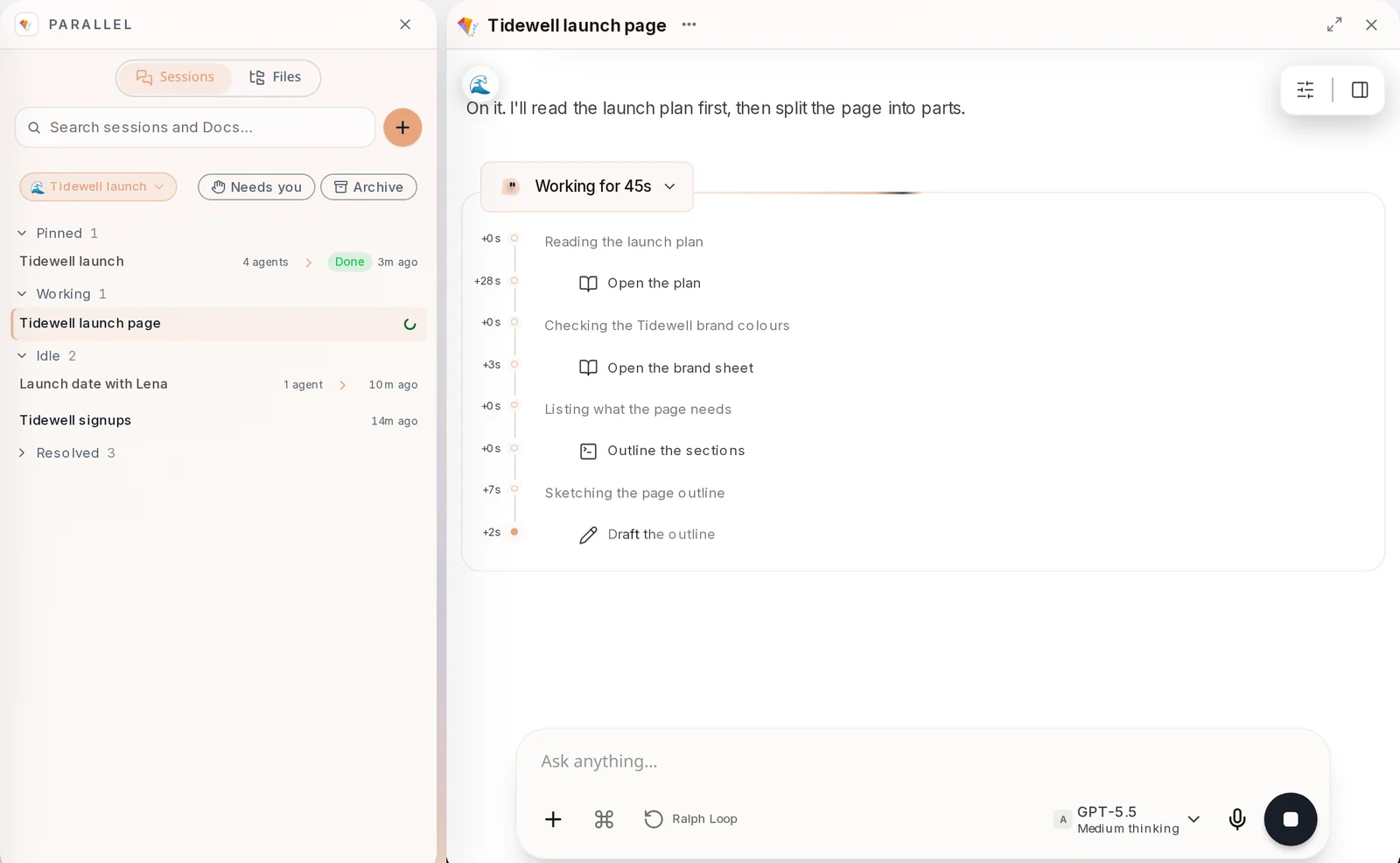
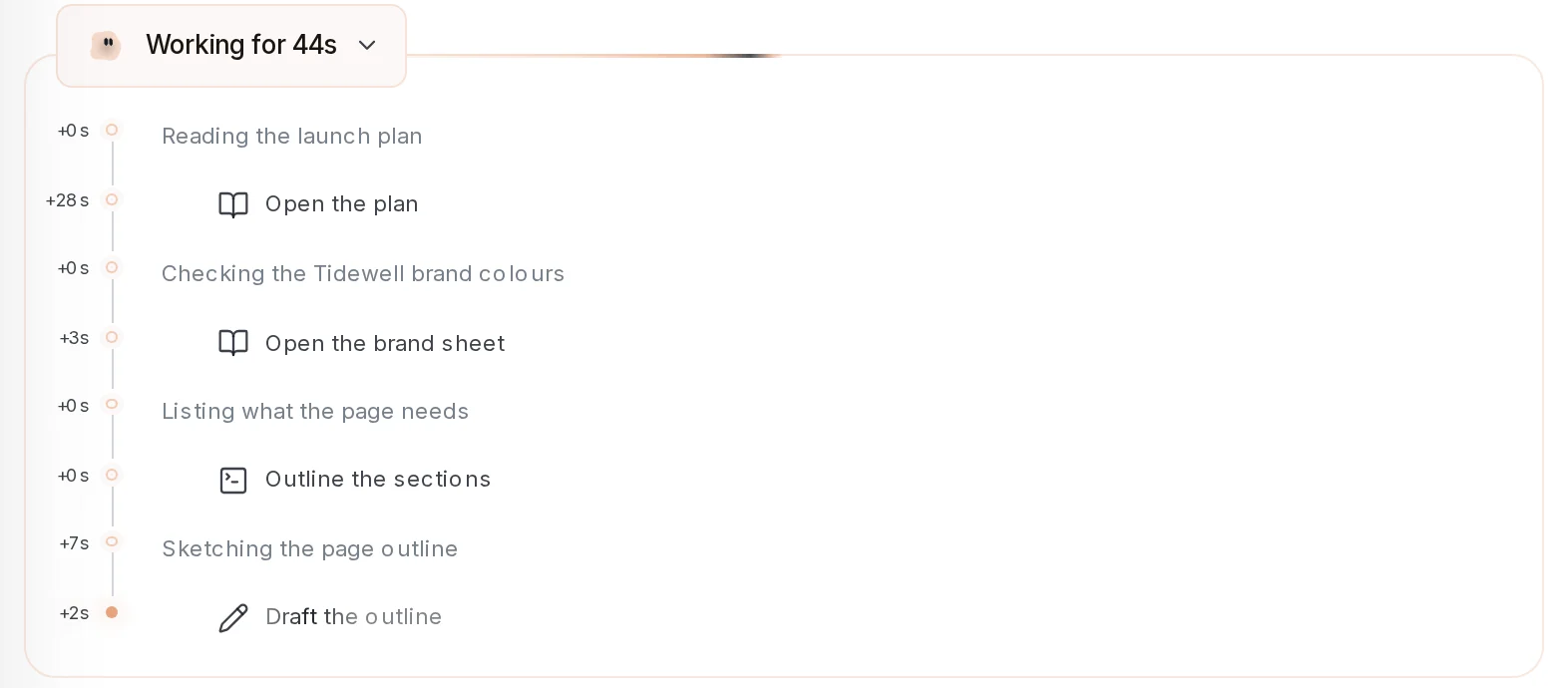 Working forCounts how long Axis has been working. Click it to see each step as it happens.In the chat, under your message, while Axis works
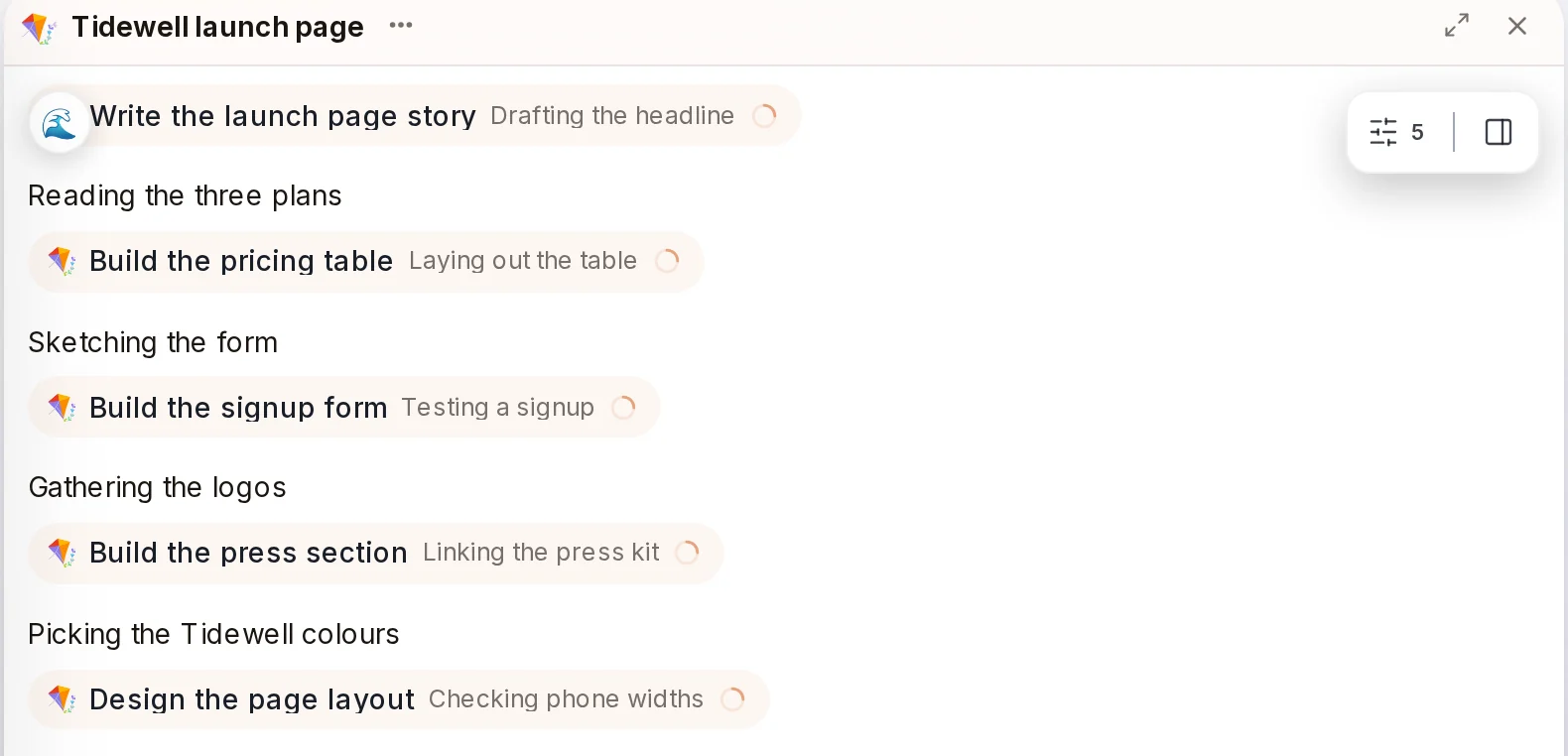 Helper cardsFor a big job Axis starts helpers, one for each part. A card shows the helper’s name and what it is doing. It gets a green tick when that part is done.In the chat, when a job is split into parts
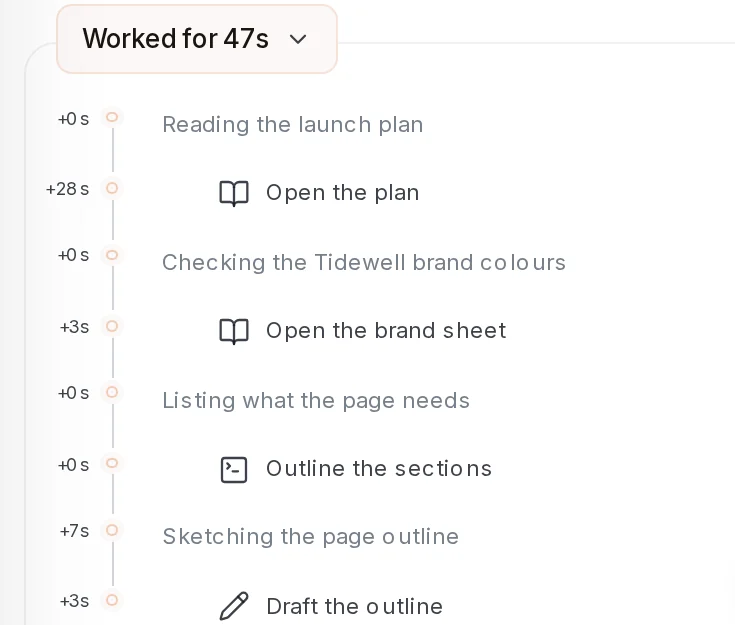 Worked forWhen a turn ends the label reads Worked for and the time. Click it to unfold every step Axis took.In the chat, above each finished answer
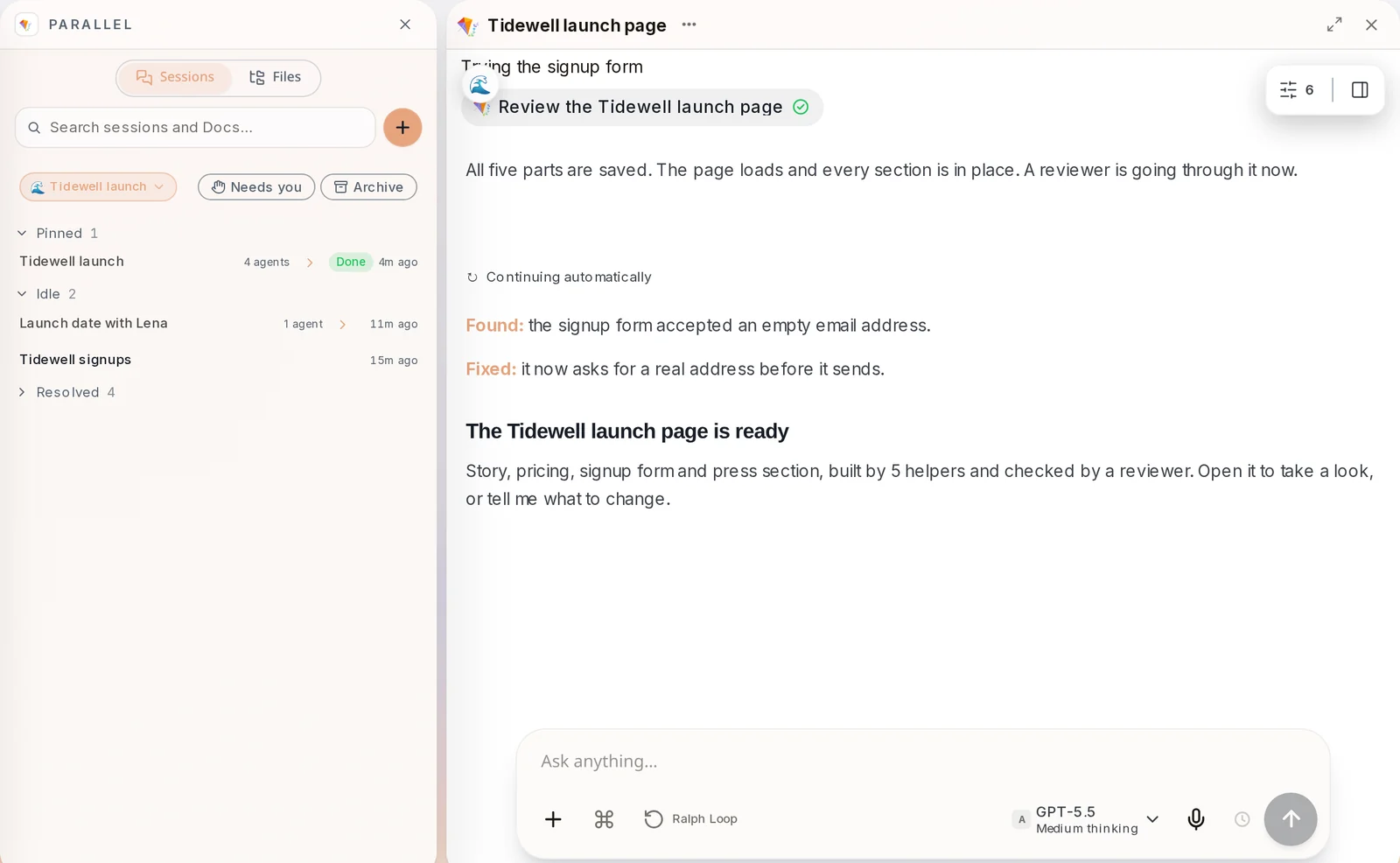
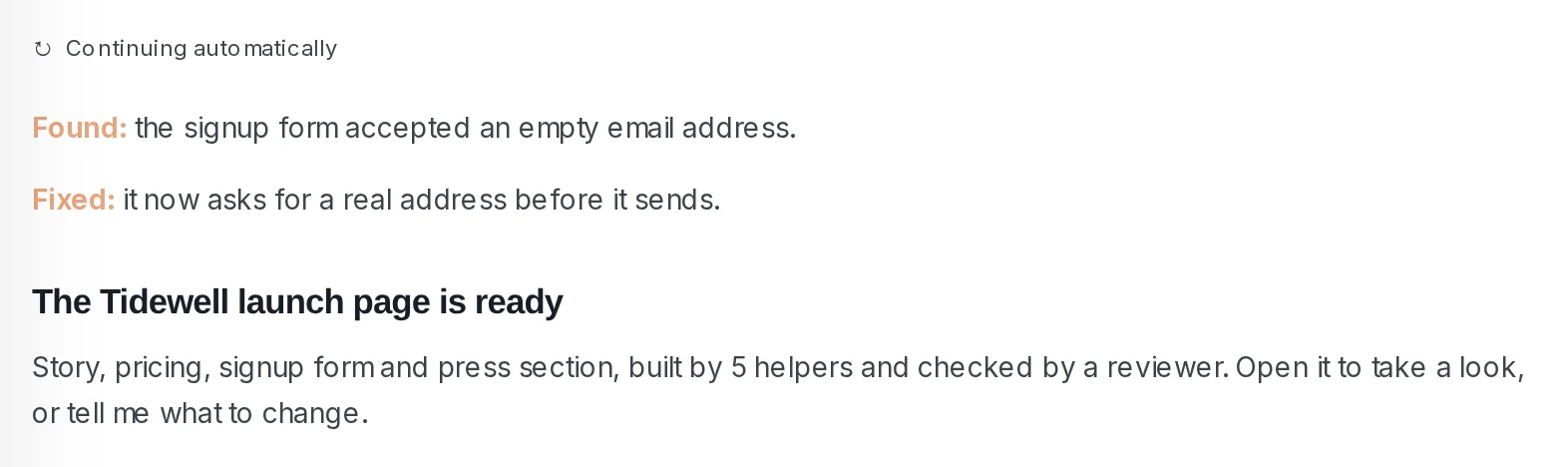 The resultThe answer says what was built, what was checked and what was fixed. Continuing automatically marks where the chat picked the work back up on its own.At the end of the chat
How to do it
Section titled “How to do it”Step 1: Start a new chat
Click + next to the search box and choose Session. An empty chat opens and asks What do you want to work on?
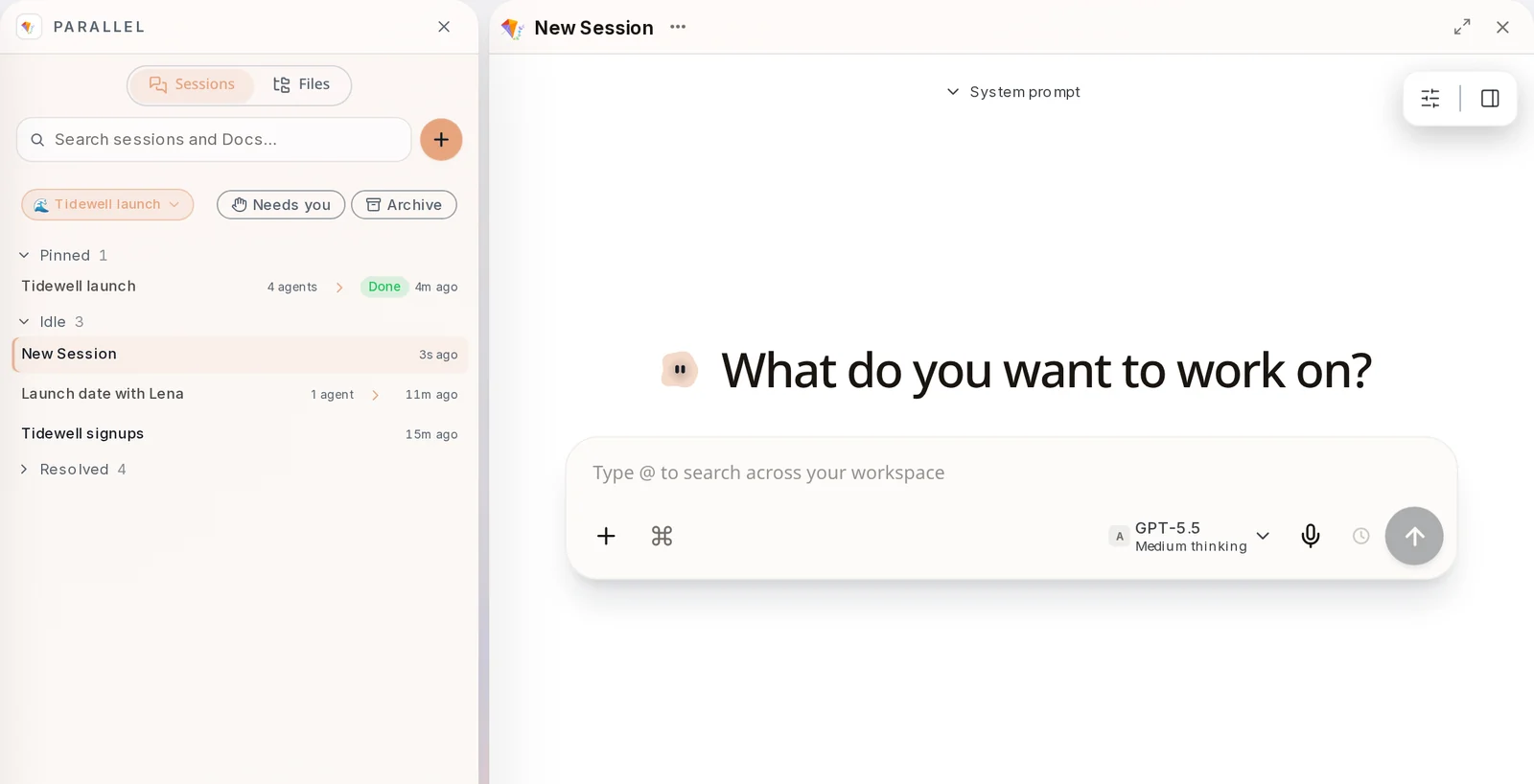
Step 2: Say what you need in one sentence
Type the job the way you would brief a colleague, for example "Build the Tidewell launch page, end to end: the story, pricing, a signup form and a press section. Use your judgement." Press Enter or click the arrow.
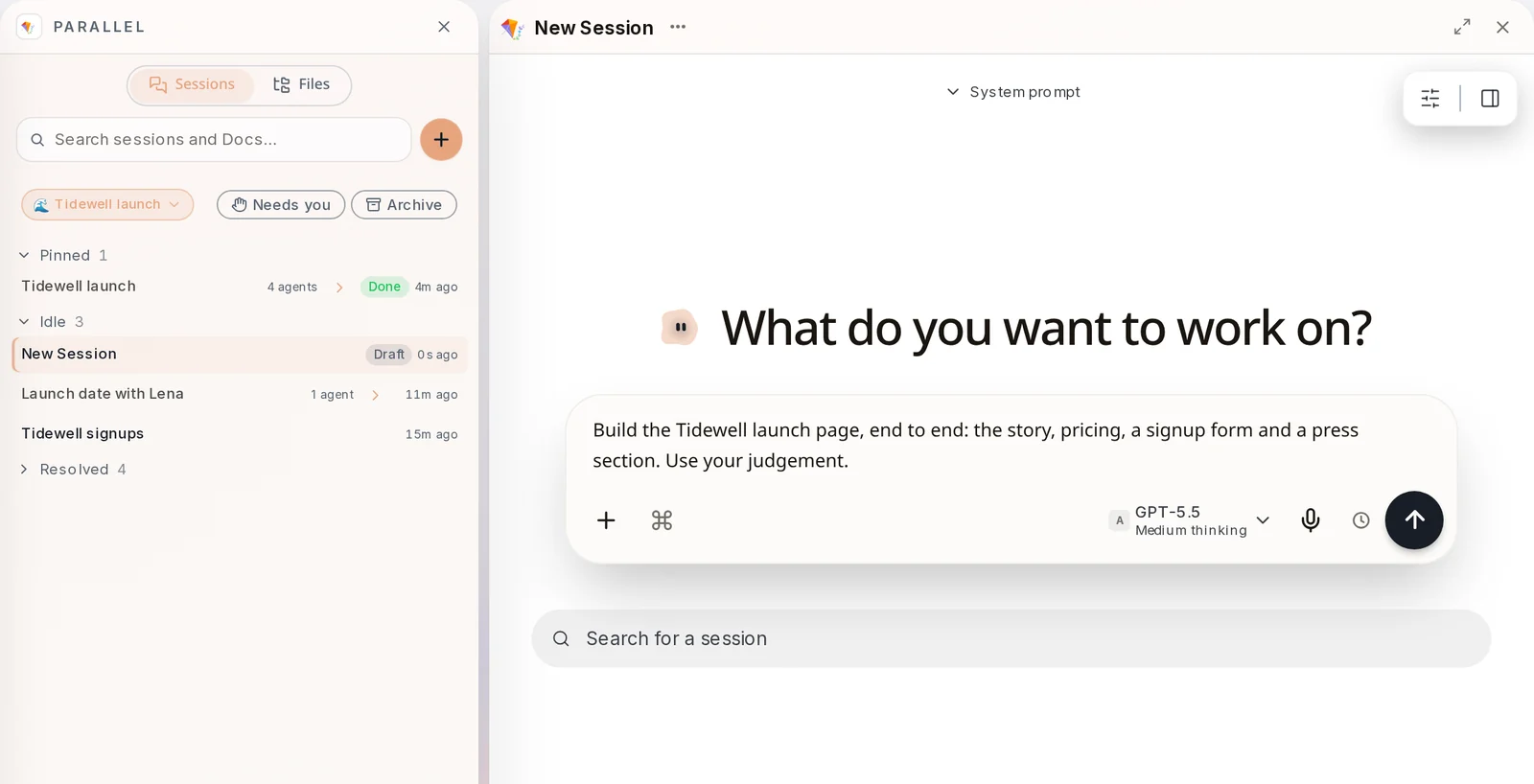
Step 3: Watch it work
Axis answers, then starts. A Working for label counts the time. Click it to see each step as it goes.
Step 4: Let it split the job
For a job with several parts, Axis starts helpers that work at the same time. Their cards show what each one is doing right now.
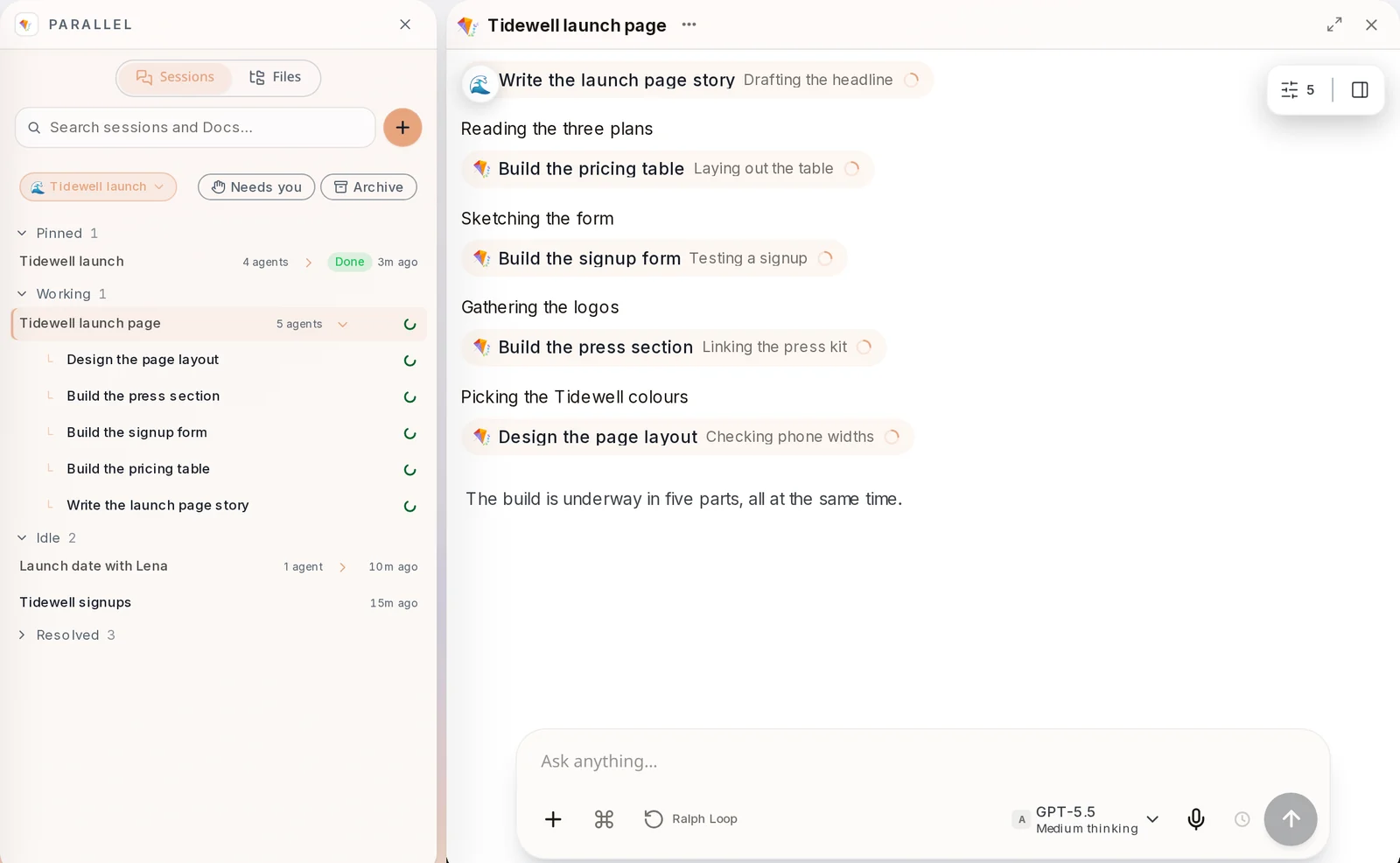
You do not have to manage the helpers. The chat checks their work when they finish.
Step 5: Read the result
When the work is checked, the chat tells you what it built and what it fixed. Reply in the same chat to change anything.
- Say what you want, who it is for and when you need it. That is usually enough.
- You can keep typing while Axis works. See Keep talking while it works.
- Click the square Stop button if you want it to stop.
- Every chat is saved. Come back later and carry on where you left off.